
DOWNLOAD
Windows
Install VPNclient, the free app from our VPN supplier, on a Windows 10 or Windows 11 PC. It takes about ten minutes: download the installer, answer the Windows prompts, sign in and connect.
Only download from this link or your device's app store.
Our VPN supplier has confirmed its free VPNclient app for this device. Sign in with the VPN username and password from My Pass.
Before you start
An active pass. Open My Pass and check it shows days remaining.
Your VPN username and password from My Pass. They are not your XPASS website email.
A Windows account with administrator rights, or the administrator password. Work and school PCs may block new VPN apps.
Close any other VPN app first. Two VPNs at once usually stop each other from working.
Install and connect
Step 1
Download the installer
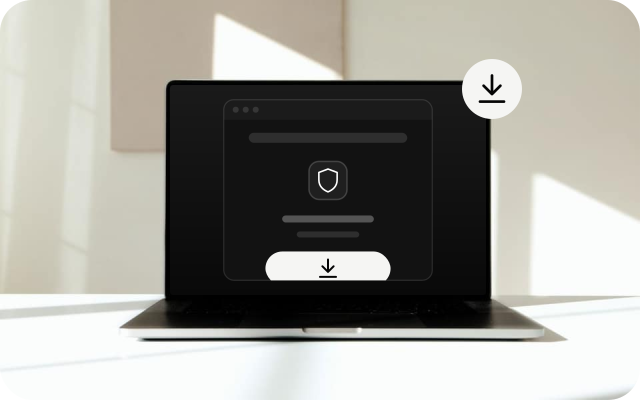
Use the download button above to save vpnclient.exe. Only download VPNclient from the official link: a VPN app sees all of your traffic.
Step 2
Run it and answer the Windows prompts
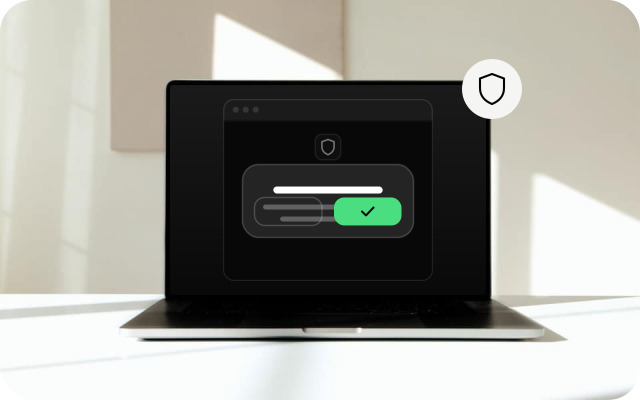
Open the file from your Downloads folder. If SmartScreen says Windows protected your PC, choose More info and then Run anyway, but only for the file from the official link. When User Account Control asks, choose Yes.
Step 3
Finish the installation
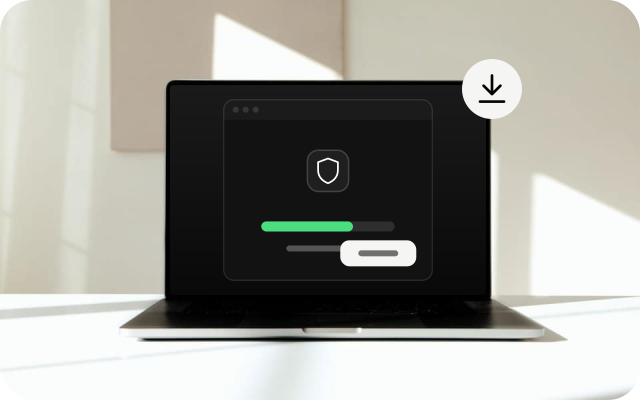
Follow the installer. The default location is fine. If it offers to install a network adapter or driver, allow it, because the VPN needs it. Then open VPNclient from the Start menu.
Step 4
Sign in
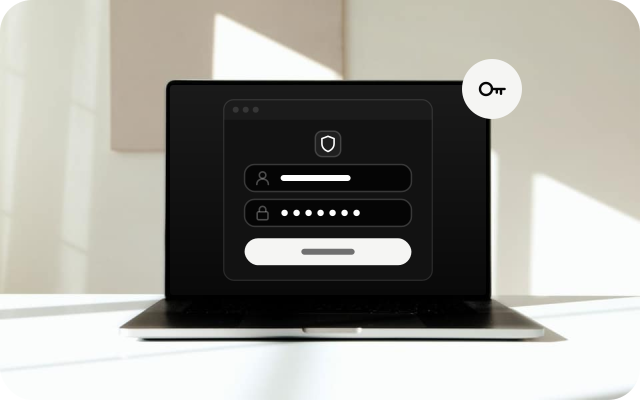
Open My Pass in your browser, copy your username and paste it into the app, then do the same with your password. Copying avoids typing mistakes. There is no sign-up inside the app.
Step 5
Choose a location
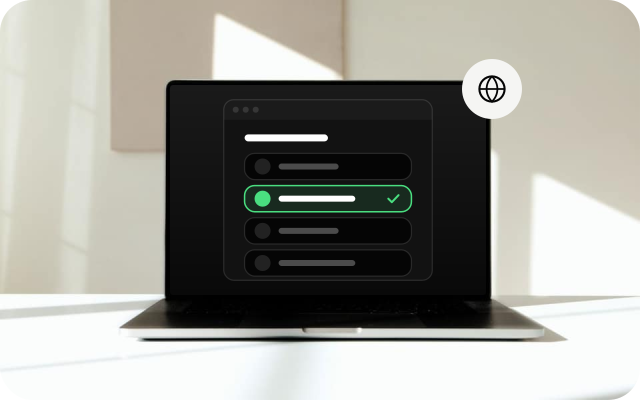
If the app shows a list of locations, pick one. If you are not sure, keep the app's default.
Step 6
Connect
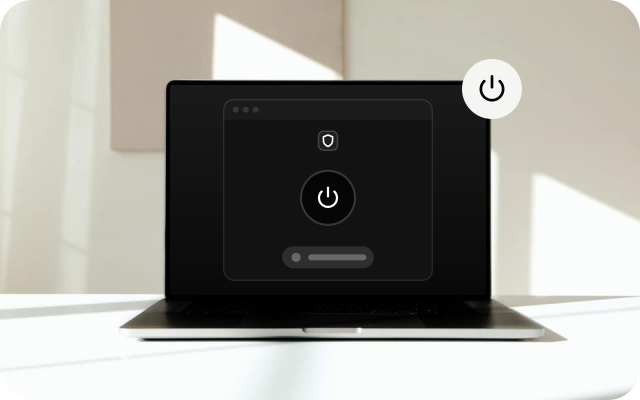
Click the connect button and wait a few seconds until the app shows you are connected. Keep the other settings at their defaults unless our support team asks you to change them.
Check it works
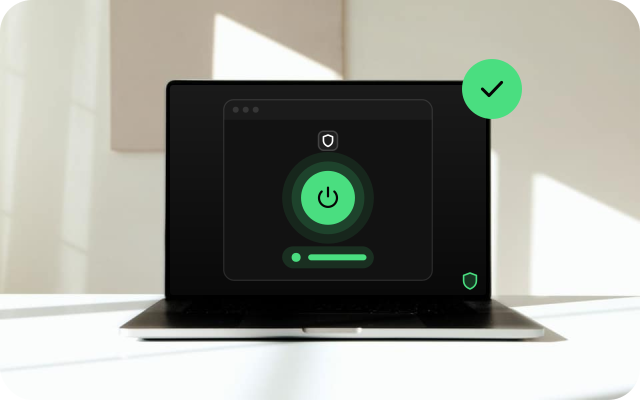
- With the VPN off, search for "what is my IP" in your browser and note the address. Connect, reload the page and compare. The address should be different.
- Open a few websites you use every day to confirm they load.
- If a site behaves strangely, clear the browser cache or try a private window.
If something goes wrong
- The installer will not start. Check that the download finished and that you are using an administrator account, then download it again from the official link.
- Your antivirus blocks the app. Confirm the file came from the official link, then allow it. Do not turn your antivirus off.
- Sign-in fails. Copy the username and password from My Pass again and check for a space at the start or end. Confirm your pass is still active.
- Connected but nothing loads. Disconnect, restart the PC and connect again. Try another location if the app offers a list.
- Another VPN is running. Quit other VPN apps, including work VPNs, then connect again.
Other devices
Choose another device to see its install guide.