
DOWNLOAD
Linux
Our VPN supplier provides an official VPNclient installer for Linux. This guide covers the download, the permission prompts and the differences you may see between distributions and desktops.
Only download from this link or your device's app store.

Our VPN supplier has confirmed its free VPNclient app for this device. Sign in with the VPN username and password from My Pass.
What to know first
The installer is the supplier's official .run file for Linux. Only download it from the link above.
Menus and prompts differ between distributions and desktops, so the wording you see may not match this page. Follow the setup shown on My Pass.
Installing a VPN changes network settings and needs administrator rights. Do not run an installer you do not trust or commands you do not understand.
Before you start
An active pass. Open My Pass and check it shows days remaining.
Your VPN username and password from My Pass. They are not your XPASS website email.
A user account with administrator (sudo) rights.
Close any other VPN client first. Two VPNs at once usually stop each other from working.
Install and connect
Step 1
Get the installer
If you decide to try the supplier's installer, use the download button above to save the .run file. Only download it from that official link.
Step 2
Run it and approve the prompts
Linux asks for administrator permission with a password prompt, either in a window or in the terminal. Approve it only for the installer you just downloaded.
Step 3
Open the app and sign in
Open the app and sign in with the username and password from My Pass. There is no sign-up inside the app.
Step 4
Connect
Use the connect button and wait until the app shows you are connected. Keep the default settings.
Related install guides
Check it works
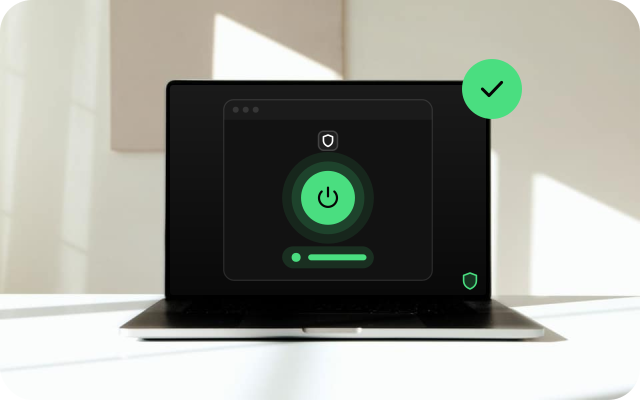
- With the VPN off, search for "what is my IP" in your browser and note the address. Connect, reload the page and compare. The address should be different.
- Compare the DNS servers your system uses with the VPN off and on. If they stay the same, name lookups may be leaving outside the VPN.
- If the address does not change, do not rely on the VPN.
If something goes wrong
- The installer does not start. Check the download finished and that you have administrator rights. Do not change file permissions or run commands you do not understand.
- Sign-in fails. Copy the username and password from My Pass again and check for a space at the start or end. Confirm your pass is still active.
- Connected but pages do not load. A conflict with the system's DNS settings is a common cause. Disconnect and connect again.
- The connection drops after your laptop sleeps. Disconnect and connect again after waking it.
- Nothing works. Use your pass on Android, Windows, Mac, iPhone or iPad, which are confirmed, or contact our support team.
Other devices
Choose another device to see its install guide.