
DOWNLOAD
Android
Install VPNclient, the free app from our VPN supplier, from Google Play on your Android phone or tablet. Sign in with the username and password from My Pass, allow the connection request and connect.
Only download from this link or your device's app store.

Our VPN supplier has confirmed its free VPNclient app for this device. Sign in with the VPN username and password from My Pass.
Before you start
An active pass. Open My Pass and check it shows days remaining.
Your VPN username and password from My Pass. They are not your XPASS website email.
A Google account signed in to Google Play on the phone.
Turn off any other VPN app first. Two VPNs at once usually stop each other from working.
Install and connect
Step 1
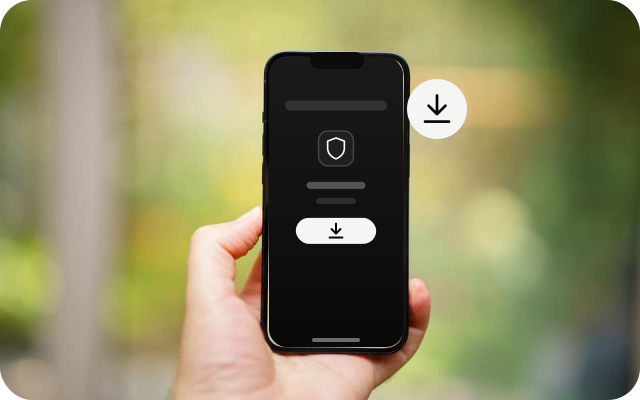
Get the app from Google Play
Use the button above, or search for VPNclient in Google Play. It is listed as VPNClient by SpiderSilk Limited. Tap Install.
Step 2
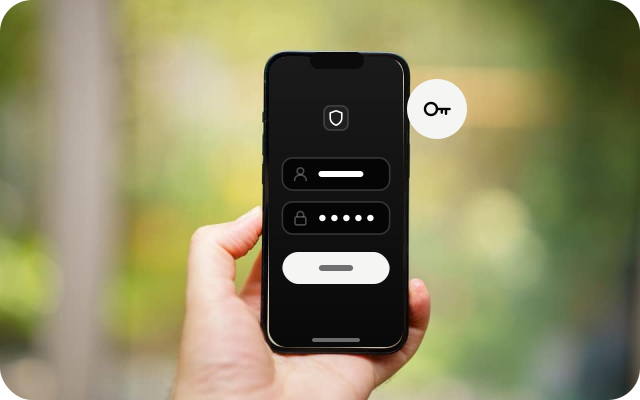
Open it and sign in
Open the app and sign in with the username and password from My Pass. Copy and paste to avoid typing mistakes. Add the server address only if the app asks for one.
Step 3
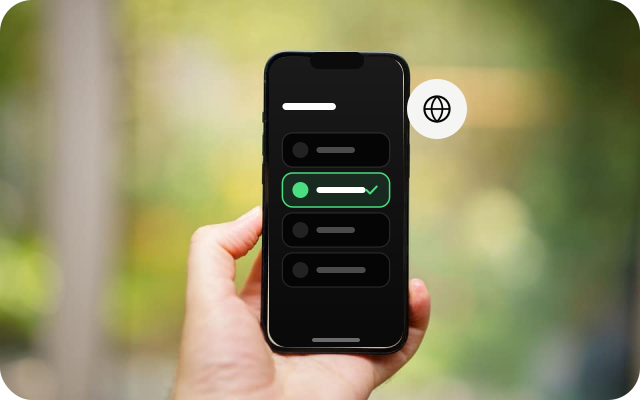
Choose a location
If the app shows a list of locations, pick one. If you are not sure, keep the app's default.
Step 4
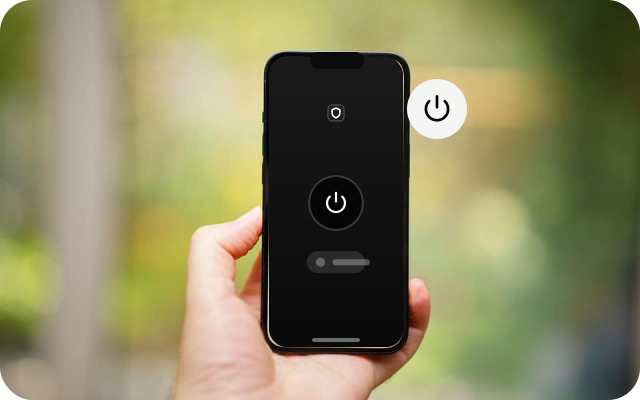
Tap connect
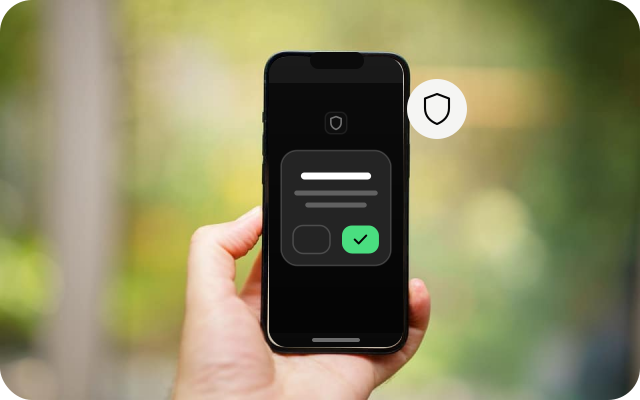
Tap the connect button. The first time, Android shows a request to set up a VPN connection.
Step 5
Allow the connection request
Check that the request names the VPN app you installed, then tap OK. The wording varies by Android version. Wait until the app shows you are connected.
Check it works
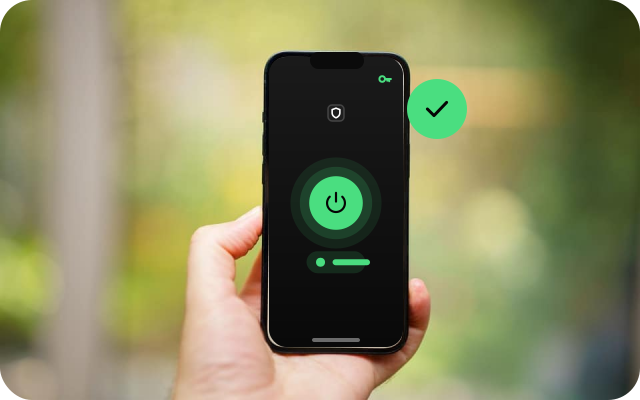
- A key or VPN icon usually appears in the status bar when the VPN is on.
- With the VPN off, search for "what is my IP" in your browser and note the address. Connect, reload the page and compare. The address should be different.
- Open a few apps or websites you use every day to confirm they load.
If something goes wrong
- The connection request does not appear. Close the app, open it again and tap connect. Check you are not on a work or school profile that blocks VPNs.
- Sign-in fails. Copy the username and password from My Pass again and check for a space at the start or end. Confirm your pass is still active.
- Connected but nothing loads. Turn the VPN off and on, or restart the phone. Try another location if the app offers a list.
- The VPN drops when the screen is off. Allow the app to run in the background in your battery settings.
- Another VPN is running. Turn it off, then connect again.
Other devices
Choose another device to see its install guide.