
DOWNLOAD
Android TV
Our VPN supplier provides an official VPNclient TV app for Android TV and Google TV as an APK file. This guide covers installing it safely and signing in.
Only download from this link or your device's app store.

Our VPN supplier has confirmed its free VPNclient app for this device. Sign in with the VPN username and password from My Pass.
What to know first
Google Play on a TV usually shows only apps made for TVs. If VPNclient is not listed there, install the supplier's TV version from the APK file, which is called sideloading.
Sideloading means installing an app from a file instead of a store. Only do it with the file from the official link, and switch the unknown-sources setting off again afterwards.
Menus differ between TV makers and versions, so the wording you see may not match this page.
Before you start
An active pass. Open My Pass and check it shows days remaining.
Your VPN username and password from My Pass. They are not your XPASS website email.
A way to open a file on the TV, such as a browser, a downloader app or a file manager from the TV's store.
Typing with a remote is slow. Have your details ready and avoid reading them out in a shared room.
Install and connect
Step 1
Get the app onto the TV
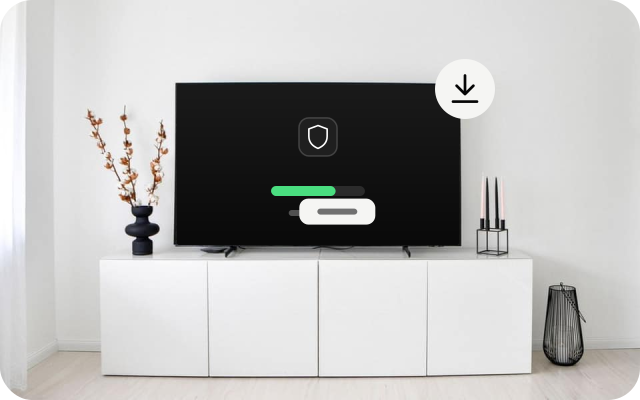
Search for VPNclient in Google Play on the TV. If it is not listed, open the supplier's APK link above on the TV. When Android asks, allow installs from unknown sources for that one app only.
Step 2
Open it and sign in
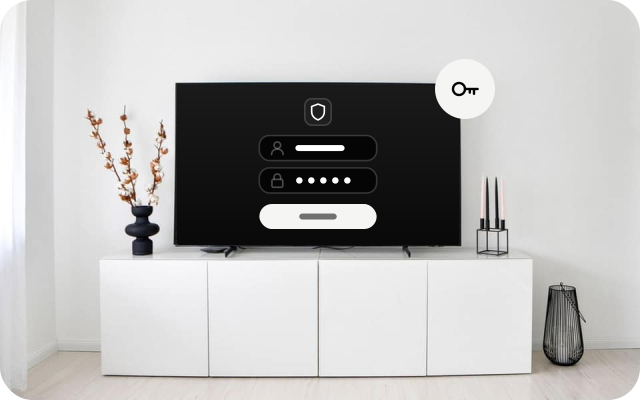
Open the app and sign in with the username and password from My Pass. There is no sign-up inside the app.
Step 3
Allow the connection request and connect
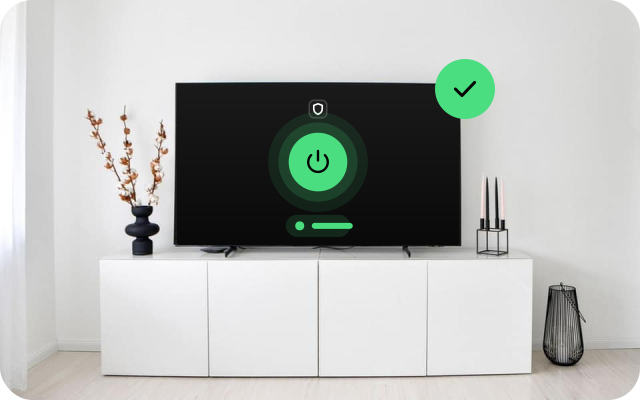
When you first connect, the TV asks permission to set up a VPN connection. Check that it names the app you installed, then allow it and wait until the app shows you are connected.
Related install guides
Check it works
- Open an app on the TV that normally loads and confirm it still works.
- For a clear answer, check from a device that shows the public IP address. If the VPN runs on the TV, a browser on the TV can show it with the VPN off and on.
- If you cannot confirm that the traffic uses the VPN, do not assume it does.
If something goes wrong
- The file will not install. Check that you allowed installs from unknown sources for the app you used to open the file.
- The app installs but will not open or looks wrong on the TV. This version may not suit your model. Contact our support team.
- Sign-in fails. Copy the username and password from My Pass again and check for a space at the start or end. Confirm your pass is still active.
- Apps stop loading after you connect. Disconnect and restart the TV.
- Nothing works. A router that supports VPN clients is the usual alternative.
Other devices
Choose another device to see its install guide.