
How to Use a VPN on Android Step by Step
A first-timer's guide to how to use a VPN on Android, from the Play Store to your first connected day, with checks, habits and fixes for the usual snags.
9 min readUpdated Oct 15, 2026By XPASS Editorial Team
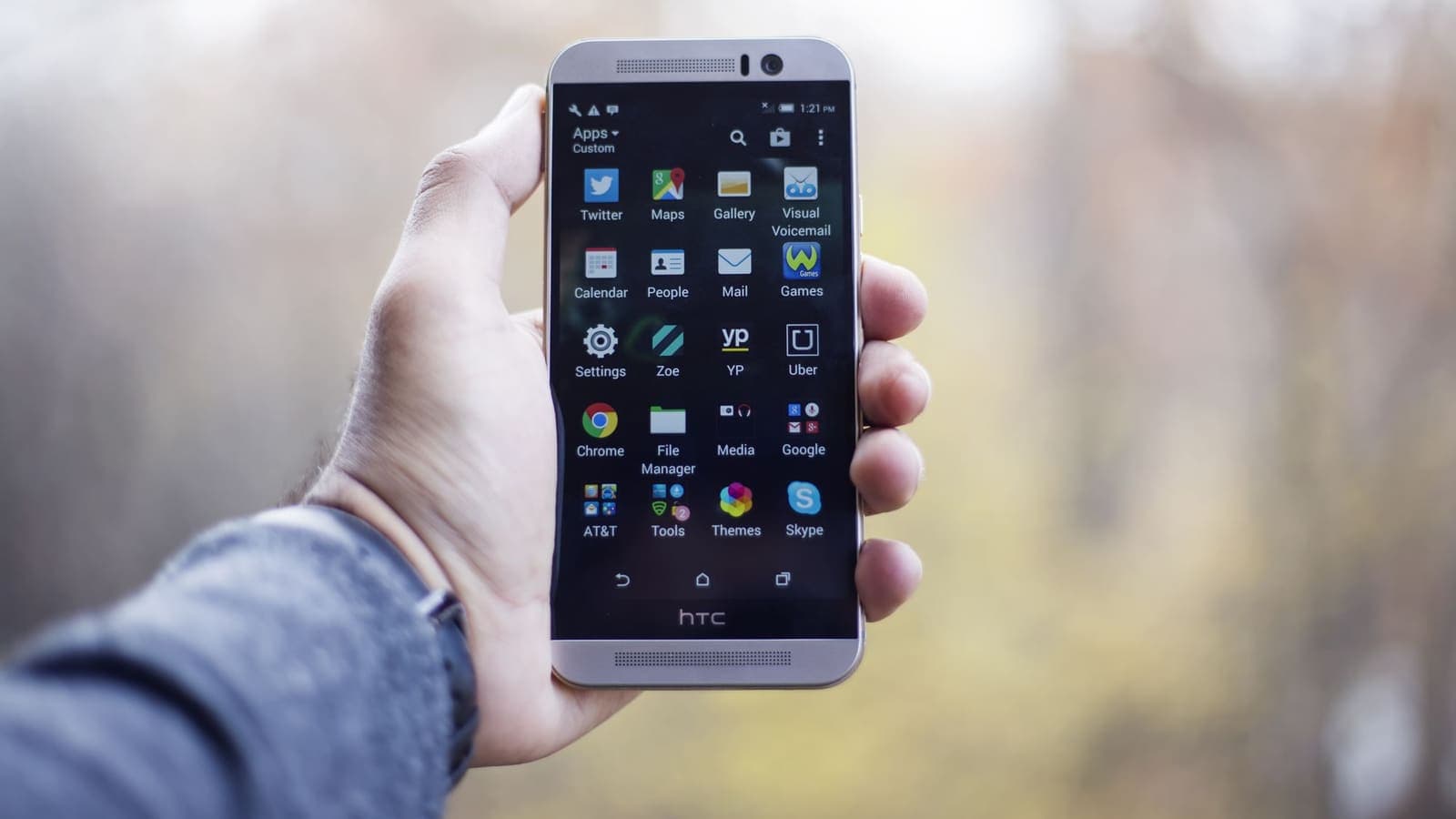
Using a VPN on Android looks harder from the outside than it is. In practice it is one app, one sign-in, one permission prompt and one button. What trips up first-timers is not any single step but the small questions around them: which app to install, what that key icon means, whether the phone should stay connected overnight, and how to tell that the whole thing is doing anything at all.
This guide is written for someone who has never used a VPN on a phone. It walks through the first session in order, then moves on to the habits that make a VPN useful in daily life, the checks that prove it works and the snags that cause most beginner complaints. If you want the plain definition first, read what a VPN is.
Before you open the Play Store
A little preparation saves a surprising amount of time later.
- Know what you are buying or using. With XPASS, you buy a prepaid pass, and the VPN works through the free VPNclient app. The pass has a fixed number of days, is paid once by card and does not renew by itself.
- Find your login details. After payment, the VPN username and password appear on your My Pass page. They are different from the email you used on the website, so keep that page open. If they are not there yet, see where are my VPN login details.
- Pick a network you trust for the first attempt. Home Wi-Fi is better than a hotel network for the first try, because hotel login pages can get in the way.
- Check the phone. Update Android if it asks, free a little storage, and charge the battery to at least half.
- Decide what you want. Are you after safer public Wi-Fi, privacy from your internet provider, or a tool for travel? Your answer shapes the routine in the later sections.

The first session, from install to connected
Step 1: install the app
Open Google Play on the phone and search for VPNclient. In the store it is listed as "VPNClient" by SpiderSilk Limited. If you prefer to follow a link, the download page points to the official one.
Tap install and wait for it to finish. Two cautions apply to any VPN app on any phone.
- Install from the official store listing, not from a link in a message or an advertisement. A fake VPN app asks for the same permission as a real one, and that permission is powerful.
- Do not install a second VPN app just to compare. Two apps competing for the same system slot is a classic cause of confusing behaviour. If you already have one, turn it off or remove it first.
Our article on how to check a free VPN app on Android lists the details to look at in any listing before you tap install.
Step 2: sign in with the right details
Open the app. Sign in with the VPN username and password from your My Pass page. These are not the same as your website email, and the app has no sign-up screen of its own.
Typing long passwords on a phone causes more failures than you would expect. Copy them from the My Pass page rather than retyping where you can, and watch for an extra space at the start or end. If sign-in fails twice, stop and compare character by character before trying again, because repeated failures can slow you down.
Step 3: allow the connection request
The first time you connect, Android shows a system prompt asking whether to allow the app to set up a VPN connection. The wording differs between phone makers and Android versions, but the idea is always the same.
- The message explains that the app wants to create a VPN connection that can monitor network traffic.
- You tap OK or Allow to accept.
- Android may ask for your screen lock or fingerprint.
This prompt is not a warning about your app. It is a safeguard. A VPN has to route your traffic, so Android makes you approve it explicitly. Allow it only for an app you installed on purpose. If you say no, the app cannot create the tunnel, and the next time you tap connect the prompt returns. For what each permission means, see Android VPN permissions explained.
Step 4: choose a location and connect
Open the location list in the app. If you do not have a reason to pick a specific place, choose one that is reasonably close, because a nearer server usually gives smoother connections. If you do have a reason, such as reaching a service in a certain country for legitimate use, remember that no VPN can promise access to every site. Our guide on choosing a VPN server location explains the trade-offs.
Now tap the connect button. You will see the app change its state, and after a few seconds a key or VPN symbol appears in the status bar at the top of the screen. That symbol is Android's own confirmation, independent of the app.
If it hangs on connecting, give it up to half a minute, then cancel and try again. If it fails twice, try a different location before you start changing other things.
Step 5: prove it is working
Do not take the green button's word for it. Spend one minute on a simple test.
- Before connecting, open a browser and search for a site that shows your public IP address. Note the address.
- Connect the VPN.
- Reload that page. The address should now be different.
- Open a normal site and a daily app such as messaging or maps to make sure they load.
- Disconnect, reload again, and see your first address return.
If the address does not change, the traffic is not going through the VPN. The article how to check if your VPN is working has a longer routine that also looks at leaks. For the idea behind IP addresses, read what a public IP address is.
Everyday routine: when to turn it on
A VPN you forget about protects no one. Here are three routines that suit different habits.
| Routine | How it works | Suits |
|---|---|---|
| Only on public Wi-Fi | Connect when you join a cafe, hotel, airport or mall network | People who mostly use home Wi-Fi and mobile data |
| Sensitive tasks only | Connect before banking, work files or account changes | People who want a light-touch habit |
| Most of the day | Connect in the morning and leave it on | People who travel, commute on shared networks or want more privacy from their provider |
Whichever you choose, remember a few facts. A VPN adds a small amount of data overhead and a small amount of battery use, as covered in does a VPN drain battery. It cannot make a weak connection faster. And on your own mobile data, the risk is different from open Wi-Fi, so you do not have to treat the two the same way.
Turning it off and reconnecting
Knowing how to turn the VPN off is as important as turning it on. Some banking apps, streaming apps and government services react badly to VPN connections, and you may need to pause it for a moment.
- Open the app and tap disconnect, or pull down the notification shade and use the VPN notification.
- Check that the status bar symbol is gone.
- Do your task on a network you trust.
- Connect again and confirm the symbol returns.
Do not just switch off Wi-Fi and assume the VPN is idle, because it may reconnect when the network comes back. The guide how to turn off a VPN on any device shows the options for each platform. If the connection drops by itself, see Android VPN disconnects and how to reconnect when the VPN disconnects.
Beginner mistakes and how to avoid them
Most first-week problems come from the same small list.
- Assuming the app is connected because it is open. Look for the status bar symbol every time.
- Leaving battery saver strict on the VPN app. Aggressive power saving can put the app to sleep and drop the tunnel. If it keeps disconnecting, look at the battery setting for the app, and read Android VPN battery use.
- Using a login from the wrong page. The VPN password is on My Pass, not your website email.
- Connecting while another VPN is active. One at a time.
- Trusting every link after connecting. A VPN does not stop fake messages or phishing pages.
- Forgetting the pass has an end date. A prepaid pass ends by itself, and unused days are not lost if you renew early. The date is shown in your account.
- Buying early and not testing. Install and test in the first few days, because the days are counting.
Troubleshooting the first connection
If something is wrong the first time, work through this short order before anything else.
- No connection at all. Turn Wi-Fi off and on, then try mobile data. If it connects there, the first network was blocking it.
- Connected, but pages do not load. Toggle Airplane Mode, reconnect, then try another location.
- The permission prompt never appeared. Close the app fully, reopen it and tap connect again. If it still does not appear, restart the phone.
- It disconnects after a minute. Check battery optimisation for the app and keep the app updated.
- Sign-in refused. Re-copy the username and password from My Pass. If they still fail, ask support.
The longer guide how to troubleshoot a VPN on Android goes deeper on each of these, and the Android Help page on connecting to a VPN is a useful neutral reference for the system's own screens.
Limits to keep in mind
A VPN is a helpful layer, not a shield around everything. It does not make you anonymous. It does not stop scams, bad passwords or malware you install yourself. It will not unlock every service, and some will treat VPN users with extra checks. It cannot override the rules of your school, employer or country, and nothing here is legal advice. The US Federal Trade Commission's guide to public Wi-Fi is a good short companion for the habits that matter alongside a VPN.
Summary
To use a VPN on Android: install the app from the official store listing, sign in with the username and password from your My Pass page, allow the one-time connection request, pick a location and tap connect. Confirm the key or VPN symbol in the status bar, test that your visible address changes, and decide on a routine such as public Wi-Fi only or most of the day. Learn how to turn it off, and check battery settings if it keeps disconnecting.
When you are ready to try it, the pricing page shows the prepaid passes, and the first week is a good time to practise each step above.
Frequently asked questions
Do I need to be technical to use a VPN on Android?
No. The routine is install an app, sign in, allow one system prompt, pick a location and tap connect. After that, using it each day is a single tap. Most of the learning is about when to turn it on and how to tell it is working.
What is the key or VPN icon at the top of my screen?
It is Android telling you that a VPN connection is active. It appears in the status bar when the tunnel is up and disappears when you disconnect. If you cannot see it, your traffic is not going through the VPN.
Why does Android ask me to allow a connection request?
Any app that wants to create a VPN has to ask permission once, because a VPN can route all of your traffic. Read the prompt and allow it only for an app you installed on purpose from a store you trust.
Should I leave the VPN on all the time?
It depends on how you use your phone. Many people turn it on for public Wi-Fi, travel and sensitive tasks, and leave it off at home. Keeping it on costs a little battery and data, so choose the routine that matches your habits.
How do I know the VPN is really working?
Check that the VPN symbol is in the status bar, then open a site that shows your public IP address and compare it with the address you saw before connecting. A different address means traffic is going through the VPN server.
References
About the author

Bob Kanokphon Thongdee
- Founder of XPASS VPN
- Co-founder of eSIMonline.asia
- More than 7 years in online marketing
- Founder of Cojourney Visa and Cojourney Travel
Need a VPN for a short trip or a busy month?
XPASS sells prepaid passes for a set number of days. You pay once and nothing renews automatically.
See passesKeep reading
Device Guides
How to Set Up a VPN on Android
Step by step: install VPNclient from Google Play, sign in with your My Pass details, accept the Android connection request and connect.
6 min read

Troubleshooting
How to Troubleshoot a VPN on Android
Work through the most common Android VPN problems in order, from an expired pass to battery settings, always-on VPN and network changes.
5 min read
Device Guides
Android VPN Permissions: What Are You Allowing?
What the Android VPN connection prompt really grants, which permissions a VPN app genuinely needs, which are red flags, and how to review them after install.
9 min read
Device Guides
How to Turn Off a VPN on Any Device
How to disconnect the VPN in VPNclient on each device, turn off settings that keep it on, and connect again later.
6 min read
Device Guides
Does a VPN Drain Android Battery?
A measurement-first answer: what a VPN adds to Android power use, how to test it on your own phone, and which settings and habits keep the cost small.
9 min read