
How to Turn Off a VPN on Any Device
How to disconnect the VPN in VPNclient on each device, turn off settings that keep it on, and connect again later.
6 min readUpdated Oct 15, 2026By XPASS Editorial Team
Turning the VPN off takes a few seconds. You might want to do it to reach a printer or TV on your home network, to test whether a problem comes from the VPN, or because an app or website does not work while you are connected. This guide shows how to disconnect in the VPNclient app on each kind of device, how to stop the VPN from switching itself back on, and how to connect again.
Turning the VPN off does not cancel or pause your pass. Your login details stay on My Pass, and you can connect again whenever you like while the pass is active.
The quickest way on every device
On every device, the simplest method is the same:
- Open VPNclient.
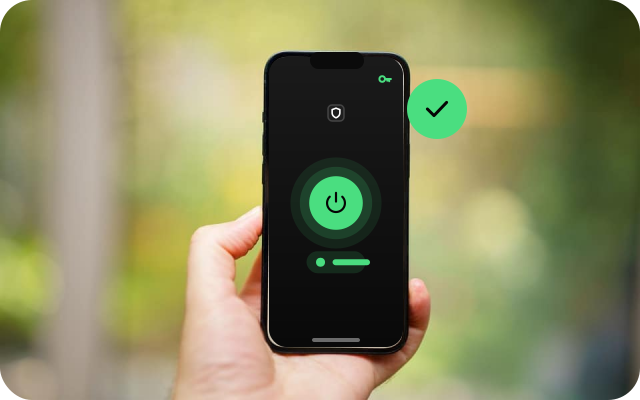
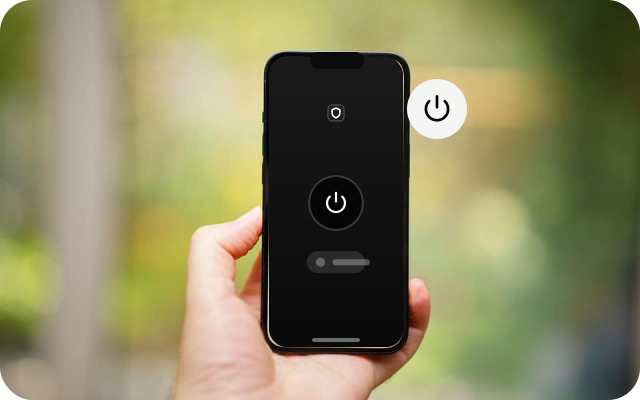
- Select the connect button again. While you are connected, it works as a disconnect button.
- Wait until the app shows that you are not connected.
The rest of this guide covers system shortcuts, settings that keep the VPN on, and what to check afterwards. Exact menu names vary between system versions.

iPhone and iPad
- In the app: open VPNclient and tap the connect button to disconnect.
- In Settings: open Settings. While a VPN is set up, a VPN switch usually appears near the top of the list. Turn it off. You can also find it under Settings > General > VPN & Device Management > VPN.
When the VPN is off, the VPN symbol disappears from the status bar or Control Centre.
Android phones and tablets
- In the app: open VPNclient and tap the connect button to disconnect.
- From the notification: swipe down from the top of the screen. While a VPN is active, Android shows a VPN notification or a key symbol. Tapping it opens the app or the VPN settings.
- In Settings: open Settings > Network & internet > VPN (on some phones the path is Connections > More connection settings > VPN), select VPNclient and disconnect.
If the VPN keeps turning back on
Android has a setting called Always-on VPN that reconnects the VPN automatically. To switch it off:
- Open Settings > Network & internet > VPN.
- Select the settings icon next to VPNclient.
- Turn off Always-on VPN. If Block connections without VPN is on, turn that off too, otherwise your phone may have no internet while the VPN is off.
The Android setup guide explains when Always-on VPN is useful, if you want to switch it back on later.
Windows, Mac and Linux
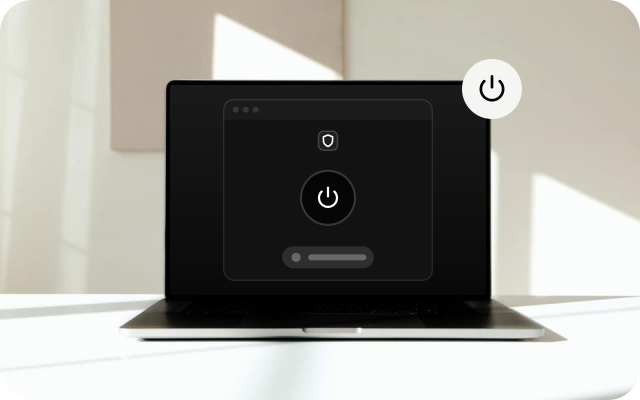
- Windows: open VPNclient from the Start menu or the icon in the system tray (the area near the clock; you may need to select the small arrow to see it), then click the connect button to disconnect. Quitting the app from its tray icon also ends the connection.
- Mac: open VPNclient from Applications or its menu bar icon, then click the connect button to disconnect. Quitting the app also usually ends the connection.
- Linux: open VPNclient from your applications menu and click the connect button to disconnect.
If the app is set to start when you sign in to your computer, it may connect again after a restart. Check the app's settings for a start-up or auto-connect option and switch it off if you prefer to connect by hand.
Android TV, Google TV and Fire TV
Open VPNclient from your apps list and select the connect button with the remote to disconnect. Restarting the TV may also end the connection. If the TV shows a VPN notification, selecting it takes you to the same place.
Check that the VPN is off
- Search for "what is my IP" in a browser. The address should now be your normal one, not the VPN address.
- Open the site or app you wanted to use and see whether it works.
- If something only fails while the VPN is on, note the location you used. A different location may work better next time.
For more ways to check the connection, read how to check if your VPN is working.

Turn it back on
Open VPNclient and select the connect button. If the app asks you to sign in again, use the username and password from View secure login details on My Pass. If the VPN drops on its own while you are using it, read reconnect when your VPN disconnects.
Turn the VPN back on before you use public Wi-Fi in a café, hotel or airport. Without it, your traffic goes through that network as normal.
What happens to your pass
Your pass is time-based. The days started when your VPN account was created and keep counting while the VPN is off, so disconnecting does not save days. When the pass ends, the app can no longer connect until you renew. Details are in how pass expiration works.
Summary
To turn the VPN off, open VPNclient and select the connect button again, or use your system's VPN switch. On Android, turn off Always-on VPN if it keeps reconnecting. Your pass days keep counting while you are disconnected, so connect again whenever you need protection. When you need more time, see the pricing page or renew from My Pass.
Frequently asked questions
Do my pass days stop while the VPN is off?
No. Your pass has a fixed number of days that started when your VPN account was created. The days keep counting whether you are connected or not.
Is it safe to turn the VPN off?
Yes. Your device simply goes back to its normal internet connection. Websites then see your real IP address, so turn the VPN back on before using public Wi-Fi.
Why does the VPN turn itself back on?
Usually because Always-on VPN is enabled on Android, or a similar option in the app or system reconnects it. Switch that setting off as described in this guide.
Should I delete the app to stop the VPN?
You do not need to. Disconnecting is enough, and keeping the app makes it quick to connect again. Delete it only if you no longer plan to use XPASS on that device.
Need a VPN for a short trip or a busy month?
XPASS sells prepaid passes for a set number of days. You pay once and nothing renews automatically.
See passesKeep reading

Troubleshooting
How to Check If Your VPN Is Working
A VPN can show as connected and still not be doing its job. Use these checks to confirm your traffic is going through it, and fix an IP that will not change.
7 min read

Troubleshooting
How to Reconnect When the VPN Disconnects
VPN connections drop sometimes. Here is a calm, ordered routine for getting back online safely and working out why it happened.
7 min read

Device Guides
How Your VPN Pass Expires
Prepaid passes do not renew by themselves. Learn when yours ends, where to see the time and what renewing before or after expiry does.
4 min read