
How to Reconnect When the VPN Disconnects
VPN connections drop sometimes. Here is a calm, ordered routine for getting back online safely and working out why it happened.
5 min readUpdated Oct 15, 2026By XPASS Editorial Team

Every VPN connection drops now and then. A Wi-Fi network hiccups, your phone moves from a router to a mobile signal, or your laptop wakes from sleep. What matters is how you respond: you want to get back online quickly without leaving sensitive activity exposed in the meantime.
This guide gives you a short routine for the moment the VPN disconnects, followed by an ordered list of reasons it may have happened. Use the app or connection profile listed on your My Pass page. Menu names vary by operating system version and manufacturer, so look for similar wording if yours is different.
What to do straight away
- Pause sensitive activity. Stop banking, logging in to important accounts, or sending private files until you know the VPN is back.
- Check whether the internet still works. Load an ordinary web page. If nothing loads, the network itself is down. If pages load, your traffic may be travelling outside the VPN.
- Look at the VPN status. Open the app or the system's VPN status and see whether it says disconnected, connecting or connected.
- Reconnect. Tap connect in the app. If it is stuck on connecting for more than about a minute, cancel and try again.
- Verify. Compare your public IP address from an IP-lookup site with the one you see with the VPN off. The steps are in how to check if your VPN is working.

If the first reconnect does not work
Go through these in order, from the most to the least likely cause.
- Pass expired. Open your My Pass page and check the end date. Validity starts when the VPN account was created. If it has ended, renew your pass; new days are added on top of any remaining days.
- Network changed or needs a login. On public Wi-Fi, a portal may have signed you out. Open a browser, complete any sign-in page, then reconnect. See connecting on public Wi-Fi.
- Weak signal. Move closer to the router or to a window. Try switching between Wi-Fi and mobile data.
- Stale session. Fully close the app, wait ten seconds, reopen it and connect again.
- Different connection method. If your My Pass page lists more than one, try another.
- Airplane mode toggle. Turn it on for ten seconds and off again to reset the radios.
- Restart the device. This clears most leftover network problems.
- Update. Install pending updates to the operating system and the VPN app.
For platform-specific steps, see the guides for Android and iPhone and iPad.
Why disconnects happen
Knowing the common reasons helps you prevent the next one.
| Situation | Typical reason | What helps |
|---|---|---|
| Right after switching Wi-Fi and mobile data | The device received a new network address | Wait a few seconds, reconnect |
| After the screen locked or the device slept | Power saving paused the app | Allow background activity for the app |
| At a hotel or cafe about every hour | The portal signed you out | Sign in to the portal again, then reconnect |
| Randomly, with weak signal | Packets lost, connection timed out | Move closer, test another network |
| After an update | Settings or profile reset | Reconnect, re-add the profile if needed |
For deeper prevention, see improving VPN connection stability.
Protecting yourself during a drop
Some apps and operating systems offer a "kill switch" or similar feature that blocks internet traffic when the VPN is not connected. Whether and how it is available depends on the app or connection method listed on your My Pass page and on your device's system settings. Our article on what a VPN kill switch is explains the idea in general. Do not assume you have this protection unless you have confirmed it in your settings.
Good habits help whichever way it goes:
- Keep an eye on the VPN status indicator before opening sensitive apps.
- After any drop, treat open sessions with care and reconnect before doing anything private.
- Prefer a trusted network for sensitive tasks whenever you can.
A simple example
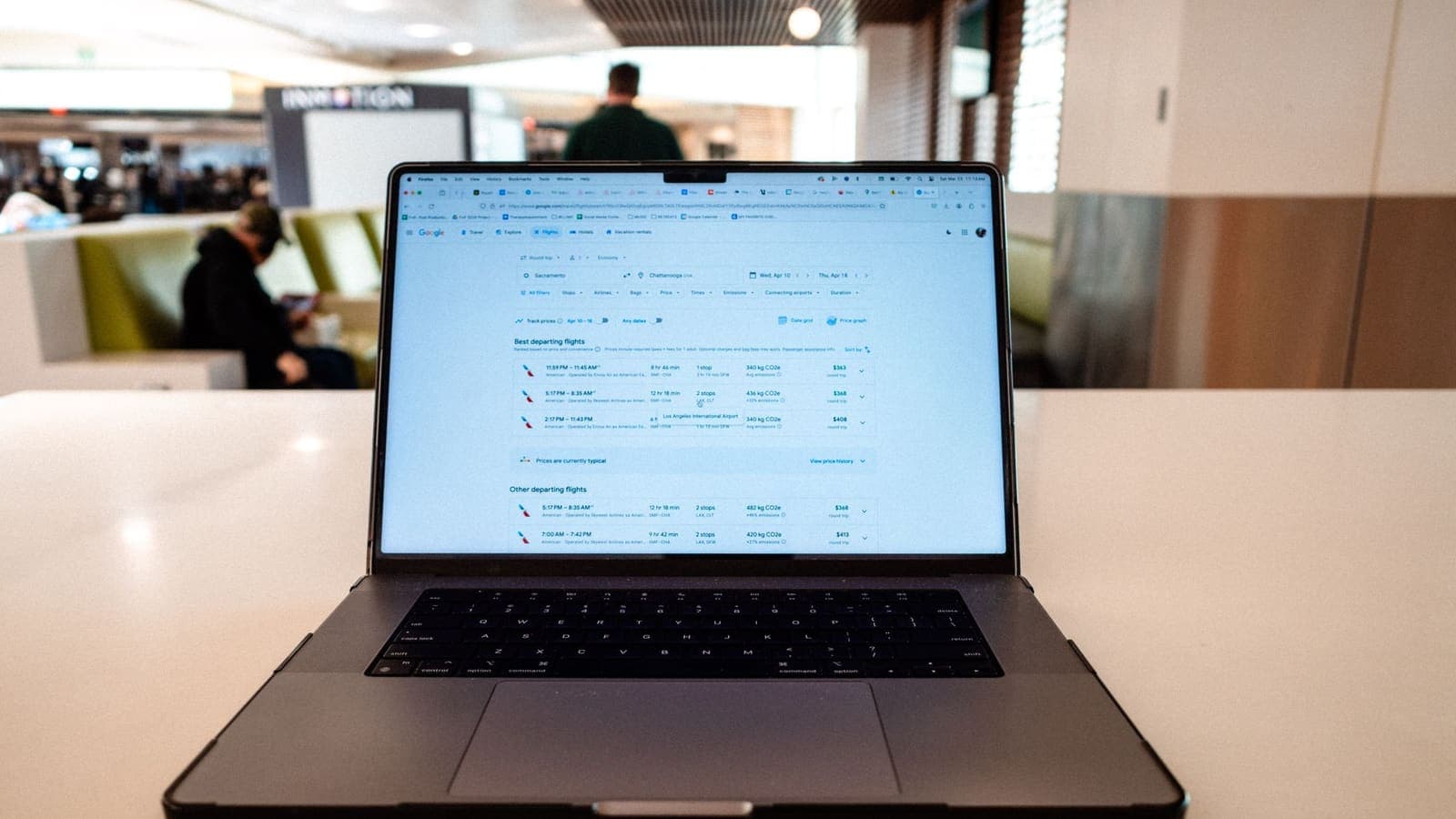
You are working at an airport when your video call freezes. You pause what you are doing, check that the airport Wi-Fi still loads a page, and see the VPN status says disconnected. You reconnect and it fails twice. You open the browser and find the airport portal asking you to sign in again. After that, the VPN connects at once, and a quick IP comparison shows it is working.
Limits and what to watch for
- A reconnect does not undo anything that went over the normal connection while the VPN was down.
- Short drops are normal when networks change. Frequent drops on a stable network need investigation.
- Do not keep retrying many times in a row on a network that is blocking VPN traffic. Switch networks instead.
- Never share your password when asking for help.
When to contact support
If your pass is active and the VPN will not reconnect on more than one network, or it drops many times a day for no clear reason, contact us through account support or the contact page. Include the device, operating system version, connection method, network type, what time it happens and any message shown.
Summary
Pause sensitive activity, check the internet, reconnect, and verify your public IP. If that fails, check your pass, the network, signal, the app and the device in that order. For related guides, see the Help Center.
Frequently asked questions
What should I do first when my VPN disconnects?
Pause sensitive activity, check that your internet still works, then reconnect the VPN and confirm your public IP changed before carrying on.
Is my traffic exposed when the VPN drops?
Unless a kill switch or similar protection is active, apps may continue over your normal connection. Treat any drop as a reason to pause sensitive tasks until you reconnect.
Why does my VPN reconnect by itself sometimes?
Some apps and operating systems retry the connection automatically after a short interruption, for example after a network change. Check the status to confirm it came back.
Does reconnecting use up my pass?
No. A pass has a fixed number of days that begin when the VPN account is created, and reconnecting does not use extra time.
References
Need a VPN for a short trip or a busy month?
XPASS sells prepaid passes for a set number of days. You pay once and nothing renews automatically.
See passesKeep reading

VPN Security
What Is a VPN Kill Switch?
A kill switch stops your device from quietly falling back to an unprotected connection when the VPN drops. Here is how the idea works and how to check it.
7 min read

Troubleshooting
How to Improve VPN Connection Stability
A VPN that keeps dropping or stalling is usually reacting to the network or device around it. These steps help you find and fix the weak link.
5 min read

Troubleshooting
How to Check If Your VPN Is Working
A VPN can show as connected and still not be doing its job. Use these checks to confirm your traffic is really going through the VPN.
5 min read