
VPN for Amazon Fire Tablet: Setup Guide
A practical guide to using a VPN on a Kindle Fire or Amazon Fire tablet: what Fire OS allows, three ways to set it up, and how to troubleshoot the usual problems.
9 min readUpdated Oct 15, 2026By XPASS Editorial Team
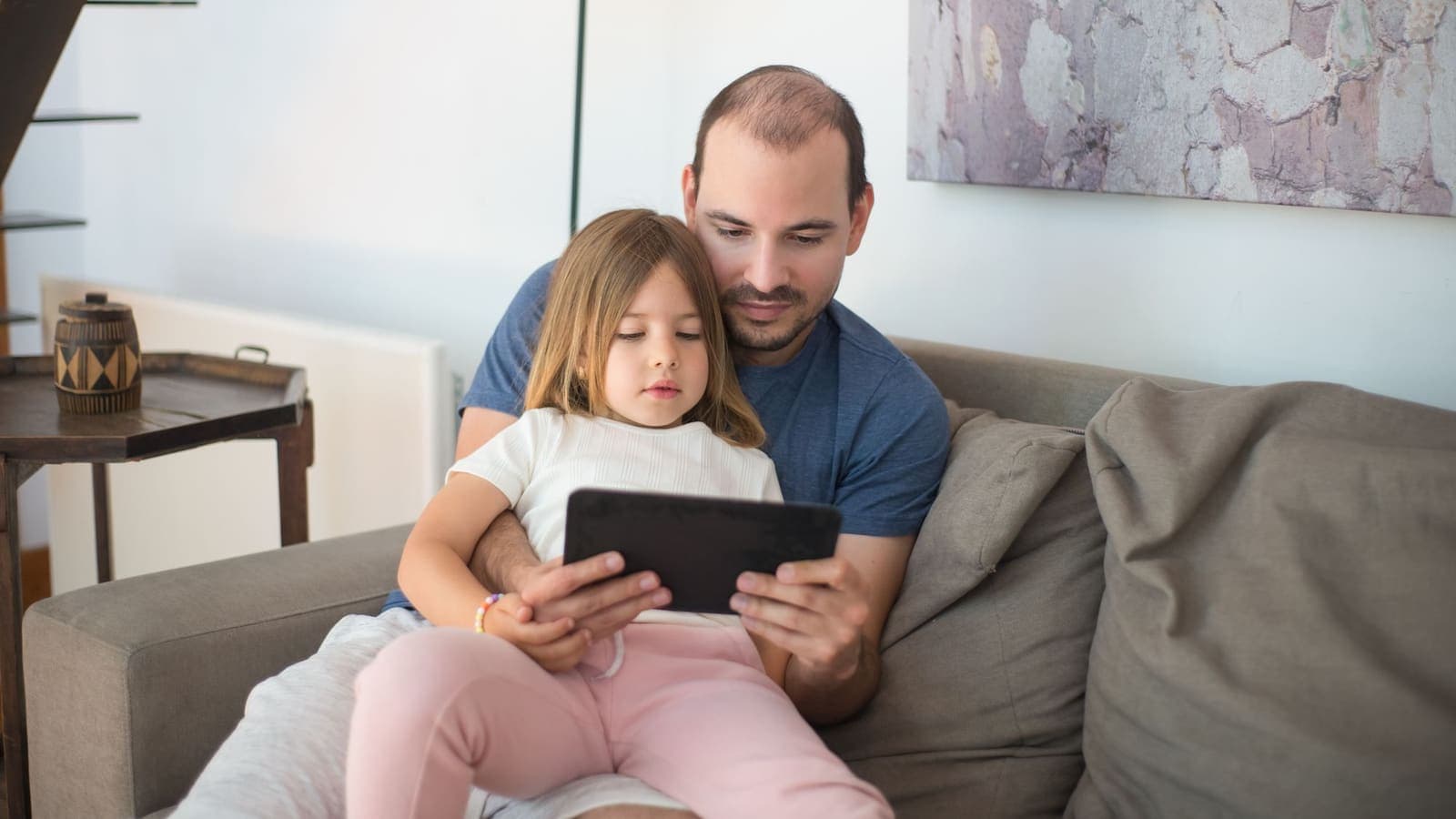
Few people ask for a "VPN for Amazon Fire tablet" by that exact name. They search for "vpn for kindle fire", because that is what the first Fire tablets were called more than a decade ago, and the name stuck. If you own a Fire tablet today, you probably use it for reading, children's videos, cooking apps or as a spare screen in the kitchen, and you may join hotel, school or cafe Wi-Fi with it. This guide explains what is realistic for a VPN on that hardware, which setup route to try first and what usually goes wrong.
The short version is that a Fire tablet runs Fire OS, which is built on Android but uses Amazon's own app store. That single difference decides most of your options. Read the sections in order if you are setting up for the first time, or jump to the troubleshooting section if you already tried and the connection fails. If you need the general idea first, see our guide to what a VPN is.
Kindle Fire, Fire tablet and Kindle e-reader are not the same thing
Before installing anything, check which device you actually have, because three different products share the name.
- Kindle e-readers (the black-and-white paper-style screens). These are built for reading books and cannot install general apps. You cannot put a VPN app on them. The Wi-Fi they use can only be protected at the router.
- Fire tablets (colour touchscreens that run apps, video and web browsing). These run Fire OS and are what people mean by "Kindle Fire". A VPN is possible here.
- Fire TV devices. These are a separate product with their own guide, covered in our help article on VPN on Android TV, Google TV and Fire TV.
To find out what you have, open the settings on the tablet and look for the "Device options" or "About" section, which lists the model and the Fire OS version. Write the version down. Menu names change between versions, and any guide, including this one, can only describe wording as "usually". If your tablet is older than about five or six years, it may no longer receive updates, and that matters for security as much as for VPN compatibility.

What Fire OS allows and what it does not
Fire OS is a modified version of Android. Because it is Android underneath, it has the same system component that lets an app create a VPN tunnel. When an app asks to set up a VPN connection, the tablet shows a system prompt, and you must accept it. After that, a small key or VPN symbol usually appears in the status bar while traffic is going through the tunnel. That is the same behaviour described in Android's own VPN help.
The differences from a normal Android phone are these.
- The app store. Fire tablets ship with the Amazon Appstore and no Google Play. A VPN app has to be available through the Amazon Appstore, or you have to install it in another way that you trust.
- Fewer settings exposed. Some menus found on phones, such as a full Private DNS screen or per-app network controls, may be missing or named differently.
- Aggressive power saving. Fire tablets can put background apps to sleep to save battery. A VPN that is put to sleep drops the tunnel without a visible warning.
- Lower performance. Entry-level tablets have modest processors. Encryption is real work, so the speed difference with a VPN is larger than on a recent phone.
- Possible restrictions on kids' models. Child profiles and "Kids" editions can block installing or changing apps unless a parent unlocks them with the parent PIN.
None of this means a VPN is impossible. It means you should pick the route that suits your model and not assume that instructions for a Samsung or Pixel phone will match screen for screen.
Three setup routes, from easiest to most manual
There are three realistic ways to put a Fire tablet behind a VPN. Try them in this order.
Route 1: install a VPN app
This is the normal path on any Android-style device. You find a VPN app that is offered for your tablet, install it, accept the system prompt and connect.
For XPASS customers, the app is the free VPNclient, and you sign in with the username and password shown on your My Pass page. The page also lists the connection methods and setup instructions that apply to your pass. Open that page first and follow its instructions for your device. Do not guess, and do not install an app from a random website because it has the same name. The official download links are on our download page, and an unknown file with the same name is a common trap.
Check whether an app is offered on your tablet by searching the Amazon Appstore. If the listing is not there, that does not mean the VPN is broken; it means you should move to route 2 or route 3 rather than force an installation from an unverified source.
Route 2: the tablet's own VPN settings
Fire OS, like Android, often has a built-in VPN menu. In many versions it lives under the wireless or network settings, with a name such as "VPN" or "Wireless & Networks". It lets you add a connection manually by entering a server address, a connection type, a username and a password.
This route only works if you have the details for such a connection from your provider, and it needs a connection type that the system supports. Entering a wrong value gives you a vague error such as "connection failed" with no explanation. Treat it as a fallback for people who already know what to type. If your pass instructions on My Pass do not list a manual method, do not try to invent one.
Route 3: protect the network instead of the tablet
If the tablet cannot run an app, put the VPN on something else. Two ways work.
- A router with VPN support. Every device on the home Wi-Fi, including the tablet and any Kindle e-reader, goes through the tunnel. Our guide on setting up a VPN on a router explains the steps. The downside is that the VPN is on for every device in the house, so devices that dislike VPNs cannot opt out easily.
- A phone or laptop hotspot with the VPN on. Whether the shared traffic really goes through the VPN depends on the phone and operating system. Read share a VPN over a mobile hotspot before relying on it, and check with a test, not an assumption.
Which route fits which person
| Situation | Best route | Why |
|---|---|---|
| Adult user, tablet on hotel and cafe Wi-Fi | Route 1, app | Protection follows the tablet everywhere |
| App not offered for your Fire model | Route 3, router | No app needed on the tablet |
| Child's tablet at home only | Route 3, router, or no VPN | Parent controls matter more than a tunnel |
| Kindle e-reader on home Wi-Fi | Route 3, router | E-readers cannot run apps |
| You know the exact manual details | Route 2, built-in settings | Works without an app |
| Old tablet that no longer gets updates | Avoid sensitive tasks | A VPN does not repair an unpatched system |
Step-by-step checklist for a Fire tablet
Use this order. Each step has a clear exit, so you know where you stopped when something fails.
- Update first. Connect to a trusted Wi-Fi network and install any pending system update. Settings, then Device options, then System updates, usually. A VPN on an out-of-date system gives less protection than it appears to.
- Check the free storage. Apps need space, and a nearly full tablet is slow. Remove unused downloads if less than a few hundred megabytes are free.
- Open your My Pass page on another device or the tablet browser and note the username and password. Do not screenshot them to a shared photo library.
- Install the app from a source you trust, using the instructions for your device on My Pass and our download page.
- Open the app and sign in with the VPN username and password, not with the email you use for the website. They are different logins.
- Accept the system prompt. The wording is usually "Connection request" or "Allow this app to set up a VPN connection". Read it, then accept. If you refuse, the app cannot start the tunnel.
- Choose a location from the list and connect. For everyday protection, choose a nearby location, because distance adds delay. We explain this in how to choose a VPN server location.
- Look for the VPN symbol in the status bar and then open a page that shows your public address. The address should differ from the one you saw before connecting.
- Test the things you actually use: the browser, the video app and your email. A tunnel that opens but loads nothing is a different problem from a tunnel that never opens.
- Set battery behaviour. If the app can be excluded from battery optimisation in the app settings, do that, so the tunnel is not shut down while the screen is off.
Using a Fire tablet with a VPN on hotel, school and cafe Wi-Fi
The reasons to use a VPN on a Fire tablet are the same ones that apply anywhere. When you share a Wi-Fi network with strangers, whoever runs it can see which sites you contact, and a poorly set-up network can allow others to read unencrypted traffic. A VPN encrypts the traffic between the tablet and the VPN server, so the local network sees a stream it cannot read. The FTC explains the basic risks of public networks in its public Wi-Fi guide, and our article on staying safer on public Wi-Fi covers the habits that go with it.
Here are three ordinary cases.
A traveller on a long train trip. Lena brings a Fire tablet loaded with books and a few films. She connects to the train's Wi-Fi to check mail and pay a bill. She switches on the VPN before opening the mail app, waits for the symbol in the status bar, and turns it off when the pay-by-card app asks for extra checks. At home she never uses it for reading.
A hotel stay with a captive portal. Many hotels ask you to open a browser and enter a room number before the Wi-Fi works. If the VPN is already on, that login page may not load. Connect to the hotel Wi-Fi, complete the login page, and only then start the VPN. Our guide on using a VPN on hotel Wi-Fi explains the order in detail.
A student sharing a dormitory network. Min uses a Fire tablet in the library and the dormitory. School networks often block or slow VPN traffic. If the app cannot connect, the answer is not to keep retrying; switch to mobile data from a phone hotspot for a moment, or use the tablet without a VPN for school tasks and keep the tunnel for private browsing at home.

Kids' tablets, family profiles and parental controls
Many Fire tablets are bought for children, with a Kids profile or a kids' edition. A VPN does not replace parental controls. It does not filter content, enforce time limits or watch what children do. A VPN's job is only to protect the connection.
There are two common mistakes. The first is installing a VPN on a child's profile and believing that "the tablet is now safe". The second is turning on a VPN that makes the child's educational apps stop working, because some of them use location or network checks. If you want a VPN in a family home, a router-level setup keeps the child's profile settings unchanged and does not need any app on the child's tablet. See our overview of VPN for multiple devices for the points to check about sharing a pass across a family.
Troubleshooting a VPN on a Fire tablet
Work through these in order and stop when the problem is gone.
| Symptom | Likely cause | What to try |
|---|---|---|
| The app asks for a connection permission again and again | The prompt was declined or the app was updated | Open the app, tap connect, accept the system prompt |
| App signs in but never connects | Wrong login type or weak Wi-Fi | Use the VPN username and password from My Pass, then try mobile data |
| Connected, but no pages load | DNS or captive portal problem | Turn the VPN off, finish the Wi-Fi login page, turn it on again |
| Disconnects when the screen turns off | Battery saving closes the app | Exclude the app from battery optimisation and keep it unlocked in recent apps |
| Very slow video | Long route, weak tablet or crowded Wi-Fi | Pick a nearer location, move to 5 GHz Wi-Fi, compare with VPN off |
| Banking or video app refuses to open | The service dislikes VPN connections | Disconnect for that task on a trusted network |
If none of these helps, the step-by-step page VPN not connecting? Step-by-step fixes covers the checks that apply to every device. Do not try to change DNS settings, install modified apps or follow forum advice that asks you to turn off security settings. If an instruction looks risky, ignore it.
Limits to keep in mind
A VPN on a Fire tablet protects traffic leaving the tablet. It does not remove malware from a bad download, does not make an account anonymous and does not stop phishing links. If you read about the limits in what a VPN cannot protect you from, the same applies here. Some streaming and shopping apps may behave differently when a VPN is on, and they may show errors or ask for extra checks. That is the service's decision, and we do not recommend trying to defeat it.
Other limits specific to this hardware:
- Older tablets receive no security updates, so a VPN is only a partial answer.
- Battery drain is higher while the tunnel is active, especially on weak Wi-Fi.
- A tablet can only run what its store and system allow. Do not enable "unknown sources" for a file you cannot verify.
- Sharing a tablet with children means the tunnel stays on for everyone who uses the device.
Summary
A Kindle Fire today means a Fire tablet running Fire OS, a form of Android with Amazon's own store. The easiest route is a VPN app that is offered for your model; the fallbacks are the built-in VPN menu with details you already have, or a VPN on the router. E-readers cannot run apps at all, and a VPN is no substitute for parental controls or software updates. Test with the VPN on and off, keep the order of Wi-Fi login first and VPN second on hotel networks, and do not install files from unverified sources.
If you want a pass that ends by itself without automatic renewal, you can read the details on the pricing page at your own pace.
Frequently asked questions
Can I put a VPN on a Kindle e-reader?
Basic Kindle e-readers do not run general apps, so you cannot install a VPN app on them. If you want to protect a Kindle, you would do it at the router or on a shared connection. A Fire tablet is a different product and can run apps.
Is a Kindle Fire the same as an Amazon Fire tablet?
People still say Kindle Fire, but the current product line is called Fire tablets and runs Fire OS, a version of Android. Instructions for Android often apply, but the app store and some menus are different.
Why can't I find my VPN app in the Amazon Appstore?
Fire tablets use the Amazon Appstore, not Google Play, and not every app is listed there. Check the setup instructions on your My Pass page for the connection methods that apply to your device, and install apps only from sources you trust.
Does a VPN slow down a Fire tablet?
It can. Encryption adds work and the route through a VPN server is longer, which is more noticeable on entry-level tablets and weak Wi-Fi. Test with the VPN on and off before you decide.
Can I use a VPN on a child's Fire tablet?
Yes, but a VPN is not a parental control. It does not filter content or set time limits, so keep using the profile and parental settings of the tablet and treat the VPN as protection for the network connection only.
References
About the author

Bob Kanokphon Thongdee
- Founder of XPASS VPN
- Co-founder of eSIMonline.asia
- More than 7 years in online marketing
- Founder of Cojourney Visa and Cojourney Travel
Need a VPN for a short trip or a busy month?
XPASS sells prepaid passes for a set number of days. You pay once and nothing renews automatically.
See passesKeep reading
Device Guides
How to Set Up a VPN on Android
Step by step: install VPNclient from Google Play, sign in with your My Pass details, accept the Android connection request and connect.
6 min read
Device Guides
How to Set Up a VPN on Android TV, Google TV and Fire TV
Step by step: allow the TV to install the official VPNclient TV app, install it safely, sign in with your My Pass details and connect.
8 min read

Device Guides
VPN for iPad: Setup and Common Issues
Setting up a VPN for iPad is simple, but Wi-Fi-only models, shared family tablets and school-managed devices bring their own quirks. Here is how to handle them.
9 min read

Troubleshooting
VPN Not Connecting? Step-by-Step Fixes
A clear order of checks for when the VPN will not connect: pass status, login details, Wi-Fi and mobile data, permissions, firewalls, app conflicts and error messages.
8 min read

VPN Security
How to Stay Safer on Public Wi-Fi
Public Wi-Fi is not a disaster, but it is a network you do not control. Here are the real risks, the habits that matter most, and where a VPN fits in.
8 min read