
Using a VPN on Multiple Devices: What to Check
One VPN for a phone, a laptop and a household sounds simple, but providers count devices in different ways. Here is what to check, how to share safely and how to avoid surprises.
9 min readUpdated Oct 15, 2026By XPASS Editorial Team

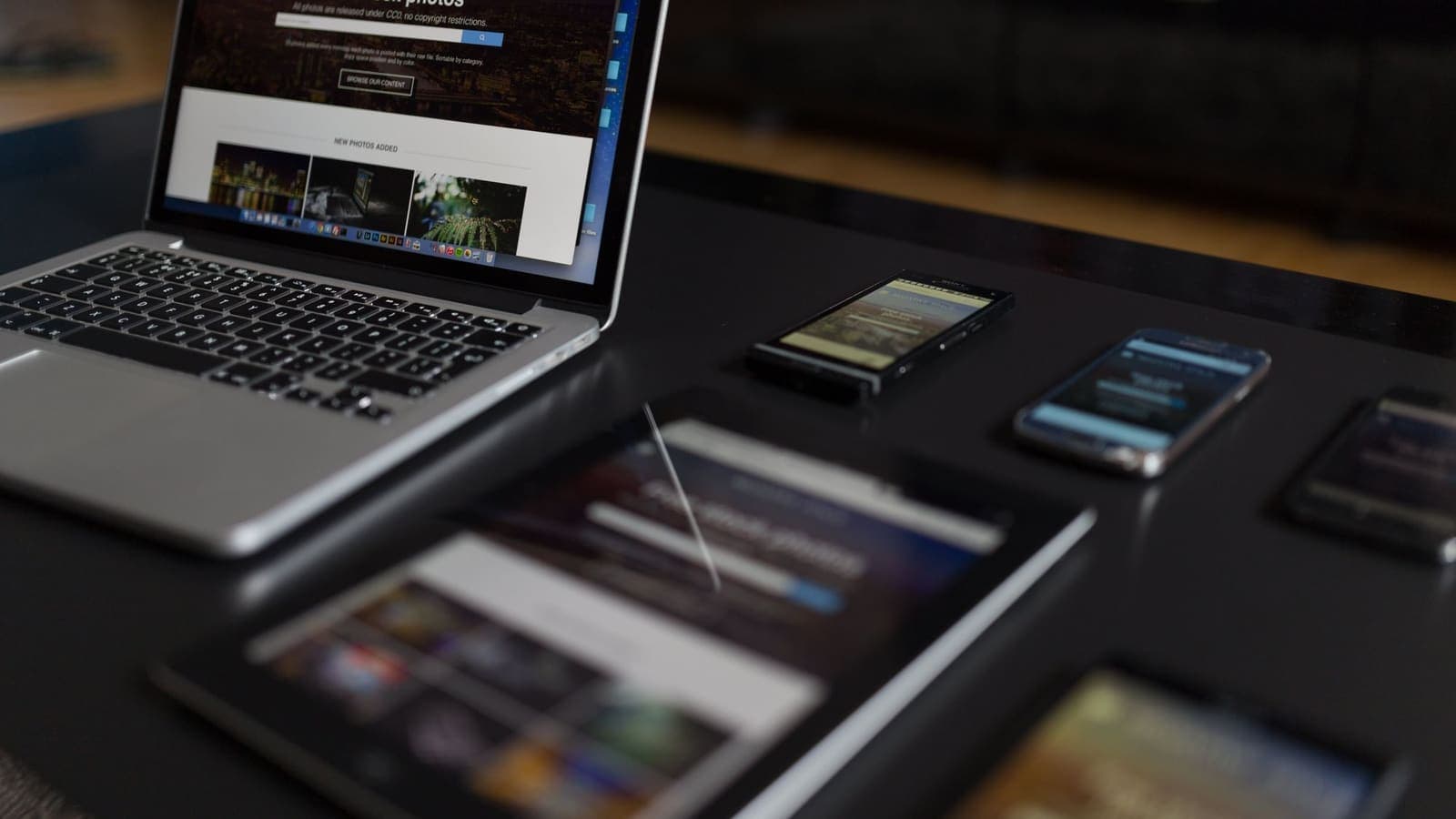
A VPN is easy to picture on one phone. In real life, most people want it on several things: a phone and a laptop for sure, perhaps a tablet, a partner's phone, a work computer, or the devices of a whole household. Then the practical questions arrive. How many devices can I connect? Does it count the ones I have installed or the ones I am using right now? Will I be locked out if I add one more?
This guide is for anyone who wants to use a VPN across more than one device, including families. It explains how providers describe device limits, what to check before you pay, how to set up and share safely, what to expect from performance, and which mistakes to avoid. It does not state how many devices any specific plan allows, because that is a plan detail that should be read from the provider itself.
Why the device question matters more than it seems
Buying a VPN without understanding the device rules leads to the same few problems again and again. You pay for a plan, set it up on your phone, then discover that your laptop disconnects as soon as you connect the tablet. Or the plan covers fewer devices than you assumed, and the family member you wanted to include gets left out. Or the marketing page promises generous device coverage, but the fine print describes limits on something else, such as speed, data or fair use. Treat any boundless-sounding claim as a prompt to find the actual terms.
Device rules are usually written in one of three places: the pricing page, the account or plan page, and the terms of service. If they disagree, trust the account page and the terms over the marketing banner. If you cannot find them at all, ask support before you pay.
Three different things "devices" can mean
The word "devices" hides several different measurements. Understanding the difference is the most useful thing in this article.
Simultaneous connections
This is the number of devices that can be connected to the VPN at the same moment. If the limit is a small number and you connect one more than that, the oldest connection may drop or the new one may be refused. It does not matter how many devices have the app installed; only the connected ones count.
Registered or installed devices
Some services tie your account to specific hardware. You register a phone, a laptop and so on, and once you have reached the maximum you must remove one before adding another. This is stricter about who and what can use the account over time, but looser about how many are active at once.
Accounts or profiles
A family plan may give each person their own login under one payment. This is the cleanest for households because each person has their own credentials, and you can revoke one without disturbing the others. Not every provider works this way.
Always find out which of these your plan uses, because they behave differently in daily life. A plan with many registered devices but a low simultaneous-connection cap may feel restrictive in a busy household. A plan with a high simultaneous cap but a single set of shared credentials may cause arguments, or security problems, if one person's device is lost.
What to check before you pay
Use this list on any VPN, whatever its price. Nothing here requires technical knowledge.
- How is the limit counted? Simultaneous connections, registered devices, or accounts.
- Is the number stated plainly? If a page says "multiple devices" without a number, treat the wording as incomplete.
- Which platforms are supported? Check iOS, Android, Windows and macOS for the devices you actually own. Smart TVs, games consoles and some e-readers often have no VPN app.
- Does the same login work on every device? Or do you need separate credentials for each?
- Can you remove a device or sign out remotely? This matters when a phone is lost or sold.
- Are there other limits that bite? Speed, data, or location caps can matter more than device count.
- How long does the plan last? Short, fixed-length passes work differently from ongoing subscriptions. Match the length to the trip or project you have in mind.
- Where do the details live? Know the page that will show you what your plan includes, and use it.
The article on what to check before paying for a VPN covers the broader checklist, and common VPN buying mistakes lists what people usually get wrong.
Setting up a VPN across several devices
Once you know the rules, the setup itself is mostly repetition.
- Start with the device you use most. Install the app from the official store or the link in your account, sign in, allow the VPN configuration when the system asks, and test.
- Repeat for each device. The screens differ between platforms, but the steps are the same. The Help Center has separate guides for Android and iPhone that show the general pattern, and the page on supported devices lists the platforms.
- Use clear device names if the app lets you name them. "Anna phone" is better than "Device 3" when you need to remove one later.
- Test each one. After connecting, check that your public IP address changed and that normal apps work.
- Write down what is where. A short note listing which devices are set up helps when you add or remove one months later.
A free VPNclient app is available for iOS, Android, Windows and macOS, and for XPASS the setup instructions and connection methods are shown on your My Pass page.
Families and households
"Best VPN for families" is a common search, but families have very different needs, and a VPN covers only part of them.
What a VPN does for a family. It adds encryption on public Wi-Fi when a parent, a teenager or a student travels or studies away from home, and it keeps the local network from seeing which domains are visited. It is a reasonable protection for the phones and laptops people carry around.
What a VPN does not do. It is not parental control software, it does not filter content, and it does not stop malware or phishing. If you want those features, look for tools designed for them. Pairing a VPN with good habits, such as strong unique passwords and two-factor authentication, which CISA recommends for important accounts, covers more ground than the VPN alone.
Sharing login details safely
When several people use one set of details, treat them like a house key.
- Share only with people you trust and only as the plan terms allow.
- Never paste the details into a group chat, a shared note or an email. Hand them over in person or through a secure password manager.
- Do not reuse the VPN password on other accounts. Long, unique passwords are a widely recommended habit, including in the NIST digital identity guidelines.
- Change the details if someone leaves the household or a device goes missing, if the service lets you.
- Remember that a shared account makes it harder to tell whose device is doing what, which matters if something looks wrong.
Devices that do not run VPN apps
Smart TVs, some games consoles, streaming sticks and certain smart-home devices cannot run a VPN app. People sometimes handle this in one of two ways.
- Configure a VPN on the router. The router creates the tunnel, and every device behind it uses it. The trade-offs are setup complexity, a heavier load on the router, and the fact that every device on the network is tied to one VPN connection, whether you want that or not.
- Share a connection from a computer. A laptop with a VPN can sometimes share its connection. It is fiddly, and it depends on the operating system.
Both routes are more advanced than installing an app and can behave differently from a normal setup. If your plan is a single login with a device limit, a router counts as one connection but may serve many devices, which is exactly why you should read the plan terms first rather than assuming. The ideas of routing only some traffic through the tunnel are explained in the article on split tunneling.
Performance when many devices are online
People often assume the device count itself slows things down. The truth is less simple.
- Your internet plan is shared. Whether a VPN is on or not, a family streaming video on three screens while someone downloads a large update will feel slow.
- The VPN adds overhead. Encryption and routing through a server cost a little speed, and each connected device pays that cost.
- Wi-Fi quality matters. A weak signal at the far end of the house will hurt more than any VPN setting.
- Server load varies. The same server can be quick in the morning and slower in the evening.
The article on why internet speed changes with a VPN goes through these factors. In a busy household, a practical approach is to turn the VPN on for the devices that benefit most, such as phones and laptops used outside, and leave it off on devices that do not need it.

Examples
A couple travelling. Two phones and one laptop are connected to hotel Wi-Fi. They need three simultaneous connections, so they check the plan details to confirm a plan covers that many at once, and do not rely on an assumption.
A student sharing with a sibling. They share one pass. One uses it at the library on weekdays, the other at the weekend. Because the plan counts simultaneous connections, this is fine as long as the terms allow sharing. If it counted registered devices, they would need to remove one device each time.
A remote worker with a household. The worker uses a laptop and phone for work, while the rest of the household is at home. The worker connects only the work devices, and checks that the plan does not charge extra for more connections. A router-level setup is overkill here.
Common mistakes
- Assuming "multiple devices" means a large number. Without a figure, it means nothing.
- Mixing up installs and connections. The first is how many devices have the app; the second is how many are online right now.
- Sharing details loosely. A password pasted into a group chat is a password on every phone that ever received it.
- Forgetting old devices. Remove a phone you sold or gave away from the account and uninstall the app.
- Expecting one tunnel to cover everything. A VPN on one phone does nothing for the tablet next to it.
- Ignoring other limits. Device count is only one dimension; read about speed, data and supported platforms as well.
How to find your XPASS plan details
XPASS sells prepaid VPN passes with a fixed number of days, paid once by card through Stripe, with no automatic renewal. This article deliberately does not state a device count for any pass. For the exact terms of the pass you bought, read your My Pass page, where the plan information, login details and setup instructions appear after payment. The pass starts counting from delivery, when the VPN account is created, so you can plan around the dates shown there. If you need more time, renewing adds the new days on top of those remaining.
Summary
Before you buy a VPN for more than one device, find out how the provider counts them: simultaneous connections, registered devices or separate accounts. Look for a clear number, check that your platforms are supported, and read the other limits that affect daily use. Set up each device with the official app, test it, and share login details only with people you trust and never through chat. Remember that more devices share the same internet connection, so performance depends on more than the VPN. For XPASS, the plan details for your pass are on your My Pass page.
If you are comparing options, the pricing page shows the current passes, and the details of what your pass includes appear on My Pass after purchase.
Frequently asked questions
How many devices can I use with one VPN account?
It depends entirely on the provider and the plan. Some count simultaneous connections, some count registered devices, and some do not state a limit clearly at all. Read the plan details before paying, and for an XPASS pass check your My Pass page and the plan information shown there.
Is a device limit about installs or about connections at the same time?
Providers use both ideas. A limit on simultaneous connections caps how many devices can be connected at once, while a limit on registered devices caps how many different devices can ever be tied to the account. Make sure you know which one applies to you.
Is it safe to share VPN login details with family?
It can be, if you keep it within people you trust and follow the plan terms. Never post the details in a group chat or email them, and change them if anyone leaves the household or a device is lost.
Can I put a VPN on a smart TV or games console?
Only if the device supports a VPN app or a compatible connection profile. Many do not, which is why people sometimes set up a VPN on a router instead. That route is more advanced and has its own trade-offs.
Will more devices make my VPN slower?
They share the same internet connection, and the VPN adds some overhead, so heavy use on many devices at once can feel slower. The cause is usually your home bandwidth, the Wi-Fi signal or the server load, not only the number of devices.
References
About the author

Bob Kanokphon Thongdee
- Founder of XPASS VPN
- Co-founder of eSIMonline.asia
- More than 7 years in online marketing
- Founder of Cojourney Visa and Cojourney Travel
Need a VPN for a short trip or a busy month?
XPASS sells prepaid passes for a set number of days. You pay once and nothing renews automatically.
See passesKeep reading
Buying Guides
How to Choose Your First VPN
A step-by-step way to pick your first VPN: decide what you need it for, check device support and payment terms, read the policies, and test before relying on it.
8 min read

Buying Guides
What to Check Before Paying for a VPN
A short, practical checklist covering billing, refunds, device support, setup and claims, so you can judge a VPN before your card is charged rather than after.
8 min read
Buying Guides
Common Mistakes When Buying a VPN
Most disappointing VPN purchases come from the same handful of mistakes. Here are eleven, with plain examples and what to do instead.
9 min read

VPN Security
What Is Split Tunneling?
Split tunneling lets you choose which apps or sites use the VPN and which go straight to the internet. It is flexible, but it also changes what is protected.
9 min read

VPN Basics
Why Internet Speed Changes With a VPN
Using a VPN adds distance, encryption and another network to your path, so speed often changes. This guide explains why, how to measure it properly and what to try when it feels slow.
9 min read