
Can You Share a VPN Over a Mobile Hotspot?
A VPN on your phone does not always cover the devices using its hotspot. See what usually happens, how to test your own setup, and a safer routine.
6 min readUpdated Oct 15, 2026By XPASS Editorial Team

Plenty of people use their phone as a Wi-Fi hotspot for a laptop, a tablet or a travelling partner's device. It is natural to ask whether switching a VPN on in the phone covers everything connected to it. The honest answer is "sometimes, and it depends on the phone", so this guide explains what usually happens, how to find out for your own setup, and what to do instead if the answer is no.
We make no claim that any particular pass or app works in a hotspot arrangement. Your My Pass page lists the supported connection methods and is the source of truth. What follows is general, operating-system dependent behaviour, which changes between versions and manufacturers.
What a hotspot does with your traffic
When you turn on a hotspot, your phone becomes a small router. Other devices join its Wi-Fi network (or connect through a cable), and the phone forwards their traffic to the mobile network.
A VPN on the phone, on the other hand, is designed to handle traffic that is created by the phone itself, such as its apps and browser. Whether traffic forwarded on behalf of other devices is also sent into the VPN tunnel is a separate design decision made by the operating system. There are two possibilities:
- The forwarded traffic enters the tunnel. Connected devices are covered by the phone's VPN.
- The forwarded traffic bypasses the tunnel. Connected devices use the mobile network directly, even though the phone shows a VPN as connected.
The second case is the dangerous one, because the phone's VPN indicator makes everything look protected when it is not. This is why testing matters more than assumptions.

How it behaves on Android, iPhone and USB tethering
Android hotspot
On Android, results vary a lot. Some versions and some manufacturer builds route hotspot traffic through an active VPN, while others do not. Settings, carrier restrictions and the type of VPN connection can all change the outcome. Searches like "android vpn hotspot" bring up many opinions, and most of them are correct for one particular phone and wrong for another. The official Android VPN help explains the basics of VPN connections on the phone itself, but it does not promise any hotspot behaviour. Run the test in the section below on your own device.
iPhone Personal Hotspot
On the iPhone, the Personal Hotspot is also a separate feature from the phone's own VPN. In common configurations, traffic from devices using the hotspot is not carried through the iPhone's VPN, and the behaviour can differ between iOS versions. Again, do not rely on the VPN symbol at the top of the iPhone screen as proof that the connected laptop is protected. Our iPhone setup guide covers the phone side.
USB tethering
With USB tethering, a computer uses the phone's mobile connection through a cable. The same question applies, and the same uncertainty: some phones route the computer's traffic through the active VPN, and others send it straight to the mobile network. A cable removes the need for a Wi-Fi password, but it does not change how the VPN treats the traffic. If you searched for "vpn on usb tethering", the safest answer is the same as for Wi-Fi hotspots: test it, and prefer a VPN running on the computer.
Check your My Pass page first
Before you try any workaround, confirm what your pass offers.
- Open your My Pass page and read the setup instructions and the connection methods shown for your platforms.
- Make sure the pass is delivered and still has days left. Validity starts when the VPN account was created.
- Check which devices you can install an app or profile on. The free VPNclient app is available for iOS, Android, Windows and macOS, so a connected laptop running Windows or macOS can use the same sign-in details as your phone.
- If you are unsure how many devices can use one login at the same time, check the information on My Pass or contact support rather than guessing.
The reliable approach: a VPN on each device
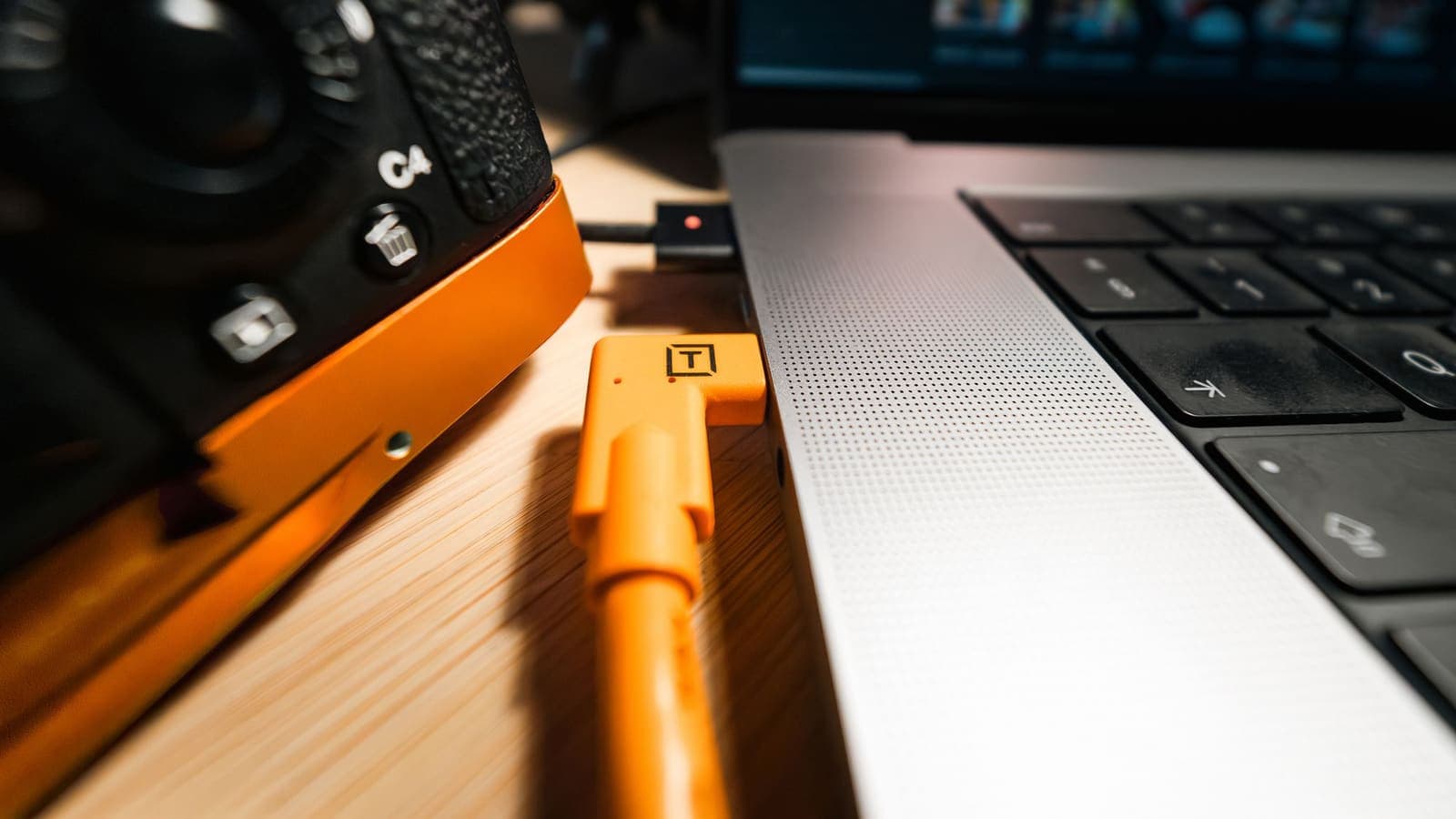
The most dependable way to protect a laptop that uses your phone's hotspot is to run the VPN on the laptop itself. Then the protection does not depend on how the phone forwards traffic.
- Connect the laptop to your phone's hotspot first. Make sure it has internet access.
- Open the VPN app or connection profile listed on My Pass on the laptop and sign in with the VPN username and password shown there.
- Connect and wait for the status to show connected.
- Run the checks below to confirm the laptop's traffic is going through the VPN.
- Keep the phone's own VPN decision separate. You may leave the VPN on in the phone for its own apps, or turn it off. Either way, the laptop's protection now comes from the laptop's VPN.
The same logic applies to a tablet or a friend's device, if the VPN supports it. Each device that needs protection should run its own connection, using the details that its owner is entitled to use. Please do not share your login details with other people, and keep the credentials secret.
Test what your setup actually does
This test works for any hotspot, USB tether or otherwise. You need one device connected to the hotspot and a browser.
- On the connected device, with the VPN off everywhere, look up your public IP with an IP-lookup site and write it down.
- Turn the VPN on at the place you are testing: either on the phone only, or on the connected device only.
- Reload the IP-lookup page on the connected device, in a fresh tab.
- If the address changed, the connected device's traffic goes through the VPN in that setup.
- If the address is unchanged, the traffic is bypassing the VPN. Do not rely on that setup.
- Repeat after switching between Wi-Fi hotspot and USB tethering, because results can differ.
- Repeat after a phone update. Behaviour can change between versions.
Our guide on how to check if your VPN is working describes the IP, DNS and WebRTC checks in more detail.
Setups compared
| Setup | What it usually protects | Reliability | Notes |
|---|---|---|---|
| VPN on phone only, laptop on hotspot | Phone's own traffic; the laptop only if the phone routes it | Uncertain, varies by phone | Must be tested |
| VPN on the laptop, laptop on hotspot | The laptop's traffic | Good | Works the same on any network |
| VPN on both | Each device's own traffic | Good | Possible double handling; may slow things |
| No VPN, hotspot only | Nothing beyond normal protections | None | Rely on HTTPS and good habits |
Consider a traveller, Arjun, who works from a train with his laptop on his phone's hotspot. He turns on the phone VPN and assumes he is covered. At the next station he tests with an IP check on the laptop and sees his normal address. He installs the VPN app on the laptop, connects it, repeats the check and sees the address change. He now knows which device is actually protected.
Securing the hotspot itself
A VPN does not decide who can join your hotspot, so look after that separately. This is the "vpn hotspot security" part of the picture: a hotspot is a small public network you control, and a weak one invites trouble.
- Use a strong password. A long, unique passphrase is much better than a short or default one.
- Choose modern encryption. Pick the strongest option offered in the hotspot settings, such as WPA3 where available, otherwise WPA2.
- Do not leave it open. A hotspot with no password lets anyone nearby use your data and sit on your network.
- Rename it sensibly. Avoid names that reveal your identity or home address.
- Turn it off when finished. An active hotspot drains battery and invites connection attempts.
- Check the connected-devices list. If an unknown device appears, change the password.
For more on risks on shared networks in general, see how to stay safer on public Wi-Fi.
Common mistakes and limits
- Trusting the VPN symbol. It shows the phone's connection status, not the status of other devices using it.
- Assuming one test is permanent. Updates to the phone or the operating system can change behaviour.
- Sharing login details with others. Use the credentials only as your pass allows, and never post them.
- Forgetting data costs. Hotspot use counts against your mobile plan and your carrier may limit or charge for tethering.
- Expecting a VPN to fix a bad signal. A VPN adds a step. It does not improve coverage and can slow the connection a little.
- Expecting anonymity. A VPN encrypts traffic between your device and the VPN server and changes the address websites see. It does not make you anonymous or stop phishing.
Summary
A VPN on a phone does not automatically cover devices using its hotspot or USB tether. Behaviour depends on the operating system, version and manufacturer, so test it with an IP check from the connected device, and prefer running the VPN on each device that needs protection. Secure the hotspot with a strong password and modern encryption, and keep your login details private. If you need more time on your pass, see the pricing page.
Frequently asked questions
If my phone has a VPN on, are devices on its hotspot protected too?
Not necessarily. On many phones, traffic from hotspot clients does not pass through the phone's own VPN, and the behaviour varies by operating system version and manufacturer. Test it rather than assuming.
Does the answer change for USB tethering?
The same uncertainty applies. A computer using your phone through a USB cable may or may not have its traffic routed through the phone's VPN, depending on the phone and system. A VPN running on the computer itself is the more reliable approach.
Is a VPN on the connected laptop better than a VPN on the phone?
For protecting the laptop's traffic, usually yes, because the VPN then runs on the device that is actually sending the data. It also keeps working if you later move the laptop to another network.
Does a VPN make my hotspot itself secure?
No. The hotspot's own security comes from a strong Wi-Fi password and modern encryption settings on the phone. A VPN protects traffic after it leaves the device, not who is allowed to join your hotspot.
Will my XPASS pass work on a hotspot setup?
We cannot promise that. Setup instructions and supported connection methods are shown on your My Pass page, which is the source of truth for your pass.
References
Need a VPN for a short trip or a busy month?
XPASS sells prepaid passes for a set number of days. You pay once and nothing renews automatically.
See passesKeep reading
Device Guides
How to Set Up a VPN on Android
Step by step: install VPNclient from Google Play, sign in with your My Pass details, accept the Android connection request and connect.
6 min read
Device Guides
How to Set Up a VPN on iPhone
Step by step: install VPNclient from the App Store, sign in with your My Pass details, allow the iOS prompt and connect.
6 min read

Troubleshooting
How to Check If Your VPN Is Working
A VPN can show as connected and still not be doing its job. Use these checks to confirm your traffic is going through it, and fix an IP that will not change.
7 min read

Device Guides
How to Connect to a VPN on Public Wi-Fi
Join a public network, get past the login page, and switch your VPN on in the right order. Includes fixes for captive portals that stop the VPN from connecting.
5 min read