
How to Set Up a VPN on Android TV, Google TV and Fire TV
Step by step: allow the TV to install the official VPNclient TV app, install it safely, sign in with your My Pass details and connect.
8 min readUpdated Oct 15, 2026By XPASS Editorial Team
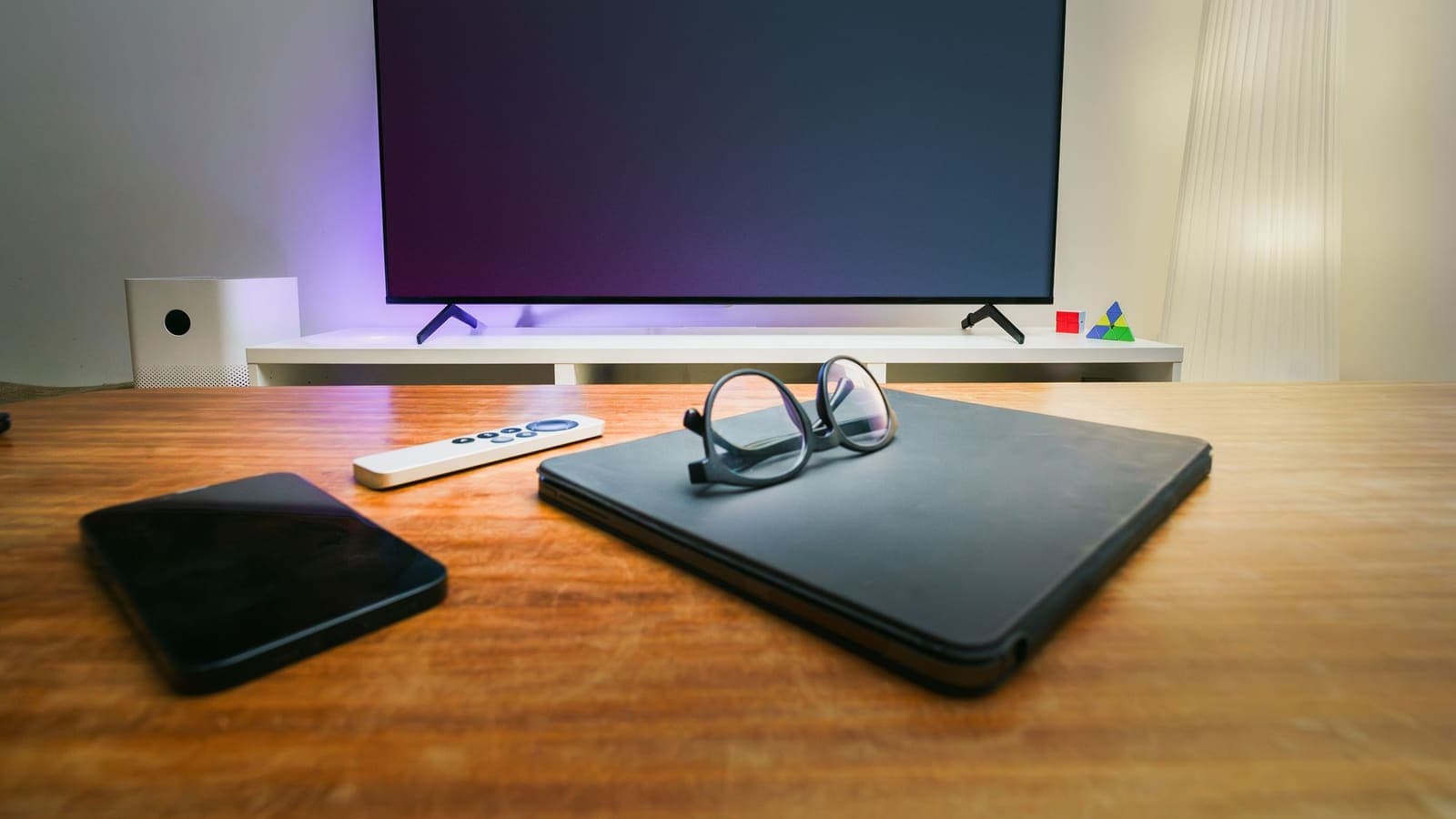
This guide walks you through setting up XPASS on a TV or streaming box that runs Android TV, Google TV or Fire TV, using the VPNclient TV app. The TV app is built for big screens and works with a remote. Because it is installed from the official link rather than the TV app store, there are a few extra steps, but each one is simple. Plan on about fifteen minutes.
The app has no XPASS branding and no sign-up screen. That is expected: your account already exists, and the app only needs your VPN login details. Menu names differ between TV makers and system versions, so the paths below may look slightly different on your device.
Before you begin
- Make sure your pass is delivered. Open My Pass on your phone or computer and check that it shows as active with days remaining.
- On My Pass, open View secure login details and keep the page open. You will type the username and password on the TV, so it helps to have them in front of you.
- Check what your device runs. Android TV and Google TV show it under Settings > System > About. Fire TV devices have Fire TV in their settings and use the Amazon Appstore. Some newer Fire TV models (for example the Fire TV Stick 4K Select) run Amazon's Vega OS instead of Android-based Fire OS. They may not be able to install apps from files, so this guide may not work on them. If you have one, contact our support team.
- Make sure the TV is connected to the internet and up to date.
If you cannot find your details, read where are my login details.
The official TV app link, used in the steps below, is: VPNclient for Android TV, Google TV and Fire TV. Write it down exactly; you will type it with the remote.

Step 1 on Fire TV: allow Downloader to install apps
- From the Fire TV home screen, open the Appstore or search, find the free app called Downloader and install it.
- Open Settings > My Fire TV > Developer options.
- If you do not see Developer options, open Settings > My Fire TV > About, select your device name seven times until a message says you are a developer, then go back.
- In Developer options, select Install unknown apps, then set Downloader to On. On some older models this is a single setting called Apps from Unknown Sources.
Skip to step 2 when you are done.
Step 1 on Android TV and Google TV: allow one app to install files
- From your TV's app store, install a downloader or file manager app that can open web links. Many people use an app called Downloader, where available.
- Open Settings > Apps > Security & restrictions > Unknown sources (on some models: Settings > Privacy > Security & restrictions), and turn it on for that app only.
- If you cannot find the option on Google TV, first turn on developer options: open Settings > System > About, select Android TV OS build seven times until a message appears, then look again.
Step 2: Install the VPNclient TV app
- Open the downloader app you just allowed.
- Select the address or URL box and type the official link exactly as written above, including capital letters: vpnclient.app/apk/VPNClient-TV-New.apk
- Select Go or the download button and wait for the file to download.
- When the TV asks whether to install the app, select Install. When it finishes, choose Done rather than Open, so you can tidy up first.
- If the downloader offers to delete the downloaded file, select Delete. The installed app stays.
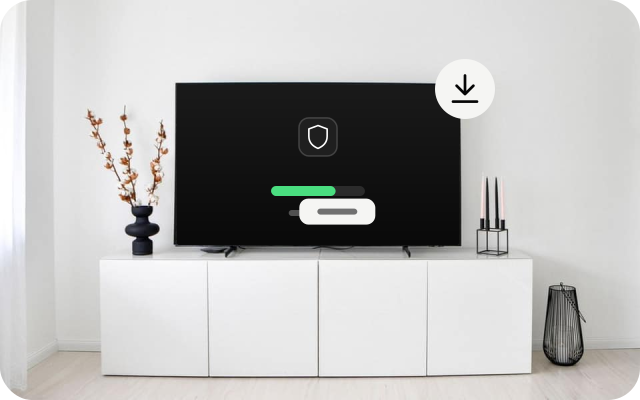
Now switch the permission back off: return to the setting from step 1 and turn unknown apps Off for the downloader app. This keeps your TV safe from accidental installs later.
Never install VPN apps on your TV from other sites, video tutorials or "modded" files. A VPN app sees all of your TV's traffic, so it must come from the official link.
Step 3: Open the app and sign in
- Open VPNclient from your apps row. On Fire TV, look under Your Apps & Channels or the apps icon. On Google TV, open Apps and then See all.
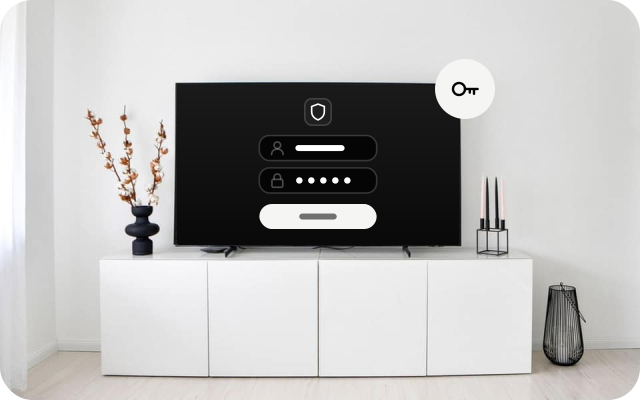
- Select the username field and type the username from My Pass with the on-screen keyboard.
- Select the password field and type the password. Typing with a remote is slow: check capital letters and symbols carefully. If your phone can act as a TV keyboard, use it.
- Select the sign-in button.
Step 4: Accept the connection request and connect
- If the app offers a list of locations, open it and pick one. A location near you is usually fastest. If you are not sure, keep the app's default.
- Select the connect button.
- The first time, the TV shows a Connection request saying the app wants to set up a VPN connection that can monitor network traffic. Select OK.
- Wait until the app shows that you are connected.
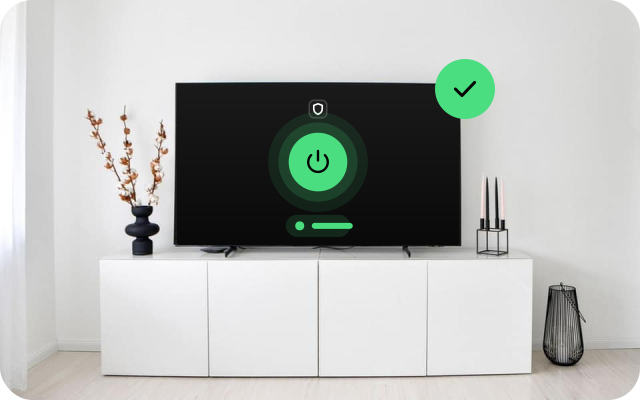
Keep the app's default connection settings unless our support team asks you to change them. You can now press Home and open your streaming apps; the VPN keeps running in the background.
Check that it works
- If your TV has a web browser, search for "what is my IP" with the VPN off and on, and compare the addresses.
- Otherwise, open a streaming app or two and confirm that video plays smoothly.
- Some streaming services limit what they show when they detect a VPN. That is a choice by the service, not a fault in your setup.
For more tests, read how to check if your VPN is working.

Turn the VPN off
Open VPNclient and select the connect button again to disconnect. Restarting the TV may also end the connection. More options are in how to turn off a VPN.
If it does not work
- The download does not start. Check the link letter by letter, including the capital letters, and make sure the TV is online.
- The TV blocks the installation. The unknown-apps permission is off for the app you used. Turn it on for that one app, install, then turn it off again.
- The app is missing from the home screen. Look in the full apps list, or search for VPNclient.
- Sign-in fails. Retype the username and password slowly and check every capital letter. Confirm your pass is still active.
- Connected but nothing plays. Disconnect, restart the TV, then connect again. If the app offers locations, try a different one.
- Your pass has expired. The app cannot connect without an active pass. Renew from My Pass.
Further fixes are in VPN not connecting.
Limits and what to watch for
A VPN encrypts the traffic between your TV and the VPN service and hides your IP address from the services you use. It does not make you anonymous, does not unlock every streaming catalogue and can reduce speed on slow connections. Keep the TV and the app updated, keep the unknown-apps permission off when you are not installing, and never install apps from unknown sources.
Summary
Allow one downloader app to install files, install VPNclient from the official TV link, switch that permission off again, sign in with the username and password from My Pass, accept the connection request and connect. Your streaming apps then run through the VPN. If you need more time later, see the pricing page or renew from My Pass.
Frequently asked questions
Which TVs does this guide cover?
TVs and streaming boxes that run Android TV or Google TV, and Amazon Fire TV devices. Smart TVs with other systems cannot install this app.
Why is the app installed from a link instead of the TV app store?
The VPNclient TV app is published as an installation file on its own site. You allow one app on your TV to install it, install it from the official link, then switch that permission off again.
Is installing an app this way safe?
It is safe when the file comes from the official link in this guide. Never install VPN apps from other sites or modified versions, and turn the unknown-apps permission off when you are done.
Which username and password do I use?
Use the VPN username and password shown on your My Pass page. They are not your XPASS website email, and there is no sign-up inside the app.
Can I type the password with my phone instead of the remote?
Many Android TV and Google TV devices let you type with the Google TV app on your phone, and some remotes have a microphone or keyboard. Otherwise use the on-screen keyboard carefully.
Need a VPN for a short trip or a busy month?
XPASS sells prepaid passes for a set number of days. You pay once and nothing renews automatically.
See passesKeep reading
Device Guides
Getting Started With Your XPASS Pass
A step-by-step walk-through from buying a prepaid XPASS pass to your first working VPN connection in the VPNclient app.
7 min read
Device Guides
How to Set Up a VPN on Android
Step by step: install VPNclient from Google Play, sign in with your My Pass details, accept the Android connection request and connect.
6 min read

Troubleshooting
VPN Not Connecting? Step-by-Step Fixes
A clear order of checks for when the VPN will not connect: pass status, login details, Wi-Fi and mobile data, permissions, firewalls, app conflicts and error messages.
8 min read