
How to Set Up a VPN on a Router
A general, firmware-neutral guide to running a VPN on your router: what to check first, the usual setup steps, DNS and kill switch settings, travel routers and common fixes.
7 min readUpdated Oct 15, 2026By XPASS Editorial Team
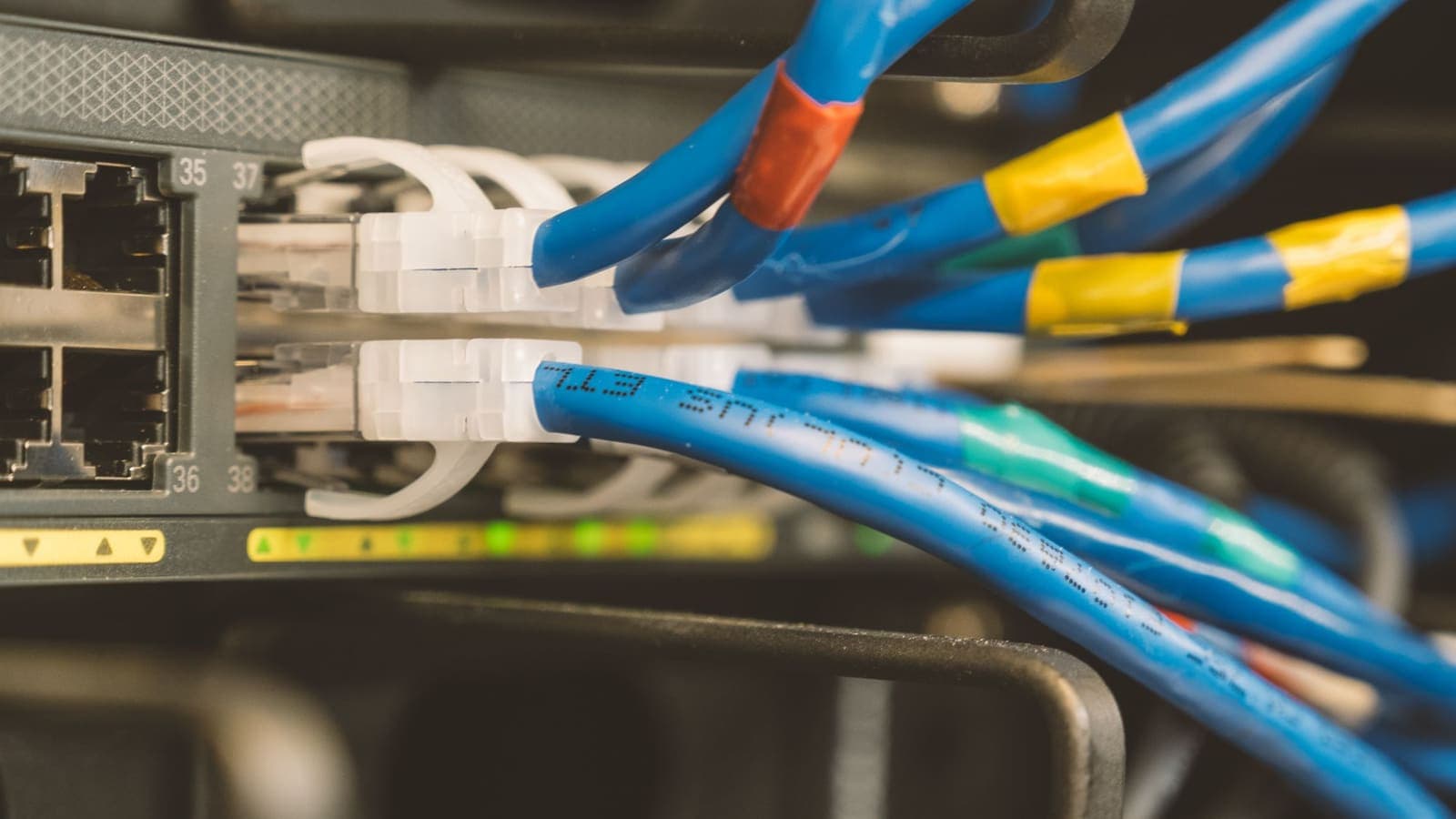
Setting up a VPN on a router means the router itself opens the encrypted tunnel, so every phone, laptop, TV and games console on that network goes through it without needing its own app. It is a good fit for a home with many devices, but it is also the most technical way to use a VPN, and the exact screens differ from one router to the next.
This guide is deliberately general. XPASS has not verified router setups, so we do not promise that a particular model or firmware will work with your pass. The steps below show how router VPN clients usually work, so you can decide whether it is worth trying and what to look for in your own router's menus. For most people, the easiest option is still the app on each device.
Is a router VPN right for you?
A router VPN has real advantages, and real costs. Weigh both before you change a working network.
Good reasons to do it
- You want devices that cannot run a VPN app, such as some smart TVs and consoles, to use the tunnel.
- You have many devices and do not want to sign in on each one.
- You want everything at home covered from the moment it joins the Wi-Fi.
Reasons to stay with the app
- You mostly use a phone or laptop, and you leave home with them. The router cannot protect them once they are on mobile data or a cafe network.
- Your router is old or has a weak processor. Encryption is demanding, and a slow router may make every device slower.
- You do not want to risk the home network failing during work or school hours.
- Your pass does not list a connection method that your router supports.
If you are unsure, start with the app on one device using the setup guide for your phone or computer, and come back to the router later.

What to check before you start
Spend ten minutes on preparation. It prevents most of the problems people run into.
- Check that your router has a VPN client. Look in the admin menu for a section called VPN, VPN Client, OpenVPN Client, WireGuard or similar. Many routers only have a VPN server, which lets you connect into your home network, and that is the opposite of what you need here. Some routers also list "VPN passthrough", which is a different feature (see below).
- Find out which connection types it supports. Router VPN clients commonly offer OpenVPN, WireGuard, L2TP/IPsec or PPTP, but this varies by model and firmware version. You can read about the general differences in OpenVPN and WireGuard.
- Open My Pass. Sign in and look at the connection method and setup instructions shown for your pass. A router can only be used if it supports the same method. Do not assume another method will work.
- Copy your VPN username and password from My Pass. They appear only there and are never sent by email. If you cannot find them, read where to find your login details.
- Update the router firmware from the manufacturer, if a stable update exists, and write down the current admin address and password.
- Back up the current configuration. Most routers have a backup or export option in the administration menu. Save the file on your computer.
- Choose a quiet time. Changing router settings can interrupt the internet for a few minutes.
VPN passthrough is not a VPN
Many router spec sheets mention "VPN passthrough" for IPsec, PPTP and L2TP. It only means the router will not block a VPN that starts on a device behind it, such as your laptop. It does not encrypt anything itself. If you only want to keep using the app on your laptop at home, passthrough is usually already on and you do not need to change anything.
General steps to add the VPN to your router
Menu names change, but the process is nearly always the same.
- Sign in to the router admin page. Type the router's local address in a browser, often printed on a label on the router, and sign in with the admin account.
- Open the VPN client section. It may be under Advanced, Network, Services or VPN.
- Add a new VPN profile. Choose the type that matches the method shown on My Pass.
- Enter the details exactly as My Pass shows them. That means the server address or profile information, the username and the password. Paste instead of typing, and check for stray spaces.
- If your pass gives you a profile or configuration file, use the router's import option rather than copying values by hand.
- Save and apply. Wait for the status to change to connected or active. Some routers need a full minute.
- Check from a device. Follow how to check if your VPN is working on a phone or laptop connected to the router.
Do not close the page or reboot during the save. If the router shows an error, write down the exact message, because it usually points to the cause.
DNS, kill switch and choosing which devices use the VPN
Once the tunnel is up, a few settings decide how good the setup really is.
DNS
DNS is the lookup that turns a site name into an address. If the router keeps using your internet provider's DNS while the VPN is on, lookups can bypass the tunnel. Many routers have a DNS setting on the VPN client page, or an option such as "accept DNS configuration". Choose the option that lets the VPN supply DNS, or set a DNS service you trust. You can test for this afterwards (see below).
Kill switch
A kill switch stops traffic from using the normal internet connection if the VPN drops. On a router it may be called "block non-VPN traffic", "internet kill switch" or be done with a firewall rule. If your router has it, turn it on so that devices lose internet instead of quietly continuing without protection. Be aware that you may then have no internet at all until you fix the VPN.
Which devices use the tunnel
Some routers let you pick devices or networks that use the VPN and others that do not. Smart TVs and consoles often work better when you keep them on the tunnel, while banking or work laptops that need your normal local connection can be left out. This feature is often called policy-based routing or "VPN client list". If your router has no such option, every device goes through the VPN.
Firmware families at a glance
The brand names below are only examples of router software types, not an endorsement or a promise of compatibility.
| Type | Typical VPN client features | Effort |
|---|---|---|
| Stock firmware from mainstream router makers | A VPN client page with a few connection types, usually basic | Low |
| Travel or small-office routers sold with VPN client menus | Profile import and one-tap switch | Low |
| OpenWrt | Many VPN client packages, very flexible, requires reading documentation | High |
| DD-WRT | Built-in client options, more manual | Medium to high |
| pfSense and OPNsense firewalls | Full client support and routing rules, designed for advanced users | High |
If you use one of the advanced systems, you probably know your way around already. Always follow the firmware's own documentation.
Set up a travel router
A small travel router lets you connect a hotel or cafe network to your own private Wi-Fi, so your phone, laptop and tablet join your own network and share one VPN tunnel.
- Connect the travel router's internet port to the hotel Ethernet socket or to the hotel Wi-Fi as a repeater.
- Open its admin page and add the VPN profile as in the steps above.
- Check whether the hotel needs a web page sign-in. Do that first, with the VPN off.
- Turn the VPN on and join your devices to the travel router's own Wi-Fi.
Public networks are risky, and a VPN can help, but it does not fix everything. Read the guide on staying safer on public Wi-Fi for the other habits that matter.
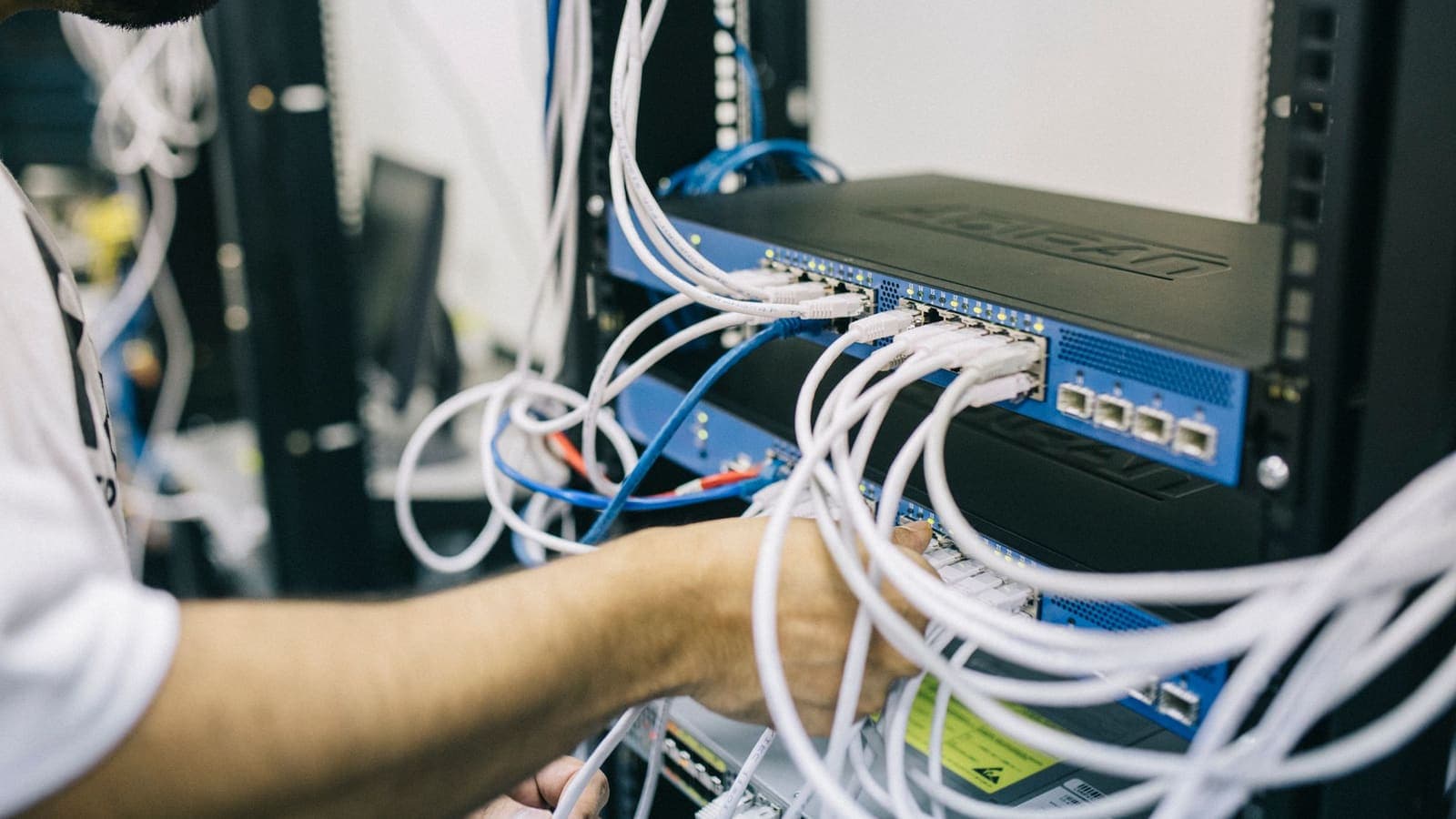
Test and troubleshoot
After setup, run these checks on a device connected to the router.
- Compare your public IP address with the VPN off and on. The address should change when the tunnel is up.
- Run a DNS check with a leak test site to confirm lookups go through the VPN.
- Test speed at several times of day.
If something is wrong, work through this table.
| Symptom | Likely cause | What to try |
|---|---|---|
| Status stays disconnected | Wrong username or password, or the method does not match | Paste details again from My Pass and confirm the connection type |
| Connected but no internet | DNS problem or time not set | Set DNS manually, and make sure the router clock is correct |
| Very slow speeds | Weak router processor, Wi-Fi interference | Test over Ethernet, try another connection type if My Pass lists one |
| One device does not use the VPN | Policy rule excludes it | Check the device list on the VPN page |
| Internet drops entirely | Kill switch is on and the VPN is down | Fix the tunnel or turn the kill switch off temporarily |
For more detail, read what to do when the VPN is not connecting.
Limits and what to watch for
- Support is not guaranteed. Router setups are not verified by XPASS. If your router does not accept the method on My Pass, the app is the dependable route.
- Your pass rules still apply. Follow any rules or limits shown on My Pass, which may also apply when you connect from a router.
- One tunnel for the whole home. If the VPN drops, everyone behind the router is affected.
- Mobile devices leave the home. The router only protects traffic that goes through it.
- A VPN does not do everything. It cannot stop phishing or malware, and it will not make you anonymous.
- Keep the router itself secure. Use a strong admin password and keep the firmware updated.
- Return to normal if needed. To go back, turn off the VPN client or restore the backup you saved earlier.
Summary
To use a VPN on a router, confirm that it has a VPN client, check the connection method on My Pass, copy your login details, add the profile, set DNS and a kill switch, and test from a device. Router setups are not verified by XPASS, so treat this as a general guide and keep the app on your phone or laptop as the dependable option.
If you want to see which devices have an app, visit the devices page.
Frequently asked questions
Is a router VPN supported with my XPASS pass?
XPASS has not verified router setups. The supported way to connect is the VPNclient app, and My Pass shows the connection method that applies to your pass. If your router can use that same method you may be able to set it up, but we cannot promise results for a specific router model or firmware.
What is the difference between VPN passthrough and a VPN client on the router?
VPN passthrough only lets a VPN connection started on your laptop or phone pass through the router. It does not create a VPN. A VPN client on the router makes the router itself open the tunnel for the devices behind it.
Do I still need the app on my phone if the router runs the VPN?
Not while the phone is on that home network and the router tunnel is active. Away from home the phone is outside the router, so it needs its own VPN connection.
Will a router VPN slow my internet down?
It can. Many home routers have modest processors, and encryption takes work, so speeds can drop compared with the same VPN on a laptop. A newer or more powerful router usually copes better.
What should I do if the router locks me out after a change?
Use the router's reset button only as a last resort, because it erases your settings. Before you start, save a backup of the configuration so you can restore it.
References
Need a VPN for a short trip or a busy month?
XPASS sells prepaid passes for a set number of days. You pay once and nothing renews automatically.
See passesKeep reading
Device Guides
Getting Started With Your XPASS Pass
A step-by-step walk-through from buying a prepaid XPASS pass to your first working VPN connection in the VPNclient app.
7 min read

Device Guides
Where Are My VPN Login Details?
Your username and password appear only in My Pass after you sign in. Here is how to open the page, copy the details, fix a sign-in loop and what to do if they are missing.
7 min read

Troubleshooting
How to Check If Your VPN Is Working
A VPN can show as connected and still not be doing its job. Use these checks to confirm your traffic is going through it, and fix an IP that will not change.
7 min read

Troubleshooting
VPN Not Connecting? Step-by-Step Fixes
A clear order of checks for when the VPN will not connect: pass status, login details, Wi-Fi and mobile data, permissions, firewalls, app conflicts and error messages.
8 min read