
How to Troubleshoot a VPN on iPhone and iPad
Step through the most common iPhone and iPad VPN problems in order, from an expired pass to low power mode, profile settings and network changes.
5 min readUpdated Oct 15, 2026By XPASS Editorial Team
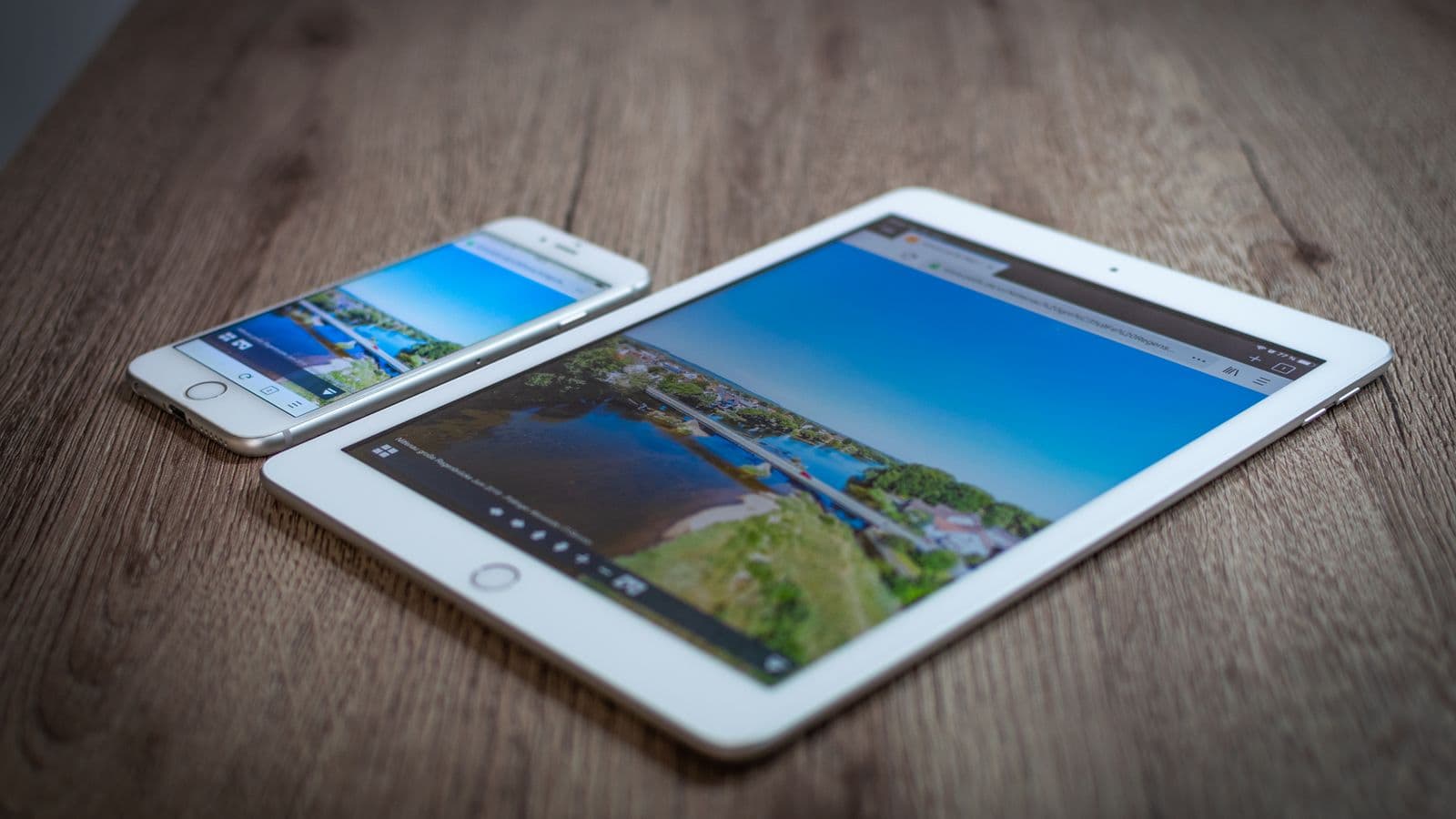
On an iPhone or iPad, VPN problems usually come down to a handful of causes: the pass has run out, the device is in a power-saving mode, the network needs a login, or the saved VPN configuration has gone stale. Because the system VPN settings are shared by every app, a small change can sometimes make a big difference.
The checks below run from the most likely cause to the least likely. Use the app or connection profile shown on your My Pass page. Menus and wording change between iOS and iPadOS versions, so treat the names as descriptions. If you have not yet configured the VPN, see setting up a VPN on iPhone first.
Step 1: confirm your pass is active
- Sign in to your My Pass page and read the end date. Validity starts when the VPN account was created, not when you first connected.
- If the pass has ended, renew it. New days are added on top of any that remain.
- Compare the login details in the app or profile with the ones on your My Pass page. A stray space or a mistyped character is a very common cause of failed logins.

Step 2: check the device and the internet
- Test without the VPN. Turn the VPN off and open a normal website. If it does not load, the issue is the network.
- Toggle airplane mode on for ten seconds and off again, or turn Wi-Fi off and on.
- Check Low Power Mode. In battery settings, turn it off temporarily. It limits background activity and can interrupt a VPN.
- Check Low Data Mode. For Wi-Fi and mobile data networks, Low Data Mode can reduce background traffic. Turn it off for the network you are testing.
- Check the date and time. Set them to automatic in general settings.
- Restart the device. Press and hold the buttons your model uses to power off, wait, then switch on again.
Step 3: reconnect cleanly
- Disconnect the VPN from the app or from the VPN switch in system settings, if your device shows one.
- Swipe the app away from the app switcher so it closes fully.
- Open it again and connect.
- If your My Pass page lists more than one connection method, try the other one.
- Confirm success using how to check if your VPN is working.
Step 4: review the saved VPN configuration
iOS stores VPN configurations in its settings, usually under General and then a VPN section. The exact path varies by version.
- Look for more than one VPN entry. If an old or duplicate one exists, remove it and add the connection again using the instructions on your My Pass page.
- If a profile shows an error, remove it and reinstall it.
- If you added the VPN manually, check each field against what your My Pass page shows. A single wrong character will stop it connecting.
- Allow the VPN app to add configurations when iOS asks. If you tapped "Don't allow" earlier, remove the app and install it again so the prompt appears once more.
Step 5: check the network
- Switch between Wi-Fi and mobile data. If it works on one, the other has a restriction or a weak signal.
- On hotel, airport and cafe networks, finish the login page first. Read connecting a VPN on public Wi-Fi.
- Under the Wi-Fi network's details, you may see a setting for a private Wi-Fi address. Turning it off for a network can help if the network keeps a list of approved devices.
- Forget the Wi-Fi network and join it again if it connects but loads nothing.
- Turn off any other VPN, proxy or content-filtering profile while testing.
Step 6: allow background activity
In the settings list for your VPN app, check Background App Refresh and make sure it is allowed. A VPN that is not allowed to refresh in the background may seem to stop when you switch apps or lock the screen.
Step 7: update, then reset as a last step
- Update iOS or iPadOS and the VPN app.
- As a late option, reset network settings in the general reset menu. This clears saved Wi-Fi passwords and VPN configurations, so you will need to reconnect to your networks and set the VPN up again.
- If the problem still occurs, uninstall and reinstall the app, then sign in using the details from your My Pass page.

A simple example
A traveller says the VPN connects at home but fails at a hotel on an iPad. The pass is active, and mobile data works. In this case, the hotel Wi-Fi needs a room-number login that has not appeared. The traveller opens a browser, completes the hotel page, and then connects the VPN with no further issues.
Limits and what to watch for
- iOS may disconnect VPNs when conditions change, such as moving between networks. A quick reconnect is normal. See reconnecting when the VPN disconnects.
- Some networks restrict VPN traffic, and no setting on your device can change that.
- A reset deletes data on the device, such as saved Wi-Fi passwords, so only use it when other steps have failed.
- Keep your own passwords private. Do not share them in screenshots.
When to contact support
If your pass is active and these steps have not helped, contact us through account support or the contact page. Tell us the device model, iOS or iPadOS version, the connection method, the network type, the time the problem began and any message shown. Do not include your password.
Summary
Check your pass, test the device and network, reconnect cleanly, review saved configurations, check background activity, and update before using a reset. For tips that keep the connection steady, read improving VPN connection stability, or browse the Help Center.
Frequently asked questions
Why does my VPN show connected on iPhone but nothing loads?
The network may need a login page, the connection may be stale, or a power or data-saving mode may be interfering. Reconnect, switch between Wi-Fi and mobile data, and follow the other steps in this guide.
Will resetting network settings fix my VPN?
It can clear stubborn problems, but it also removes saved Wi-Fi networks and VPN configurations on the device. Treat it as a late step and be ready to set the VPN up again.
Why does the VPN drop when my iPhone locks?
Low Power Mode, poor signal or background limits can interrupt the connection. Turn off Low Power Mode as a test and keep the VPN app allowed to run in the background.
Do I need to reinstall the app?
Only as a last resort, after you have checked your pass, reconnected, restarted and updated. Have your login details ready first.
Need a VPN for a short trip or a busy month?
XPASS sells prepaid passes for a set number of days. You pay once and nothing renews automatically.
See passesKeep reading
Device Guides
How to Set Up a VPN on iPhone
A practical walk-through for setting up and connecting a VPN on iPhone using the details on your My Pass page.
5 min read

Troubleshooting
How to Check If Your VPN Is Working
A VPN can show as connected and still not be doing its job. Use these checks to confirm your traffic is really going through the VPN.
5 min read

Troubleshooting
How to Improve VPN Connection Stability
A VPN that keeps dropping or stalling is usually reacting to the network or device around it. These steps help you find and fix the weak link.
5 min read