
VPN Stopped Working After an Update
Why an operating system or app update can break a working VPN, a diagnosis order that finds the cause fast, and repair steps for Windows, Mac, Android and iPhone.
9 min readUpdated Oct 15, 2026By XPASS Editorial Team
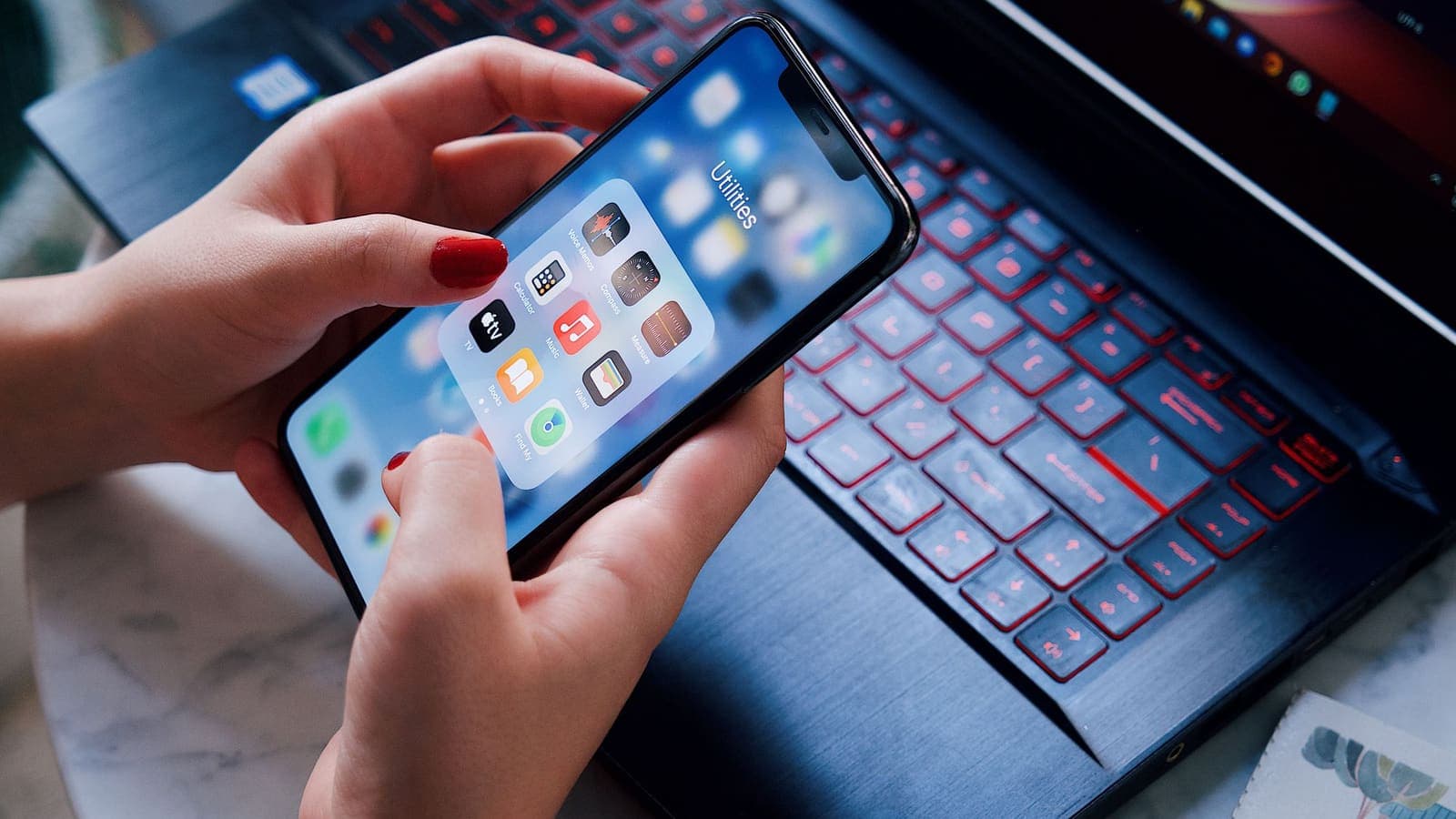
Yesterday the VPN connected in two seconds. Today, after your phone restarted itself overnight with a new version of the operating system, it hangs on "connecting", or reports an error, or connects but nothing loads. Nothing about your account has changed. The only difference is the update. A VPN that stopped working after an update is frustrating precisely because it feels unfair, but it is also one of the more predictable kinds of failure.
This article is a repair guide for that one situation. It is not about slow speeds or random drops, which have their own pages such as why a VPN is slow. It focuses on what an update actually changes, how to find out which change hurt you, and how to put each platform back in working order without making things worse.
What an update quietly changes under your VPN
A VPN app relies on several parts of the operating system at once. An update can touch any of them.
- Network drivers and adapters. On Windows, the VPN usually adds a virtual network adapter. An update may replace the driver, disable the adapter or reorder how adapters are ranked.
- Permissions. On phones and Macs, a VPN app needs approval to add a VPN configuration and to run in the background. After a major update, that approval is sometimes reset, or the system asks again.
- Firewall and security rules. Updated security components may treat the VPN's traffic differently, block a helper program or flag it as unsigned.
- Background-activity rules. Newer operating systems often tighten battery and background limits. A VPN that used to survive in the background may now be stopped.
- Network stack defaults. Updates can change defaults such as IPv6 handling, DNS settings or the packet size the system uses, which can break a tunnel that depended on the old behaviour.
- The app itself. If the app updated too, a configuration saved by the old version may not load cleanly in the new one.
None of these is a "VPN bug" in the usual sense, and none usually means your pass or account is at fault. They are a mismatch between what the app expects and what the system now provides. That is why the fix is often a re-approval or a reset, not a long investigation.

Work out what changed, in this order
Resist the urge to try fifteen things at once. A short, ordered diagnosis tells you what actually fixed it.
- Write down what updated and when. Operating system, VPN app, router firmware, browser. If several changed together, list them.
- Test without the VPN. If the internet itself is broken after the update, the problem is the network, not the VPN. Fix the base connection first.
- Restart the device fully. Many update changes only take effect after a proper restart, and a half-finished update can leave odd states. Do a real shutdown, not just a screen lock.
- Check that your account is fine. Sign in at My Pass and confirm the pass is active and your VPN username and password are what you are typing. Where are my login details shows where to find them.
- Try another network. Switch from Wi-Fi to a phone hotspot. If it works on one and not the other, your router or its own update is involved.
- Look for a permission or security prompt. Many post-update failures are a silent request waiting for your answer.
- Only then reinstall or reset the VPN app or its network adapter.
| Symptom after the update | Most likely area | Quick test |
|---|---|---|
| Stuck on connecting | Permission reset or blocked helper | Look for a pending system prompt |
| Error about a missing adapter or driver | Network adapter replaced | Check adapters in system settings |
| Connects, no websites load | DNS, IPv6 or packet size change | Try another site by address; toggle IPv6 |
| Works on mobile data, fails on Wi-Fi | Router or Wi-Fi driver change | Reboot router; update Wi-Fi driver |
| App closes by itself | New background restriction | Remove battery limits for the app |
| Asks to sign in again | Saved configuration reset | Sign in with the username and password from My Pass |
Windows: adapters, firewall and the big feature update
Windows feature updates are the biggest single source of VPN breakage, because they replace drivers and reset parts of the network configuration.
- Restart, then run the Windows troubleshooter for network adapters. It is crude but sometimes re-enables a disabled virtual adapter.
- Open the list of network adapters in system settings. Look for a VPN-related adapter that is disabled or shows an error. Enabling it can restore the tunnel. Our guide on Windows VPN network adapter problems walks through this.
- Check the firewall. An update may reset firewall rules, so the app's traffic is blocked. Review the allowed apps list and make sure the VPN app is permitted on the network profile you use. See Windows VPN and the firewall.
- Check third-party security software. After an update, an antivirus can re-enable web protection modules that interfere with the tunnel. Temporarily pausing it on a trusted network, as a test only, tells you whether it is the cause. Turn it back on afterwards.
- Update the Wi-Fi and Ethernet drivers from the device maker, not just through the generic update.
- Reinstall the VPN app by downloading the current version from the download page and installing over the old one. Reboot after installing.
Microsoft's article on connecting to a VPN in Windows lists the built-in settings if you want to compare.
Mac: permissions and system extensions
On macOS, a major update frequently asks you to approve things again.
- Open System Settings and look for banners about a blocked or pending extension from the VPN app. Approving it is often the whole fix.
- In the VPN settings, check that the app's configuration is still listed. If it vanished, opening the app and signing in again recreates it.
- Look at Privacy and Security for any pending requests, such as network or full-disk permissions.
- Restart the Mac fully after approving.
- If the problem is irregular rather than constant, troubleshooting a VPN on Mac has the full checklist.
Do not install random "fix" tools that promise to repair your network. They often change settings you cannot easily undo.
Android: permissions, battery limits and the VPN slot
On Android, only one app can be the active VPN at a time, and updates can alter how that is handled.
- After the update, open the VPN app and see whether it asks for permission to set up a VPN connection. Accept the system prompt.
- In Settings, VPN, confirm that the app is the selected one and whether "Always-on VPN" or "Block connections without VPN" are on. A leftover block-without-VPN rule can make the whole phone look offline when the tunnel is down. See blocking connections without a VPN.
- Reset battery optimisation for the app to unrestricted. Updates often put apps back into the optimised group.
- Check notification permission. Without it, some versions of Android stop a foreground VPN service.
- Clear the app's cache, not its data, then restart.
- If the app was updated at the same time, sign in again with the VPN username and password from My Pass.
The Android VPN permissions article explains each permission and why it is needed.
iPhone and iPad: configurations and profiles
iOS stores a VPN as a configuration that the system owns. A major update can leave that configuration out of sync with the app.
- Open Settings, General, VPN and Device Management. If the VPN configuration is missing or shows a warning, open the app and reconnect; the system will ask you to allow adding it again.
- Remove the old configuration if it looks stale, then add it again from the app.
- Check Low Power Mode and background refresh for the app.
- Restart the phone.
- If it still fails, delete the app and install it again from the App Store. The listing is "VPNClient - Secured VPN" and it needs iOS 15.6 or later, so a very old device may be unable to run a recent build.
- See iPhone VPN settings and troubleshooting a VPN on iPhone and iPad for more.
When the packet-size change is the culprit
One subtle cause deserves its own section because it produces confusing symptoms: the VPN connects, small pages load, but large pages, uploads or video calls hang. This often points to a packet-size, or MTU, problem. A VPN wraps each packet in extra data, so packets must be a little smaller to fit through the path. If an update or a new router firmware changes how oversized packets are handled, some traffic is silently dropped. The mechanism is described in RFC 1191 on path MTU discovery.
Signs: chat works but photos fail to send; the first page loads and the second hangs; a video call connects but freezes. What to do: restart the router, test on a different network, and if the VPN app has a setting for packet size or an "auto" option, keep the default unless support says otherwise. Do not experiment with advanced values blindly, because wrong numbers make things worse.

Router and firmware updates
Sometimes the device was not updated at all; the router was. Home routers sometimes update themselves overnight, and the result can include new firewall behaviour, a changed DNS setting or a reset Wi-Fi configuration. Clues that point to the router: every device in the house is affected, the VPN works on mobile data but not on home Wi-Fi, or it began right after a power cut. Try restarting the router, wait for full start-up, then test again. If your router has an option to filter or inspect traffic, look at whether it was newly enabled.
Scenarios
Lek, a Windows user after a big feature update. The VPN app opens but shows an adapter error. In network settings he finds the virtual adapter disabled. He enables it, restarts, and the tunnel connects again. He then checks the firewall allow list as a precaution.
Anong, on an iPhone after a new iOS release. The VPN says connecting forever. The VPN configuration under device management was missing. She opens the app, connects, accepts the system prompt to add the configuration, and it works.
Boon, with an Android tablet. A new Android version resets battery rules, so the VPN app is closed whenever the screen turns off. He sets the app to unrestricted and enables notifications for it.
Ploy, working from home. Nothing on the laptop changed, but her router updated overnight. The VPN works on her phone's hotspot, not on home Wi-Fi. A router restart plus a fresh Wi-Fi connection fixes it.
Preventing the next surprise
- Before a major update, note your settings and make sure you can find your VPN username and password on My Pass.
- Let updates finish and restart the device before you test.
- Update on a stable connection so a driver is not left half installed.
- Keep the VPN app current. App makers usually adjust for new operating systems quickly.
- After any large update, spend two minutes connecting and checking one website. Finding a break while you have time beats finding it before a meeting.
- If your pass is close to ending, renew first and update later, so an expiry does not get mistaken for a break. See how pass expiration works.
Summary
When a VPN stops working after an update, the cause is usually a changed permission, driver, firewall rule, background limit or router behaviour, not a broken account. Work through it in order: note what updated, test without the VPN, restart fully, confirm your login details, try another network, approve any system prompt, and only then reinstall. Platform specifics matter, so use the Windows, Mac, Android or iPhone steps above. If you would rather start with a fresh short pass while you sort out a device, you can look at the pricing page.
Frequently asked questions
Why would an update break a VPN that worked yesterday?
Updates replace network drivers, reset firewall rules, change which apps may add VPN configurations, and sometimes remove permissions you granted earlier. The VPN app itself may be untouched, yet its surroundings are different.
Should I reinstall the VPN app first?
Not first. Check permissions, restart the device and sign in again before reinstalling. A reinstall is a sensible later step, especially when the operating system updated and the app did not.
Can I roll the update back?
Sometimes, but it is rarely wise. Rolling back an operating system update can remove security fixes. It is safer to repair the VPN setup and report the problem than to downgrade.
Do I need to buy a new pass after the update broke the connection?
No. Your pass stays valid for its fixed number of days whatever happens to your device. Your username and password on My Pass continue to work, so you only need to repair the app or device settings.
How do I know whether the app update or the system update caused it?
Think about what updated most recently and what changed first. If the app updated alone, signing out and in again, or reinstalling it, usually helps. If the system updated, look at permissions, drivers and the firewall first.
References
About the author

Bob Kanokphon Thongdee
- Founder of XPASS VPN
- Co-founder of eSIMonline.asia
- More than 7 years in online marketing
- Founder of Cojourney Visa and Cojourney Travel
Need a VPN for a short trip or a busy month?
XPASS sells prepaid passes for a set number of days. You pay once and nothing renews automatically.
See passesKeep reading
Troubleshooting
Fix Missing VPN Network Adapter on Windows
A VPN that cannot find its network adapter will not connect. This guide shows where Windows hides adapters, how to bring one back and when to reset.
10 min read

Device Guides
Windows Firewall and VPN: Safe Configuration Tips
How to keep Windows Defender Firewall switched on and still let your VPN work: profiles, prompts, narrow rules, sharing settings and a safe troubleshooting routine.
10 min read
Device Guides
Android VPN Permissions: What Are You Allowing?
What the Android VPN connection prompt really grants, which permissions a VPN app genuinely needs, which are red flags, and how to review them after install.
9 min read

Device Guides
iPhone VPN Settings Explained
What each iPhone VPN setting means, where to find it, which ones to leave alone and which neighbouring switches, such as Private Relay and DNS, change how a VPN behaves.
10 min read

Troubleshooting
VPN Not Connecting? Step-by-Step Fixes
A clear order of checks for when the VPN will not connect: pass status, login details, Wi-Fi and mobile data, permissions, firewalls, app conflicts and error messages.
8 min read