
VPN Not Working on Mobile Data: Fixes
A VPN that works on Wi-Fi but fails on 4G or 5G usually trips over phone data rules, carrier networks or signal changes. Here is how to track it down.
9 min readUpdated Oct 15, 2026By XPASS Editorial Team
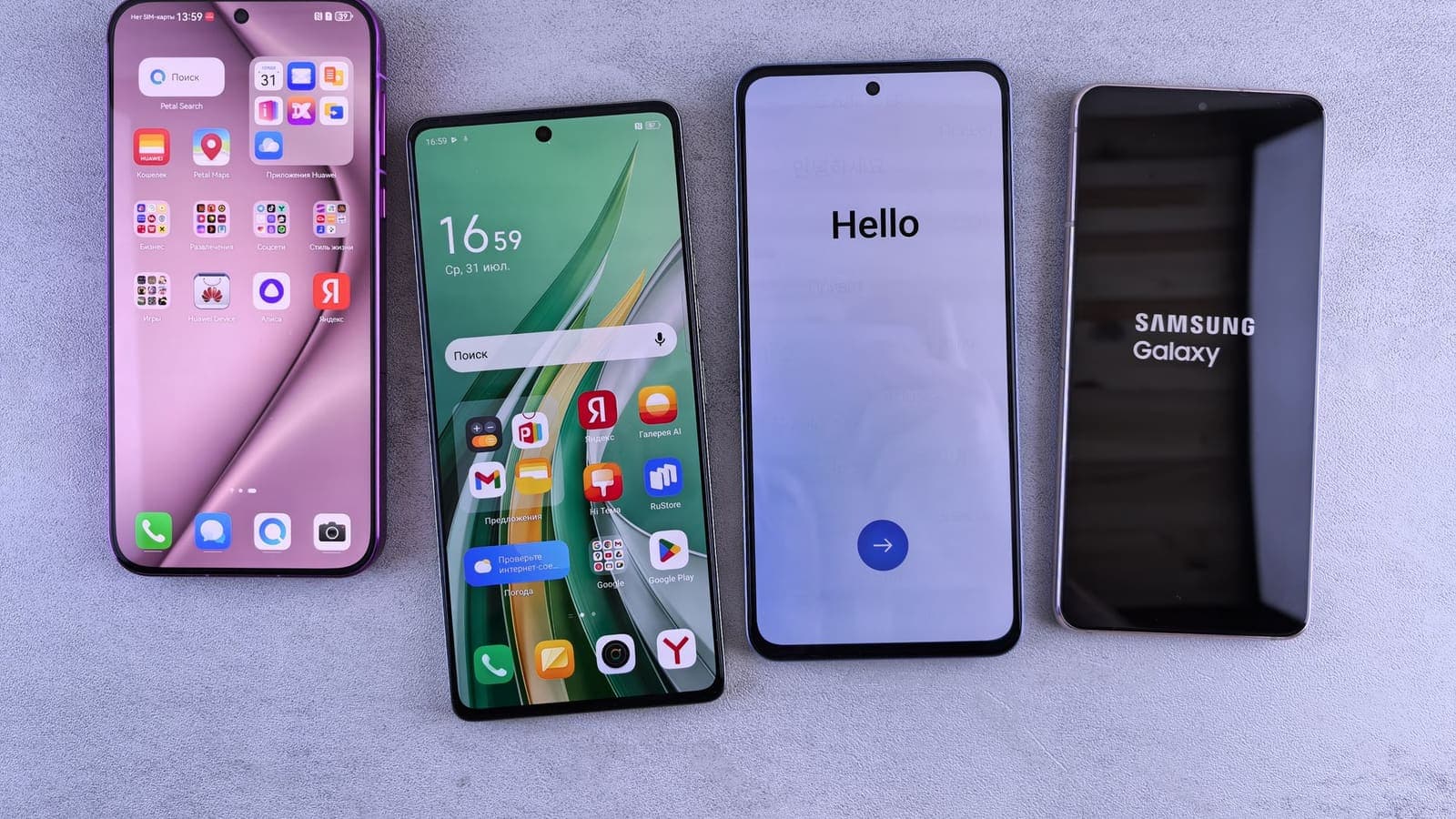
Your VPN works well on home Wi-Fi, you step outside, the phone switches to 4G or 5G, and suddenly it will not connect, shows "connected" with no pages loading, or keeps dropping every few minutes. Mobile data is a very different environment from Wi-Fi, and several of its quirks are specific to phones and carriers.
This article covers only the "vpn not working on mobile data" case. It follows the path from the phone to the cell tower: settings on the device, rules in the operating system, your SIM and the carrier network, and the way signal changes affect a tunnel. If your VPN fails everywhere, the general Help Center guide on VPN not connecting is a better starting point. If it fails only on Wi-Fi, see the separate article about Wi-Fi problems instead.
A quick triage before you change anything
Spend two minutes on these checks. They tell you which section to read.
- Does ordinary browsing work on mobile data with the VPN off? If not, the problem is your data connection, not the VPN. Check signal bars, plan balance and airplane mode.
- Does the VPN connect on Wi-Fi right now? If yes, your account and app are fine.
- Does it fail at every location, or only in one place? If only in one building or area, suspect weak signal.
- Does it fail immediately, or work for a while and then drop? An immediate failure points to settings or blocking. A later drop points to signal changes or background rules.
- Does it fail only abroad? Roaming has its own set of rules.
| What you see | Likely group of causes |
|---|---|
| Browsing fails too, with the VPN off | Plan, signal, SIM or carrier outage |
| VPN never connects on mobile data | Data saver, app data permission, carrier network, APN |
| Connects, but pages do not load | Address sharing, DNS, packet size, IPv6-only network |
| Works, then drops after minutes | Background restrictions, battery saver, tower changes |
| Fails only when roaming | Roaming data setting, partner network rules |

Phone settings that quietly cut off data
Both major phone systems have features designed to save data, and these can interfere with a tunnel. Menu names change between versions and makers, so use the idea rather than exact labels.
Data saver or low data mode. On Android, Data Saver restricts background data for apps that are not on its allowed list. On iPhone, Low Data Mode does a similar job for cellular. A VPN app that is restricted in the background may lose its connection when the screen locks. Turn the mode off as a test, or add the VPN app to the allowed list.
Mobile data permission for the app. Each app can be allowed or forbidden from using cellular data. If the VPN app is set to Wi-Fi only, it works at home and fails outside. Find the app in the cellular or data usage settings and allow it.
Background activity and battery saver. Power saving modes may freeze apps and cut their network access a few minutes after the screen goes off. Allow the VPN app to run without restriction in battery settings, and read does a VPN drain your battery to understand the trade-off.
Always-on VPN and "block connections without VPN". On Android these two options are powerful. They keep the tunnel active, and optionally block all traffic if it drops. If they are on while the tunnel cannot form, the phone will appear to have no internet at all. Turn the block option off while you test. The Help Center guide on troubleshooting a VPN on Android covers these menus, and Android's own VPN help describes the basics.
Private DNS. Android can use an encrypted DNS service set by the user. If that service is unreachable from inside the tunnel, pages will not load even though the VPN is connected. Switch it to automatic for a test.
iPhone specifics. The iPhone settings are gathered in VPN on iPhone and mobile data, and the Help Center page for troubleshooting a VPN on iPhone and iPad walks through them in order.
The SIM, the carrier and the APN
Once the phone's own settings are clear, look at the carrier side.
Roaming. Abroad, a phone needs data roaming turned on and a plan that includes it. With roaming off, no mobile data works at all. With roaming on but a partner network that handles traffic poorly, a VPN may connect slowly or not at all. Test ordinary browsing first.
APN settings. The access point name tells the phone how to reach the carrier's data network. After a SIM swap, a new phone, or a software reset, the values can be missing or wrong. Compare them with the values your carrier publishes, and write down the old ones before you change anything. Wrong values break all data, not only the VPN.
Shared addresses. Many carriers put thousands of customers behind a smaller set of public addresses, a technique known as carrier-grade address translation. These addresses fall in a special shared range described in RFC 6598. A tunnel usually copes, but the practical effect is that long-idle connections may be dropped by the carrier more aggressively than on a home router. A VPN app that sends regular keep-alive traffic will survive better than one that goes silent.
IPv6-only mobile networks. Some carriers give phones only IPv6 addresses and translate to IPv4 behind the scenes. Most apps cope without any change, but a VPN that handles only IPv4 can struggle. The IPv6 design is set out in RFC 8200. Newer app versions are better at this, which is one more reason to update.
Plan limits and throttling. Some plans slow down after a certain amount of data, or give low priority to traffic during busy times. A tunnel that depends on steady packets will feel this more than a quick web page. Check your balance, and compare with the advice in why internet speed changes with a VPN.
Hotspot sharing. If your phone shares its data with a laptop, the laptop's VPN adds its own traffic on top of the phone's. Keep an eye on both. See sharing a VPN over a mobile hotspot.
Why moving around breaks tunnels
Wi-Fi at home does not move. A phone in a taxi, on a train or on a walk keeps switching between towers, and between 4G and 5G, many times an hour. Each switch can pause traffic for a moment, and sometimes the phone's address changes.
A tunnel that is built on top of a connection must notice such changes and rebuild itself. Good apps do this automatically within seconds. Others hang on a dead connection and show "connected" while nothing moves. What helps:
- Keep the app and operating system updated.
- Turn on the app's automatic reconnect, if it has an option for it.
- Allow background activity, as described above.
- Avoid forcing the phone to 5G only in weak coverage; allow automatic switching so it can fall back.
- After a long stretch without signal, such as a tunnel or lift, disconnect and reconnect the VPN manually.
The article on Android VPN disconnects covers the rest of this problem, and VPN over 5G speed discusses what to expect on faster networks.
Three everyday situations
The commuter. Arisa's VPN works at home and in the office, but drops twice on every train ride. She finds Battery Saver turns on automatically when the battery falls under twenty per cent, and it freezes the VPN app. She allows the app to run in the background, charges the phone on the train and the drops stop. When the signal disappears in a tunnel, she toggles the VPN off and on once she is back in coverage.
The traveller abroad. Ken lands in a new country, switches on data roaming and activates the VPN. It spins and fails. He turns the VPN off and tries a web page: it loads, slowly. He checks the app's permissions and finds that mobile data for the VPN app is switched off, a setting that never mattered while he used hotel Wi-Fi. He allows it, and the VPN connects. Later he notices that the first morning's speeds are poor, and he waits until he is out of the airport area, which improves things.
The phone replacement. Mei gets a new phone and restores her apps. On Wi-Fi the VPN works. On mobile data nothing loads. The new phone has Low Data Mode on and a custom Private DNS value copied over from the old one. She turns both off for a test, and pages load. She then sets Private DNS back to automatic and keeps Low Data Mode off for the VPN app only.

A step-by-step routine
- Turn the VPN off. Confirm that plain browsing works on mobile data.
- Toggle airplane mode on for ten seconds, then off, to reset the radio.
- Restart the phone.
- Allow the VPN app to use mobile data, and turn off Data Saver or Low Data Mode as a test.
- Remove battery restrictions for the VPN app.
- Turn off any "block connections without VPN" option while testing.
- Set Private DNS to automatic on Android.
- Update the app and the operating system.
- Reconnect the VPN and test one page, then several.
- If it still fails, try the other connection method in the app (if offered) and a different tower location, for example by moving a street away.
- If you can, test with a different SIM or carrier to see whether the carrier is involved.
- Contact support with: device model, operating system version, carrier, whether you are roaming, and the exact step where it fails.
What not to do, and limits
- Do not change APN values on a guess. You can lose all mobile data.
- Do not leave Data Saver off permanently unless you want the extra data use; it exists to protect your plan.
- Do not assume the carrier is blocking VPNs before you have tested two or three alternatives.
- Do not use a VPN to avoid roaming charges or plan rules. A VPN does not change what your carrier bills.
- Do not expect the same speed as on home fibre. Mobile speeds change with the tower, time and signal.
- Expect sign-in prompts. Use the username and password shown on your My Pass page if the app asks again.
Summary
When a VPN fails on mobile data but works on Wi-Fi, work from the phone outward: data saver and app data permission, background and battery rules, Private DNS, then the SIM, roaming, APN and carrier network, and finally the effect of signal changes while you move. Change one thing at a time, and keep notes for support.
If you travel often and want a simple prepaid option, you can read the pricing page when it suits you.
Frequently asked questions
Why does my VPN work on Wi-Fi but not on 4G or 5G?
Mobile data adds rules that Wi-Fi does not have: data saver modes, per-app data permissions, carrier address sharing, roaming limits and constant switching between towers. Any of these can stop the tunnel from forming or make it drop.
Does the mobile carrier block VPNs?
Most carriers allow VPN traffic, but individual plans, roaming profiles or network faults can interfere. Test with another SIM or another carrier, if you can, before concluding that the carrier is the cause.
Why does the VPN disconnect when I move around?
Moving between towers, or between 4G and 5G, can briefly interrupt the connection. A tunnel that cannot recover on its own will show as disconnected. Keep the app allowed in the background and turn on its automatic reconnect option, if it has one.
Should I change the APN settings?
Only if the carrier's own settings are missing or wrong, for example after a SIM swap. Wrong APN values can break all data, not just the VPN, so write down the original values and follow your carrier's published instructions.
Can a low data allowance affect the VPN?
Yes. If your plan is throttled or capped after a certain amount of use, the VPN will feel slow or may stall. A VPN adds a little overhead to your traffic but does not create data out of nothing; check your plan's remaining balance.
References
About the author

Bob Kanokphon Thongdee
- Founder of XPASS VPN
- Co-founder of eSIMonline.asia
- More than 7 years in online marketing
- Founder of Cojourney Visa and Cojourney Travel
Need a VPN for a short trip or a busy month?
XPASS sells prepaid passes for a set number of days. You pay once and nothing renews automatically.
See passesKeep reading

Troubleshooting
How to Troubleshoot a VPN on Android
Work through the most common Android VPN problems in order, from an expired pass to battery settings, always-on VPN and network changes.
5 min read
Troubleshooting
How to Troubleshoot a VPN on iPhone and iPad
Step through the most common iPhone and iPad VPN problems in order, from an expired pass to low power mode, profile settings and network changes.
5 min read

Device Guides
Does a VPN Work on iPhone Cellular Data?
A VPN works over cellular as well as Wi-Fi on an iPhone, but mobile networks behave differently. Here is what to expect, check and fix.
9 min read
Troubleshooting
VPN Keeps Disconnecting on Android: Causes and Fixes
A diagnosis-first guide to Android VPN drops: match when the disconnect happens to its likely cause, then apply the fix that fits.
9 min read
Troubleshooting
VPN Speed on 5G: What to Expect
5G is fast, but a VPN on a phone or hotspot adds overhead, a longer route and sensitivity to signal changes. Here is what to expect and how to test it properly.
9 min read