
Why Google Shows the Wrong Language or Country When You Travel
When you travel, Google may change language, currency and results. Learn how IP location, account settings and GPS differ, how to fix each one, and what a VPN does and does not change.
10 min readUpdated Oct 15, 2026By XPASS Editorial Team
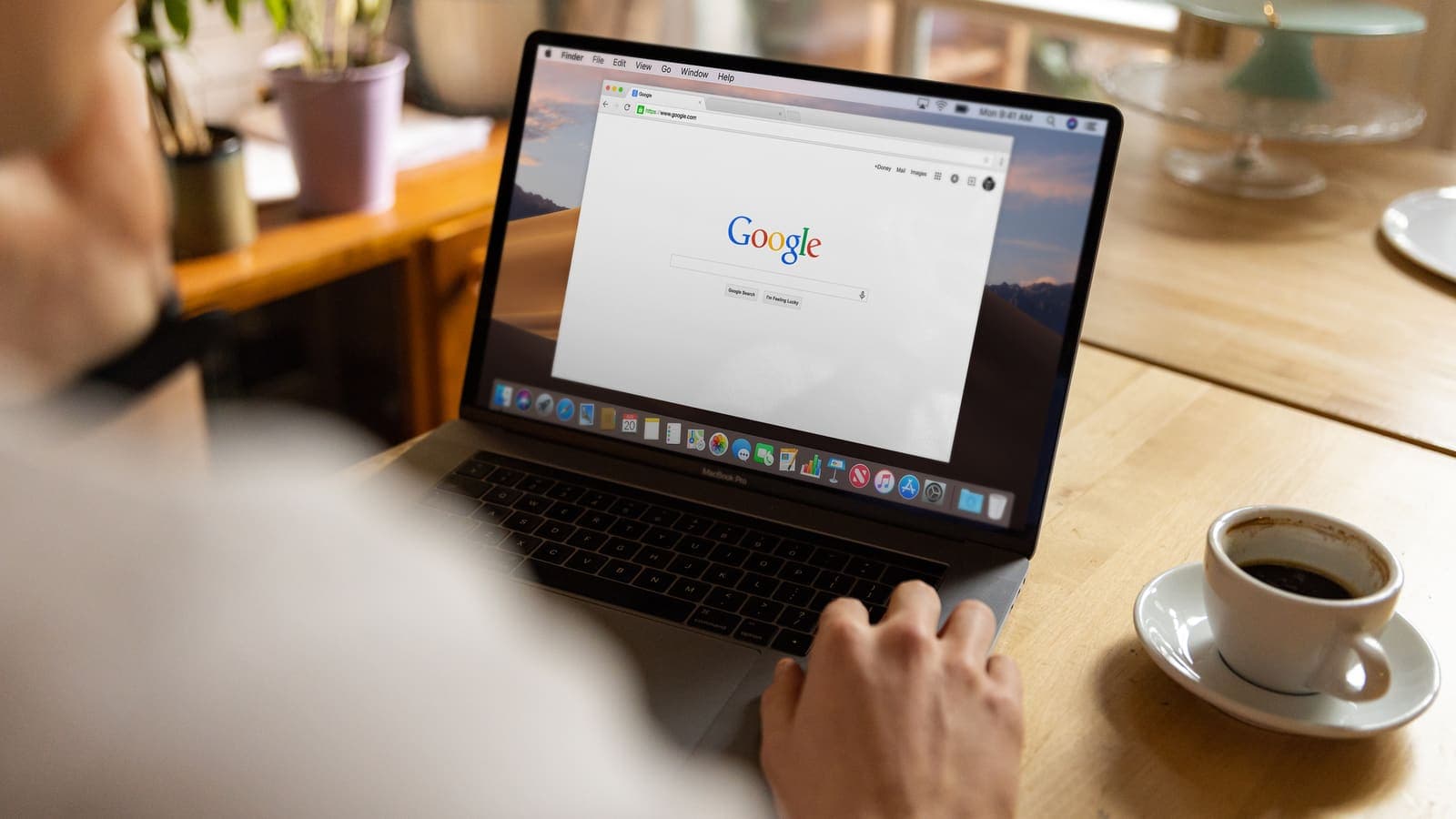
You land in a new country, open your phone, and Google looks different. The search page is suddenly in a language you can barely read. Prices on a shopping result are in another currency. YouTube recommends videos you have never seen anything like before. The Play Store offers different apps, or a recommended list that feels foreign. Nothing is broken, and your account has not been hacked. Several services are making a guess about where you are and what you would like to see, and the guess is based on different signals that do not always agree.
This article explains those signals in plain terms: the IP address, the language and region settings in your account and browser, and the GPS on your phone. It shows how to fix the most common problems for search, Maps, YouTube and the Play Store, and where a VPN fits in. A VPN changes only one of the signals, and it is not required to fix any of these problems. Menu names change often between phones, browsers and app versions, so the steps below describe where to look in general terms rather than giving exact button names.
Why Google changes things when you travel
Google products try to be helpful by default. That means personalising several things without asking:
- Language. The interface and the language of the results.
- Region. Which local results, shops, news and ads are shown, and which domain you are sent to.
- Currency and units. Prices in a local currency, distances in kilometres or miles, dates and times.
- Content availability. Which videos, shows, apps and features are offered, because licensing and legal rules differ by country.
- Suggestions. Nearby places, popular searches and trending videos.
For a traveller this can feel like a bug, but it is the service doing what it was designed to do: when it sees a new country, it assumes you want local information. A person flying from Bangkok to Tokyo is often glad to see nearby restaurants in Maps. The same person may be annoyed that a search is now in Japanese. The service cannot know which of the two you want unless your settings tell it.
Another important point: different Google products weigh the signals differently. Search may lean on the language you chose and the region it estimates from your connection. Maps leans heavily on GPS. The Play Store leans on the country attached to your payment profile. YouTube uses a location setting that is tied to your account and your connection. So you can see a mix, such as search in English, Maps showing local names, and the Play Store still in your home country's version, all on the same phone.
The three signals: IP location, account settings and GPS
It helps to separate three different things, because fixing the wrong one wastes time.
| Signal | What it is | Who controls it | Typical use |
|---|---|---|---|
| IP location | A guess of country or city made from the public IP address of your connection | Your network and the lookup database | Default language and region of web pages, local results, ads, some content rules |
| Account and browser settings | The language list, region and preferences stored in your Google account and your browser | You | Interface language, preferred result language, saved preferences |
| Device location (GPS and nearby signals) | Where your phone physically is, from satellites, Wi-Fi and mobile towers | You, through app permissions | Maps navigation, nearby places, weather, "near me" results |
IP location. Every device connected to the internet uses a public IP address, and your provider assigns it. Anyone can look up an IP address in a database that estimates the country and sometimes the city. What a public IP address is explains this, and the original definition of the Internet Protocol is in RFC 791. These estimates can be wrong, especially for mobile networks, hotel networks and addresses that were recently reassigned. The article on why a VPN shows the wrong location and the one on geo-IP databases go into the reasons.
Account and browser settings. Your Google account stores a language preference, and your browser sends a list of preferred languages with every request. These are usually the most reliable signals to change, because you control them directly and they follow you across networks.
Device location. A phone can know its position far more precisely than an IP address can. Apps that have your permission may use it. Websites can ask for it too, and your browser will show a prompt. If you deny permission, apps and sites fall back on the IP address.
Keep this table in mind when you troubleshoot. If the interface language is wrong, look at account and browser settings. If the local results or prices are wrong, the IP-based region and the search region setting are likely culprits. If "near me" is wrong, check device location and permissions.
Fixing the language
Start with the simplest and most reliable fix: tell each service what you want.
- Google account language. Sign in on a computer or phone and look in your Google account for the data, personalisation or language section. There is usually a language setting with an ordered list. Put your preferred language at the top, and add others after it. Note that this changes the language in many Google products, not only search.
- Search settings. On the search page, look for the settings link, usually near the bottom or behind a gear or menu icon. There are normally options for the interface language, the languages you prefer for results, and the region used for results. Choose your language and save. The wording differs, so look for words such as language, region or search settings.
- Browser language. Your browser has its own list of preferred languages in its settings. If a website decides your language from this list, it will use the first one. Put your language first. If your browser interface itself is in a foreign language, look for a language option in the browser's settings, and restart the browser after changing it.
- Device system language. Phones and computers also have a system language. Apps such as Maps and YouTube often follow it. Check the language and region options in the device settings and make sure the order is right.
- Sign in. If you are not signed in, Google has less to go on and falls back to your IP and browser. Sign in so that your account preferences apply.
- Clear cookies for the site if it still shows the wrong language. Old preferences stored by the browser can override new settings. Clear data for the Google site only, rather than everything, so you do not lose other logins.
If you use several browsers or profiles, repeat the settings in each one. A work profile, a private window and a guest session may each have their own language list.
Fixing results, currency and the region
Sometimes the language is right but the results, prices or ads are for the wrong place.
- Search region. The search settings may show a region or "results for" option, and sometimes a link at the bottom of the results that tells you the area being used. Where Google offers a way to update the location it is using, you can do it from there. This estimate is often based on IP and sometimes on device location, so it may change back as soon as you change network.
- Country domain. Google may send you to a local domain. You can often return to the version you prefer by entering the address you want directly. The page may still follow the region it detects.
- Currency in shopping results. The currency usually follows the shop or the region. A shop that sells in one currency will keep showing that currency. Check the shop's own region or currency selector.
- Units and date formats. These follow the language and region in your device and account. Changing the region format in system settings can help.
- Ads and recommendations. These adapt over time as you search. Do not expect an instant change.
If you ask for local results on purpose, for example restaurants in the city you are visiting, leave the region alone. The aim is to separate what you want local from what you want in your own language.
Maps, YouTube and the Play Store
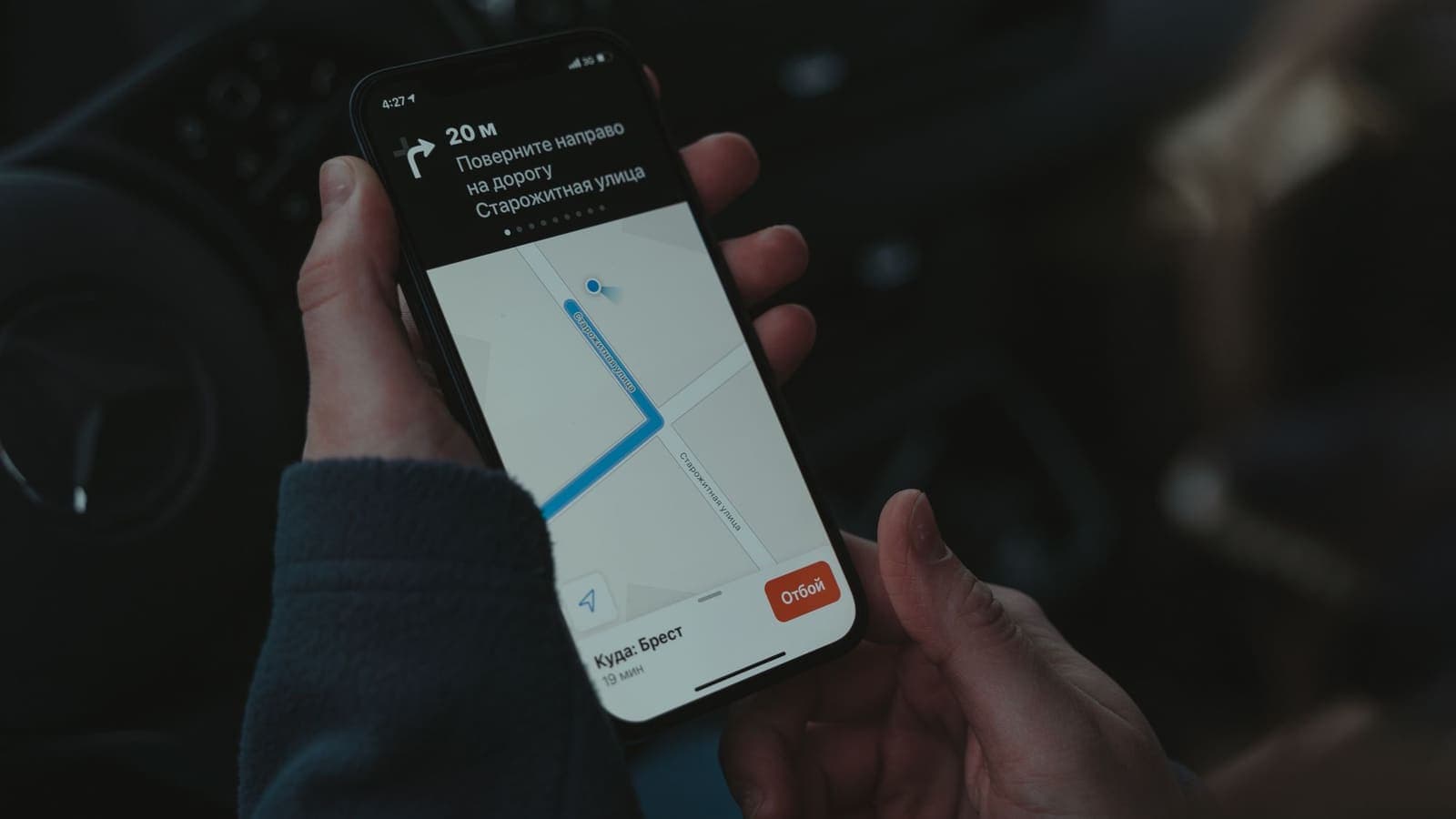
Google Maps. The language of the map labels, directions and place names follows the app's language setting and the device language. Look in the app's settings for a language option, and in the account menu for settings related to navigation and units. Maps uses your device location, so make sure location permission is on if you want it to know where you are, or off if you want it not to. A VPN does not change the blue dot. If the map shows names in a local script and you cannot read them, look for a language option and consider downloading offline maps in your language before travelling.
YouTube. The interface language follows your account and device. The content region, which affects trending lists, some recommendations and which videos are available, is based on a location setting that depends on your account and your connection. If recommendations feel foreign, they may fix themselves after a while as your watch history continues. Look in YouTube's settings for language and location options, and in your account for watch history and personalisation settings. Some videos are only available in certain countries because of licensing. That is a rights matter, not a settings error, and this article does not suggest working around it.
Play Store. This one behaves differently. The store country is tied to your payment profile and account, not simply to where you are. When you travel, you normally keep your home country in the store. The language of the store follows your device language. If the apps or prices you see look wrong, check the device language first. If a specific app is not offered while you are away, that can be a regional availability rule set by the app developer.
What a VPN changes, and what it does not
A VPN sends your internet traffic through another server before it reaches the website. To the website, the IP address becomes the VPN server's address, and its estimated location becomes the VPN's location. For a general explanation of how that works, the Cloudflare Learning page on what a VPN is gives a clear overview, and our own explanation of choosing a VPN server location looks at what to pick.
| What | Does a VPN change it? |
|---|---|
| The IP location that websites see | Yes. It shows the VPN server's location instead of your real one |
| Language chosen from the IP region | Often yes, because the default may follow the new apparent region |
| Your Google account language and country | No. They are stored in your account |
| Browser language list | No. Your browser still sends it |
| GPS and device location | No. Phones read these locally |
| Play Store country and payment profile | No. They are tied to the account and payment method |
| Your SIM and phone number | No |
| Time zone on the device | No. It follows the system setting |
So if the only reason Google is showing the wrong language is the IP-based region, connecting to a location in a country whose default language you prefer may change the default. If your VPN app lists a location in your home country, it may restore a familiar look, but results are not guaranteed, because Google combines several signals. It may also make things confusing: Google sees an address in one country, a device in another country, and a time zone in a third.
If your VPN app does not have a location where you want it, do not expect to fix this problem with it. And remember that a VPN is not required here: the account, search and browser settings described above solve most problems with no VPN at all. If you do use one, checking that it works tells you which address websites see. If the VPN seems to cause odd behaviour, turning it off is a quick way to test. The EFF Surveillance Self-Defense guide is a good general source if you want to understand which things a VPN can and cannot hide.
Why not change the app store country for a trip
When the Play Store or another app store shows the wrong things, some people think about changing the store's country. For a trip, this is almost never a good idea.
- It is tied to payment. The country is usually connected to your payment profile and accepted payment methods. Moving it normally means providing a payment method and address in the new country.
- It can affect what you own. Balances, gift cards, subscriptions and some purchases are linked to the old country and may be lost, stuck or unusable. Stores warn about this for good reasons.
- It is restricted on purpose. Stores limit how often and under what conditions the country can be changed, because it is used to enforce pricing, legal and licensing rules. The rules differ by store and change over time, so read the store's own help pages.
- Faking it breaks terms. Using a false address, payment method or other tricks to appear in another country may violate the store's terms, can lead to a suspended account, and is not something we recommend.
- A trip is temporary. You will be back home soon. Fixing the language and device settings costs nothing and can be undone. Changing the country can create problems that last for months.
If you are moving to another country for good, change the country through the store's official process and follow its rules. For a trip or a holiday, leave it alone.
When things still look wrong
Try this order of checks. It rarely takes more than a few minutes.
- Restart the app or browser after any settings change.
- Check that you are signed in to the right Google account.
- Look at the device language and region in system settings.
- Check the language list in the browser and try a private window to rule out saved data.
- Try a different network. Switch between hotel Wi-Fi and mobile data. If the region differs, the cause is the IP estimate.
- Check location permissions for Maps and the browser.
- Turn the VPN off and see whether the problem changes. If it does, the VPN's apparent location is part of the cause. Then decide whether you want it on for the task.
- Wait. Recommendations and suggested results update gradually. A day or two often makes a difference.
- Check the store's help page if the problem concerns apps, prices or purchases.
If a particular website keeps asking you to prove you are human while the VPN is on, websites not loading or showing CAPTCHAs with a VPN has suggestions.
A short checklist before a trip
- Put your preferred language first in the Google account, search, browser and device language lists.
- Sign in to your Google account on the devices you will use.
- Download offline maps in your language, and note the offline language packs for translation.
- Leave your app store country and payment profile as they are.
- Decide whether you want precise location on for Maps, and check the permission.
- If you will use a VPN on shared Wi-Fi, install and test it at home. XPASS customers sign in to the free VPNclient app with the username and password on the My Pass page.
- Remember that wording in menus varies. If a name does not match, search the settings for "language" or "region".
Summary
Google changes language, currency and results abroad because it combines three signals: the location estimated from your IP address, the settings stored in your account and browser, and the GPS on your device. You fix most problems in the settings: put your language first in your account, search settings, browser and device. A VPN changes only the IP location that websites see. It does not change your account country, GPS, SIM or payment profile, and it is not needed for these fixes. Leave your app store country alone for a trip, because changes are restricted and can affect balances and subscriptions. If you would like a short prepaid pass for shared Wi-Fi while you travel, you can look at the options on the XPASS pricing page.
Frequently asked questions
Why did Google switch to a different language when I arrived in another country?
Google and many other services use several signals to decide what to show: your account language, your browser language, the approximate location of your IP address, and sometimes your device location. When these signals disagree, the page may follow the one the service trusts most for that product, which is often the IP-based region.
How do I get Google search back in my own language?
Open the language and region options in your Google account and in the search settings, make sure your preferred language is first in the list, and check your browser's language list too. Setting names vary by device and version, so look for terms such as language, region or search settings.
Does a VPN change my Google account country or Play Store country?
No. A VPN changes the IP location that websites see. It does not change the country stored in your account, your payment profile, your device GPS or your SIM. Store country is tied to your payment profile and is deliberately hard to change.
Should I change my app store country for a trip?
Generally no. Store country affects payment methods, balances, subscriptions and which apps are offered, and stores restrict changes to reduce abuse. A trip is temporary, so leave the country setting alone and fix language and result settings instead.
Why does Google Maps still know where I am when I use a VPN?
Maps normally uses GPS, Wi-Fi and mobile signals on your phone. A VPN does not change those. It only changes the IP address that remote servers see for your internet traffic.
References
About the author

Bob Kanokphon Thongdee
- Founder of XPASS VPN
- Co-founder of eSIMonline.asia
- More than 7 years in online marketing
- Founder of Cojourney Visa and Cojourney Travel
Need a VPN for a short trip or a busy month?
XPASS sells prepaid passes for a set number of days. You pay once and nothing renews automatically.
See passesKeep reading
VPN Basics
Why Your VPN Shows the Wrong Location
When a site thinks you are in the wrong city or country while a VPN is on, the cause is usually the database behind the guess, not the VPN itself. This guide explains how location lookups work and how to check them.
9 min read

VPN Basics
What Is a Public IP Address?
Your public IP address is the address websites see when you connect. This guide explains how it is assigned, how it differs from the private address on your home network, and what it does and does not reveal.
9 min read
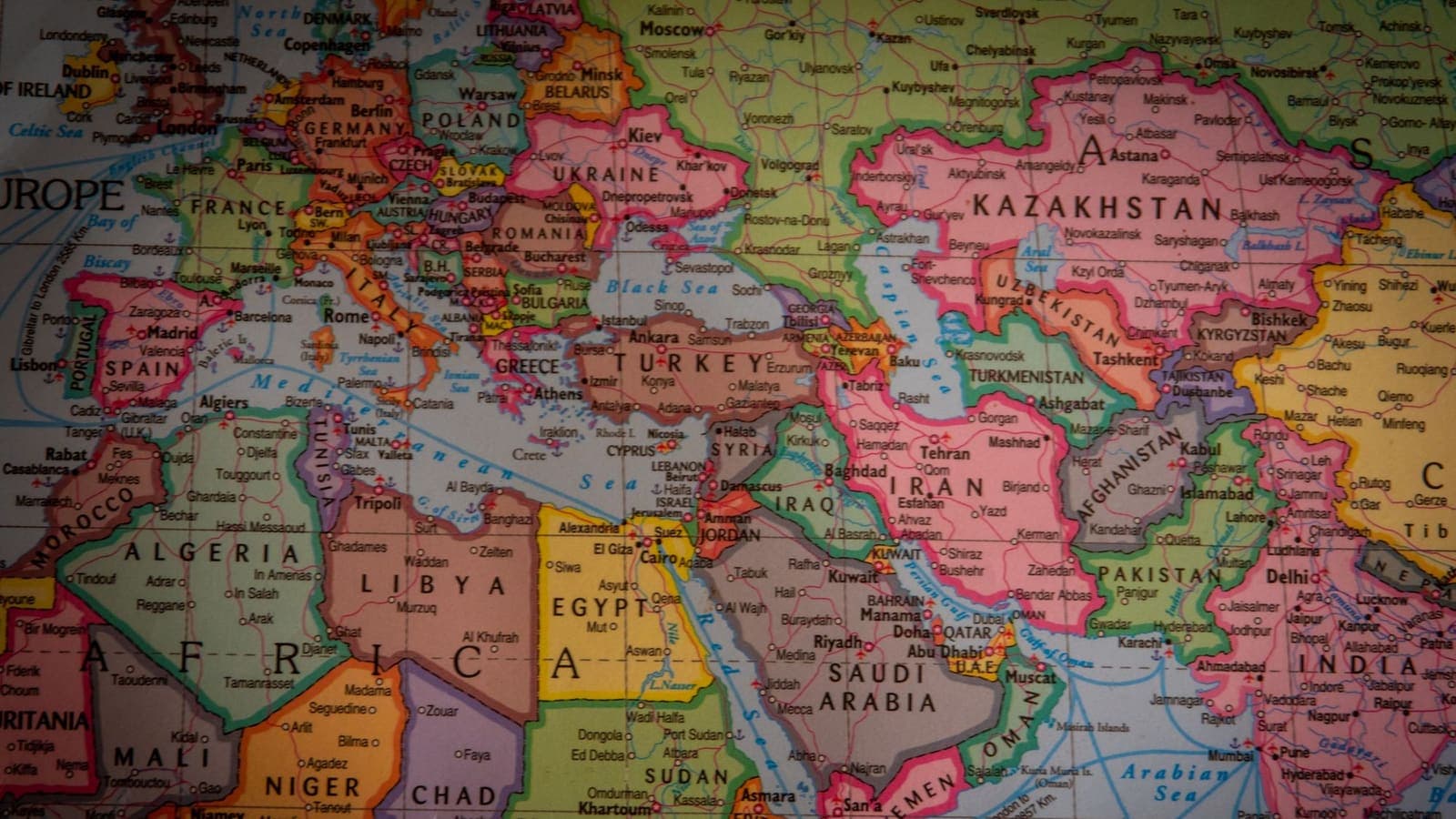
VPN Security
How IP Geolocation Databases Affect VPN Locations
A VPN address is placed on the map by commercial databases, not by the VPN app. Learn how those databases work and why websites disagree about your location.
9 min read

VPN Basics
How to Choose a VPN Server Location
The best VPN server is not always the nearest one. Learn how distance, load and routing shape speed, and how to test locations in a few minutes.
9 min read
Privacy Guides
Why Can Apps Still Know Your Location with a VPN?
A VPN changes the address a site sees, not the GPS, Wi-Fi and account clues your phone offers. Here is what apps use and how to limit it.
9 min read