
Can You Share a VPN Connection Through Android Hotspot?
An Android VPN protects the phone it runs on, but devices on your hotspot may not be covered. Here is how to test it and what to do instead.
9 min readUpdated Oct 15, 2026By XPASS Editorial Team
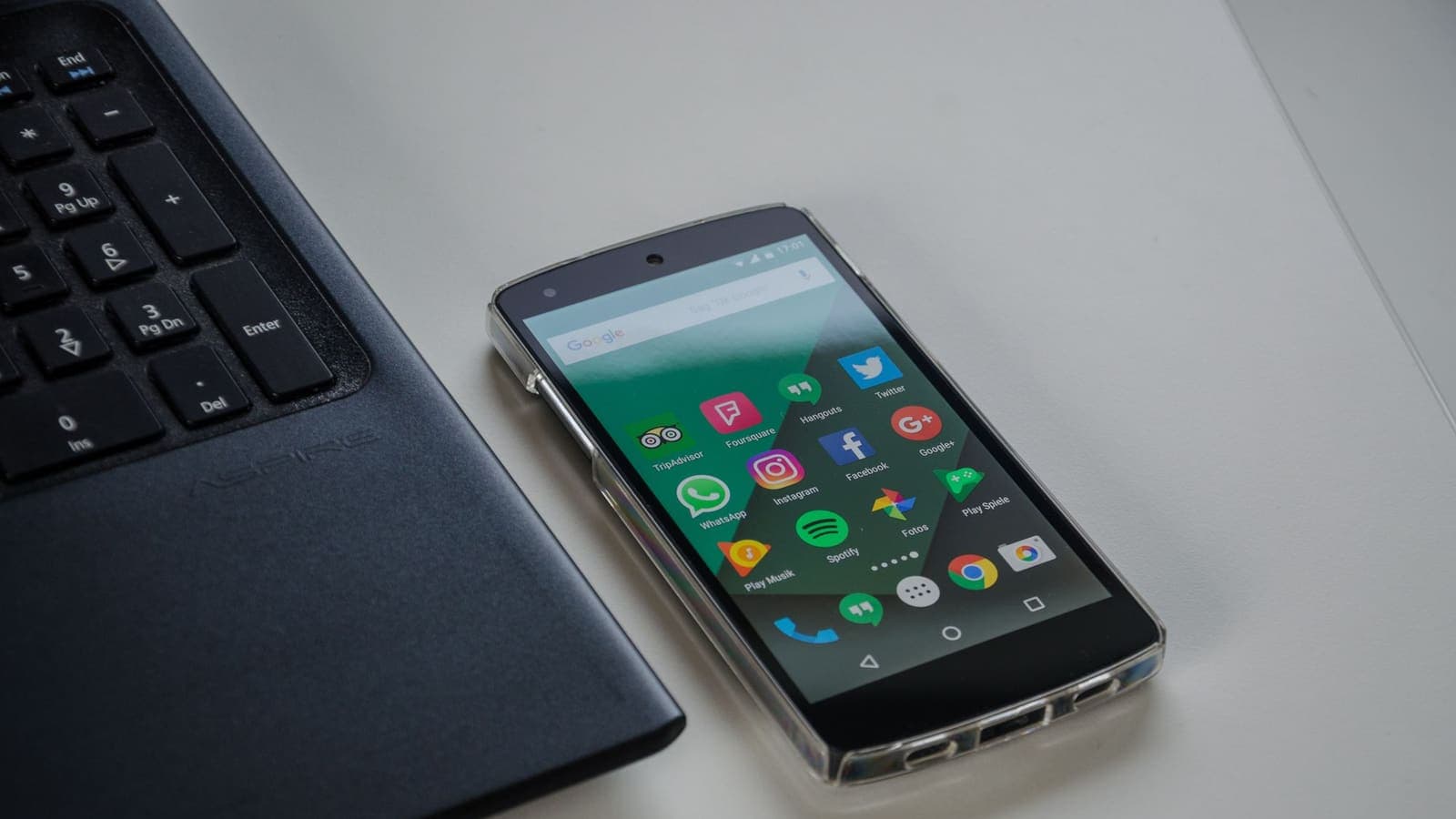
You are on a train, a long bus ride or a slow cafe network, and you switch on your phone's hotspot so your laptop can get online. The VPN app on the phone shows a green "connected" badge. It feels natural to assume the laptop is now protected too. Sometimes it is, often it is not, and the difference matters if you are relying on that tunnel for work files or banking.
This article answers one narrow question: can you share an Android VPN connection through the hotspot, and what should you do about the devices that join it? It is about the behaviour of the Android hotspot itself. For the broader how-to on tethering, see our help guide on sharing a VPN over a mobile hotspot. Here we focus on what to expect, how to check it yourself, and the options that work whatever your phone does.
What "sharing a VPN through the hotspot" actually means
An Android VPN app does not change the internet itself. It asks the system to create a virtual network interface and then steers selected traffic into an encrypted tunnel that ends at a VPN server. The official Android documentation describes this as the VPN service of the operating system, which apps use to route traffic. The key phrase is "selected traffic". Android decides which traffic enters that tunnel, and the default design targets traffic that originates on the phone, from apps running on it.
A hotspot works differently. When you turn on the hotspot (also called tethering or portable Wi-Fi hotspot), the phone acts like a small router. It receives packets from your laptop, translates their addresses and forwards them out through its mobile data connection. That forwarded traffic does not come from an app on the phone. It comes from another machine, and it is handled by the phone's networking stack, not by an app.
So there are three possible outcomes:
- Covered. The phone forwards tethered traffic into the VPN tunnel, so the laptop appears to use the VPN address.
- Not covered. The tethered traffic leaves directly over mobile data, bypassing the tunnel. Only the phone itself is protected.
- Partly covered or inconsistent. Some traffic, such as DNS queries, behaves differently from the rest, or coverage changes after the VPN reconnects.
Which outcome you get depends on factors you cannot see from the screen: the Android version, the phone maker's customisations, the tethering method (Wi-Fi hotspot, USB or Bluetooth) and the VPN app. That is why a definite "yes" or "no" would be dishonest. The responsible answer is "it varies, so test it".
Why you should not assume the laptop is protected
The risk of guessing wrong is not abstract. Consider what you might do on a laptop that you believe is inside a tunnel:
- Log in to a company dashboard or open client documents.
- Check online banking because you trust the green badge on the phone.
- Use a site that accepts only basic protection, relying on the VPN to cover the gap.
If the laptop is in fact outside the tunnel, its traffic travels over your mobile operator's network in the normal way. Websites that use HTTPS are still encrypted end to end, so you are not exposed in the way an old open network would expose you. But the thing you wanted from the VPN, hiding the destinations from the network and protecting non-HTTPS traffic, is missing. The danger is the false sense of safety, not a dramatic failure.
A phone hotspot is also a different network from the one you started with. If you turned it on because the cafe Wi-Fi is untrustworthy, the hotspot is already an improvement for the laptop. You gain even more when you know exactly what the VPN covers. Our article on staying safer on public Wi-Fi explains what the real risks on shared networks are, and why a private connection like a phone hotspot already helps.
Test it in five minutes
You do not need technical tools to find out what your phone does. Use this simple procedure, and repeat it whenever you update the phone or change the VPN app.
- On the phone, connect the VPN app and confirm it says connected.
- Open any "what is my IP address" page in the phone's browser and note the address and the location it reports.
- Turn on the hotspot and connect the laptop to it.
- Open the same kind of IP-check page on the laptop and note the address.
- Compare. The same address as the phone means the laptop is covered. A different address, especially one that matches your mobile operator rather than the VPN, means the laptop is outside the tunnel.
- Disconnect and reconnect the VPN on the phone, then repeat step 4. This catches setups that work only until the first reconnection.
- Switch the hotspot off and on, and repeat once more.
Write down the result in a note on the phone. Something like "Hotspot over Wi-Fi: laptop not covered" saves you from repeating the exercise every time. If you want a deeper checklist for verifying a tunnel, how to test a VPN covers leaks, speed and kill switch behaviour.
A word on IP-check pages: use them only as a rough indicator. An unusual result, such as a location that looks wrong, can have harmless causes. The page's database may be out of date, which we explain in why your VPN shows the wrong location.
What works reliably instead
Since the phone's behaviour is unpredictable, the dependable strategy is to protect each device on its own terms.
Option 1: install the VPN app on the laptop
This is the simplest and most reliable approach. Install the VPN app on the laptop or tablet and sign in. The laptop then builds its own tunnel, using the phone's hotspot only as a way to reach the internet. It does not matter whether the phone can or cannot forward traffic into its own VPN, because the laptop does not depend on it.
For XPASS customers this means the free VPNclient app, which is available for Windows and macOS as well as Android and iPhone. You sign in with the username and password shown on your My Pass page. You can find the download links on the download page. Check the terms of your pass or support before assuming how many devices can be signed in at once, since that is not something this article can promise.
Option 2: use a VPN-capable router for a group
If several people travel together and need protection, a travel router that supports VPN connections can create a protected Wi-Fi network of its own. The router joins the phone's hotspot as its upstream, and everyone connects to the router. This is a bigger project with its own trade-offs, and VPN router vs VPN app explains when it makes sense.
Option 3: avoid relying on the hotspot for sensitive tasks
Some jobs are better done directly on the phone, where the VPN's coverage is clear. Banking, for example, is often easier on a bank's own app on the phone with the VPN handled carefully (see using banking apps with a VPN). Leave the laptop for tasks where HTTPS already gives solid protection.
Option 4: use a USB cable, but test it
Some phones route USB tethering differently from Wi-Fi tethering. This can change the outcome, either way. If you find that Wi-Fi tethering leaves the laptop outside the tunnel, try USB tethering and run the same test. Do not assume it will help. Treat any improvement as a result to verify, not as a rule.
Scenarios from real trips
The remote worker on a train. Priya works on a 4-hour train ride and tethers her laptop to her phone. The train Wi-Fi is overloaded, and her phone's data is fast enough. She installs the VPN app on her laptop before leaving, signs in at home, and tests it. On the train, she turns on the hotspot, connects the laptop, then connects the laptop's own VPN. The phone does not need to run a VPN at all, which also saves its battery.
A family in a holiday rental. The rental's Wi-Fi is slow, so Marco shares his phone's hotspot with two relatives' tablets. Setting up a VPN on every tablet would take effort, and the children only watch video and play offline games. He decides the risk is low, keeps the hotspot password strong and turns the hotspot off when nobody is using it. He keeps the VPN on his own phone and laptop, because he does his banking and email there. The lesson: protection should match the task, not apply blindly to every device.
A student at a cafe. Aiko uses the phone's hotspot because the cafe network drops often. She only reads articles and writes in a cloud document, which is encrypted with HTTPS anyway. She runs the IP test once, notes that the laptop is outside the phone's tunnel, and decides the hotspot alone is sufficient for this use. She installs the laptop VPN later, for the days she needs to log in to university systems from other places.
A traveller with a work phone. Tom's company manages his phone and forbids installing additional VPNs. His employer's own VPN profile covers the phone. Tethering is disabled or restricted by policy. He should not look for ways around it. If he needs a laptop connection, he asks the IT team what is allowed.
Hotspot security basics
Whether or not a VPN is running, the hotspot is a small network that you are responsible for. A few settings matter more than any VPN question.
- Use the strongest security mode offered. Modern Android phones usually offer WPA3 or WPA2/WPA3 mixed modes. Avoid open or outdated options.
- Choose a long, random password. Eight characters is the technical minimum. Twelve or more mixed characters is much better, and a passphrase of four unrelated words works well.
- Do not leave the default name and password. Names that include your phone model tell strangers what to target.
- Turn the hotspot off when not in use. Many phones have an automatic timeout. Enable it.
- Check the list of connected devices. Remove any you do not recognise and change the password.
- Avoid sharing the password in public. In crowded places, say it quietly or use a QR code on screen only for the person you are sharing with.
These steps protect against the most realistic threat: an unwanted guest. They also keep a stranger from using your data allowance. The FTC's guidance on public Wi-Fi networks gives the same general advice about knowing who is on your network and using encryption wherever you can.
Data, battery and speed
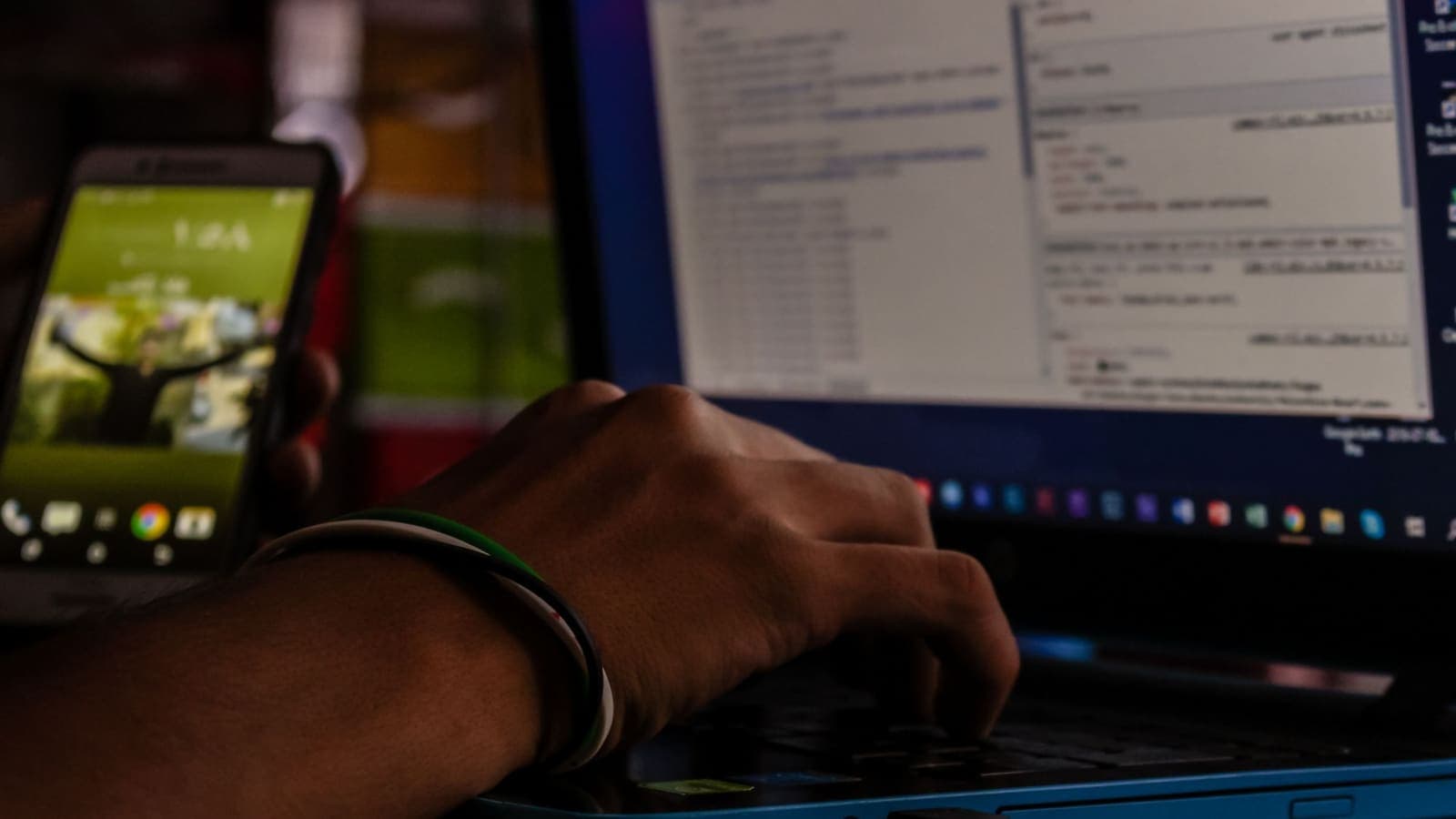
A hotspot with a VPN is more demanding than either one alone.
| Factor | Hotspot only | Hotspot plus VPN on laptop | Hotspot plus phone VPN |
|---|---|---|---|
| Battery use | High | High, slightly more on laptop | Highest, since the phone encrypts too |
| Mobile data used | Counts all laptop traffic | Counts all traffic plus small overhead | Same, plus overhead on phone |
| Speed | Depends on signal | Small delay from encryption | Small delay |
| Setup effort | Low | One-time app install | Low, but coverage unclear |
Practical tips:
- Plug the phone into a charger for sessions over an hour. A hotspot generates heat as well as drain, and a hot phone slows itself down.
- Check your plan's data allowance before streaming or large downloads. Software updates on a laptop can quietly use gigabytes, so pause automatic updates or mark the connection as metered in the laptop's settings.
- Position the phone near a window or high place where the mobile signal is strong. A weak signal makes the phone work harder, burns more battery and gives slower speeds.
- If the connection feels slow, our guide on why internet speed changes with a VPN separates the VPN's contribution from the network's.
Troubleshooting common problems
The laptop connects to the hotspot but has no internet. Check the phone's mobile data first. Then turn the hotspot off and on. If the phone's VPN is active and the laptop loads nothing, the phone may be failing to forward traffic while the tunnel is up. Disconnect the phone's VPN and see if the laptop works. If it does, rely on the laptop's own VPN app instead.
Everything works until the VPN reconnects. Some phones reset the hotspot routing when the tunnel drops. Turn the hotspot off and on again after a reconnect, and rerun the test.
The laptop's VPN will not connect through the hotspot. Try a different location in the app, switch the network on the laptop off and on, and check that the date and time are correct. The guide on what to do when a VPN will not connect walks through the standard fixes.
Websites show strange pages or captchas. This is a property of the VPN address, not the hotspot. Websites not working with a VPN explains why and what to try.
The phone gets hot or battery drops fast. Plug in, close unused apps, and consider whether the phone really needs its own VPN while the laptop has one. See whether a VPN drains your battery.
Common mistakes
- Assuming the green badge on the phone means every device on the hotspot is protected.
- Testing once and never again, even after a phone update changes behaviour.
- Giving out the hotspot password to anyone who asks, then leaving the hotspot on all day.
- Running two VPNs at once, one on the phone and one on the laptop, then wondering why the connection is slow or unstable. Pick one layer where possible.
- Using weak or open hotspot security because it is only temporary.
- Forgetting that a hotspot uses mobile data that may be capped or expensive abroad.
- Using the hotspot to log in to sensitive accounts without checking what the tunnel actually covers.
Summary
An Android VPN is designed to protect the phone it runs on. Whether devices on your hotspot also go through the tunnel depends on the phone, the Android version and the tethering method, so test it with an IP-check page on both devices and repeat the test after updates. The most dependable fix is to install the VPN app on each laptop or tablet that needs protection, and to secure the hotspot itself with a strong password and modern encryption. Watch your battery and data when you tether for long periods.
If you want a simple prepaid way to cover your phone and laptop for a trip, you can compare the options on the pricing page at your own pace.
Frequently asked questions
Does an Android VPN automatically protect devices connected to my hotspot?
Not reliably. A VPN app on Android is built to protect the phone's own traffic. Whether traffic from tethered laptops and tablets also goes through the tunnel depends on the phone maker, the Android version and the app, so you should test it instead of assuming.
How can I tell whether a tethered laptop is going through the VPN?
Connect the laptop to the hotspot with the phone's VPN on, then open an IP-check page on the laptop and on the phone. If both show the same VPN address, the laptop is covered. If the laptop shows your mobile operator's address, it is not.
What is the safest way to protect a laptop that uses my phone's hotspot?
Install the VPN app on the laptop itself and sign in there. That protects the laptop's traffic no matter what the phone does, and it also works if you later switch to any other network.
Does using a hotspot with a VPN use more battery and data?
Yes, both go up. The hotspot keeps the radio and the Wi-Fi chip busy, and VPN encryption adds a little overhead on top. Keep the phone plugged in for long sessions and watch your mobile data allowance.
Is a phone hotspot safer than public Wi-Fi?
Usually yes, because you control who joins. It is only as safe as its password and encryption setting, though, so use a long password and the strongest security option your phone offers.
References
About the author

Bob Kanokphon Thongdee
- Founder of XPASS VPN
- Co-founder of eSIMonline.asia
- More than 7 years in online marketing
- Founder of Cojourney Visa and Cojourney Travel
Need a VPN for a short trip or a busy month?
XPASS sells prepaid passes for a set number of days. You pay once and nothing renews automatically.
See passesKeep reading

Device Guides
Can You Share a VPN Over a Mobile Hotspot?
A VPN on your phone does not always cover the devices using its hotspot. See what usually happens, how to test your own setup, and a safer routine.
6 min read
Device Guides
How to Set Up a VPN on Android
Step by step: install VPNclient from Google Play, sign in with your My Pass details, accept the Android connection request and connect.
6 min read

VPN Security
How to Stay Safer on Public Wi-Fi
Public Wi-Fi is not a disaster, but it is a network you do not control. Here are the real risks, the habits that matter most, and where a VPN fits in.
8 min read

VPN Basics
VPN Router vs VPN App: Which Setup Fits Your Home?
Should you install a VPN on the router or on each device? This guide compares the two setups for speed, smart home gadgets, mesh Wi-Fi, split tunneling and everyday convenience.
10 min read
VPN Basics
Does a VPN Drain Your Battery?
A VPN adds encryption work and keeps a connection alive, so it can use some battery. This guide explains what drives the cost, how to measure it on your own phone and what helps.
9 min read