
VPN on Samsung Galaxy: Settings Guide
A VPN works on a Samsung Galaxy like on any Android phone, but a few One UI settings decide whether it stays connected. Here is what to check and in what order.
9 min readUpdated Oct 15, 2026By XPASS Editorial Team
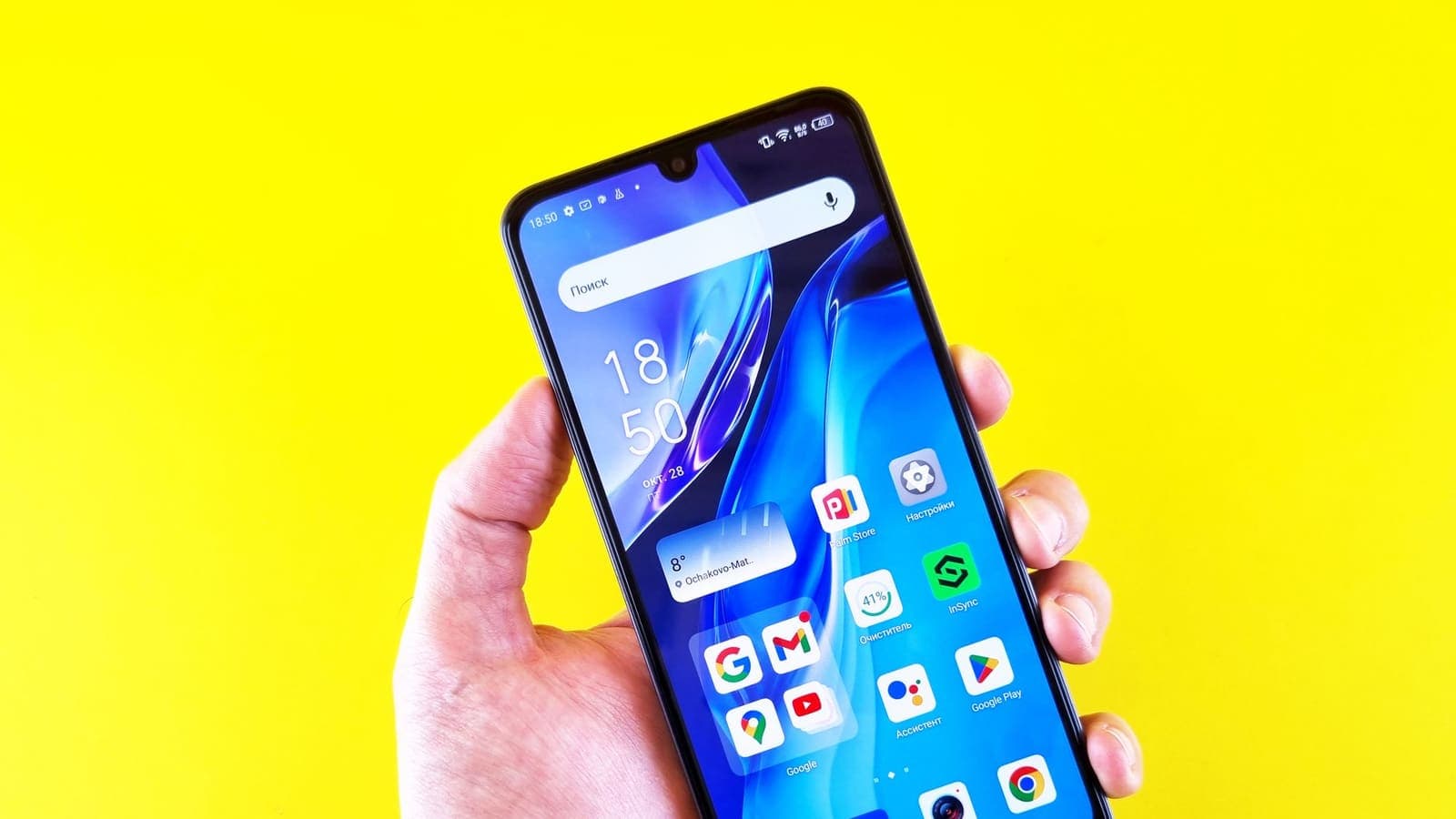
A Samsung Galaxy runs Android, so a VPN app behaves there much as it does on any other Android phone. The app asks for permission to set up the VPN connection, you approve it, and traffic starts to flow through the tunnel. What makes a Galaxy slightly different is One UI, Samsung's layer on top of Android. It adds menus with its own names, battery management that is more aggressive than the stock version, and some Wi-Fi conveniences that can interfere with a tunnel.
This guide is for people who have a Galaxy phone or tablet and want a VPN that stays connected. It covers a clean setup, the One UI settings worth checking, how Secure Folder and other extras fit in, a short test routine and a troubleshooting table. For the general walkthrough that applies to all Android phones, the Android VPN setup guide is the base, and this article adds the Samsung-specific details on top. Menu names differ between One UI versions and between models, so treat the paths below as a map, and use the search box in Settings when a name has changed.
What is the same and what is different on a Galaxy
The underlying system is standard Android. Official Android documentation on connecting to a VPN explains that the system asks you to approve a VPN connection and shows a key icon in the status bar while one is active. All of this is the same on a Galaxy.
The differences are mostly around the edges:
- Menu layout. VPN settings sit under Connections rather than the stock Network and internet.
- Battery management. One UI has features such as putting unused apps to sleep and deep sleeping lists. Their job is to save power by stopping background apps, which is the same thing a VPN app needs to keep running.
- Wi-Fi helpers. Options that switch to mobile data when Wi-Fi is weak, or reconnect automatically to known networks, can cause the tunnel to drop for a moment when the phone changes network.
- Extra spaces. Secure Folder, Dual Messenger and work profiles create separate app spaces where VPN behaviour may differ.
- Security layers. Auto Blocker, Knox-based protection and Play Protect all affect what you can install and how.
None of this prevents a VPN from working. It means the first things to check on a Galaxy are the extras rather than the VPN app.

Setting up the VPN in a sensible order
- Install the app from an official store. On a Galaxy the Play Store is the default route, and some phones also offer Galaxy Store. For the app used with XPASS, the download page lists the official links. Avoid files from random websites; VPN APK vs Play Store explains why.
- Open the app and sign in with the username and password from your My Pass page, not the website email.
- Approve the VPN request. Android shows a system prompt asking for permission to set up the connection. Read it and tap OK. The wording varies by version.
- Allow notifications for the app if it asks. A VPN that cannot show its status notification is more likely to be stopped by the system.
- Pick a location and tap connect. Keep the app's default connection settings unless support advises otherwise.
- Confirm it works. Look for the key icon in the status bar and open an IP-check page. The address should differ from the one you saw before connecting.
After this you have a working VPN. The next sections are about making it stay that way.
The One UI settings worth checking
Battery: remove the sleeping restriction
This is the most common cause of a VPN that stops after the screen goes off. Go to Settings, then Battery (the name may include Device care), and look for the background usage limits. Make sure the VPN app is not in the sleeping apps or deep sleeping apps list, and, if there is a "Never auto sleeping apps" list, add the VPN app to it. Also set the app's battery usage to unrestricted if you see the option under the app's own info page.
This costs a little extra battery, as explained in our piece on whether a VPN drains your battery, but the cost is small compared with repeated disconnects.
Always-on VPN and blocking connections
In the VPN settings, a gear icon next to the VPN entry usually opens options for Always-on VPN and Block connections without VPN. Always-on keeps the tunnel up and reconnects when it drops. The block option stops traffic from leaving when no tunnel exists. It is useful for a phone on public networks, but it can leave you without internet when the tunnel is down, so read blocking connections without a VPN on Android before you switch it on. Whether the app appears in the always-on list depends on the app supporting it.
Wi-Fi switching and reconnection
Samsung phones include a feature that moves you to mobile data when Wi-Fi is poor, and another that reconnects to saved networks automatically. These are convenient, but each network change briefly breaks a VPN connection. If your tunnel drops whenever you walk around a building, try turning off the auto-switch option under the Wi-Fi advanced menu and see whether the problem improves.
Data saver and background data
Data saver can restrict background data for apps. Allow the VPN app to use data while Data saver is on, or turn Data saver off while you troubleshoot.
Auto Blocker
On recent One UI versions, Auto Blocker blocks installing apps from outside the official stores. If you try to install a downloaded file and it is refused, this is probably the reason. The sensible approach is to install from the store. If you truly need a file for a device without store access, only relax the setting for a verified file and turn it back on afterwards.
Secure Folder, Dual Messenger and work profiles
Galaxy phones can hold more than one space for apps.
- Secure Folder is an encrypted area with its own copies of apps. Whether the VPN on the main side covers apps inside Secure Folder depends on the model and One UI version. The safest assumption is that it may not, so check by opening an IP-check page inside Secure Folder with the main VPN connected.
- Dual Messenger runs a second copy of a messaging app. It generally uses the same network connection as the main phone.
- Work profiles are managed by an employer. Their VPN rules are set by the company, and your personal VPN may not apply there. Do not try to override an employer's setup.
If the check in Secure Folder shows your normal address, install and sign in to the VPN app inside Secure Folder as well.
Everyday scenarios on a Galaxy
The commuter. Nida takes the train every day and connects to the train's public Wi-Fi. Her VPN drops each time the train enters a tunnel and the phone switches to mobile data. She turns off the auto-switch option, makes sure the VPN app is not in the deep sleeping list, and enables Always-on VPN. The tunnel now reconnects by itself within seconds of the signal returning.
The student with a tablet. Tom uses a Galaxy Tab on dorm Wi-Fi. The VPN works fine until he leaves the tablet idle for an hour, then the tunnel is gone. The cause is the sleeping apps list. After removing the app from it, the tunnel survives idle periods.
The family phone. A parent uses a Galaxy A series phone and a Secure Folder for banking. The VPN covers the main side, but a test inside Secure Folder shows the phone's normal address. Installing the app inside Secure Folder fixes this. They do not turn on the option that blocks connections without a VPN, because the parent would not know why the internet stopped working during a disconnect.
The traveller. Mia lands abroad and needs the hotel's sign-in page to open. With Always-on and the block option enabled, the page cannot load because the VPN is not yet connected. She temporarily turns the block option off, signs in to the hotel Wi-Fi and then connects the VPN. See using a VPN on hotel Wi-Fi for the order of steps.
Quick comparison of the settings
| Setting | Where to look | Recommended for VPN use | Trade-off |
|---|---|---|---|
| Sleeping and deep sleeping apps | Settings, Battery | Keep the VPN app out of the lists | Slightly more battery use |
| Battery usage for the app | App info, Battery | Unrestricted | Slightly more battery use |
| Always-on VPN | VPN settings gear icon | On, if the app supports it | May reconnect more often |
| Block connections without VPN | VPN settings gear icon | Only if you understand it | No internet when the tunnel is down |
| Switch to mobile data | Wi-Fi advanced settings | Off while testing | Weak Wi-Fi may stay in use |
| Data saver | Connections, Data usage | Allow the VPN app or turn off | More background data |
| Auto Blocker | Security settings | Leave on; install from the store | Blocks outside files |
| Secure Folder | Secure Folder settings | Test, install inside if needed | Needs a second sign-in |

Troubleshooting a VPN that keeps dropping
Work through this order, and test after each change.
- Confirm the VPN app is up to date and that you are signed in with the My Pass credentials.
- Remove the app from sleeping and deep sleeping lists and set battery usage to unrestricted.
- Turn off the Wi-Fi to mobile data auto-switch.
- Check that the app has notification permission and is allowed to use data in the background.
- Restart the phone, then connect again.
- Try a different network, such as mobile data instead of Wi-Fi, to see whether the problem belongs to one network.
- If the tunnel connects but pages will not load, read VPN connected but no internet.
- For repeated drops with no pattern, the guide on troubleshooting a VPN on Android walks through more tests, and improving connection stability covers network-side causes.
Limits and common mistakes
- Assuming a VPN covers every space on the phone. Secure Folder and work profiles can behave differently.
- Leaving battery optimisation on and wondering why the tunnel vanishes overnight.
- Enabling the block option without knowing how to turn it off.
- Testing only once. Run the IP check again after screen-off periods and after a network change.
- Installing from outside the store because a forum suggested it.
- Forgetting that a VPN does not stop malware, phishing or accounts being compromised. It protects the route your data takes, not the apps you choose to use.
Summary
A VPN on a Samsung Galaxy works like any Android VPN, but One UI's battery management, Wi-Fi switching, Auto Blocker and Secure Folder decide whether it stays connected and what it covers. Install from the store, sign in with your My Pass credentials, remove the app from sleeping lists, consider Always-on VPN, and test in every space you use. Change one setting at a time and check the result.
If you would like to try this on your own Galaxy, the prepaid passes on the pricing page work with the free VPNclient app, with no automatic renewal.
Frequently asked questions
Does a VPN app work differently on a Samsung Galaxy than on other Android phones?
The core mechanism is the same, since it is standard Android. The difference is One UI, Samsung's layer on top, which adds its own battery management, Wi-Fi switching and menu names. Those extras are the usual reason a VPN disconnects on a Galaxy, not the VPN app itself.
Where do I find the VPN settings on my Galaxy?
Usually under Settings, then Connections, then More connection settings, then VPN. Menu names change between One UI versions, so use the search box in Settings and type VPN if you cannot find it.
Why does my VPN disconnect after the screen has been off for a while?
One UI can put apps to sleep to save battery, which may stop the VPN app in the background. Remove the VPN app from the sleeping or deep sleeping lists and allow unrestricted battery use for it.
Should I use Secure Folder with a VPN?
Secure Folder is a separate space with its own apps. Whether a VPN on the main side covers apps inside it depends on the phone and One UI version, so test it. If you need protection inside, install and sign in to the app there as well.
Is it safe to turn on Auto Blocker if I install a VPN from outside the store?
Auto Blocker blocks installs from outside the official stores, so a downloaded APK will be refused until you change it. For a phone, prefer the Play Store or Galaxy Store version, and only relax the setting for a file you have verified, then turn it back on.
References
About the author

Bob Kanokphon Thongdee
- Founder of XPASS VPN
- Co-founder of eSIMonline.asia
- More than 7 years in online marketing
- Founder of Cojourney Visa and Cojourney Travel
Need a VPN for a short trip or a busy month?
XPASS sells prepaid passes for a set number of days. You pay once and nothing renews automatically.
See passesKeep reading
Device Guides
How to Set Up a VPN on Android
Step by step: install VPNclient from Google Play, sign in with your My Pass details, accept the Android connection request and connect.
6 min read

Troubleshooting
How to Troubleshoot a VPN on Android
Work through the most common Android VPN problems in order, from an expired pass to battery settings, always-on VPN and network changes.
5 min read

Troubleshooting
How to Reconnect When the VPN Disconnects
VPN connections drop sometimes. Here is a calm, ordered routine for getting back online safely and working out why it happened.
7 min read

Troubleshooting
How to Improve VPN Connection Stability
A VPN that keeps dropping or stalling is usually reacting to the network or device around it. These steps help you find and fix the weak link.
5 min read
VPN Basics
Does a VPN Drain Your Battery?
A VPN adds encryption work and keeps a connection alive, so it can use some battery. This guide explains what drives the cost, how to measure it on your own phone and what helps.
9 min read