
VPN with Mesh Wi-Fi: Setup Considerations
A mesh Wi-Fi system changes where a VPN fits in your home. Learn what to install on devices, what to leave on the nodes, and how roaming and double NAT affect the connection.
9 min readUpdated Oct 15, 2026By XPASS Editorial Team
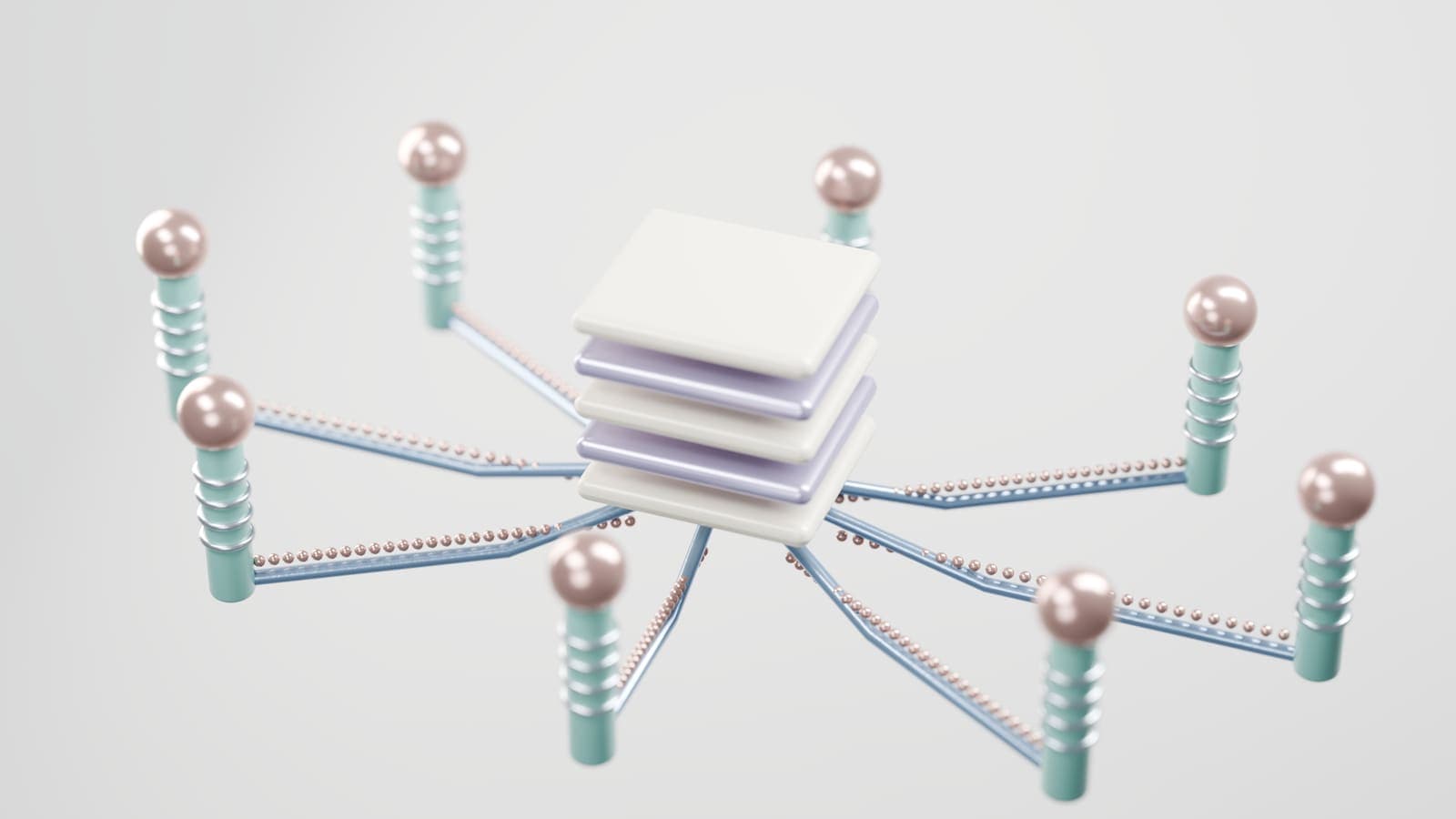
Mesh Wi-Fi systems have become the default way to cover a two-storey house, a long apartment or a home office at the back of the garden. Instead of one router shouting from the hallway, several small units, called nodes, cooperate to form a single network. That works well for coverage, but it raises a practical question the moment you add a VPN: where does the VPN belong, on the devices or in the mesh itself, and what changes when your phone hops between nodes?
This article is about VPN mesh network setups in the Wi-Fi sense. It explains how a mesh is built, which of its quirks matter to a VPN, a sensible setup order, and how to troubleshoot the problems that show up in real homes. If you were looking for peer-to-peer overlay tools that link your own devices together, that is a different topic, covered in mesh VPNs explained.
Two meanings of "mesh" and which one this is
The word is overloaded, so it helps to separate the two uses before going further.
- Mesh Wi-Fi is a hardware arrangement. Several access points share one network name and one set of settings so that coverage is seamless. It is about radio signal in your building.
- Mesh VPN is a software arrangement. Your devices form encrypted links with each other directly, wherever they are in the world. It is about reaching your own machines securely.
A mesh Wi-Fi system does not make you private, and a mesh VPN does not improve your signal. You can use either, both or neither. The rest of this article deals only with the first: you own a mesh Wi-Fi system and you want to use a VPN service with it.
The short version is that a VPN is a layer on top of whatever network carries your traffic. Your device wraps its traffic in an encrypted tunnel to a VPN server, and the Wi-Fi underneath, whether it is one router or six mesh nodes, just carries the wrapped packets. That is why the cleanest design is almost always to run the VPN on the device and leave the mesh to do what it is good at.

How a mesh Wi-Fi system is actually built
Understanding four parts of a mesh makes every later decision easier.
The primary node. One unit connects by cable to your modem or your internet provider's box. It usually acts as the router: it hands out local addresses, runs the firewall and translates between your home addresses and your public one.
Satellite nodes. The other units extend coverage. They talk to the primary node, either over a cable (wired backhaul) or over a dedicated radio link (wireless backhaul). Your devices connect to whichever node gives the best signal.
One network name. All nodes advertise the same network name and password. Your phone sees a single network and decides which node to attach to. Modern systems help devices move between nodes smoothly using standard roaming features.
One local address space. Devices keep the same local address as they move, because the primary node, not the satellites, hands out addresses. Those local addresses come from the private ranges described in RFC 1918, such as 192.168.x.x or 10.x.x.x.
The consequence for VPN users is simple. Nodes are access points with some extra intelligence. They are not VPN endpoints by default, and they rarely have the processing power or the software to be good ones.
Where should the VPN live? Device, mesh or modem
There are three realistic places to put a VPN in a home with mesh Wi-Fi.
| Option | How it works | Strengths | Weak points |
|---|---|---|---|
| VPN app on each device | Phone, laptop or tablet builds its own tunnel | Works on any Wi-Fi, at home or away; per-device control; tunnel survives network changes better | Cannot cover devices that have no VPN app, such as many smart TVs and speakers |
| VPN on the primary router | The main node or a router behind it sends all traffic through the tunnel | Covers every device, including ones without apps | Needs a router with VPN client support; slows everything; one switch affects the whole house |
| VPN on a separate router behind the mesh | A dedicated router creates the tunnel; chosen devices connect to it | Selective, keeps the mesh simple | Extra hardware and a double NAT layer |
For most households the first row is right. It is also the one that gives you the clearest picture of what is protected. Our comparison of VPN router vs VPN app goes further into the trade-offs, and the help guide on setting up a VPN on a router covers the router route if you decide you need it.
Many consumer mesh systems offer limited or no VPN client features. Some include a built-in service of their own, which only protects traffic on a specific path and tells you little about what happens on other networks. Check the maker's documentation for your exact model before you plan around a feature. Do not assume that a mesh app's "security" toggle means your traffic is encrypted to a VPN server. Usually it means something else, such as filtering known malicious addresses.
How roaming between nodes affects the VPN tunnel
This is the question people ask most. You start a video call in the living room, walk upstairs, and your phone moves from one node to another. What happens to the VPN?
When the mesh is configured the usual way, your phone keeps its local address while it moves, because the same router still serves it. The VPN tunnel is built on top of that address, so from the VPN's point of view nothing changed. Packets simply travel through a different node. You may notice a brief stall, often well under a second, while the device re-associates.
Problems appear when the setup breaks that assumption:
- Separate network names per node. If each node has its own name, your phone treats a move as a network change. The tunnel may drop and need to rebuild.
- Satellite nodes in router mode. If a satellite runs its own address pool, devices that move to it receive a new address in a different range.
- Aggressive power saving. Some phones suspend background connections while moving or when the screen locks, and the VPN app may need a few seconds to recover.
- Weak backhaul. If the link between nodes is poor, packets are delayed or lost, and the tunnel appears to freeze even though it never formally disconnected.
If your VPN app has a kill switch, a drop in the tunnel will also cut your internet until it recovers, which is the intended behaviour. Read what a kill switch does so you know what you will see on screen.
Double NAT, bridge mode and why you should care
NAT, network address translation, lets many devices share one public address. When two routers each do it in sequence, you have double NAT. This is common with mesh systems because an internet provider's modem often is also a router, and the mesh primary node adds a second router behind it.
For a VPN client on a phone or laptop, double NAT is usually harmless. The tunnel starts from your device outward, and outbound connections cross two translations without trouble. What suffers is anything that needs an incoming connection:
- Hosting a VPN server at home for your own use.
- Some online game features that rely on peer connections.
- Remote access to a camera or storage device.
- Port forwarding rules, which now need to be set on both routers.
The tidy fix is to make one device the only router. Put the provider's box into bridge mode if it supports it, so the mesh primary node receives the public address directly. Alternatively, run the mesh in access point mode and let the provider's router stay in charge. Either way you end up with a single NAT layer. Consult your provider's instructions first, because changing modes can interrupt service or remove the provider's own Wi-Fi.
Pick the arrangement that matches who does what. If you rely on your provider's router for features like a landline phone or television service, leave it in charge and run the mesh as an access point. If the mesh system has better controls, make it the router instead.
A setup order that works
Follow this order the first time and you will isolate problems instead of creating them.
- Get the mesh stable first. Before adding any VPN, confirm every room has a good signal and that speeds are reasonable on the plain network. Note a baseline reading from a speed test in two rooms.
- Decide the router role. Choose single NAT if you can: either bridge the provider's box or set the mesh to access point mode.
- Prefer wired backhaul where you can. A network cable between nodes frees the radio for your devices and improves consistency. If you cannot run cable, place nodes so each can see the previous one with a strong signal, not at the edge of range.
- Install the VPN app on one device. With XPASS you install the free VPNclient app from the download page and sign in with the VPN username and password shown on your My Pass page. Do not use your website email.
- Test in the room nearest the primary node. Connect, then confirm the connection works and note the speed.
- Test in the farthest room. Compare it with your baseline from step 1. A bigger drop than you saw without the VPN points to the wireless link, not the VPN.
- Walk the house on a call. Move between nodes while the VPN is on. Note whether the call survives and for how long it stalls.
- Roll out to other devices one at a time. Keep devices without an app on the normal network.
- Write down what you did. If you change router roles later, you will want to know what the previous state was.
Troubleshooting common problems
Most issues fall into a few patterns. Try the quickest check first.
| Symptom | Likely cause | What to try |
|---|---|---|
| VPN disconnects when walking between rooms | Separate network names or an address change between nodes | Use one network name; make only one device the router |
| VPN works near the primary node, not upstairs | Weak backhaul or poor node placement | Move the satellite closer, or add a cable between nodes |
| Connected but pages will not load | DNS or address conflicts after changing router modes | Restart the primary node, then the provider's box, then reconnect |
| Speed is much lower with the VPN on | Wireless hops, crowded channel, VPN overhead | Test on 5 GHz or 6 GHz near a node; try a wired connection; compare with VPN off |
| VPN cannot connect at all on home Wi-Fi but works on mobile data | Router or mesh setting blocking the traffic type | Update node firmware; check any "security" or parental filtering feature; try again with it off |
| Smart speaker or TV stops working after a router change | Device tied to the old network or address | Reconnect it to the Wi-Fi; give it a fixed address if the mesh app allows |
If the VPN app connects but is slow, read why speed changes with a VPN to separate what the VPN adds from what your Wi-Fi limits. Latency, the delay between sending and receiving, matters more than raw speed for calls and games, and Cloudflare's explainer on latency is a useful plain-language reference. If the connection is up but erratic, improving VPN connection stability lists checks that apply to any Wi-Fi.
Three household scenarios
The two-storey family home. Pim's family has a three-node mesh with wireless backhaul. The adults use phones and laptops for work, the children for school and games, and the television has no VPN app. Pim installs the VPN app on the laptops and phones and leaves the television alone. The upstairs bedroom is slow, so she moves the middle node from the stairwell to the landing and runs a cable to it. Speeds on the bedroom laptop recover, and the VPN no longer stalls during meetings.
The rented flat with a provider router. Arun cannot change the provider's modem-router and does not want to risk losing service. He adds a mesh system but runs it in access point mode, so the provider's box remains the only router. There is a single NAT layer, no double NAT, and the VPN app on his phone survives roaming from the living room to the bedroom.
The home office in the garden. Mei works from a small room 20 metres from the house. She uses a satellite node by the garden door, connected to the main node by cable buried in conduit. She connects the VPN on her work laptop each morning and checks that her video calls stay smooth. Because the backhaul is wired, she gets the same speed as indoors, minus the VPN overhead.
Limits and mistakes to avoid
- Assuming a mesh app's security feature equals a VPN. They are different tools with different jobs. Filtering at the router does not encrypt your traffic to the internet.
- Putting the VPN on every layer. Running a VPN on the router and again on a device nests two tunnels. It is slower and harder to debug. Choose one place.
- Chasing signal bars when the problem is double NAT. Slow or failing specific features often come from NAT, not radio.
- Forgetting guest and IoT networks. Many mesh systems offer a guest network that is isolated from the main one. Devices on it do not benefit from a VPN on your phone.
- Skipping updates. Mesh firmware updates fix real faults, including roaming bugs.
- Expecting a VPN to fix a bad signal. A VPN cannot improve the radio link. At best it adds a little overhead, and for more on this see using a VPN on multiple devices.
A VPN also does not hide you from your own accounts. The services you sign in to still know who you are, and a VPN does nothing for phishing. Read more about what a VPN cannot protect you from before deciding how much to rely on it.
Summary
A mesh Wi-Fi system is just a better way to spread a single network around your home, and a VPN is a layer that rides on top of it. The most dependable arrangement is to install the VPN app on each device, keep the mesh in a single NAT layer, use wired backhaul where possible, and test roaming by walking through the house on a call. If something misbehaves, check network names, router roles and node placement before blaming the VPN.
When you are ready to try a simple prepaid pass on your own devices, the pricing page shows what is available.
Frequently asked questions
Can I install a VPN directly on a mesh Wi-Fi node?
Usually not. Most mesh nodes are small appliances with a fixed feature set, and many have no VPN client at all. The reliable approach is to install the VPN app on each phone, tablet and computer, and treat the mesh system as plain Wi-Fi underneath.
Does the VPN disconnect when my phone moves from one mesh node to another?
In a properly configured mesh with one network name and one router, the phone keeps its local address while roaming, so the tunnel normally carries on. Short pauses can happen. If the tunnel drops every time you walk between rooms, check for double NAT or separate network names for each node.
What is double NAT and why does it matter for a VPN?
Double NAT happens when two routers each translate addresses, for example a modem-router from your internet provider feeding a mesh router that also runs in router mode. A VPN client usually still works, but incoming connections, some games and some VPN servers you host yourself can fail.
Will a mesh system slow down my VPN?
It can. Each wireless hop between nodes lowers throughput and adds delay, and the VPN adds a small overhead of its own. Wired backhaul between nodes and placing the node near your devices reduce the effect.
Do I need a VPN if my mesh system already has a built-in security feature?
Built-in network security features, such as filtering known bad sites, work at the home network and do not encrypt your traffic on the way to the internet. A VPN does something different, so the two can sit side by side.
References
About the author

Bob Kanokphon Thongdee
- Founder of XPASS VPN
- Co-founder of eSIMonline.asia
- More than 7 years in online marketing
- Founder of Cojourney Visa and Cojourney Travel
Need a VPN for a short trip or a busy month?
XPASS sells prepaid passes for a set number of days. You pay once and nothing renews automatically.
See passesKeep reading

VPN Basics
VPN Router vs VPN App: Which Setup Fits Your Home?
Should you install a VPN on the router or on each device? This guide compares the two setups for speed, smart home gadgets, mesh Wi-Fi, split tunneling and everyday convenience.
10 min read

VPN Basics
Mesh VPNs Explained: Reaching Your Own Devices Securely
Mesh VPNs connect your own devices directly, while a consumer VPN sends your traffic through a provider's server. This guide explains the difference, the parts involved and when each makes sense.
9 min read

Troubleshooting
How to Improve VPN Connection Stability
A VPN that keeps dropping or stalling is usually reacting to the network or device around it. These steps help you find and fix the weak link.
5 min read

VPN Security
What Is Split Tunneling?
Split tunneling lets you choose which apps or sites use the VPN and which go straight to the internet. It is flexible, but it also changes what is protected.
9 min read

Buying Guides
Using a VPN on Multiple Devices: What to Check
One VPN for a phone, a laptop and a household sounds simple, but providers count devices in different ways. Here is what to check, how to share safely and how to avoid surprises.
9 min read