
How to Use a VPN with Samsung Smart TV
A Samsung Smart TV rarely lets you install a VPN app directly. Here are the three realistic ways to put the TV behind a VPN, how to pick one, and how to fix the usual problems.
9 min readUpdated Oct 15, 2026By XPASS Editorial Team

Most people searching for a VPN for a Samsung TV expect to find an app in the television's menu, tap install, sign in and be done. On a Samsung Smart TV that moment usually never arrives. The set runs Samsung's own operating system, its app store is curated, and the network settings page lets you pick a Wi-Fi network and a DNS address but not a VPN profile. That does not mean the TV cannot sit behind a VPN. It means the VPN has to live somewhere else, and the TV simply uses the path that arrives at its door.
This guide explains the three realistic routes, how to choose between them for your home, a model-independent checklist you can follow on the TV itself, and the problems people run into most often. It is written for ordinary households: a living-room TV, a bedroom TV, a student room, or a hotel stay with a travelling set of gear. It does not promise that any particular channel or catalogue will behave a certain way, because that depends on the apps and services involved, not on the VPN.
Why a Samsung TV is a special case
A VPN client is a piece of software that creates an encrypted tunnel from a device to a VPN server. On a phone or computer the operating system gives apps permission to build that tunnel. A Samsung TV runs Tizen, a closed system. The apps that exist for it are built and approved for television use, and a general-purpose VPN client has to be written for it specifically and then listed in the store. For most VPN services, that has not happened. The free VPNclient app that XPASS customers use is available for iPhone, iPad, Android, Windows, macOS, Linux and Android TV, Google TV and Fire TV, but we do not describe a version for Samsung's own TV system, so do not expect to find one there.
You should check this yourself rather than take anyone's word for it, since app stores change. Open the Samsung apps screen, use the search icon, and type "VPN". If a client appears, read its listing carefully: who makes it, what it asks permission for, and whether it runs on your model. If nothing relevant appears, you have the confirmation you need to choose one of the routes below.
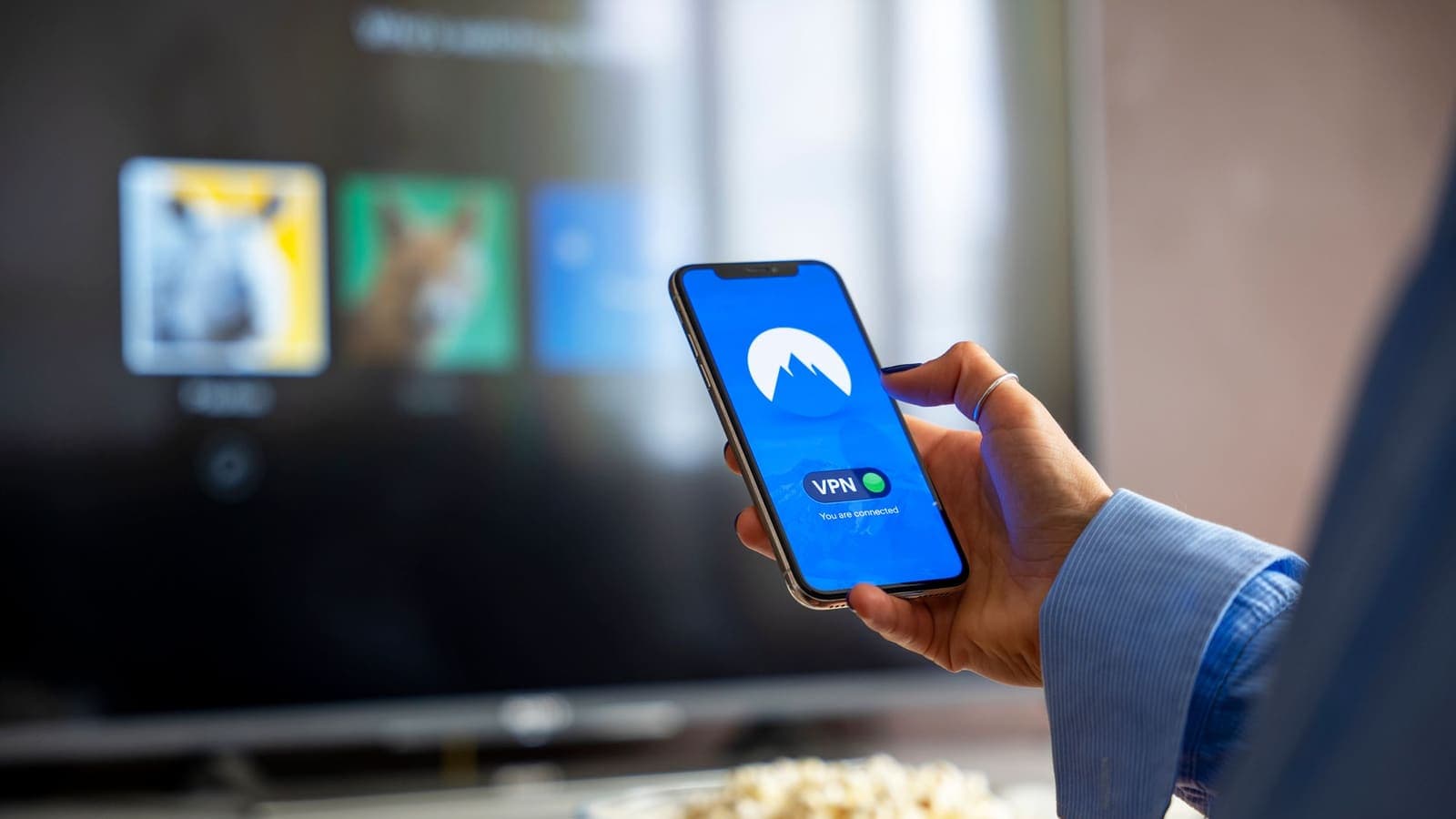
Why bother at all? The reasons are mundane. The TV talks to the internet constantly. It loads streaming apps, sends analytics to the manufacturer and app makers, and fetches updates. On a network you share, such as a dormitory, an apartment block with shared Wi-Fi, or a hotel, a VPN keeps those connections out of view of the people running that network. It also gives you one consistent path if you move between homes. It does not stop the TV maker or an app from knowing who you are when you sign in to an account.
The three routes, side by side
| Route | What you need | Covers | Effort | Main drawback |
|---|---|---|---|---|
| Streaming box or stick with a VPN app | An Android TV, Google TV or Fire TV device on an HDMI port | Only that box | Low | You switch your TV input to the box and use its apps |
| VPN on the router | A router that supports a VPN client mode | Every device on that router | Medium to high | Setup is router-specific and a weak router slows everything |
| Connection shared from a computer | A laptop or PC running the VPN app plus internet sharing | The TV and anything else connected to the share | Medium | The computer must stay on, and sharing can be fiddly |
Think of the table as a decision, not a ranking. A single TV in a flat is almost always better with the first route. A house where several people want protection at once, including smart speakers, consoles and laptops, points to the router. A temporary arrangement such as a short stay is where the shared connection shines, because nothing needs to be permanently changed.
Route one: a streaming box with its own VPN app
This is the route most people end up with. The Samsung TV becomes a display, and the box does the work.
- Pick a device that has a VPN app. An Android TV or Google TV box, an Amazon Fire TV stick, or a similar device. For the XPASS pass, the VPNclient app supports Android TV, Google TV and Fire TV, and the setup is explained in our guide on setting up a VPN on Android TV, Google TV and Fire TV.
- Plug it into an HDMI port on the Samsung TV and select that input with the remote. Keep the TV's own Wi-Fi and the box's Wi-Fi on the same home network.
- Install and sign in on the box. Download the app from the box's store or from the official link, then sign in with the username and password from your My Pass page. Those details are not the same as the XPASS website sign-in.
- Allow the VPN request. The box will show a system prompt asking permission to set up a VPN connection. The exact wording differs by system version; accept it.
- Connect and watch only through the box. Apps you open from the box use the tunnel. Apps that remain on the Samsung TV's own home screen do not.
The last point surprises people. If you open a streaming app from the Samsung's built-in launcher, that traffic goes out through your normal connection. To keep everything inside the tunnel, make the HDMI input of the box your habit, and consider hiding or ignoring the TV's native apps.
A nice benefit: the box is portable. Unplug it, carry it to another room or another home, and the VPN goes with it. It also keeps working when the TV is replaced or updated.
Route two: put the VPN on the router
A router with a VPN client mode builds the tunnel itself, so every device connected to it, including a Samsung TV, uses the tunnel without any software of its own. Our overview on setting up a VPN on a router covers the general steps, and the comparison of a VPN router against a VPN app will help you decide whether it is worth the effort.
What to check before you start:
- Does your router have VPN client support? Many consumer routers only act as a VPN server, which lets you reach your home from outside. That is a different feature. You need client mode.
- Which connection method does your VPN service support? Your My Pass page shows the setup information and supported connection methods for your pass. Compare them with what the router can do. If they do not match, this route is not available, and route one is the better choice.
- How powerful is the router? Encryption is work. An older or low-end router may handle only a modest speed through the tunnel, which can be a problem for high-definition video.
Once the tunnel is up, the TV needs nothing. Join the Wi-Fi as usual and it travels through the tunnel. The same is true of everything else in the house, which is an advantage if you want a blanket cover and a disadvantage if you want only the TV protected. Some routers let you route selected devices only; the article on split tunneling on routers explains the idea. Another risk to understand is what happens if the tunnel drops; read about router kill switches so you know whether your devices will stay offline or quietly fall back to your normal connection.
Route three: share a VPN connection from a computer
If you cannot change the router and do not have a streaming box, you can let a computer act as a bridge. The computer connects to the VPN with its app, then shares its internet connection over Wi-Fi or an Ethernet cable. The TV joins that shared network.
The idea is simple, but the details depend on your computer:
- On Windows, the mobile hotspot feature can share a connection. Whether the VPN tunnel is included in the share depends on the version and on how the VPN app is built, so test it.
- On a Mac, internet sharing can pass a connection from one interface to another, again with variations.
- With an Ethernet cable, a laptop with a USB adapter can share to a cable that goes to the TV, which avoids Wi-Fi problems.
Test it honestly. On the TV, open the network status page and confirm it is connected to the shared network. Then check from the computer whether the VPN is actually active. If you want a way to confirm that the connection from the TV is going through a tunnel, our help guide on checking whether your VPN is working explains simple checks, though on a TV you may need to rely on indirect evidence such as the shared network's behaviour.
This route has limits. The computer must stay on and awake. If it sleeps, the TV loses its connection. Speeds are limited by the computer's Wi-Fi hardware, and some computers cannot share Wi-Fi while connected to Wi-Fi at the same time. It is a stopgap, not a permanent solution.
A model-independent checklist on the Samsung TV
Whichever route you choose, the same few TV settings matter. Menu names change between model years, so look for the nearest equivalent.
- Update the software. Open the support or settings area and check for software updates. Updates fix network bugs.
- Open the network status page. It usually shows whether the TV reached the router and whether the router reached the internet. A failure at one step tells you where to look.
- Use automatic IP and DNS first. Manual DNS addresses can conflict with a VPN. If you set a custom DNS server, remember that some routers push their own DNS through the tunnel and ignore the TV's choice.
- Join the right network. If the computer or box creates a new Wi-Fi network, check that the TV is not still using the old one.
- Restart in order. Power off the TV, the box or computer, and the router. Switch on the router first, then the VPN device, then the TV.
- Check the time and date. If the TV's clock is wrong, secure connections to some services fail with confusing errors.
- Watch the local address range. Home networks use private address ranges defined in RFC 1918. If the VPN uses the same range as your home network, devices can become unreachable. If your router offers a setting to change the local range, choose one that differs.
Three everyday scenarios
A flat with one living-room TV. Priya has a single Samsung set and no technical interest in routers. She buys a small Android-based streaming box, plugs it in, installs the VPN app, and uses that input for the TV. Her housemates keep using the Samsung's native apps if they want. Setup takes twenty minutes and nothing about the router changes.
A family home with many devices. The Chan family has two TVs, a games console, laptops and four phones. They prefer to protect the whole network. They check the router's manual for VPN client support, compare it with the connection information on My Pass, and set it up one weekend. They test streaming on both TVs in the evening, find one of them struggling with the older router, and decide to keep the router for general devices but use a box on the TV that matters most. Nothing here requires perfection; it requires testing.
A student in a dormitory. Tom cannot touch the building's router and has no box. He uses his laptop with the VPN app and shares a connection to the TV with a short Ethernet cable. He keeps the laptop plugged in and disables sleep. It is less elegant than the other options, but it works for a term.
Whatever the case, notice the pattern: choose the route by who controls the router, how many devices you want covered, and how much setup you are willing to do.
When it does not work: troubleshooting
- TV shows connected, but apps cannot load. Restart the box or computer, reconnect the VPN, then restart the TV. If the tunnel is down while the share is up, the TV may have a connection with no usable path. See VPN connected but no internet.
- Video buffers or drops quality. Try another server location in the app, move closer to the router, or use a cable. See why a VPN can be slow. Test the same content without the VPN to know what the VPN is costing you.
- The VPN will not connect on the box. Confirm your pass is active and the username and password are the ones from My Pass. The guide on VPN not connecting walks through the usual fixes.
- An app refuses to run. Some services check the connection and may behave differently over a VPN. Do not repeatedly retry; turn the VPN off for that app if you can and use it on a trusted network.
- Everything slowed after configuring the router. A router that is too weak for encryption can slow every device. Revert, or use route one instead.
- You cannot remember your login. See where your VPN login details are.
Limits and honest expectations
A VPN is not a magic switch for a television. It encrypts the connection between a device or network and the VPN server. It does not make the TV maker forget who you are, it does not remove the tracking that apps do after you sign in, and it does not guarantee that any streaming service will behave in a particular way. Services have their own rules about how they may be used, and a VPN does not change those rules or the law. We do not offer guidance on getting around any restrictions of a service or a country, and you should not use these routes for that.
Also remember the practical limits. A router that covers the TV also covers everything else, including devices you may prefer to leave unprotected. A shared connection depends on a running computer. A streaming box protects only what runs on it. High-definition video is sensitive to speed, so a pass that works well for browsing may feel different with a 4K stream. Always test before you rely on it.
Common mistakes
- Looking for a VPN app on the TV for an hour instead of checking the store once and moving on.
- Setting up a router VPN without checking that the router supports client mode and a method that your pass uses.
- Opening apps from the Samsung home screen while the VPN lives on the box.
- Leaving a manual DNS address on the TV that fights with the router.
- Letting the sharing laptop go to sleep mid-film.
- Assuming a VPN fixes a weak Wi-Fi signal. It cannot; it only adds a bit more work.
- Skipping a software update that would have solved a network bug.
Summary
A Samsung Smart TV rarely accepts a VPN app, so the VPN has to be provided around it: a streaming box with its own app, a router that builds the tunnel for the whole home, or a computer that shares its VPN connection. Choose by how many devices you want covered and how much setup you can manage, run the model-independent checklist on the TV, and test with the content you actually watch.
If a prepaid pass without automatic renewal fits your plans, you can look at the pricing page and the download page when you are ready to set up your streaming box or computer.
Frequently asked questions
Can I install a VPN app directly on a Samsung Smart TV?
On most Samsung models the built-in app store does not offer a VPN client, and the TV software does not let you add a VPN profile in its settings. Check your own model's app list, but expect to protect the TV another way: a streaming box that has a VPN app, a VPN-enabled router, or a connection shared from a computer.
What is the easiest way to put a Samsung TV behind a VPN?
For most households it is a small streaming device plugged into an HDMI port, because it has its own VPN app and you can switch it on and off without touching the router. A router is better if you want every device in the home covered at once.
Will a VPN make my Samsung TV stream slower?
It can. Encryption and the extra distance add a little delay, and a weak router or a busy server can add more. High-definition video needs steady throughput, so test with the content you actually watch before you rely on the setup.
Why does my TV show a network error after I changed the router?
A router running a VPN may have changed the DNS or the local address range. Open the TV's network status page, run the connection test, and if it fails restart both the TV and the router. If the problem remains, set the TV's IP and DNS to automatic.
Does a VPN on my Samsung TV protect my phone and laptop as well?
Only if the VPN runs on the router. A VPN on a streaming box or on the TV's own path protects only that device. Phones and laptops need their own app or a router-level connection.
References
About the author

Bob Kanokphon Thongdee
- Founder of XPASS VPN
- Co-founder of eSIMonline.asia
- More than 7 years in online marketing
- Founder of Cojourney Visa and Cojourney Travel
Need a VPN for a short trip or a busy month?
XPASS sells prepaid passes for a set number of days. You pay once and nothing renews automatically.
See passesKeep reading

Device Guides
How to Use a VPN on a Smart TV
Many smart TVs cannot run a VPN app at all. Here are the three realistic options, how to choose between them and what to check before you start.
6 min read
Device Guides
How to Set Up a VPN on a Router
A general, firmware-neutral guide to running a VPN on your router: what to check first, the usual setup steps, DNS and kill switch settings, travel routers and common fixes.
7 min read

VPN Basics
VPN Router vs VPN App: Which Setup Fits Your Home?
Should you install a VPN on the router or on each device? This guide compares the two setups for speed, smart home gadgets, mesh Wi-Fi, split tunneling and everyday convenience.
10 min read
Device Guides
How to Set Up a VPN on Android TV, Google TV and Fire TV
Step by step: allow the TV to install the official VPNclient TV app, install it safely, sign in with your My Pass details and connect.
8 min read

Troubleshooting
Why Is My VPN So Slow? How to Speed It Up
A practical checklist for a slow VPN: measure first, rule out your own network, then fix Wi-Fi, background apps, device settings and streaming buffering one step at a time.
7 min read