
Parental Controls and Keeping Kids Safer Online
Phone settings, router filters and family DNS help, but talking with your kids helps more. Learn how the tools fit together, what a VPN does for a family and why free VPN apps can undo your controls.
10 min readUpdated Oct 18, 2026By XPASS Editorial Team
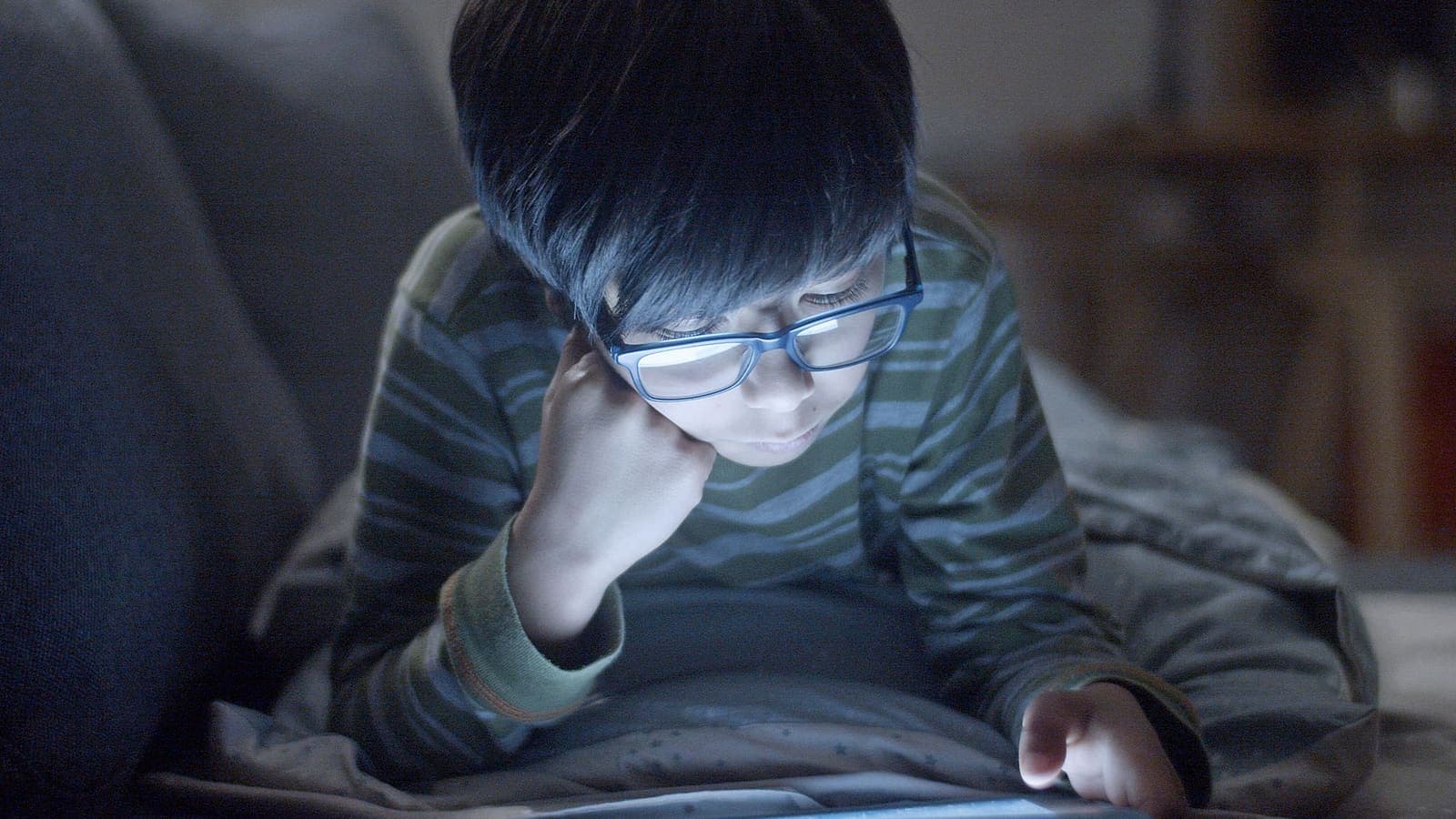
Handing a child a phone or tablet is a little like giving them a house key to a very large city. Most of what they find is interesting, educational or simply fun, and some of it is not meant for them. Parents often feel pulled in two directions: do not want to spy on a child, yet do not want them to meet scams, bullying or content that is too grown-up. No tool resolves that tension completely.
This guide describes the layers that work together. It covers the controls built into phones and tablets, filtering at the router, family-friendly DNS, screen time, talking about scams, location sharing, age-appropriate apps and a child's own SIM or eSIM. It also explains what a VPN can and cannot do for a family, including a point that surprises many parents: kids can install free VPN apps that quietly undo the controls you set up. Menu names differ by device and software version, so treat the names below as general guides.
Think in layers, not one switch
No single setting makes a child safe online. Safety comes from several layers, each covering gaps in the others:
- The device. Controls on the phone or tablet limit apps, purchases, contacts and time.
- The home network. Router-level filtering and family DNS apply to every device at home, including a friend's phone that joins the Wi-Fi.
- The accounts and apps. Privacy settings on games, chat apps and video platforms decide who can contact your child and what they see.
- The conversation. A child who knows they can tell you about a strange message without being punished is safer than one hiding it.
The fourth layer is the one that holds when the others fail. Filters have gaps, children grow and rules need to grow with them. The aim is to move from close supervision for young children towards trust and judgement for teenagers, rather than to build a fence that stays the same forever.

Built-in controls on phones and tablets
Both major phone systems include family features, usually found in Settings under names such as Screen Time, Family Link, Digital Wellbeing or Parental Controls. Wording varies by version and by manufacturer, so look for the family or screen-time section first. Typical options include:
- Child accounts. A child profile linked to a parent account lets you approve installs, restrict purchases and see activity summaries.
- App and content limits. You can allow only certain apps, choose age ratings for apps, films and music, and limit websites.
- Time limits and downtime. Daily limits per app or per category, and quiet hours such as bedtime or homework time.
- Purchase approval. Requests for in-app purchases or downloads can be sent to the parent. This also protects you from accidental spending.
- Communication limits. Some systems let you choose who the child can call or message.
- Passcode for the controls. The setting that protects the controls matters. Choose a code that your child cannot guess and does not share with friends. If they know it, they can turn everything off.
Review the settings every few months. A setting that suited a seven-year-old rarely suits a twelve-year-old, and a locked-down device can push older children to find workarounds. Explain why a rule exists; teenagers accept limits more easily when they understand the reason.
Router-level filtering and family DNS
Filtering at the router covers every device on your home Wi-Fi, including consoles and smart televisions that have no parental controls of their own. Many routers include a parental-control or content-filter page, often with time schedules for particular devices. Wording varies by brand, and not every router offers it. If yours does not, you can change the DNS setting instead.
DNS is the system that converts website names into addresses, as the Cloudflare explainer on what DNS is describes. Some public DNS services run family-friendly versions that block known adult or harmful sites. You can set one in your router so that the whole home network uses it. Two limits to remember:
- Filtering by DNS or router blocks known categories, not everything. New or unusual sites can slip through, and some sites are blocked by mistake.
- It only applies at home. A phone using mobile data, or the Wi-Fi at a friend's house, is not covered unless the device itself has controls.
If you want to look after the router itself, the article on securing your home Wi-Fi router covers admin passwords, firmware and guest networks.
Screen time that works in practice
Time limits work best when they come with agreement rather than surprise. Some ideas many families find workable:
- Agree on phone-free times and places, such as meals and bedrooms at night. Parents following the same rule makes it fairer.
- Charge devices outside the bedroom if sleep is an issue.
- Separate homework from entertainment, and allow educational apps more generously than games.
- Use the device's own reports to start a conversation, not to catch the child out. "You seem to be spending a lot of time on this app, what do you like about it?" works better than a lecture.
Habits that a child can explain and agrees with last longer than rules imposed from outside.
Talking with kids about scams and strangers
Children meet the same scams as adults, in a form that fits their world: a fake giveaway in a game, a stranger offering free in-game currency, a message from a friend's hacked account, a link that claims to fix an account problem or an adult pretending to be a teenager. The CISA guidance on recognising phishing is a good reference for the warning signs.
A few simple rules to talk through:
- Stop and ask. If something offers a free prize, asks for a password or code, or creates urgency, pause and show a parent.
- Never share codes. One-time codes, passwords and recovery codes are never given to anyone, even a friend or someone claiming to be support.
- Strangers online are still strangers. Do not share a real name, school, address, photos or location with someone you have only met online.
- You will not be in trouble. Tell your child that you will help, not punish, if they click something they should not or talk to someone who made them uncomfortable. This single promise is the most protective thing in the whole article.
For older children, add the idea of strong, unique passwords and the newer sign-in method called passkeys, explained in our article on what passkeys are.
Location sharing and age-appropriate apps
Sharing location can be reassuring for a parent, especially on the way to school, but it deserves a conversation. Say what is shared, with whom and why. Many phone systems and some family apps let a child share location with chosen family members only and turn it off for everyone else. Check the app settings too, since some social apps show location on a map to friends or even to everyone by default. Wording varies; look for location, map or nearby settings.
When choosing apps:
- Check the age rating in the app store, and read what the app says about chat, user-generated content and purchases.
- Look at who can contact your child. Apps with open chat with strangers need more supervision than those limited to approved friends.
- Review privacy settings together: public or private account, who can comment, who can send messages.
- Be wary of apps that ask for more access than they need, such as contacts, microphone or precise location for a simple game.
Take care with the date of birth entered when signing up. Entering a false age to get into an app can switch off protections that exist for younger users.
A child's own SIM or eSIM on a tablet or watch
Tablets and smartwatches with a cellular plan let a child be reachable without carrying a full phone. If the device supports an eSIM, you can add a data plan without a physical SIM card. For background on what to check, eSIMonline, a site that sells travel eSIMs, has a guide on eSIMs for kids' devices.
Practical points:
- Confirm that the device supports the kind of plan you want and that it is not locked to a different carrier. Some watches need their own plan from a specific carrier, so check before you buy.
- Keep the account in the parent's name and keep the plan details, activation information and any recovery codes with you, not on the child's device.
- Set limits on data use and on which apps may use mobile data.
- A cellular plan removes the home router from the picture. Router filtering will not apply once the device leaves Wi-Fi, so on-device controls matter even more.
- Teach the child what to do if the device is lost: tell a parent, who can lock it and contact the carrier.
What a VPN can and cannot do for a family
A VPN encrypts the traffic between a device and the VPN service, which is useful on public Wi-Fi, for protecting banking or school logins while travelling and for keeping some details away from the local network. If you want the basics, see our article on VPNs for families.
A VPN is not a parental control. It does not set time limits, rate content or tell you what your child is doing. Used alone, it also does not block harmful sites. In some setups a VPN can even weaken home filtering: if a device is connected to a VPN, requests may leave the home network in a way that bypasses the router's DNS filter. So a VPN suits a family device that travels with a parent, not as a replacement for the controls above.
The most important point is the reverse case. Children and teens often hear that a free VPN app can get around school or home filters, and many free apps are easy to find. Installing one can quietly undo your controls. Free apps can also carry real risks, such as heavy advertising, data collection or weak privacy practices, which our article on whether free VPNs are safe explains. That is a reason to talk about it openly, not just to forbid it.

Check installed apps and keep the conversation going
Make it routine to look at what is installed, together with your child, every month or two. Look for:
- VPN or proxy apps you did not approve.
- Apps with names you do not recognise, or that look like calculators or utilities but ask for odd permissions.
- Browsers other than the one you set up.
- A VPN profile or configuration in the device settings, even if no app icon is visible.
Where the device allows, set app installs to require approval, and turn on notifications so you can see requests. If you find a free VPN, ask why it was installed before reacting. Sometimes it is curiosity, a friend's suggestion or a wish to hide something minor. Explain that such apps can see and sometimes sell what passes through them, and that bypassing filters changes how safe the device is.
A plain example
Imagine a mother in Bangkok with a ten-year-old daughter and a fourteen-year-old son. The daughter uses a shared tablet with a child account, a bedtime schedule and approval for new apps. The son has his own phone. At home, the router uses a family DNS service, which they chose together.
One evening the son tells his mother that a friend sent him a link to a "free VPN" that would make games load faster and open sites blocked at school. The mother does not take his phone away. She asks him to show her the app, they read what it says it collects and compare it with the points in the free-VPN article. He deletes it. She agrees to review screen-time limits with him and to let him choose a few apps that count as free time. Months later, he tells her about a suspicious message in a game chat, because he knows the answer will not be punishment.
Limits and what to watch for
- No tool is complete. Filters miss things and block things by mistake. Treat them as support, not a guarantee.
- Older children find workarounds. Rather than treating this as a war, talk about why the rules exist.
- Privacy matters for children too. Reading private messages or tracking constantly can damage trust. Match the level of oversight to the child's age and be open about it.
- Check official guidance. Local schools, child-safety organisations and your device maker publish advice that suits your region and the age of your child.
- Do not assume a VPN fixes this. A VPN is useful for privacy on public networks, not for parenting.
Summary
Keeping kids safer online comes from layers: controls on the phone or tablet, filtering at the router or through family DNS, sensible screen time, privacy settings in apps, honest talk about scams and strangers, and a child's own SIM or eSIM managed by a parent. A VPN can protect a family device on public Wi-Fi, but it is not a parental control, and a free VPN installed by a child can undo the controls you set. Check installed apps regularly and keep the door open for conversation.
If a VPN for your family's travel or public Wi-Fi use is on your list, you can read more in the Help Center at your own pace.
Frequently asked questions
At what age should a child get their own phone or tablet?
There is no single right age, and it depends on the child, the family and local guidance. Many parents start with a shared tablet at home, add limits and supervision first, and give a personal device later when the child can follow agreed rules.
Can a VPN act as parental control?
Not on its own. A VPN encrypts traffic and changes the route it takes, but it does not decide what a child may see or how long they use a device. Parental controls, router filtering and open conversations do that. A VPN can complement them, for example on a family device that travels.
Why might my child install a free VPN app?
Children and teens often hear that a free VPN can bypass school or home filters. Installing one can undo your controls and expose their data to an app you have not checked. Talk about it, review installed apps regularly and, where the device allows, require approval for new installs.
Is a separate SIM or eSIM good for a child's tablet or watch?
It can be. A child's own data plan lets a tablet or watch work away from home Wi-Fi. Check that the device supports it, set limits on data and apps, and make sure you control the account rather than the child.
References
About the author

Bob Kanokphon Thongdee
- Founder of XPASS VPN
- Co-founder of eSIMonline.asia
- More than 7 years in online marketing
- Founder of Cojourney Visa and Cojourney Travel
Need a VPN for a short trip or a busy month?
XPASS sells prepaid passes for a set number of days. You pay once and nothing renews automatically.
See passesKeep reading

Buying Guides
Best VPN for Families: Safety and Device Support
A household checklist for picking a VPN: list every device, separate privacy from parental controls, decide who manages the account, and match the plan to how your family really uses the internet.
10 min read
Buying Guides
Are Free VPNs Safe? Red Flags to Check First
A free VPN still has to pay for servers, so ask who is paying. Here are the privacy policy, no-logs and Android APK red flags to check before you install one.
9 min read
VPN Security
How to Secure Your Home Wi-Fi Router
Your router guards every device at home, yet most people never change its settings. This checklist covers passwords, encryption, firmware, guest networks and when a VPN on the router actually helps.
10 min read

Privacy Guides
What Are Passkeys? A Plain Guide to Passwordless Sign-In
A passkey lets you sign in with your fingerprint, face or device PIN instead of a password. This guide explains how passkeys work, why they resist phishing, what happens if you lose your phone and how to start.
10 min read