
How to Secure Your Home Wi-Fi Router
Your router guards every device at home, yet most people never change its settings. This checklist covers passwords, encryption, firmware, guest networks and when a VPN on the router actually helps.
10 min readUpdated Oct 18, 2026By XPASS Editorial Team
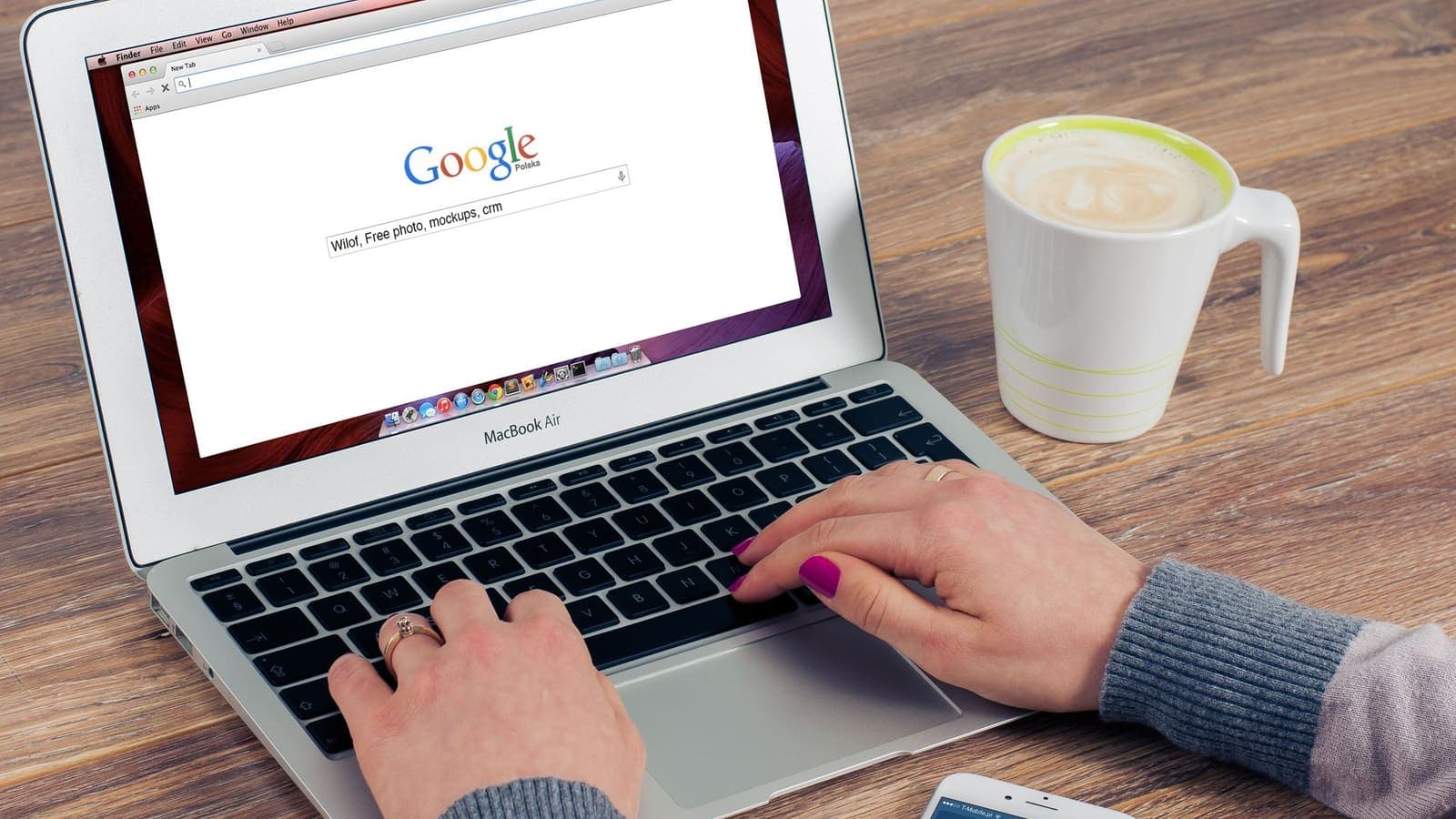
Your home router sits between everything you own and the internet. Phones, laptops, televisions, cameras, speakers and the odd forgotten tablet all trust it. Yet most of us plug it in, type the Wi-Fi password once and never open its settings again. That is a pity, because a handful of changes, most of them taking a few minutes each, remove the most common ways a home network gets abused.
This guide is a practical checklist. It covers the admin password, Wi-Fi encryption, firmware updates, features worth switching off, guest networks, checking who is connected, router DNS and, near the end, where a VPN on the router fits and where it does not. Menu names differ between brands and between firmware versions, so treat the wording here as a guide and check your router's manual or the manufacturer's support page if something is labelled differently.
Why the router deserves attention
A router is a small computer that runs software, and software has bugs. Attackers know that millions of home routers run old firmware with default or weak passwords. Common problems include a stranger guessing an admin login, a device on your network being used for something you did not intend, or settings such as DNS being quietly changed so that you land on fake websites. You do not need to be an interesting target for this to happen. Automated scans hit whatever they can reach.
The good news is that you are rarely defending against an expert. You only need to be a harder target than the next house, and the checklist below does that.
There are two separate passwords to keep in mind, and people often mix them up:
- The Wi-Fi password is what you type on a phone or laptop to join the network.
- The admin password is what you type to open the router's settings page, usually by entering an address such as the one printed on the router label into a browser.
Both need attention, and they should differ.

Step 1: change the default admin password
Many routers arrive with an admin login that is the same on thousands of units, or one that is printed on the sticker under the device. If you have never changed it, anyone who gets onto your Wi-Fi, such as a guest, a neighbour who learned your Wi-Fi password or a compromised gadget, may be able to open your settings.
To change it:
- Connect to your home network and open the router's settings page in a browser. The address and default login are usually on the label or in the manual.
- Look for a menu such as Administration, System, Management or Account. The wording varies by brand and version.
- Set a new admin password that is long and unique. A short phrase of several unrelated words works well. Do not reuse your Wi-Fi password or any password from another account.
- If the router lets you change the admin user name from the default, do that too.
- Store the new password in a password manager or write it down and keep it somewhere private at home, not on the router itself.
If you lose the admin password, a factory reset usually works, but it erases your Wi-Fi name, password and other settings.
Step 2: pick the right Wi-Fi security mode
Wi-Fi security modes decide how your wireless traffic is scrambled between your devices and the router. You will normally find the setting under Wireless, Wi-Fi or Security. In plain terms:
| Mode | What it means | Advice |
|---|---|---|
| Open (no password) | Anyone can join and traffic is not protected by Wi-Fi encryption | Avoid at home |
| WEP | Very old and easy to break | Avoid; replace the router if it is the only option |
| WPA / WPA2 with TKIP | Older and weaker combination | Avoid if possible |
| WPA2 with AES (WPA2-PSK) | Widely supported and acceptable with a strong password | Good fallback for older devices |
| WPA3 | Newer, with better protection against password guessing | Best choice if all devices support it |
| WPA2/WPA3 mixed | Lets older and newer devices connect together | Practical compromise |
If your router offers a mixed mode, it is often the easiest way to use WPA3 on newer devices while letting older ones still connect. If an old gadget refuses to join after you switch, try the mixed mode before dropping to a weaker setting.
Whatever the mode, the Wi-Fi password matters. Use a long passphrase rather than a short word with a number on the end, because length is what makes guessing slow. Avoid your phone number, house number or the router's brand name.
Step 3: keep the firmware updated
Firmware is the software inside the router. Manufacturers release updates to fix security holes, and a router that never gets updated can carry known problems for years. Look for a menu named Firmware, Software Update, Maintenance or System.
- Check whether the router has an automatic update option and turn it on if it does. Some routers only offer a manual check, in which case set a reminder every few months.
- If the router came from your internet provider, the provider may update it remotely. In that case you may not see an update button at all. If you are unsure, ask your provider.
- Be aware that very old models stop receiving updates. If the manufacturer says a model is end-of-life, consider replacing it, because security fixes will no longer arrive.
Do not switch the router off halfway through an update.
Step 4: switch off features you do not use
Routers include convenience features that can be handy but also enlarge the surface an attacker can try. Review these and turn off the ones you do not need:
- WPS (Wi-Fi Protected Setup). This lets you join a device by pressing a button or typing a short PIN. The PIN method has had well-known weaknesses on many routers, and even the button method is only needed occasionally. If you never use it, disable it.
- Remote administration. This allows the router's settings page to be opened from the internet rather than only from inside your home. Unless you have a clear reason and know how to secure it, leave it off. If you need to reach your home network while travelling, a properly set up VPN is a safer idea than leaving the admin page open to the world.
- UPnP. Universal Plug and Play lets devices ask the router to open ports automatically. It is convenient for games and some cameras, but it can also let a compromised device open a door. Turn it off if nothing you own needs it, and see whether things still work.
- Port forwarding rules you no longer need. Old rules for a camera, a game server or a device you sold can stay forgotten. Remove anything you cannot explain.
Change one thing at a time so you know which switch caused any problem.
Step 5: set up a guest network
A guest network is a second Wi-Fi name on the same router that is kept apart from your main network. Visitors get internet access, but they cannot normally see your laptops, printers or file shares.
Guest networks are useful for two groups of devices:
- Visitors. Friends and family do not need access to your home devices, and you do not know the state of their phones.
- Smart-home gadgets. Plugs, bulbs, cameras, robot cleaners and similar devices are often updated rarely and receive less scrutiny than phones. Putting them on the guest network limits what they can reach. Check that the gadget's app still works afterwards, because some devices need to be on the same network as your phone during setup. The article on VPN for smart home discusses this trade-off.
When you create the guest network, give it a different password from your main Wi-Fi. If the router offers a setting called client isolation or AP isolation, enable it so guests also cannot reach each other. Some routers let you set a time limit or a speed limit for the guest network. Wording varies by brand.
Step 6: check who is connected
Every router can show a list of connected devices, usually under Device list, Connected devices, DHCP clients or Attached devices. It is worth looking at once a month or after you change the Wi-Fi password.
- Match each entry to something you own. Names such as the phone model, the television brand or a computer name are normal.
- Unknown names are not always intruders. Some gadgets use odd manufacturer names. If you cannot identify one, switch off your devices one at a time and see which entry disappears.
- If you find a device you cannot explain, change the Wi-Fi password, which disconnects everyone, then reconnect only your own devices.
- Some routers can alert you when a new device joins. Turn that on if it exists.
Step 7: look at your router's DNS
DNS is the system that turns a website name into an address. If you want the basics, the Cloudflare explainer on what DNS is is a good start. By default your router usually uses the DNS servers of your internet provider. Some people change this to a different public resolver or a family-friendly one, which can improve reliability or block known harmful sites. You will normally find the option under Internet, WAN or DHCP settings.
Make sure the DNS addresses in your router are ones you chose yourself or that your provider set. If you see addresses you do not recognise, that can be a sign somebody changed them, and you should reset the field, change the admin password and update the firmware. DNS changes affect everyone on the network. The article on router DNS and VPNs explains how a VPN on the router interacts with these settings.

When a VPN on the router helps, and when it does not
A VPN on the router can send the traffic of every device at home through the VPN, including gadgets that cannot run a VPN app, such as some smart televisions and game consoles. That is its main strength. It also means you do not have to remember to switch the VPN on for each device. If this sounds useful, the Help Center guide on setting up a VPN on a router explains what to check, and VPN router vs VPN app compares the two approaches.
It is just as important to be clear about what a router VPN does not do:
- It does not fix a weak admin password, old firmware or an exposed remote-admin page. Those need the steps above.
- It does not protect devices when they leave your home. Your phone on a café network needs its own VPN app.
- It may slow the connection, because the router has to encrypt everything and some routers have modest processors. A router VPN is also a single setting for the whole house, so one family member who needs a different setup may have to use an app instead.
- Not every router supports VPN clients, and some internet-provider routers lock this feature.
A plain example: the Somchai family
Imagine a family in Chiang Mai with an internet-provider router they set up three years ago. The admin login is still the label default, the Wi-Fi uses WPA2, WPS is on, and the only password the father ever changed was the Wi-Fi one. A neighbour who once borrowed the Wi-Fi has the password, and so does a cousin who visited last year.
One evening the daughter notices pages loading oddly. Her father logs in to the router, finds three devices he does not recognise and sees that remote administration is switched on. He works through the checklist in an hour: a long new admin password, firmware updated, WPS and remote administration off, a new Wi-Fi password with WPA2/WPA3 mixed mode, a guest network for visitors and the smart plugs, and a note of every device name on the main network. He also checks the DNS fields and finds they match his provider. Nothing dramatic had happened, but he has closed the doors that were left open.
Limits and what to watch for
- Menu names vary. What one brand calls Guest Network another calls Guest Wi-Fi or Visitor Access. If a setting is missing, the router may not support it. That can be a reason to ask your provider or to replace an old router.
- Provider-managed routers may hide settings or reset them remotely. Ask the provider what you are allowed to change.
- Nothing is perfect. These steps lower risk; they do not make a network unhackable.
- Do not copy random tutorials blindly. Advice that tells you to open ports, install unofficial firmware or paste unfamiliar addresses into DNS fields can create new problems. Prefer your manufacturer's own documentation.
For deeper background on privacy habits, the EFF's Surveillance Self-Defense guides are a helpful companion.
Summary
Securing a home router comes down to a short list: change the admin password, use WPA3 or WPA2 with a long Wi-Fi password, keep the firmware updated, switch off WPS and remote administration unless you truly need them, put visitors and smart gadgets on a guest network, check the connected-device list now and then and know where your DNS comes from. A VPN on the router can add encrypted traffic for every device that cannot run an app, but it is an addition to these basics rather than a replacement.
If you decide a VPN would suit your home or your travels, you can look at the options on the pricing page at your own pace.
Frequently asked questions
What is the first thing I should change on a new router?
Change the administrator password, the one used to open the router's settings page, because many routers ship with a default that is printed on a label or easy to guess. Then set a strong Wi-Fi password and make sure the Wi-Fi uses WPA3 or WPA2.
Should I use WPA3 or WPA2?
Use WPA3 if your router and all your devices support it. If some older devices cannot connect, WPA2 with a strong password (often listed as WPA2-AES or WPA2-PSK) is still a reasonable choice. Avoid WEP and open networks with no password.
Do I need a guest network?
It is a good idea. A guest network keeps visitors, and often smart-home gadgets, away from your phones, laptops and file shares. If one gadget is weak or compromised, it has a harder time reaching the devices that matter more.
Does a VPN on my router secure the router itself?
No. A VPN on the router encrypts traffic leaving your home, but it does not fix a weak admin password, old firmware or an exposed remote-admin page. Secure the router first, then decide whether a router VPN is worth adding.
References
About the author

Bob Kanokphon Thongdee
- Founder of XPASS VPN
- Co-founder of eSIMonline.asia
- More than 7 years in online marketing
- Founder of Cojourney Visa and Cojourney Travel
Need a VPN for a short trip or a busy month?
XPASS sells prepaid passes for a set number of days. You pay once and nothing renews automatically.
See passesKeep reading

VPN Basics
VPN Router vs VPN App: Which Setup Fits Your Home?
Should you install a VPN on the router or on each device? This guide compares the two setups for speed, smart home gadgets, mesh Wi-Fi, split tunneling and everyday convenience.
10 min read

Device Guides
VPN for Smart Homes: What Needs Protection?
Most smart home devices cannot run a VPN, and many would break if you forced them through one. See what actually needs protection and which steps matter more.
9 min read
Device Guides
DNS Settings on a VPN Router Explained
A router that runs a VPN still has to decide who answers DNS questions. This guide shows where the setting hides, how to point it safely and how to test it.
9 min read

VPN Security
How to Stay Safer on Public Wi-Fi
Public Wi-Fi is not a disaster, but it is a network you do not control. Here are the real risks, the habits that matter most, and where a VPN fits in.
8 min read