
What Are Passkeys? A Plain Guide to Passwordless Sign-In
A passkey lets you sign in with your fingerprint, face or device PIN instead of a password. This guide explains how passkeys work, why they resist phishing, what happens if you lose your phone and how to start.
10 min readUpdated Oct 18, 2026By XPASS Editorial Team
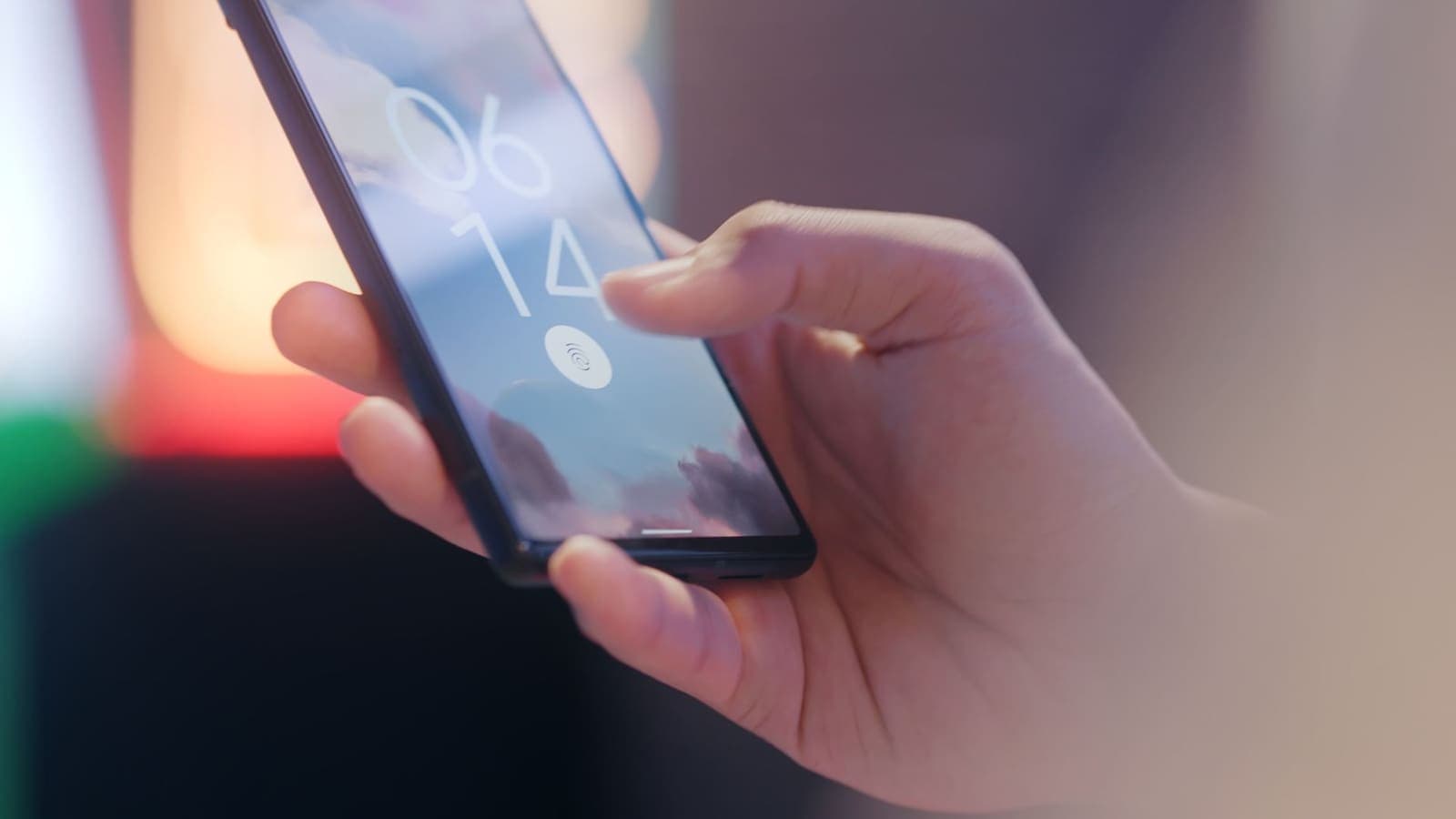
Most of us have too many passwords. We reuse a few, forget the rest and quietly dread the next "reset your password" email. Passkeys are a newer way to sign in that tries to remove the weakest part of the process. Instead of a secret you type, you prove who you are with something your device already knows how to do: a fingerprint, a face scan or the PIN you use to unlock the screen.
This guide explains passkeys in plain language. It covers how they work, how they compare with passwords and with SMS codes, why they resist phishing, what happens when you switch or lose a phone, how they help when you travel and where they are supported. It ends with a simple way to start. Menu names vary between devices, apps and software versions, and support changes quickly, so treat any wording here as general guidance.
What a passkey is
A passkey is a login credential that replaces the password for a particular website or app. Technically, it is a pair of cryptographic keys. One is a private key, stored on your device and protected by your screen lock. The other is a public key, kept by the website. When you sign in, the website sends a challenge, your device signs it with the private key after you approve with your fingerprint, face or PIN, and the website checks the signature using the public key.
The important point is that the private key never leaves your device in a form that anyone can read, and the website never receives a secret that could be reused somewhere else. The FIDO Alliance, the industry group behind the standard, describes the idea on its passkeys page. The details are technical, but what you see is simple: tap sign in, confirm with your face or finger, and you are in.

Passwords, SMS codes and passkeys compared
It helps to compare the three sign-in methods side by side.
| Password | Password plus SMS code | Passkey | |
|---|---|---|---|
| What you do | Type a secret | Type a secret and a code sent to your phone | Approve on your device |
| Can be phished | Yes, if you type it into a fake site | Yes, a fake site can ask for the code too | Much harder, because the key only works for the real site |
| Can leak from a website breach | Yes | The password part can | No reusable secret is stored on the site |
| Depends on mobile signal | No | Yes | No |
| Can be redirected through SIM swapping | Not directly | Yes | No |
| Easy to reuse across sites | Yes, and that is a problem | Same | Each site gets its own key |
The takeaway is not that SMS codes are useless. The US National Institute of Standards and Technology, in its digital identity guidelines (SP 800-63B), treats text-message codes as a weaker form of second step and discusses stronger options, including authenticators that resist phishing. A code sent by SMS is better than a password alone, but it can be intercepted, redirected or tricked out of you. For more on that, see our article on two-factor authentication.
Why passkeys resist phishing
Phishing works by getting you to type your secrets into a lookalike site. A message says your bank account has a problem, you click a link, the page looks right and you enter your password and the code you just received. The attacker passes both along to the real site. The CISA guidance on phishing lists the usual signs, and our guide on recognising phishing websites goes through them.
A passkey changes the game because it is bound to the real website's address. If you land on a lookalike domain, your device simply does not offer the passkey, since it was created for the genuine one. There is nothing to type, so nothing to give away. The checking is done by software that does not get tired or distracted, which is the key difference. That said, phishing is not the only danger. A passkey does not protect you if someone has your unlocked phone, if malware controls your device or if you are tricked into approving something on the real site. It reduces one very common risk, and it does so well.
Syncing across devices, and losing a phone
An early worry was: if the key lives on one phone, what happens when that phone is lost? Modern passkeys can usually be synced. Your phone's account, your browser or a password manager stores an encrypted copy so that a new device can restore them after you sign in to that account. Details differ by system, and wording varies, so check what your ecosystem offers.
What this means in practice:
- New phone. After you sign in to your account on the new device and unlock it, your passkeys typically appear again. Test a few important sites.
- Lost or stolen phone. The screen lock protects the keys on the device. Lock or erase the phone using your phone maker's find-my-device feature, then restore your passkeys to a new device from your account.
- Mixed devices. If you use one brand of phone and another brand of laptop, a cross-device sign-in lets you use the phone to approve a login on the laptop, typically by scanning a QR code and confirming nearby. Support varies.
- Password manager. Several password managers can store passkeys too, which helps if you switch between platforms.
The weak point moves from the passkey to the account that syncs it. Protect that account with a strong password, a second step and a recovery method you control. Until you are comfortable, keep a second way into your most important accounts, such as a backup code stored somewhere safe.
Using passkeys while travelling
Travel is where passkeys earn their keep. Many people rely on an SMS code sent to their home phone number to sign in or approve a payment. Abroad, that can go wrong: the home SIM may have no signal or roaming turned off, the message may arrive late, or you may be using a local data plan and not your usual number. If you need a hand with that situation, eSIMonline, a site that sells travel eSIMs, has a guide on receiving SMS codes while abroad.
A passkey is approved on the device in your hand, so it does not need a text message at all. For a traveller who relies on a Thai SIM, it means one less dependency. It also removes one risk: with fewer SMS codes in flight, there are fewer for a criminal to intercept or to obtain through SIM swap fraud.
Travel habits that fit well:
- Set up key passkeys before you leave. Email, banking, shopping and any account you cannot afford to lose.
- Keep the screen lock strong. A passkey is only as safe as the lock on your device. Avoid easy PINs and consider turning off shortcuts that show sensitive content on the lock screen.
- Keep a backup way in. A recovery code stored offline helps if your phone is lost or broken abroad.
- Remember public Wi-Fi. Passkeys protect your sign-in, but not everything else you do on the network. A VPN adds a layer on hotels, airports and cafés, as covered in our public Wi-Fi safety guide, though neither replaces the other.
Where passkeys are supported
Support has grown quickly but is not universal. Many large technology companies, email services, social networks and an increasing number of banks, shops and government portals offer passkeys. Modern phones, tablets, laptops and browsers generally support creating and using them, and several password managers do too.
Hedge accordingly:
- Support differs by site, by app and by operating system version. A site may allow passkeys in the browser but not in its mobile app, or the other way around.
- Some sites let you use a passkey in addition to a password, others let you drop the password entirely. Policies differ.
- Older devices and browsers may not support passkeys. In that case you may be offered another method.
- Banks and workplaces sometimes have their own rules. Follow their official instructions.
The best way to find out is to open the account security or sign-in settings of the service and look for Passkeys, Security keys or Passwordless sign-in. If the option is not there, the service may not support them yet.

How to start, step by step
You do not have to switch everything at once. A sensible order is:
- Check the basics. Update your phone and browser, make sure the screen lock is on and use a PIN or biometric you trust.
- Pick your most important account first. Usually your email, since it can reset other accounts, then banking and your main social account.
- Open the account's security settings. Look for Passkeys or Passwordless sign-in and follow the prompts. You will be asked to confirm with your fingerprint, face or PIN. Wording varies.
- Check where it is saved. Note whether the passkey is stored in your phone's account, your browser or a password manager, so that you know how to recover it.
- Test it. Sign out, then sign in with the passkey. Do this on a second device too if you use one.
- Keep a fallback. Do not delete your password or recovery options right away. Remove them later when you are comfortable, if the service lets you.
- Repeat with other accounts as you go, a few at a time.
Treat a request to create a passkey the same way you treat any security prompt: only approve it when you started the process yourself, on a site or app you opened on your own.
A plain example
Imagine a traveller from Chiang Mai on holiday in Osaka. On a normal day at home she signs in to her bank with a password and an SMS code on her Thai number. Abroad, roaming is off to save money, and she is using a local data plan, so the text never arrives and she cannot approve a payment.
Before the trip, a friend suggested she try passkeys. She had set one up for her email and her main shopping account, and her bank app offered one too. At the airport she uses her fingerprint to sign in to email and approve a purchase, no text message required. On the hotel Wi-Fi she turns on her VPN as an extra layer. When her phone briefly goes missing in a taxi, she is relieved that the screen lock is strong, she uses the find-my-device feature to lock it, and the phone turns up later. At home she checks that her accounts are in order.
Limits and what to watch for
- Passkeys are not magic. They defend well against phishing and password leaks, but they cannot help if your device is compromised or if you are talked into approving something fraudulent.
- Your device lock matters. Anyone who knows your phone PIN and holds your phone may get far. Use a strong lock and be careful when typing it in public.
- Sync is a trade-off. Syncing is convenient, and it makes the sync account an important target. Secure it carefully.
- Support is uneven. Expect to keep passwords and second steps for some sites for a while.
- Shared and work devices. Do not create passkeys on a computer you do not own or one that others use.
- Follow official sources. For exact rules in your country or workplace, check the service's own help pages. Our descriptions are general.
Summary
Passkeys replace a typed secret with a key stored on your device, approved by your fingerprint, face or PIN. They resist phishing because they only work on the real site, leave no password to leak and do not depend on SMS codes, which helps when you travel and your home SIM is not available. Syncing makes switching phones manageable, but you should protect the account that syncs them and keep a recovery option. Start with your email and bank, test the sign-in and keep a fallback while support grows.
If you are preparing for a trip and want an extra layer on hotel or airport networks, the Help Center explains how to connect with a VPN when you are ready.
Frequently asked questions
What is a passkey in simple terms?
A passkey is a sign-in method that replaces your password. Your device holds a private key that never leaves it, and the website holds a matching public key. You approve the sign-in with your fingerprint, face or device PIN, and nothing secret is typed or sent for a thief to copy.
Are passkeys safer than passwords and SMS codes?
In general, yes. A passkey is tied to the real website, so a fake site cannot use it, which makes it resistant to phishing. There is no password to leak from a database and no SMS code to intercept or redirect through SIM swapping. No method is perfect, and your device and its lock screen still matter.
What happens if I lose my phone with my passkeys?
If your passkeys sync through your phone's account or a password manager, you can get them back on a new device by signing in to that account again. Keep a recovery method for the account itself, and keep other ways into important accounts until you are comfortable.
Do I need a Thai SIM to use passkeys while travelling?
No. A passkey is approved on your device, so it does not depend on receiving an SMS code. That helps when you are abroad and your home SIM has no signal or roaming, though some sites still fall back to SMS if you have no passkey set up.
Do all websites and apps support passkeys?
Not yet. Many large services and an increasing number of banks and shops support them, but support varies by site, app, browser and operating system. Check the account security settings of each service.
References
About the author

Bob Kanokphon Thongdee
- Founder of XPASS VPN
- Co-founder of eSIMonline.asia
- More than 7 years in online marketing
- Founder of Cojourney Visa and Cojourney Travel
Need a VPN for a short trip or a busy month?
XPASS sells prepaid passes for a set number of days. You pay once and nothing renews automatically.
See passesKeep reading

Privacy Guides
What Is Two-Factor Authentication?
Two-factor authentication asks for a second proof of identity in addition to your password, so a stolen password alone is not enough. Here is how the main methods compare and how to start.
9 min read

Privacy Guides
VPN vs Password Manager: Why You May Need Both
A VPN and a password manager solve different problems. This guide shows which threat each tool handles, how they work together, and what order to set them up in.
9 min read
Privacy Guides
SIM Swap Fraud: What It Is, Warning Signs and How to Protect Your Number
How SIM swapping works, why criminals want your phone number, the early warning signs, and the practical steps that protect you: carrier PINs, authenticator apps, passkeys and fast action.
10 min read

Privacy Guides
How to Recognize Phishing Websites
Phishing websites imitate real services to steal your login or card details. This guide shows the warning signs worth checking, a calm routine for suspicious links, and what to do if you entered details.
9 min read