
VPN and Android Work Profiles Explained
A work profile splits one phone into two worlds. This guide explains which side a personal VPN protects, what a company VPN controls and how to avoid clashes.
9 min readUpdated Oct 15, 2026By XPASS Editorial Team
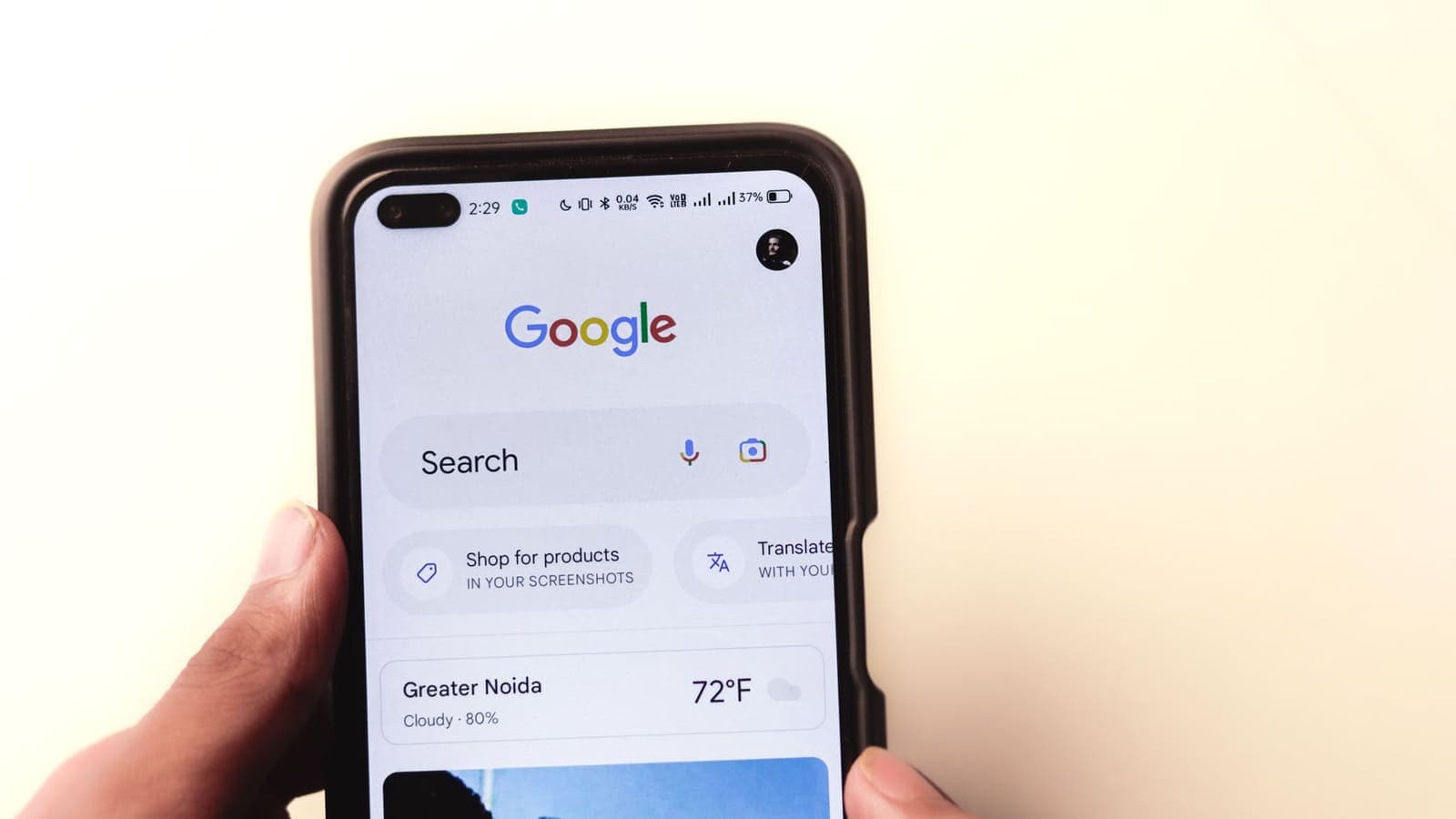
If your employer asked you to install a work profile on your own Android phone, you now carry two separate environments in one device. Work email, chat and documents live behind a briefcase badge. Your photos, messages and games stay on the other side. It is a clean arrangement, until you add a VPN and wonder which half of the phone it actually protects.
This article answers one narrow question: how does a VPN behave when Android has a work profile? It does not repeat how to set up a VPN on a plain phone, and it does not cover split tunneling in general. If you need those, the help guide on setting up a VPN on Android and the article on Android split tunneling are the right places. Here we look at the boundary between the two sides, who controls what, and how to avoid the common conflicts.
What a work profile is, and why it exists
A work profile is a feature of Android's enterprise tools. When your organisation enrols your phone, Android creates a second space with its own copies of apps, its own storage area and its own settings. The apps in that space carry a small briefcase badge. They are managed by the employer's device-management software, and you can usually pause the whole work side with one switch at the end of the day.
The design has two aims. The company wants control over its own data: the ability to wipe work files, require a screen lock, or keep the corporate mail app updated. You want your personal life left alone: your photos, personal chats and browsing are not supposed to be visible to the employer. The profile is the wall between the two.
This is called a bring-your-own-device arrangement. It is common in schools, clinics, retail chains and remote-first companies. A fully company-owned phone is a different situation, with different rules, and this article is about the personal phone with a work profile.
The wall matters for VPNs because network settings are tied to the profile. A VPN is not a phone-wide switch in this arrangement. It belongs to one side or the other.

Two sides, two VPN slots
Android lets one VPN be active at a time within a given user space. With a work profile, the personal space and the work space are separate users in this sense. That means each side can run its own VPN, and they do not share a tunnel.
| Question | Personal side | Work profile side |
|---|---|---|
| Who installs apps? | You | You, within limits your employer sets |
| Who sets the VPN? | You | Usually your employer, sometimes you |
| Where do the VPN apps live? | In the personal app list | Only in the work app list, with a briefcase badge |
| Whose traffic goes through it? | Personal apps only | Work apps only |
| Can the employer see the settings? | No | Yes, they manage them |
In practice this has three consequences.
- A personal VPN does not cover work apps. If you connect a VPN app that you installed on the personal side, your work email and corporate chat do not travel through it. They use the work profile's own network path.
- A work VPN does not cover personal apps. When the company turns on its own always-on VPN for the work profile, your personal browsing does not enter the company tunnel.
- The same VPN app can be installed twice. The personal copy and the work copy are separate installations with separate sign-ins and separate permissions.
That design protects both parties, but it also explains why many people are confused when a VPN seems to be "on" yet a work app behaves as if it were not.
Who decides what the work side does
The organisation that set up your profile decides what rules apply on the work side. Typical choices include:
- An always-on company VPN that starts automatically for work apps and cannot be turned off by the user.
- Per-app VPN, where only certain work apps send traffic through the company network, while others use the open internet.
- No VPN at all, because the company's services are already protected by modern login checks, as described in our article on zero trust compared with a VPN.
- A block on installing extra VPN apps inside the work profile.
The last point is the one people stumble over. If your install button is greyed out on the work side, that is a policy, not a fault. Do not try to defeat it. Management software is allowed to restrict its own space, and trying to get around a policy at work can cause real trouble with your employer. The correct move is to ask the IT team, in writing, what they expect you to do on public networks.
If you want a broader view of how company-run and personal VPNs differ in purpose, read business VPN vs personal VPN. Guidance for organisations on remote access appears in NIST's telework security publication, SP 800-46, which is worth a skim if you are the person writing the policy.
Using a personal VPN alongside a work profile
Most people keep a personal VPN for their own side of the phone: public Wi-Fi at a cafe, a hotel network, or a shared flat. That works fine with a work profile in place, with a few details to keep in mind.
- Install and sign in on the personal side. With XPASS, you use the free VPNclient app and the username and password shown on your My Pass page. The download page lists the official links.
- Grant the VPN permission once. Android shows a system prompt when an app first creates a VPN connection. Wording varies by version. Our article on Android VPN permissions explains what you are agreeing to.
- Check the status bar. The key icon appears when the personal VPN is active. Work apps will not use it.
- Test a personal app and a work app separately. A website in your personal browser should show the VPN's effect. A work app should keep behaving exactly as before.
If something odd happens, check that the work side did not push a policy that replaces the VPN on the personal side. That is rare, but it can happen on fully managed devices.
What your employer can and cannot see
This is the question most people really have, so here is a plain answer without alarm. The work profile is built so that the employer manages the work space. Typically they can see which work apps are installed, push or remove work apps, require a screen lock, and wipe the work profile. They are designed not to see your personal apps, personal files, personal messages or what you do in the personal browser.
The limits, however, depend on how the organisation configured things, and phone makers add their own tools. If you want certainty:
- Ask your IT team for their written acceptable-use and monitoring policy.
- Open the system settings and look for an entry called something like device administrators or work profile settings, which lists what the manager is allowed to control.
- Treat anything you do in the work profile as work, including web browsing in the work browser.
- Keep personal conversations on the personal side.
A personal VPN cannot hide your activity from a company in the work profile, and it should not be used for that purpose. The profile already separates the two worlds, and the VPN adds its own protection on the personal side only.
Common conflicts and how to fix them
Here are the situations that cause most support questions.
Two VPNs fighting on one side. If you installed a personal VPN and your employer pushed a company VPN to the same side, Android allows only one to be active. Open Settings, then Network and internet, then VPN, and see which is selected. Turn off the one you do not need.
A banking or payment app inside the work profile. Some work tools are strict about unusual connections. If the personal VPN is not involved, the issue is on the work side, and the IT team should handle it.
Work apps cannot reach company systems after you installed a VPN. Check whether the company VPN is still connected on the work side. Work apps may use their own tunnel and be unaffected by what you do on the personal side. If the company tunnel dropped, reconnecting it is the fix.
The VPN stops when you pause the work profile. Pausing the work profile suspends the work apps, not the personal side. A personal VPN should keep running. If it does not, battery optimisation may be putting it to sleep. The battery article for Android explains the setting.
The VPN app is missing in the work list. That is expected unless your organisation approved it for the work profile. You do not need a second copy for personal use.

Scenarios
The BYOD employee. Lena uses her own phone for hospital scheduling. Work email sits behind the briefcase badge and goes through the hospital's VPN, which her employer controls. On the ward Wi-Fi at lunch she uses her personal VPN for banking and messages. The two tunnels never touch. She does not try to install her personal app on the work side because the hospital blocks it.
The freelancer with two clients. Omar works with a client that gave him a work profile on his personal phone. He keeps client documents inside the profile and nothing else there. On his own side, he uses a VPN when he travels. When he finishes the contract, the client removes the profile and its data, and his personal side is untouched.
The student on a shared network. Mai has a work profile from a part-time job. At her student housing she uses the personal VPN for study and chat. She leaves the work profile paused outside her shifts, which pauses the work apps but does not interrupt her personal tunnel.
Limits and good habits
- A VPN protects the traffic path of the side it is installed on. It does not govern the other side.
- It does not change what an employer's device-management software can do within the work profile.
- It does not protect you from phishing or from sharing a password; see our guide on what a VPN cannot protect you from.
- Keep work documents in the work profile. Do not copy them to the personal side to get around a rule.
- Remove the work profile or ask IT to do so when you leave the job, and confirm your personal data remains.
- Keep Android and your apps updated on both sides.
Summary
A work profile divides an Android phone into two spaces, and a VPN belongs to one side at a time. A personal VPN protects personal apps only, while the work side follows the company's own setup, which may include an always-on VPN or none at all. Your employer manages the work side and is designed not to see the personal one, but the precise limits depend on their configuration, so ask for the policy. If a conflict appears, check which VPN is active in the system settings and keep the personal and work roles separate.
If you want a simple prepaid pass for the personal side of your phone, the pricing page shows what is available.
Frequently asked questions
Does my personal VPN protect the apps in my Android work profile?
Normally no. Android treats the personal side and the work profile as separate spaces, and a VPN running on one side does not automatically carry the other side's traffic. Work apps follow whatever the work profile is configured to use.
Can I install a second VPN app inside the work profile?
Only if your organisation allows it. The work profile is managed by your employer, who can restrict which apps may be installed there. If installation is blocked, that is a policy decision to discuss with your IT team.
Can my employer see what I do in the personal profile?
The work profile is designed so that the employer manages the work side and does not see personal apps or personal data. The exact limits depend on how your organisation set it up, so ask them for their policy in writing if you are unsure.
Why did my personal VPN stop working after I added a work profile?
The usual causes are a company policy that installed its own always-on VPN for the work side, a permission that needs to be granted again, or two VPN apps competing for the same connection slot on one side. Check which VPN is active in the system VPN settings.
Should I turn my personal VPN on while using work apps?
Follow your employer's rules first. If the work side already routes through a company VPN, leave it alone. A personal VPN on the personal side does not interfere with it and does not change work traffic.
References
About the author

Bob Kanokphon Thongdee
- Founder of XPASS VPN
- Co-founder of eSIMonline.asia
- More than 7 years in online marketing
- Founder of Cojourney Visa and Cojourney Travel
Need a VPN for a short trip or a busy month?
XPASS sells prepaid passes for a set number of days. You pay once and nothing renews automatically.
See passesKeep reading

Device Guides
Split Tunneling on Android: Setup Guide
A practical Android guide to per-app VPN rules: choose between include and exclude lists, build the list, test it and fix the usual problems.
9 min read
Device Guides
Android VPN Permissions: What Are You Allowing?
What the Android VPN connection prompt really grants, which permissions a VPN app genuinely needs, which are red flags, and how to review them after install.
9 min read

Buying Guides
Best VPN for Remote Work: What Remote Workers Should Check
A personal VPN and a work VPN do different jobs. This guide explains the difference, how a VPN affects video calls and cloud apps, and a checklist for remote workers and freelancers.
9 min read

VPN Basics
Business VPN vs Personal VPN: What's the Difference?
A personal VPN protects one person's connection. A business VPN connects people and sites to company systems and controls who can reach what. Here is how to tell them apart.
9 min read

VPN Security
Zero Trust vs VPN: How They Differ
Zero trust and VPN are often presented as rivals, but they answer different questions. Here is how ZTNA, SASE and SD-WAN relate to a VPN, and when each one makes sense.
9 min read