
Android Shows VPN Connected but No Internet
The key icon is on, the app says connected, and nothing loads. Here is how to find which layer is failing on an Android phone and fix it in a sensible order.
9 min readUpdated Oct 15, 2026By XPASS Editorial Team
You open your phone, the VPN app shows a green status, the key icon sits in the status bar, and yet every page spins forever. Messaging apps never deliver, maps stay grey, and the browser says it cannot reach the site. It feels as if the VPN is lying to you. In fact it is telling the truth about one narrow thing, and the failure is hiding in a different layer.
This article is only about that exact symptom on Android: connected, but no internet. It does not repeat the full setup process or the general troubleshooting list. Instead it shows you how to separate a network fault from a VPN fault in about two minutes, then walks through fixes in the order that wastes the least time. If you want the broader desktop-and-mobile version of this problem, the help guide on VPN connected but no internet covers it, and the Android troubleshooting guide lists every other kind of failure.
What "connected" actually promises on Android
When a VPN app says connected, it is reporting that Android created a virtual network interface, the app finished its handshake with the VPN server, and the system routed your traffic towards that interface. That is all. It does not prove that the server can reach the wider internet, that your DNS questions are being answered, or that the Wi-Fi underneath still has a working uplink.
Think of a phone call. The line can be open and quiet while the person on the other end is not speaking. Likewise, the tunnel can be open while no useful data comes back. The problem usually lives in one of four places.
- The underlying connection. The Wi-Fi has no real internet, or the mobile data is out of allowance, so the tunnel has nothing to carry.
- DNS. Your phone cannot turn website names into addresses, so every page fails even though raw connectivity exists. You can read how this works in the DNS explainer from Cloudflare.
- Android settings. Private DNS, data saver, battery restrictions or a block rule can silently stop traffic.
- The tunnel itself. The session is half-dead after a network change, or packet sizes do not fit the path.
The aim of the next section is to point at the right one before you change anything.

A two-minute triage before you touch settings
Run these tests in order and write down what happens. They need no tools beyond the phone.
| Test | If it works | If it fails |
|---|---|---|
| Turn the VPN off, open a website on the same Wi-Fi | The network is fine, so look at the VPN path | The network itself has no internet; fix the router or switch to mobile data |
| Switch from Wi-Fi to mobile data, keep the VPN on | The Wi-Fi network was the problem | Likely a VPN, DNS or setting problem |
| Open a page by raw address, such as an IP typed into the browser | DNS is the suspect | Traffic is not flowing at all |
| Open a messaging app that already has a live connection | Only new connections fail | Everything fails |
| Disconnect and reconnect the VPN once | The session was stale | Move on to the settings checks |
The third test deserves an explanation. If a page opens when you type its numeric address but fails when you type its name, the tunnel is carrying traffic and the problem is purely DNS. That narrows the search a great deal. Most "connected but dead" cases that appear right after a network change fall into this group.
The ordered fix list
Work through these steps from the cheapest to the most disruptive. After each one, retry a normal website, not a cached page.
- Toggle airplane mode for ten seconds. This resets the radio and clears the stuck routing that appears after you walk from Wi-Fi to mobile coverage.
- Disconnect the VPN fully, wait five seconds, and connect again. Do not just swipe the app away. Use the disconnect button inside the app.
- Forget and rejoin the Wi-Fi network. Saved networks sometimes keep an old gateway or DNS server that no longer matches reality.
- Check the date and time. Open system settings and make sure automatic date and time is on. A clock that is minutes off can break the certificate checks that encrypted connections depend on.
- Look at Private DNS. See the next section; it is the single most common hidden cause.
- Review battery and data saver rules for the VPN app. See the section after next.
- Restart the phone. A restart clears stale caches and half-open sessions.
- Reinstall the app only at the end. Make sure you still know your VPN username and password first, because you will need to sign in again. With XPASS these are shown on your My Pass page.
Resist the urge to flip many settings at once. If you change five things and the internet returns, you will not know which one mattered, and the fault will come back.
Private DNS: the quiet cause
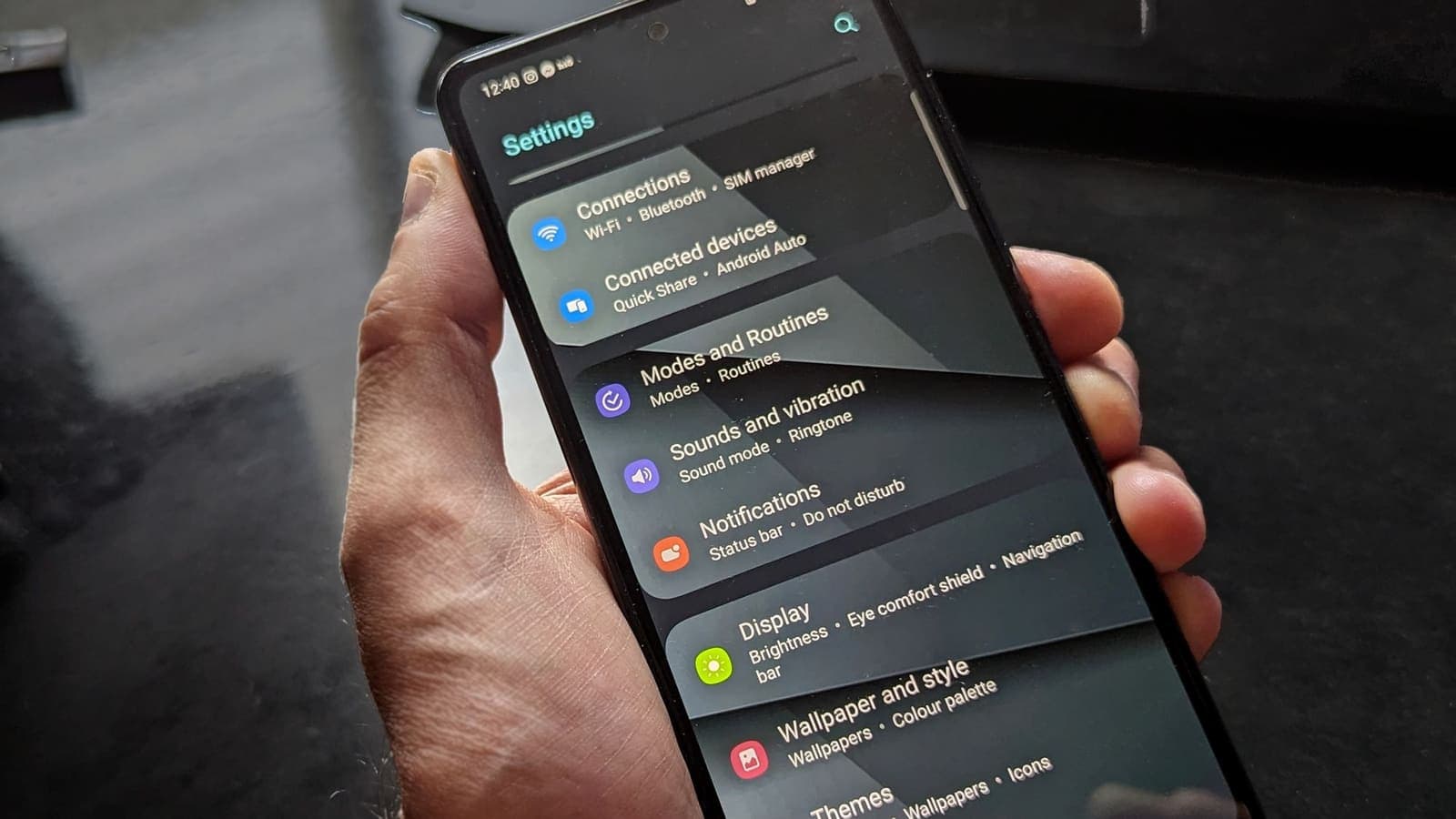
Android has a Private DNS option under network settings. It encrypts DNS questions and sends them to a host name you choose, instead of using the DNS server that the network or the VPN hands out. It is a useful privacy feature, but it can collide with a VPN in two ways.
First, if the host name is mistyped, retired, or blocked on the network you are on, every lookup fails and the phone looks completely offline while the VPN stays green. Second, on some networks the encrypted DNS connection cannot reach its destination through the tunnel, or it ignores the DNS servers the VPN expects you to use.
To test it:
- Open Settings, then Network and internet, then Private DNS. Menu names differ between phone makers.
- Choose Off or Automatic, not a custom host name.
- Reconnect the VPN and open a website.
If pages now load, you have found it. You can leave Private DNS on Automatic, or return to a custom host name later and check it for typing errors. Our article on Private DNS and a VPN on Android explains how the two interact and which combination suits which user. If you care about whether DNS questions escape the tunnel, the explainer on DNS leaks shows how to check that too.
Captive portals, hotels and school networks
Some networks make you accept terms or enter a code in a web page before they give real internet access. That page is called a captive portal. Hotels, airports, trains, schools and coffee chains use them constantly.
A VPN that connects before you have passed the portal is a classic trap. The tunnel itself may even succeed on some networks, but your traffic goes nowhere because the network still blocks everything except its sign-in page. The phone then shows "connected" with no internet.
How to deal with it:
- Disconnect the VPN first.
- Open the browser and visit any plain web address so that the portal page appears. Complete the sign-in.
- Wait until a normal site loads without the VPN, then connect the VPN again.
- If the portal keeps logging you out every thirty minutes, you will need to repeat this after each expiry.
Some portals refuse VPN traffic until you sign in again and some block VPN traffic outright. If a particular hotel or campus network never works with the VPN on, switching to mobile data is the practical answer. For tips on that kind of setting, see using a VPN on hotel Wi-Fi.
Battery saver, data saver and background limits
Android is aggressive about stopping apps that it thinks you are not using. A VPN app that has been put to sleep may keep its status bar icon for a moment while the tunnel quietly stops forwarding traffic. Three settings to check:
- Battery optimisation. In app settings for the VPN app, set battery usage to unrestricted or "not optimised". This stops the system from freezing the tunnel when the screen is off. The trade-offs are covered in does a VPN drain your battery on Android.
- Data Saver. If Data Saver is on, background data for apps is restricted. Add the VPN app to the unrestricted list, or switch Data Saver off while you test.
- Background data. Make sure background data for the VPN app is allowed in its mobile data settings.
There is one more rule that creates exactly this symptom on purpose: the "Block connections without VPN" option in Android's VPN settings. When it is on and the VPN is not actually carrying traffic, Android blocks everything by design. That is a feature, not a bug, but it can look like an outage. Read what the block-without-VPN setting does and decide whether you want it on while you troubleshoot.
Packet size and other rare causes
If every step so far has changed nothing, think about packet size. Every network path has a maximum size for one packet. A VPN adds a few bytes of overhead to each packet, so if the settings assume a larger size than the path allows, small things like text messages work while larger things such as photos, web pages with scripts and video calls stall. The behaviour is described in the Path MTU Discovery specification, RFC 1191. Symptoms include a search page loading but the results hanging, or messages sending while images never appear.
You cannot usually edit this on a phone, and you should keep the app's default settings unless support tells you otherwise. What you can do is test a different network, because a mobile carrier path and a home router path often differ in size limits. If the same app works on one network and fails on the other, tell support the two network types.
Other rare causes include:
- A second VPN or a security app that also uses Android's single VPN slot. Only one VPN can be active at a time, so close the other.
- A mobile carrier that throttles or filters unusual traffic on a particular plan.
- A phone-wide proxy setting left over from an old Wi-Fi profile.
- A router with strict firewall settings or a DNS filter that rejects the tunnel's traffic.
Three realistic scenarios
The commuter. Arun leaves a coffee shop, where the VPN worked, and boards a train. The status still says connected, but nothing loads. The session had not noticed that Wi-Fi vanished and mobile data took over. Toggling airplane mode for ten seconds and reconnecting fixed it. He now disconnects the VPN before leaving a Wi-Fi network.
The traveller at a hotel. Mei connects to the hotel Wi-Fi, starts the VPN, and sees nothing load. She never saw the sign-in page. She disconnects the VPN, opens the browser, accepts the hotel terms, and then connects the VPN again. Everything works. Two days later the hotel signs her out every morning, so she makes this routine part of her day.
The student with a custom DNS name. Somchai typed a Private DNS host name into his phone months ago and forgot about it. When he started a VPN, pages stopped loading. Switching Private DNS to Automatic brought them back instantly. He later put the host name back after fixing a typo and confirming it works without the VPN.
Each case solved itself once the layer was identified. Guessing would have taken far longer.
When to contact support, and what to send
If you have worked through the list and the symptom remains, collect facts before you write to support. Good reports are short and exact.
- Phone make, model and Android version.
- VPN app version.
- Network type where it fails, for example home Wi-Fi, office Wi-Fi or mobile data, and whether it works on another.
- The time of the last failure.
- A list of what you tried, in order, and the result of each.
- Whether the same account works on another device.
Never paste your password into a message. If you use XPASS, remember that the login details are on your My Pass page, and you can confirm that your pass is still active there. Expired passes can look like a connection that never completes. The pass expiration guide explains how the dates work, and the download page lists the official app links if you need a clean reinstall.
Summary
A green status on Android means only that the tunnel was set up. When no internet follows, separate the layers: test with the VPN off, try another network, and test by raw address to see whether DNS is the cause. Then work through the cheap fixes in order, from reconnecting and airplane mode to Private DNS, captive portals, battery limits and finally a restart or reinstall. Change one thing at a time so you learn what actually fixed it.
If you need a simple prepaid pass to test on a new phone, the pricing page shows the options at your own pace.
Frequently asked questions
Why does my Android phone say the VPN is connected when nothing loads?
Connected only means the encrypted tunnel to the VPN server was set up. Pages can still fail if DNS lookups do not get an answer, if the underlying Wi-Fi or mobile connection has no real internet, or if a setting such as Private DNS or a data saver blocks the traffic.
Should I turn Private DNS off to fix it?
It is a good test. Switch Private DNS to Off or Automatic, retry, and see whether pages load. If they do, a custom Private DNS host name that your VPN path cannot reach was the cause, and you can correct the host name or leave the setting on Automatic.
Does restarting the phone really help?
Often, yes. A restart clears stuck network states, stale DNS caches and half-open VPN sessions. It takes a minute, so do it after the quick checks and before reinstalling anything.
How can I tell whether the Wi-Fi or the VPN is the problem?
Turn the VPN off and open any website on the same network. If it still fails, the network is the problem. If it works without the VPN and fails with it, the fault sits between the app, the server and your device settings.
What should I send to support if nothing works?
Send your Android version, the app version, the network type, the exact time of the failure and what you already tried. Never include your password in the message.
References
About the author

Bob Kanokphon Thongdee
- Founder of XPASS VPN
- Co-founder of eSIMonline.asia
- More than 7 years in online marketing
- Founder of Cojourney Visa and Cojourney Travel
Need a VPN for a short trip or a busy month?
XPASS sells prepaid passes for a set number of days. You pay once and nothing renews automatically.
See passesKeep reading
VPN Security
Android Private DNS and VPN: How They Interact
Android's Private DNS setting and a VPN both touch your DNS lookups. Here is which one wins, who sees what, and how to fix lookups that fail when both are on.
10 min read
Device Guides
Android Block Connections Without VPN: How It Works
How Android's lockdown switch keeps your phone offline whenever the VPN drops, where to find it, what it breaks, and when it is worth using.
9 min read
Device Guides
Does a VPN Drain Android Battery?
A measurement-first answer: what a VPN adds to Android power use, how to test it on your own phone, and which settings and habits keep the cost small.
9 min read

VPN Security
What Is a DNS Leak?
A DNS leak happens when your device asks for website addresses outside the VPN tunnel. Here is why it happens, how to test for it, and what to do about it.
10 min read