
Android Private DNS and VPN: How They Interact
Android's Private DNS setting and a VPN both touch your DNS lookups. Here is which one wins, who sees what, and how to fix lookups that fail when both are on.
10 min readUpdated Oct 15, 2026By XPASS Editorial Team
Android has had a setting called Private DNS since version 9. A VPN also changes how your phone looks up website names. When both are switched on, people reasonably wonder which one is in charge, whether they are protecting the same thing twice, and why some pages suddenly refuse to load. The answers depend on the mode you choose, the Android version and what the VPN app asks the system to do.
This article is only about that interaction. It does not explain DNS from scratch, because how DNS works already does that, and it does not compare encrypted DNS with a VPN in general, which is covered in DNS over HTTPS vs VPN. Here we stay on one phone, one settings screen and one question: what happens to your lookups when Private DNS and a VPN meet.
What the Private DNS setting actually does
Private DNS is Android's built-in switch for encrypted DNS. When it is active, the phone sends name lookups to a resolver using DNS over TLS (RFC 7858), normally on port 853, instead of sending them as plain text on port 53. The result is that someone on the same Wi-Fi network can no longer read or quietly alter the questions, "what is the address of this site?", on their way to the resolver.
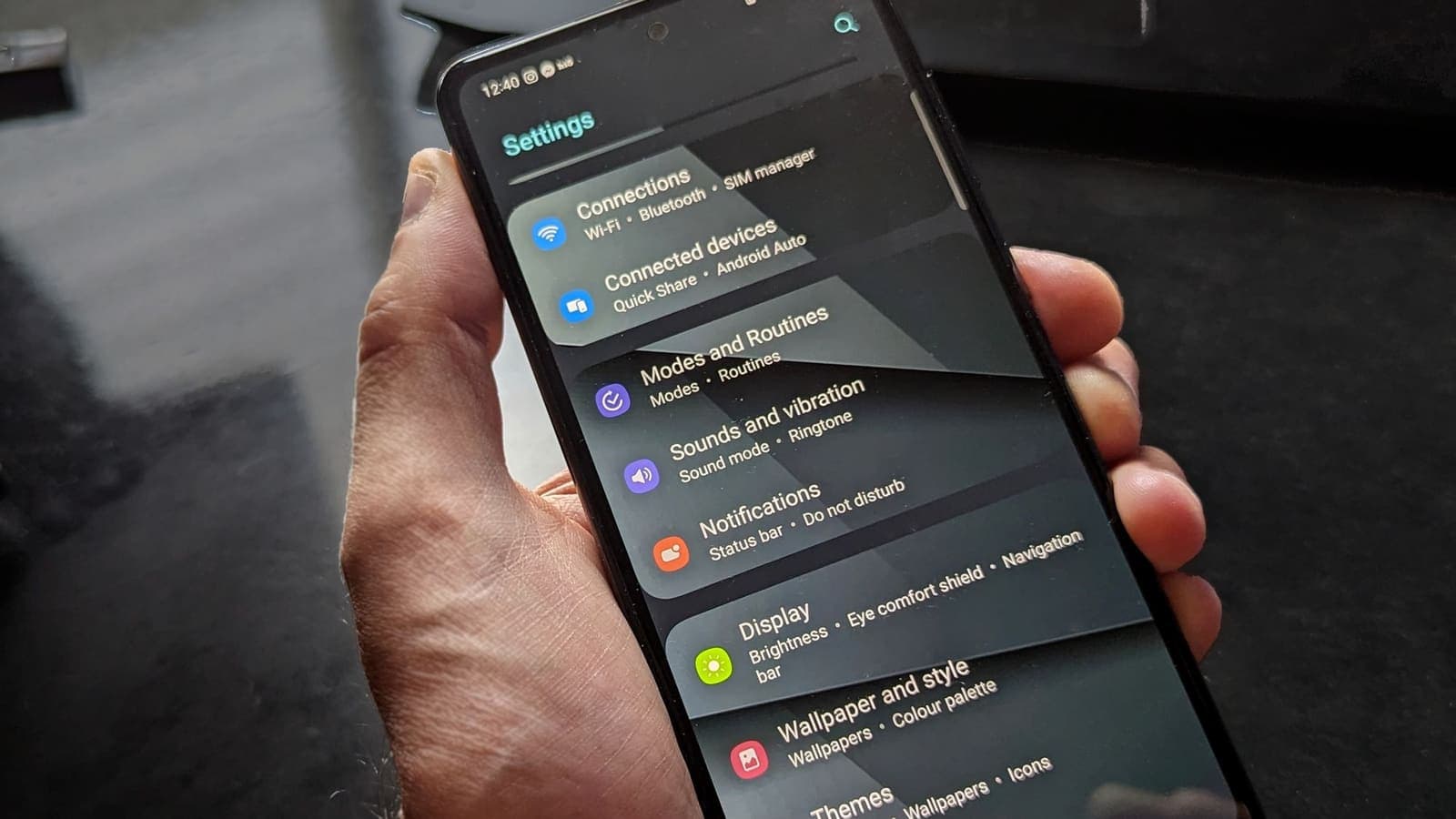
You find it under Settings, then Network and internet (or Connections, then More connection settings, depending on the maker), then Private DNS. There are three choices.
| Mode | What it means | Typical outcome |
|---|---|---|
| Off | Plain DNS only | Lookups go to whatever resolver the network provides, unencrypted |
| Automatic | Try encryption with the network's own resolver and fall back if it is not supported | Encrypted when the resolver supports it, plain otherwise |
| Private DNS provider hostname | Use only the named provider over TLS, and refuse to fall back | Encrypted always, but lookups fail if the provider cannot be reached |
Two details matter for what follows. First, the hostname mode is strict: it does not quietly drop to plain DNS if something goes wrong, so a block shows up as broken browsing rather than as a silent downgrade. Second, Private DNS covers only the lookup step. It does not hide the sites you then connect to, your IP address or the content of any non-HTTPS traffic.

What a VPN does to DNS
A VPN app on Android creates a virtual network interface and asks the system to send traffic through it. As part of that setup, the app can hand the system a list of DNS servers to use while the tunnel is up, and it can ask for lookups to travel inside the tunnel along with everything else. In a typical consumer VPN design the resolver is operated by the VPN service, so your lookups reach it through the encrypted tunnel rather than across the local network.
That arrangement closes the same door that Private DNS closes, from a different side. The Wi-Fi owner cannot read the lookups because they are inside the tunnel. It also moves trust: the party that sees your lookups becomes the VPN service's resolver, not the resolver of the café or your mobile operator.
A well-built VPN also tries to prevent the opposite failure, a DNS leak, where some lookups bypass the tunnel and go out to the local resolver. Android's own Private DNS setting is a separate mechanism from that protection, which is why the two can interact in surprising ways.
Which one wins when both are on
There is no single rule that holds across every phone, but the behaviour usually follows this pattern. Treat it as a guide to test, not a guarantee.
Private DNS on Automatic, VPN on. The VPN supplies DNS servers for the tunnel network. Android tries to talk to that server over TLS. If the VPN's resolver does not support DNS over TLS, which is common, Android falls back to ordinary DNS inside the tunnel. Your lookups are protected by the tunnel, and nothing visibly breaks. This is the least troublesome combination and the one most people should leave alone.
Private DNS on a provider hostname, VPN on. Android is told to use that named provider over TLS for lookups. The lookups themselves still leave the phone through the network path that is active, which is normally the tunnel. So the Wi-Fi owner still cannot read them, but the party that answers is now your chosen DNS provider, not the VPN's resolver. That can be what you want, for example if you use a filtering resolver that blocks known ad and malware domains. It also means you are trusting two parties for different things, and the VPN's own resolver, including any internal names it serves, is not being used.
Private DNS off, VPN on. The VPN's resolver answers inside the tunnel, with no DNS over TLS layer on top. Inside an encrypted tunnel that is normally fine, because the tunnel already hides the lookups from the local network.
Private DNS on a hostname, VPN off. The phone encrypts lookups to your chosen provider. The Wi-Fi owner cannot read them, but they can still see which IP addresses you connect to straight afterwards.
Because behaviour varies by version and by VPN app, the dependable approach is to test it. The checklist below does that in a few minutes.
Why DNS fails when both are active
The most common complaint is "VPN connected, but nothing loads". With the strict hostname mode, three causes account for most cases.
- Port 853 is blocked or filtered. Hotel, school and office networks sometimes block DNS over TLS. Through a tunnel this is less likely, but a firewall rule on the VPN side or a captive portal that has not been completed can still stop the TLS handshake. Without a fallback, every lookup times out.
- The provider cannot be reached from the tunnel. If the VPN routes only some traffic through itself, or if the route to the provider's addresses changes when the tunnel starts, the phone may be unable to reach the hostname it was told to use.
- The VPN starts, the DNS state does not refresh. Occasionally Android keeps a resolver state from the previous network for a moment. Toggling flight mode or reconnecting the VPN clears it.
The symptoms look like a dead connection. Apps that already have a live connection may keep working for a while, while a fresh page load fails with a "can't find server" or "DNS_PROBE_FINISHED" style message. If that matches what you see, jump to the fix checklist below, and use VPN connected but no internet for the wider list of causes.
A step-by-step test you can run in ten minutes
You need your phone, a browser and two tabs open on a DNS leak test page. Any reputable test page will do; the point is to compare, not to trust one result.
- Set Private DNS to Off. Disconnect the VPN. Run the test and write down the resolver that it reports. This is your baseline: usually your mobile operator or the Wi-Fi router.
- Connect the VPN, keeping Private DNS on Off. Run the test again. If the reported resolver has changed to something unrelated to your operator or Wi-Fi, the VPN is handling lookups.
- Set Private DNS to Automatic. With the VPN still on, run the test. In most cases the answer stays the same as step 2, which tells you that the automatic mode is not overriding the VPN.
- Set Private DNS to a provider hostname. With the VPN on, run the test. If the reported resolver is now the provider you named, the hostname setting is taking over lookups. If browsing fails, you have found the conflict.
- Disconnect the VPN and test once more with the hostname set. This confirms that the hostname setting works on its own, so you know which side is at fault.
Keep notes, because the pattern is what you need. If step 4 fails but step 5 works, the VPN path and the hostname do not get along. If both fail, the provider hostname may be mistyped or the provider may be down. Typing errors are common: the field wants a hostname such as dns.example.net, not an IP address and not a web address with https:// in front.
Fixing the conflict
Work from the least invasive change.
- Set Private DNS back to Automatic. This is the first move because it keeps encryption whenever it is possible and never breaks lookups. Most conflicts disappear here.
- Reconnect the VPN after changing the DNS setting. The VPN app tells the system about its DNS servers when it connects. Turning it off and on after a change lets it start from a clean state.
- Toggle flight mode for ten seconds. This resets the network state, including any cached resolver choice.
- Check the hostname for typos. An extra space, a missing letter or a pasted URL is enough to break every lookup.
- Try a different network. If the hostname works on mobile data but not on a particular Wi-Fi, that network is filtering port 853, and you can leave Private DNS on Automatic there.
- Remove other DNS-changing apps. Ad blockers that run as local VPNs, family-safety filters and some security suites each want to own DNS. Android allows only one VPN service at a time, so a local filter and a VPN app compete for the same slot.
- Update the VPN app and Android. Resolver handling has been adjusted in several releases, and a bug you hit may already be fixed.
The Android troubleshooting guide lists the standard checks for app permissions, battery limits and always-on settings, which are worth a look if DNS is not the culprit.

Choosing a setup that fits your situation
Different people need different combinations. These are the situations that come up most often.
A traveller on hotel and airport Wi-Fi. Keep Private DNS on Automatic and use the VPN whenever you join a shared network. You get a tunnel for everything and no strict hostname that a captive portal could break. If a hotel login page will not appear, turn the VPN off for a minute, complete the sign-in, then turn it back on.
A parent using a family-safe resolver. A hostname such as a filtering provider's address blocks known adult and malware domains on every network, which is useful on a child's phone. If you also want a VPN on that phone, test the combination first. If the VPN's own resolver is not used, the filter still works, but any internal name served by the VPN will not resolve. For ordinary web use that is acceptable.
A privacy-minded user who dislikes trusting any single resolver. Using a hostname with a provider you trust, and a VPN for the network path, splits the roles: the VPN protects the route and the provider answers. It is more complicated, and you should accept that the provider will see your lookups. Pick the one whose policy you have read.
A remote worker who needs a company's internal names. Company resolvers often hold names that exist only inside the company. A strict hostname setting stops those names from resolving, because the public provider cannot answer them. Set Private DNS to Automatic or Off while on the work VPN. Internal names live only on the company's own resolver, which is why a public provider cannot answer for them.
Someone who just wants it to work. Leave Private DNS on Automatic, use a VPN app you trust and do not add more layers than you can test.
Limits and things to watch for
- Private DNS is not a VPN. It hides lookups, not the sites you visit or your IP address. After the lookup, the connection to the site is visible to whoever carries it.
- A hostname setting is a trust choice. The provider you name sees every lookup you make on every network, including mobile data. Read its policy first.
- Strict mode has no fallback. That is the point of strict mode, but it also makes a failing provider look like a dead phone.
- Phone makers differ. Menu names and the exact behaviour can vary, and some devices apply the setting to mobile and Wi-Fi networks differently.
- Apps can bring their own DNS. Some browsers use their own encrypted DNS and ignore the system setting entirely. Test in the browser you actually use.
- No setting fixes phishing or account theft. If a lookup returns the right address for a fake website, no DNS setting makes that page genuine.
- Sign-in to the VPN app is separate. If you use the free VPNclient app with an XPASS pass, the username and password come from your My Pass page. A wrong login looks different from a DNS problem: the VPN will not connect at all, rather than connecting and failing to load pages.
Common mistakes
- Typing an IP address or a full web address into the Private DNS field.
- Leaving a hostname set from an old experiment and forgetting about it.
- Running two VPN-style apps, such as an ad blocker and a VPN, at once.
- Testing in one browser and assuming the result applies to every app.
- Blaming the VPN for a failure that disappears on mobile data, when the Wi-Fi network is filtering port 853.
- Assuming that encrypted DNS and a VPN are interchangeable and turning off the VPN because "Private DNS is on".
Summary
Android's Private DNS encrypts the lookup step with DNS over TLS, and a VPN encrypts the whole path. On Automatic, the two usually coexist without trouble. A provider hostname takes over lookups and can fail when a network or the tunnel blocks it, which looks like a VPN that is connected but loads nothing. Test the combinations in a few minutes, fall back to Automatic when in doubt, and remember that neither setting stops scams or makes you anonymous.
If you are weighing a VPN for your Android phone, the download page links to the free VPNclient app, so you can try these tests yourself.
Frequently asked questions
Should I turn off Private DNS when I use a VPN on Android?
Not by default. Leave it on Automatic unless you have a reason to change it. If sites stop loading after you connect, switching Private DNS to Off for a test tells you whether it is the cause, and you can then choose a setting you are happy to keep.
Does Private DNS replace a VPN?
No. Private DNS encrypts only the lookup step, using DNS over TLS. The websites you then connect to, and your real IP address, are still visible to the network. A VPN encrypts all the traffic that goes through the tunnel.
Which DNS server does Android use when both Private DNS and a VPN are active?
It depends on the Android version, the Private DNS mode and what the VPN app asks for. In Automatic mode the system uses the DNS servers given to the active network and upgrades to encryption when it can. With a hostname set, lookups are sent to that provider instead, which can differ from the VPN's own resolver.
Why does the internet stop working only when Private DNS and my VPN are both on?
A hostname-based Private DNS setting needs the provider to be reachable and to present a valid certificate. If the tunnel, a firewall or a captive portal blocks port 853, every lookup fails even though the VPN shows as connected. Test with Private DNS set to Off or Automatic.
How can I check which DNS my phone is really using?
Use a DNS leak test page in the browser with the VPN on and off, and compare the resolver it reports with the one you expect. Do the test once with Private DNS on Automatic and once with a hostname, so you see the effect of each setting.
References
About the author

Bob Kanokphon Thongdee
- Founder of XPASS VPN
- Co-founder of eSIMonline.asia
- More than 7 years in online marketing
- Founder of Cojourney Visa and Cojourney Travel
Need a VPN for a short trip or a busy month?
XPASS sells prepaid passes for a set number of days. You pay once and nothing renews automatically.
See passesKeep reading

VPN Security
DNS over HTTPS vs VPN: Do You Need Both?
DoH and DoT hide your DNS lookups from the local network, while a VPN wraps all of your traffic. Learn what each one covers, how Android Private DNS fits in, and when you want both.
9 min read

VPN Security
What Is a DNS Leak?
A DNS leak happens when your device asks for website addresses outside the VPN tunnel. Here is why it happens, how to test for it, and what to do about it.
10 min read

VPN Basics
How DNS Works: From Domain Name to IP Address
DNS is the lookup system that turns a website name into the IP address your device actually connects to. Here is how a lookup works, step by step, and why it matters for privacy.
9 min read

Troubleshooting
VPN Connected but No Internet? How to Fix It
The app shows connected, yet nothing loads. This guide explains why that happens and walks through DNS, MTU, IPv6, device settings and network checks, one at a time.
7 min read

Troubleshooting
How to Troubleshoot a VPN on Android
Work through the most common Android VPN problems in order, from an expired pass to battery settings, always-on VPN and network changes.
5 min read