
Port Forwarding with Router VPN: What Changes?
Port forwards that worked for years often stop when you add a VPN to the router. This guide explains vpn router port forwarding step by step and what to do about it.
10 min readUpdated Oct 15, 2026By XPASS Editorial Team
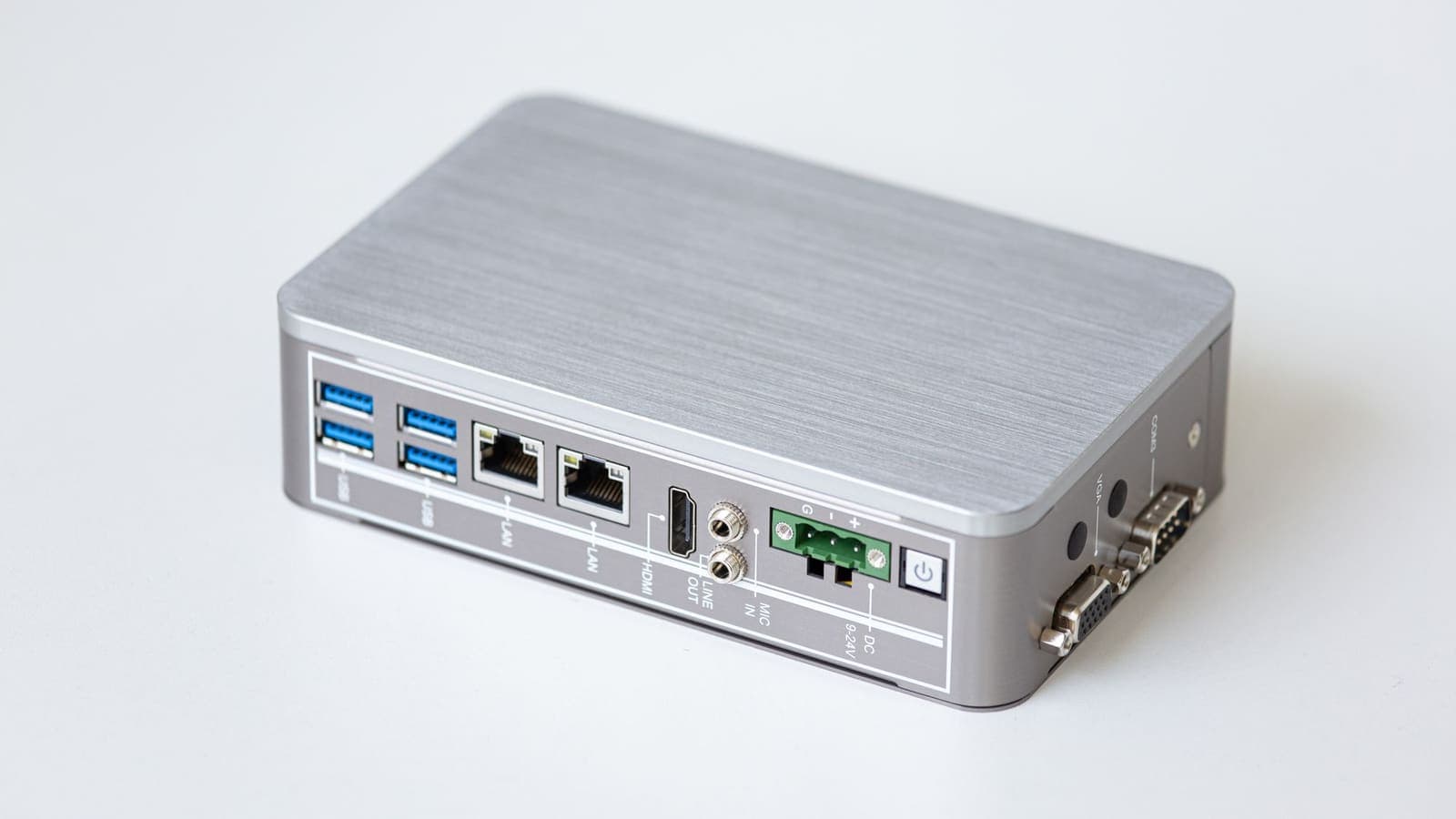
Port forwarding is a quiet piece of home networking. You opened a port years ago so that a security camera, a media server or a game host could be reached from outside, and it has worked ever since. Then you set up a VPN on the router, and the camera app can no longer connect. Nothing looks broken. The VPN says connected, websites load, and yet the old rule does nothing.
This guide explains why vpn router port forwarding behaves differently, what exactly changes when a router sends traffic through a tunnel, how to tell whether your connection can even accept inbound connections, and what your realistic options are. It is not about forwarding ports on the VPN provider's side; that topic is covered in VPN port forwarding explained. Here the focus is on your own home router. If you have not yet put a VPN on the router, the router setup guide comes first.
Inbound and outbound are different journeys
A VPN on a router is designed for outbound traffic: your phone or laptop starts a connection, and the router sends it through the tunnel. The tunnel is a conversation your router started, so it can carry anything that happens inside it.
Port forwarding is the opposite: someone outside starts the connection. They connect to your public address on a chosen port. Your router receives that packet on its internet port and passes it to the device you named in the rule.
Two things matter here:
- The inbound packet arrives on your normal line. Your internet provider assigned your public address to that line. It does not arrive inside the VPN tunnel unless the VPN service specifically forwards it, which most do not.
- The reply must go back the way it came. The remote device expects an answer from the address it contacted.
Everything else in this article follows from those two facts. For a refresher on addresses, what a public IP address is explains how your home address and a VPN address differ.

Why the forward breaks: the reply goes the wrong way
Here is the sequence on a router that sends all traffic through the VPN:
- A friend's phone connects to your public home address on port 8080, say to view a camera.
- The packet arrives at your router's internet port. The port forward rule passes it to the camera at a private address of the kind described in RFC 1918.
- The camera replies. The reply reaches the router, and the router now applies its normal routing rule: everything goes into the tunnel.
- The reply leaves via the VPN server and appears to come from the VPN server's address, not from your home address.
- The friend's phone was waiting for an answer from your home address. It sees a stranger and discards the packet.
The connection fails without any error on your side. This is called asymmetric routing: the request came in one way and the reply left another. Many firewalls on the remote side simply throw such replies away, which is what you want them to do for safety.
Sometimes the router's own state tracking rescues the situation, by remembering the incoming connection and replying on the same interface. This depends on firmware and on how the VPN client is built, so do not assume it either way. Test it.
Three possible outcomes
| Situation | What happens to the forward | Why |
|---|---|---|
| Router sends all traffic through the tunnel, no special rules | Usually fails | Replies leave through the tunnel with the wrong source address |
| Router tracks connections and replies on the arrival interface | May work | The reply stays on your normal line |
| Forwarded device is excluded from the tunnel by policy routing | Works | Its traffic uses the normal line in both directions |
The first row is the default on most routers and explains most complaints. The second depends on firmware. The third is the reliable route: tell the router that this one device never uses the tunnel. The cost is that the device is not protected by the VPN, uses your normal public address, and its destinations are visible to your internet provider. Our guide on policy routing and split tunneling covers the general idea.
First question: do you need inbound access at all?
Before fighting the router, ask what you are really trying to do. Many people forward ports out of habit.
- Viewing a home camera or NAS from outside. A remote-access tool built for this, or a private mesh network between your own devices, often replaces forwarding and does not need an open port. See mesh VPN tools for how those work.
- Hosting a game session. Many modern games and consoles use relay or matchmaking servers that do not need forwarding. Check the game's own documentation before opening anything. Console-specific hints are in using a VPN on game consoles.
- Running a small website or media server. If you really need this at home, accept the maintenance and security burden.
- Remote desktop. Avoid exposing it to the internet directly. A private tunnel into your network is safer.
If a different tool solves the problem, you can leave the VPN on the whole router and drop the forward.
Can your connection accept inbound traffic?
A VPN is not the only reason forwarding fails. Many home and mobile connections sit behind carrier-grade NAT, where several customers share one public address. In that case your router does not have a reachable public address, and no router setting can fix it.
A quick check:
- Log in to your router and find the address shown on its internet (WAN) port.
- On a device at home, open an IP-checking page and note the address it reports.
- If the two are identical, your router has a public address and forwarding can work.
- If they differ, or the router's address falls in the shared range described in RFC 6598 or a private range, your provider is sharing an address with other customers. Forwarding from the internet will not reach you.
Some providers can give you a public address on request, sometimes for a fee. That is a conversation with them, not a router setting.
Do this check with the VPN turned off on the router, otherwise the IP-checking page reports the tunnel address.
Keeping a forward working: step by step
If you decide you need inbound access and your connection allows it, here is the usual approach. Menu names vary, so follow your firmware's documentation for exact steps.
- Give the device a fixed address. Create a DHCP reservation so the target device keeps the same private address. A forward that points to an address that changes will break.
- Confirm the forward works with the VPN off. Test from outside your network, for example from a phone on mobile data. If it fails now, the VPN is not the cause.
- Turn the router VPN back on. Test again. If it now fails, the reply path is the cause.
- Exclude the forwarded device from the tunnel. Using policy routing, add a rule that sends all traffic from that device's address via the normal internet line, and place it above any rule that sends everything into the tunnel.
- Retest from outside. The forward should now work.
- Check that the rest of the network still uses the tunnel. Open an IP-checking page on another device and confirm you see the tunnel address.
- Review what the excluded device does. It now runs without VPN protection. Make sure it only does the job you gave it.
If your firmware does not offer policy routing, consider moving the VPN from the router to the devices that need it, as described in VPN router vs VPN app.

Safety: do not open more than you need
A forwarded port is a door you leave unlocked for the whole internet to try. Automated scanners find open ports quickly, often within hours.
- Forward only the exact port you need, to one device, not a range.
- Keep that device's software updated. Old firmware on cameras and media servers is a common way in.
- Use strong, unique passwords and enable two-factor authentication where offered.
- Do not forward remote desktop or admin pages to the open internet.
- Turn off universal plug-and-play if you do not use it, so devices cannot open ports behind your back.
- Remove forwards you no longer use.
The EFF's Surveillance Self-Defense guides are a good general starting point on reducing what you expose. A VPN is not a substitute for any of this; it does not protect an exposed service from being attacked.
Three scenarios
The camera that went quiet. Rina has a home camera she checks from work. After she enabled the router VPN, the camera app showed "cannot connect". She tests with the VPN off and the camera works, so the VPN is the cause. She excludes the camera's reserved address from the tunnel with a policy rule, retests from her phone on mobile data and the live view returns. The rest of the home still goes through the tunnel. Later she decides the camera is a better fit for a private remote-access tool and removes the forward.
The game host. Kofi hosts a game server for friends on a console and a small PC. He finds that behind the router tunnel, nobody can join. He wonders whether the VPN service can forward a port for him. That depends on the service and is not something this article can promise. He instead keeps the PC outside the tunnel and leaves the family's devices inside it.
The shared address surprise. Dara moves into a flat with fibre supplied by the building. She tries to forward a port for a media server, and it never works, even with the VPN off. Her router's WAN address is in a shared range. She asks the provider whether a public address is available, and until then uses a private remote-access tool instead of forwarding.
Troubleshooting and common mistakes
Forward fails even with the VPN off. Check the target's fixed address, the device's own firewall, the port number and protocol, and whether your connection has a public address.
Forward works only some of the time. The target's address may be changing, or your public address may be changing. A home public address can change when the router restarts.
Forward works but the device shows the wrong address in tests. That is expected, because it is outside the tunnel. If that is a problem, reconsider the design.
The rest of the network lost the tunnel after adding the rule. The exception was written too broadly, such as a whole address range. Narrow it to the single address.
The excluded device still fails. The rule may be below a catch-all rule. Move it up.
Common mistakes:
- Assuming that a VPN makes port forwarding impossible, or that it does not affect it at all.
- Forwarding a port to a device whose address is not reserved.
- Opening a port when a remote-access tool would do.
- Leaving old forwards in place.
- Testing from inside the home network only, which often works even when outside access does not.
- Assuming a VPN service will forward inbound connections without checking its own documentation.
Summary
Home port forwarding handles inbound connections on your normal internet line, while a router VPN sends outbound traffic, and replies, through a tunnel. That mismatch causes replies to leave from the wrong address, so the forward silently fails. The reliable fix is to keep the forwarded device outside the tunnel with policy routing, after confirming that your connection has a reachable public address and that you need inbound access at all. Keep forwards narrow and updated, and consider private remote-access tools instead.
If you are setting up a router VPN for the rest of your home, the pricing page lists the passes available, and your My Pass page shows the connection methods you can use.
Frequently asked questions
Why did my port forward stop working after I turned on the router VPN?
Incoming connections still arrive on your normal internet line, but the router now sends the replies out through the tunnel with a different source address. The remote side sees replies from the wrong address and drops them, so the connection fails.
Can I keep one device outside the tunnel so its port forward works?
Often yes. If your router supports policy routing, you can send that one device straight to the normal internet line while everything else uses the tunnel. The device then uses your normal public address and gets no VPN protection.
Does a VPN give me a public address I can forward ports on?
Not by default. Most VPN services place many customers behind shared addresses and do not forward inbound connections to you. Whether any service offers port forwarding is a feature you must check with that service. This article does not claim it for any provider.
Is port forwarding safe?
It exposes a service on your home network to the internet, so it carries real risk. Use strong passwords, keep the software updated and forward only what you truly need. Consider a mesh or remote-access tool instead.
How do I know if my connection even allows inbound forwarding?
Compare the address your router shows on its internet port with the address an IP-checking page reports. If they differ, or the router's address is in a shared range, your provider is sharing an address and inbound forwarding will not work.
References
About the author

Bob Kanokphon Thongdee
- Founder of XPASS VPN
- Co-founder of eSIMonline.asia
- More than 7 years in online marketing
- Founder of Cojourney Visa and Cojourney Travel
Need a VPN for a short trip or a busy month?
XPASS sells prepaid passes for a set number of days. You pay once and nothing renews automatically.
See passesKeep reading

VPN Security
VPN Port Forwarding Explained: Uses and Risks
Port forwarding lets outside connections reach a device on a private network. This guide explains how it works with and without a VPN, what it is used for and what an open port can put at risk.
9 min read

VPN Basics
VPN Router vs VPN App: Which Setup Fits Your Home?
Should you install a VPN on the router or on each device? This guide compares the two setups for speed, smart home gadgets, mesh Wi-Fi, split tunneling and everyday convenience.
10 min read
Device Guides
How to Set Up a VPN on a Router
A general, firmware-neutral guide to running a VPN on your router: what to check first, the usual setup steps, DNS and kill switch settings, travel routers and common fixes.
7 min read

VPN Basics
Mesh VPNs Explained: Reaching Your Own Devices Securely
Mesh VPNs connect your own devices directly, while a consumer VPN sends your traffic through a provider's server. This guide explains the difference, the parts involved and when each makes sense.
9 min read

Device Guides
How to Use a VPN on PS5, Xbox and Other Consoles
Game consoles rarely let you install a VPN app. This guide explains the router and shared-connection methods, what to expect from NAT type and ping, and the limits.
7 min read