
How to Test Whether Your VPN Kill Switch Works
Five deliberate failure drills, a simple stopwatch method and a results table to find out whether your VPN kill switch really blocks traffic when the tunnel drops.
10 min readUpdated Oct 15, 2026By XPASS Editorial Team
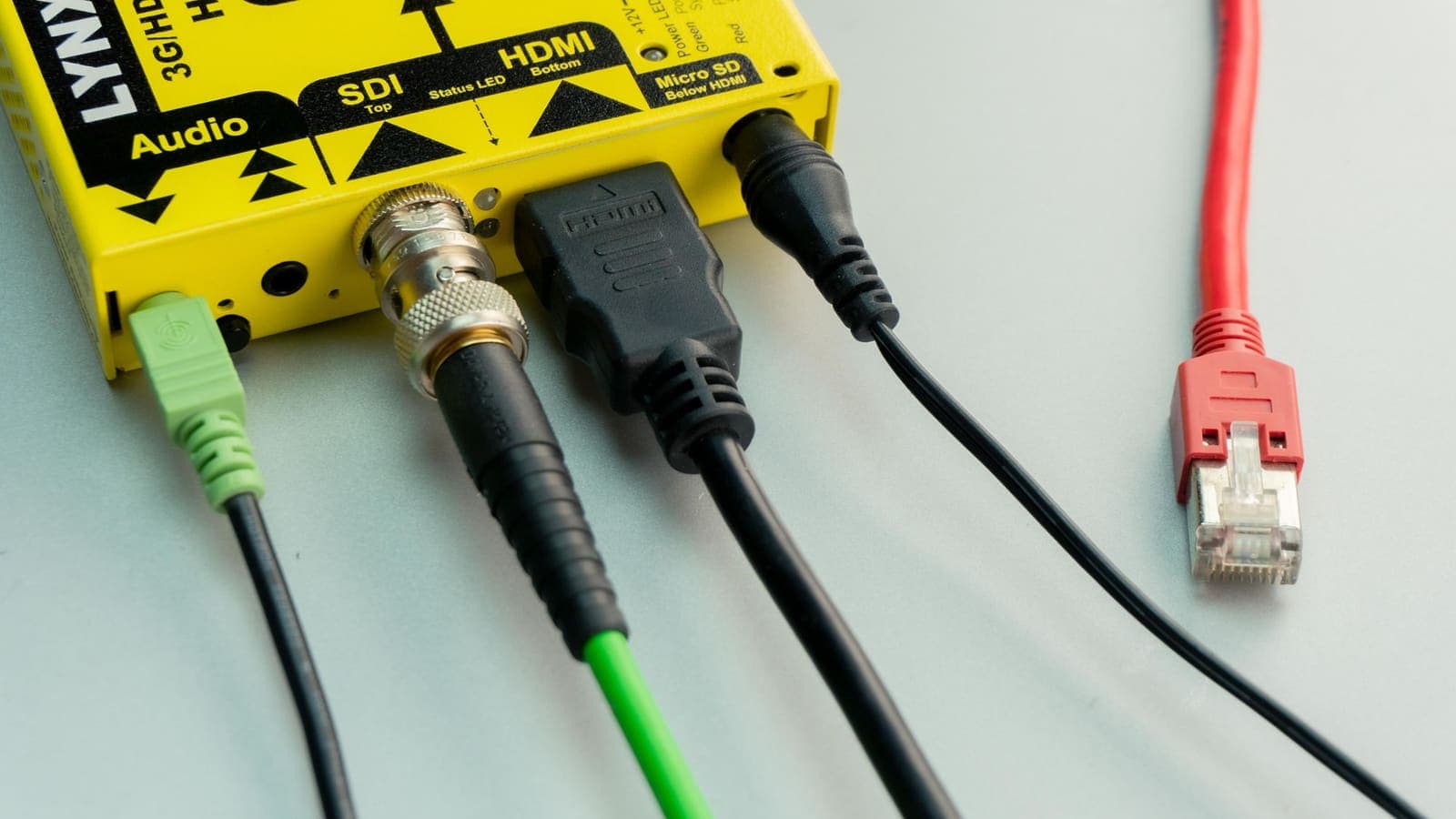
Most people who switch on a VPN kill switch never find out whether it works. The setting sits in the app, it shows a tick, and everyone assumes the problem is solved. The first time the tunnel actually drops, it is often at a bad moment: a train enters a tunnel, a hotel Wi-Fi hiccups, a laptop wakes up. If the kill switch does not do its job then, your device quietly carries on over the ordinary connection, and every app that was relying on the VPN is now exposed.
This article shows how to run a VPN kill switch test you can trust. You will build a small test bench, run five deliberate failure drills, measure any gap in seconds, and learn what to do with the result. If you need the background first, read what a VPN kill switch is; this guide is the hands-on follow-up.
What a kill switch test must prove
A kill switch has one job: when the encrypted tunnel disappears for any reason, stop ordinary internet traffic instead of letting it flow openly. A proper test therefore needs to prove three separate things.
- It reacts to every kind of failure. Closing the app politely is different from a crash, from a Wi-Fi drop, or from the computer sleeping.
- It reacts fast enough. A delay of a few seconds can be enough for chat apps, background syncing and browser tabs to send data.
- It lets you recover. Once the tunnel returns, traffic should resume without a manual fix, or at least with a clear prompt.
Notice what the test does not try to prove: that every packet in the world is protected, or that the VPN is perfect in other respects. It checks one safety net. Other checks, such as IP address leak tests, cover different gaps.
It also helps to know that "kill switch" is not a single technology. Some apps implement it with firewall rules that block all traffic except to the VPN server. Some rely on a system feature that blocks connections made without a VPN. Others only watch the tunnel and shut down chosen apps. The three behave differently under the drills below, which is exactly why you test.

Three kinds of kill switch, and how they differ
| Type | How it works | Strength | Weak point to test |
|---|---|---|---|
| System-level block | The operating system refuses connections outside the VPN | Survives an app crash | Needs to be enabled in system settings, not only in the app |
| Firewall-rule based | The VPN app adds rules that block all but VPN traffic | Covers all apps on the device | Rules may stay in place after a crash and block your internet until removed |
| App-level monitor | The app watches the tunnel and closes chosen programs | Gentle, targets specific apps | Fails if the app itself crashes; only covers the apps you listed |
Knowing which kind your app uses tells you which drill matters most. The Android help page on VPN settings and Microsoft's Windows VPN documentation both describe system-level pieces of the picture. Check the app's own help to see which approach it takes, and note that wording differs between versions.
Build a test bench in five minutes
You need three instruments that make failure visible.
- A repeating ping. Open a terminal or command prompt and start a continuous ping to a well-known public address. Every reply is a line of evidence that traffic is flowing. On Windows use
ping -t 1.1.1.1; on macOS and Linux useping 1.1.1.1. Leave it running in a window you can see. - An IP-checking page in a browser tab, ready to refresh. Before the VPN, write down the address it shows. This is your baseline, as described in the IP leak guide.
- A stopwatch, which can be the clock on your phone, to time how long things take.
On a phone, you will not have a terminal, so use the IP page and a streaming video or an audio call that shows when traffic stops.
Now connect the VPN. Confirm the ping works and the IP page shows an address different from the baseline. This is your "healthy" state. Every drill below starts from here, and every drill ends with a reconnect and a return to this state before the next one.
Two rules keep the test honest. First, run drills one at a time. Second, write down what happened in a simple table as you go; memory is unreliable when the screen has gone silent for ten seconds.
Five failure drills
Run them in this order, each from the healthy state.
Drill 1: switch the network off
This is the most common real failure: the Wi-Fi drops or the phone loses signal.
- Starting from the healthy state, turn Wi-Fi off, or switch the router off for ten seconds.
- Watch the ping window. It should stop replying (this is normal, because there is no connection at all).
- Turn Wi-Fi back on and watch very closely. The device now has a connection again, but the VPN has not yet rebuilt its tunnel.
- In those first seconds, the ping should still fail or time out. If replies arrive before the VPN reconnects and the IP page shows your baseline, the kill switch failed this drill.
- After the VPN reconnects, check that replies return and the IP page shows the VPN address again.
The interesting moment is step 4, the seconds between "network is back" and "tunnel is back". That is the leak window. Time it with the stopwatch: start when Wi-Fi reconnects, stop when the VPN reports connected.
Drill 2: end the VPN process abruptly
An app can crash, be killed by the operating system to save memory, or freeze. A test that only closes the app politely misses this.
- From the healthy state, open the system's task manager or activity monitor.
- Force-quit the VPN app or its background process. Do not use the normal disconnect button.
- Watch the ping and refresh the IP page.
Expected results differ by kill-switch type. A system-level block should keep traffic blocked even though the app is gone. A firewall-rule approach should also block, although some leave the rules in place so you may need to open the app again to restore access. An app-level monitor often fails here because the monitor died with the app. Whatever happens, record it. If ping replies continue and the IP page shows your baseline, you have found a real gap.
Afterwards, restart the VPN app and confirm that your internet access comes back. A leftover block with no app to clear it is a usability problem worth noting; see VPN kill switch and no internet for how to release it.
Drill 3: sleep and wake
Laptops and phones sleep constantly, and the network often wakes before the VPN does.
- From the healthy state, put the device to sleep for at least one minute.
- Wake it and immediately look at the ping window and IP page. Do not wait.
- Record the first successful ping reply after wake and whether the VPN was connected at that moment.
On a phone, lock the screen for a couple of minutes with a video paused in the background, then unlock and look at whether the app lost connection. On a laptop, closing the lid and reopening it triggers the same behaviour. If the first reply after waking comes from your baseline address, the kill switch has a wake gap. This is a common weak spot and worth a support message to the provider.
Drill 4: change from Wi-Fi to mobile data
Switching networks is not the same as losing a network. The device holds a connection the whole time, but its route changes.
- From the healthy state on Wi-Fi, enable mobile data and then disable Wi-Fi, or move out of range of the access point while walking.
- Watch ping and an IP page throughout, not just at the end.
- Do the reverse: from mobile data, join a Wi-Fi network.
A good kill switch holds traffic during the swap, then continues in the tunnel. A weak one lets traffic go out directly over the new network for a short moment. This is one of the most realistic tests for travellers who move between cafe Wi-Fi, trains and street coverage; see using a VPN on public Wi-Fi for the everyday setup.
Drill 5: block the VPN server
This drill simulates a server that stops responding, or a network that blocks the tunnel.
- From the healthy state, find a way to cut the VPN server connection without cutting the whole network. On a computer, a temporary firewall rule blocking the VPN app is one method; on a phone, switching to a network known to block VPNs works.
- Watch the ping window and the app's status.
- See whether the app reconnects on its own, whether it keeps blocking in the meantime, and whether it tells you what is happening.
If the app leaves your regular connection open while it fails to reconnect, the kill switch is not protecting you in this condition. If it blocks and then reports a clear message, the feature is doing its job. Always remove any temporary block after the drill.
Reading the results
Fill in a table like this for each device, and compare.
| Drill | Traffic blocked during the gap? | Gap length | Recovered by itself? |
|---|---|---|---|
| 1. Network off and on | Yes or no | Seconds | Yes or no |
| 2. App force-quit | Yes or no | Seconds | Needs app restart? |
| 3. Sleep and wake | Yes or no | Seconds | Yes or no |
| 4. Wi-Fi to mobile data | Yes or no | Seconds | Yes or no |
| 5. Server blocked | Yes or no | Seconds | Yes or no |
How to interpret it:
- All "yes", short recoveries: the kill switch behaves as intended on this device.
- One or two "no" results: the feature works in some conditions only. Decide whether the failing condition matches how you really use the device. A cafe user who often changes network cares about Drill 4; someone at a desk cares most about Drill 3.
- Mostly "no": treat the kill switch as absent. Do not rely on it for anything sensitive.
Also record whether the kill switch is a blocking kind (stops traffic) or only a notifying kind (shows a warning). A warning is better than silence but it is not a block.
Platform notes
Behaviour is not identical across systems, so read these as prompts for what to check, not guarantees.
- Windows: many apps use firewall rules for this feature, so security software and other firewalls can interfere. Read the Windows kill switch guide for platform specifics.
- macOS: a kill switch is usually implemented inside the app or through system firewall rules. Test after each major system update.
- Android: the system offers an always-on setting that can block connections without a VPN. This is the strongest protection on that platform if your app supports it. Explanation in Android always-on VPN.
- iPhone and iPad: system tools for blocking traffic outside a VPN are more limited for personal devices, so apps vary. Test the drills that are possible on a phone: Wi-Fi to mobile data, airplane mode, and lock/unlock.
- Routers: a VPN set up on a router needs its own rules, usually a firewall setting that blocks forwarding when the tunnel is down. Test by disconnecting the tunnel and watching a device behind the router.
For the free VPNclient app that XPASS customers use, check the app's settings and help for what protection it offers on your platform, and do not assume features that are not listed; the download page links the official versions.

If a drill fails
- Update the app and the operating system, then repeat the failed drill.
- Enable every related setting, including any system-level option such as the Android block setting, and any separate kill-switch toggle in the app.
- Repeat the drill after a restart, because rules sometimes apply only after a reboot.
- Check for conflicts: other security software, other VPNs, and router firewalls.
- Contact support with the exact drill, the device, the system version, the app version and your measured gap. See how to reconnect when the VPN disconnects for the recovery side.
- Compensate with habits until it is fixed: avoid sensitive work on shaky networks, and quit the apps that matter before known risky moments such as network changes.
Limits and common mistakes
- Testing only the polite disconnect. The button in the app is the easiest case. Real failures are crashes, sleep and network swaps.
- Judging by feel. A page that loads feels like proof. Measure with ping and an IP page instead.
- Forgetting to remove test blocks. A leftover firewall rule will cause a "no internet" problem later.
- Assuming one pass is permanent. Updates can change behaviour. Repeat after major updates.
- Expecting a kill switch to fix everything. It does not prevent phishing, malware or account takeover; see what a VPN cannot protect you from.
- Testing on only one device. The phone and the laptop are separate cases.
Summary
A kill switch test means breaking the tunnel on purpose and watching whether traffic stops. Build a simple bench of a repeating ping, an IP page and a stopwatch, then run five drills: network off and on, abrupt app exit, sleep and wake, Wi-Fi to mobile data, and a blocked server. Record whether traffic was blocked, how long any gap lasted and whether recovery was automatic, then repeat on each device and after updates.
If you want a prepaid VPN pass to run these drills with, the pricing page shows the options without any automatic renewal.
Frequently asked questions
How can I tell if my VPN kill switch really works?
Break the tunnel on purpose while watching something that reveals your address, such as a repeating ping to a public address and an IP-checking page. A working kill switch stops traffic the moment the tunnel drops. If the page loads and shows your normal address, the kill switch failed.
Is it normal to lose internet completely when the kill switch triggers?
Yes. That is the intended behaviour: traffic is blocked rather than allowed to run unprotected. Reconnect the VPN or switch the kill switch off to get your normal connection back.
Should I test the kill switch on every device?
Yes, ideally. The feature is implemented differently on each operating system and sometimes differently between app versions, so a pass on a laptop says nothing about a phone.
How long a gap is acceptable?
Ideally none. In practice a gap of a fraction of a second may appear in a test, but any gap in which your real address reaches a website or an app is a leak. Report anything you can measure in whole seconds.
References
About the author

Bob Kanokphon Thongdee
- Founder of XPASS VPN
- Co-founder of eSIMonline.asia
- More than 7 years in online marketing
- Founder of Cojourney Visa and Cojourney Travel
Need a VPN for a short trip or a busy month?
XPASS sells prepaid passes for a set number of days. You pay once and nothing renews automatically.
See passesKeep reading

VPN Security
What Is a VPN Kill Switch?
A kill switch stops your device from quietly falling back to an unprotected connection when the VPN drops. Here is how the idea works and how to check it.
12 min read

Troubleshooting
No Internet After VPN Kill Switch Activates
A kill switch that cuts your internet is doing its job, but it should not leave you stuck. Here is how to recover, find the trigger and stop repeat blackouts.
9 min read

VPN Security
How to Test a VPN: Leaks, Speed and Kill Switch
A VPN is only useful if it does what it claims. This guide shows how to test any VPN yourself: leaks, kill switch, speed, latency, IPv6 and the app's own behaviour.
9 min read

Troubleshooting
How to Reconnect When the VPN Disconnects
VPN connections drop sometimes. Here is a calm, ordered routine for getting back online safely and working out why it happened.
7 min read
Device Guides
Android Always-On VPN Explained
Android always on VPN keeps a VPN connected from boot and can block traffic when it drops. Learn how it works, where the switch is and what side effects to expect.
9 min read