
Mobile Hotspot vs Public Wi-Fi with VPN
A personal hotspot removes the strangers from your network, but not the carrier, and it needs its own settings. Here is how it compares with public Wi-Fi and where a VPN fits.
9 min readUpdated Oct 15, 2026By XPASS Editorial Team
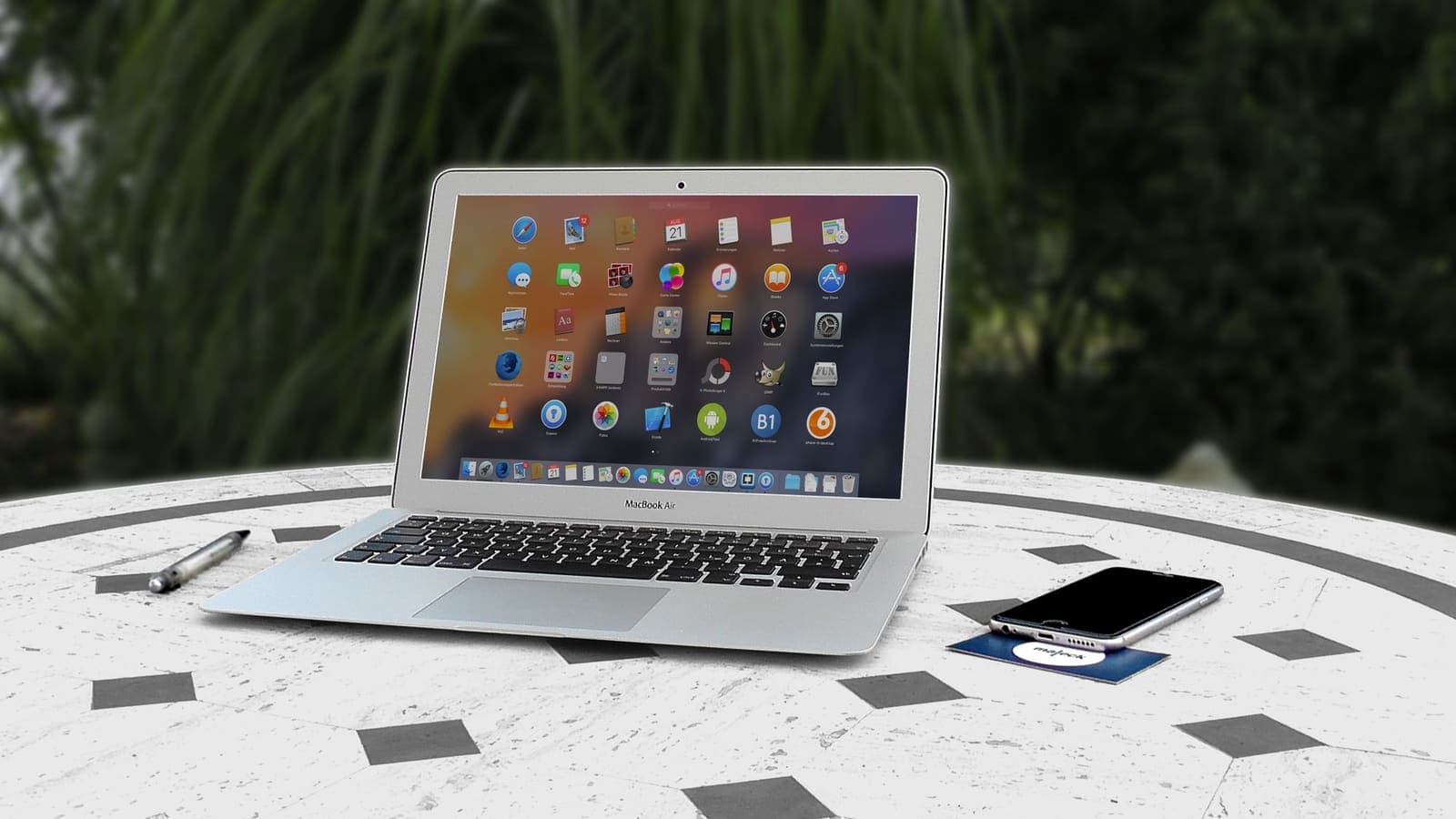
When the cafe Wi-Fi looks doubtful, many people switch to a simpler rule: use the phone's hotspot instead. It is a sound instinct. A personal hotspot removes the crowd from your network. But it does not remove everything, and it brings a few risks and costs of its own. Where does a VPN fit when you tether?
This article compares a mobile hotspot with public Wi-Fi from a security point of view, explains the settings that matter on the hotspot itself, and shows when a VPN adds real value in each setup. It stays practical, makes no promises that a VPN cannot keep, and does not claim that either option is safe in every circumstance. For the underlying risks of shared networks, our guide to staying safer on public Wi-Fi is a good companion.
What a personal hotspot actually is
A personal hotspot, sometimes called tethering, turns your phone into a small Wi-Fi router. The phone connects to the mobile network, then shares that connection with your laptop, tablet or a friend's phone through Wi-Fi, USB or Bluetooth. Three parties sit in the path.
- Your devices, which join the hotspot.
- Your phone, which acts as the gateway.
- The mobile carrier, which carries everything out to the internet.
Compared with a cafe, the difference is who shares the first hop. At the cafe, dozens of strangers share the same access point. On your hotspot, only people you allow can join, and you can see the list of connected devices. That alone removes a large class of local attacks.
What does not change is that the carrier still handles your traffic. It can usually see which domains you contact and how much data moves, as explained in our article on whether your ISP can see your VPN traffic.

Where public Wi-Fi is weaker
Public Wi-Fi has four recurring weaknesses.
- Unknown operator. You do not know who runs the network or how well it is maintained.
- Other users on the same network. Poorly configured networks let devices see or reach each other.
- Look-alike networks. Someone can set up a hotspot with a name close to the venue's.
- Login pages that collect more than they need. Captive portals sometimes ask for details unrelated to access.
The US Federal Trade Commission describes these concerns in its guidance on public Wi-Fi networks. HTTPS protects the content of most web pages, which reduces the harm, but it does not hide your destinations or protect apps that are less careful.
Side-by-side comparison
| Question | Your own hotspot | Public Wi-Fi |
|---|---|---|
| Who else is on the network? | Only devices you allow | Strangers and unknown devices |
| Who runs the network? | You, plus your carrier | A venue, a contractor, or an unknown party |
| Can another user reach your device? | Only if you let them join | Possible on poorly set-up networks |
| What can the network operator see? | Carrier sees destinations without a VPN | Operator sees destinations without a VPN |
| Look-alike network risk | None on your own phone | Real |
| Cost | Uses your mobile data plan | Usually free |
| Battery | Drains faster on the phone | Drains the device only |
| Speed | Depends on signal and plan | Depends on the venue |
| VPN value | Moderate: hides destinations from the carrier | High: also protects from other users and the venue |
The table shows why the hotspot is generally the lower-risk choice when you only have those two options, and why a VPN has the biggest effect on public Wi-Fi.
Hardening your hotspot
A hotspot is only as safe as its settings. Spend two minutes on them before you travel.
- Change the network name to something neutral. Avoid your full name or phone model, which tells onlookers more than they need to know.
- Use a long unique passphrase. Four or five random words are easier to type and harder to guess than a short number. Do not reuse a password from another account.
- Choose the strongest security option your phone offers, usually WPA2 or WPA3. Avoid open hotspots with no password at all.
- Limit who can join. Some phones let you cap the number of devices or approve each one. Check the connected-devices list in your hotspot settings from time to time.
- Turn the hotspot off when you finish. Many phones switch it off after a period of inactivity, but do not rely on that.
- Keep the phone updated. The hotspot function is part of the operating system, and updates close known weaknesses.
- Prefer a cable when it is convenient. USB tethering avoids radio exposure on the local link, though it does nothing about the carrier.
These steps address the local link between your devices and your phone. They are separate from what the VPN does, and the two work together.
Where the VPN fits
Think of the path as having two sections: the local hop between your device and the access point, and the long route beyond it.
- On public Wi-Fi, the VPN protects both. It encrypts the local hop, so other users and the venue cannot read your traffic, and it also hides your destinations from the network operator.
- On your own hotspot, the local hop is already one you control, so the VPN's main contribution is hiding destinations from the mobile carrier and keeping a consistent habit.
Where you run the VPN matters. If the app runs on your laptop, the laptop's traffic is encrypted from the laptop outwards, including the Wi-Fi link to your phone. If it runs only on your phone, then devices tethered to it may send traffic outside the tunnel, depending on the phone and the app. Our help guide on sharing a VPN over a mobile hotspot explains the options. The simple approach is to install the VPN app on every device you want protected.
If you want an overview of what a VPN covers and what it leaves out, what a VPN actually protects lays it out in plain terms.
Costs and side effects of tethering
A hotspot is not free of cost.
- Data. Everything the connected devices do counts against your mobile plan. Laptops are heavy users because of background updates and cloud sync. Pause them before you tether.
- Plan terms. Some plans cap or slow tethered data separately, or do not allow tethering at all. Read the terms rather than discovering the limit mid-task.
- Battery. The phone runs its radio and processor harder, and the battery drains quickly. Keep it plugged in if possible. With a VPN on top, the drain increases a little more; see does a VPN drain your battery.
- Heat. A phone tethering in a warm bag can overheat. Keep it in the open when possible.
- Signal. A weak signal means slow speeds for everyone connected, and a VPN cannot fix that.
Four everyday situations
The cafe with a doubtful network. Jonas has a client call in an hour. The cafe Wi-Fi has a name nobody on staff can confirm. He turns on his phone's hotspot with a strong passphrase, connects his laptop, starts the VPN app and joins the call. He checks the connected-devices list once, sees only his laptop, and moves on.
A train with weak Wi-Fi. Priya's train Wi-Fi drops constantly. Her phone has a good signal, so she tethers. The connection is steadier, though her data allowance shrinks. She pauses cloud sync, turns on the VPN on her laptop for work files and switches it off for a quick map lookup that carries nothing private.
A shared flat. Sam and a housemate have a router with a poor password. He is uneasy about what is on the same network, so he tethers for banking. The VPN is a secondary layer here. His bigger action is to ask the housemate to change the router password and keep the router updated.
A conference. At a trade show, hundreds of people use the event Wi-Fi, and nearby lookalike networks pop up. Meiling leaves the event network alone, tethers from her phone and uses the VPN for her email, as recommended in general guidance on remote access such as the NIST publication on telework and remote access security.
Common mistakes
- Leaving the hotspot with the default name and password. Defaults are guessable.
- Using an open hotspot for convenience. Anyone nearby can join and read unencrypted traffic.
- Forgetting that the carrier sees your destinations, and assuming the hotspot is private from every party.
- Assuming a VPN on the phone covers tethered devices. Check each one.
- Hot-spotting in a bag or pocket, where heat builds up.
- Letting laptop updates run on a metered tether, burning your plan.
- Giving the password to many people and never changing it afterwards. Change it periodically, especially after sharing it widely.
- Treating the hotspot as a reason to relax about phishing. The network is not the main danger in a fake-login attack. See how to recognize phishing websites.
A quick decision guide
- You are at a venue you do not know and have a good mobile signal: use your hotspot, with a strong password. A VPN is a bonus.
- You must use the venue's Wi-Fi: connect the VPN first, after any login portal, and avoid sensitive tasks if you can.
- You are working on a laptop with sensitive files: use the VPN on the laptop regardless of which network you choose.
- You are low on data or battery: use trusted Wi-Fi, with a VPN, for the heavy tasks and keep the hotspot for emergencies.
- You are helping others online: share the hotspot only with people you trust and remove them from the list afterwards.
Our guide to connecting to a VPN on public Wi-Fi covers the order of steps at a venue.
Setting up a VPN for either case
If you use XPASS, you sign in to the free VPNclient app with the username and password shown on your My Pass page; the download page lists the official links. Install it on each device you want covered, test it at home on Wi-Fi and on tethered data, and then you will know what to expect when you are out. A prepaid pass starts when the account is created, not at first connection, so buy it close to when you will use it.
Summary
A personal hotspot is generally a lower-risk choice than public Wi-Fi because you control who joins, but the carrier still sees your destinations, and the hotspot needs a strong passphrase and sensible settings. A VPN adds the most value on public Wi-Fi, and a smaller but real benefit on your own hotspot. Install it on each device you want protected, watch your data plan and battery, and keep the basic habits that no network setting replaces.
If a simple prepaid pass fits how you work, you can look at the pricing page at your own pace.
Frequently asked questions
Is a mobile hotspot safer than public Wi-Fi?
Usually yes, because you control who joins and you are not sharing a network with strangers. It is not risk-free: a weak hotspot password, an unfamiliar device on the list, or a mobile carrier that can see your destinations still apply. A VPN adds protection from the carrier's view.
Do I still need a VPN when I use my own hotspot?
It is optional rather than essential. The main reason to use one is to keep your destinations from the mobile carrier or to keep one consistent habit across all networks. On public Wi-Fi the case for a VPN is stronger.
Should the VPN run on the phone or on the laptop connected to the hotspot?
If the VPN runs on the laptop, the laptop is protected, including the link from laptop to phone. If it runs only on the phone, devices connected to the hotspot may not be inside the tunnel. Installing the app on each device you care about is the clearest approach.
What is a good hotspot password?
Use a long, unique passphrase, choose WPA2 or WPA3 security if your phone offers it, and avoid default names or numbers that are easy to guess. Do not reuse the password from another account.
Does a hotspot drain the battery and use my data plan?
Yes. Sharing a connection keeps the radio and processor busy, so the phone drains faster and may run warm, and everything the connected devices do counts against your mobile plan. Check your plan's tethering terms.
References
About the author

Bob Kanokphon Thongdee
- Founder of XPASS VPN
- Co-founder of eSIMonline.asia
- More than 7 years in online marketing
- Founder of Cojourney Visa and Cojourney Travel
Need a VPN for a short trip or a busy month?
XPASS sells prepaid passes for a set number of days. You pay once and nothing renews automatically.
See passesKeep reading

VPN Security
How to Stay Safer on Public Wi-Fi
Public Wi-Fi is not a disaster, but it is a network you do not control. Here are the real risks, the habits that matter most, and where a VPN fits in.
8 min read

VPN Basics
What Does a VPN Actually Protect?
A VPN protects specific things well: traffic on untrusted networks, what your local network can see and the IP address websites record. This article maps those protections and their limits.
9 min read

Privacy Guides
Can Your ISP See Your VPN Traffic?
With a VPN on, your internet provider can no longer read the sites you visit, but it still sees the connection itself. This article lists what stays visible, what disappears, and how throttling fits in.
9 min read
VPN Basics
Does a VPN Drain Your Battery?
A VPN adds encryption work and keeps a connection alive, so it can use some battery. This guide explains what drives the cost, how to measure it on your own phone and what helps.
9 min read

Buying Guides
Best VPN for Remote Work: What Remote Workers Should Check
A personal VPN and a work VPN do different jobs. This guide explains the difference, how a VPN affects video calls and cloud apps, and a checklist for remote workers and freelancers.
9 min read