
VPN for Meta Quest: What Setup Options Exist?
The Quest headset has no VPN screen of its own, so protection has to come from the network side. Here are the realistic options and what VR asks of your connection.
9 min readUpdated Oct 15, 2026By XPASS Editorial Team
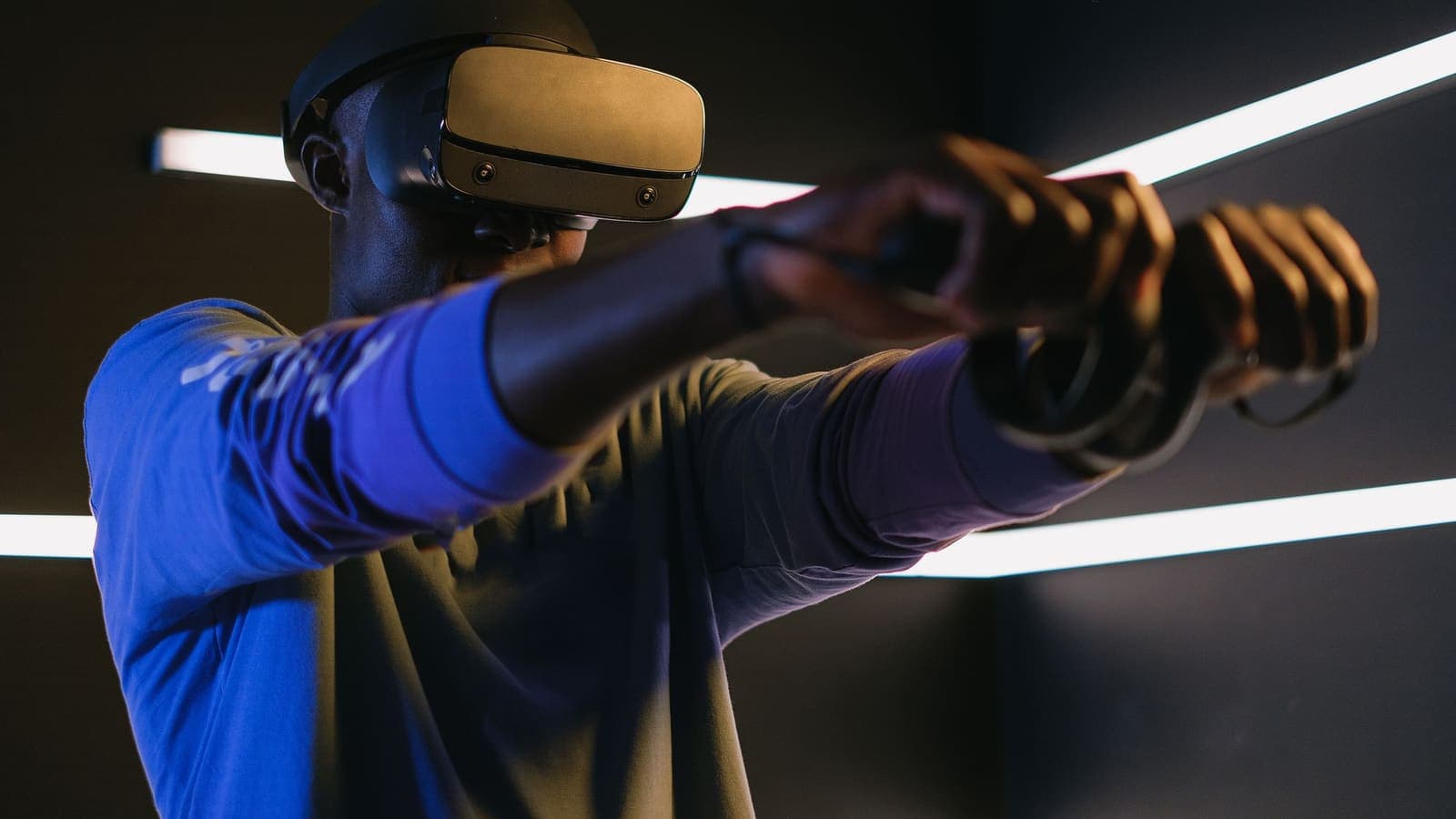
A Meta Quest headset looks like a gadget that should take a VPN app like any phone does. In practice, it does not. The headset runs a customised Android-based system and is built as a closed, standalone device. It joins Wi-Fi, signs in to your account, downloads games from its own store and, if you use a gaming PC, streams VR from that computer. The setup choices for a "vpn for meta quest" are therefore different from every other guide on this site: they sit around the headset, not inside it.
This article lists the options that really exist, explains what VR demands of a network so that you can judge whether a tunnel is worth the cost, and gives a short checklist for the most practical route. It does not promise a speed gain and does not suggest using a VPN to change the store region or bypass any rule of a game or store.
Why the headset is awkward for a VPN
Most devices that handle a VPN do it through an operating-system feature. A phone lets an app ask for permission to create a tunnel, and the system shows a prompt. A computer lets software install a virtual network adapter. The Quest does not expose that control to the user in its normal settings. In the headset's Wi-Fi screen, you can pick a network, enter a password and review basic details, but you cannot add a VPN profile.
That leaves three kinds of workaround.
- Move the VPN to the network. A router that runs the VPN client puts every device on the Wi-Fi, including the headset, behind the tunnel.
- Move the VPN to a computer that shares its connection. The headset joins a hotspot created by a laptop or PC that is already connected to the VPN.
- Use the VPN on the PC for PC VR. When the headset streams from a Windows PC, the PC's own traffic can use a VPN, though the stream between PC and headset usually should not.
Installing apps from outside the official store is technically possible when a headset is set to developer mode, but it needs a developer account, can void support and exposes you to unverified files. We do not suggest it for a VPN, and the rest of this guide does not depend on it.

What VR asks of your network
Before deciding where the tunnel should sit, it helps to know what your headset needs.
Standalone games. When you download a game or update, it is a normal large file transfer. Multiplayer sessions send small packets very often and care about latency, the time for a round trip, and jitter, the variation of that time. Cloudflare's explainer on latency is a good short read.
Wireless PC VR. The headset receives a video stream from your computer over Wi-Fi. Here the home wireless link is the critical piece. A noisy 2.4 GHz channel or a distant router produces stutter that feels worse in VR than on a flat screen, because delays can cause discomfort. Streams like this normally work best on a good 5 GHz or 6 GHz link with the PC wired to the router.
Social spaces. Voice chat and avatars are lighter on bandwidth but sensitive to jitter. A small extra delay can make conversation feel slightly off.
In all three cases, a VPN adds distance (your data goes to the VPN server first) and encryption work. Do not assume that any of this will be unnoticeable. Our article on whether a VPN reduces ping explains why the answer is usually "no, it adds a bit", and when a different route or a less congested server can still make an overall difference.
Option one: a VPN on the router
For a home headset, the router is the cleanest answer. Every device that connects to the router's Wi-Fi uses the VPN, and the headset is none the wiser. You turn it on once and forget it.
What to check:
- Does your router support a VPN client? Many consumer routers only support a VPN server mode (so you can reach your home network), not a client mode that sends all traffic out through a VPN service. Look at the router's manual or admin page before you commit.
- Is the router fast enough? Encryption runs on the router's own processor. A modest router can slow everything to a fraction of your line speed.
- Can you exclude devices? Some firmware lets you pick which devices use the tunnel. This lets you keep the headset out when you want low latency, and keep other devices in.
- Can everybody in the house live with it? Streaming apps, banking apps and smart-home devices may dislike a VPN.
Our guide on setting up a VPN on a router lists the steps, and VPN router versus VPN app compares the options. If you are using a travel router in a hotel, it can also act as the single point where the VPN is turned on, so that the headset, phone and laptop all connect to its private Wi-Fi.
Option two: a PC or laptop that shares its connection
If the router cannot do it, a Windows computer can sometimes share its VPN-protected connection with the headset through a mobile hotspot feature. The headset joins the hotspot as if it were any Wi-Fi network.
This is more fragile than it sounds. Three things can go wrong.
- The shared traffic might skip the tunnel. Whether a hotspot's traffic goes through the VPN depends on how the VPN software and the operating system handle it. Read sharing a VPN over a mobile hotspot and test the result, instead of assuming it works.
- Wi-Fi on one radio. If the PC uses the same wireless card to receive Wi-Fi and to broadcast the hotspot, speeds are usually cut sharply. A wired connection to the PC avoids this.
- Higher latency. The PC adds another hop, which is enough to affect VR.
This route is best for short, low-stakes uses, such as protecting the headset's downloads and account logins in a shared place, not for fast multiplayer.
Option three: use the VPN on the PC and leave the headset alone
If your main use of the headset is PC VR over a wireless link, think about which traffic needs protection. The video stream between PC and headset is local. It never leaves your home network. A VPN on the PC can leave this local traffic alone if it supports split tunneling, because local network addresses are normally not sent through a tunnel. The things that do reach the internet, such as browser tabs, downloads, account logins and online store pages, can use the tunnel.
If your VPN app for the PC has a split-tunneling setting, read what split tunneling is first. You can then keep a game launcher outside the tunnel while other apps stay inside. Some PC VR software depends on local addresses and breaks if a tunnel captures everything, so test the headset after each change.
Comparing the options
| Question | Router VPN | PC shares connection | VPN on PC only |
|---|---|---|---|
| Headset itself is behind the tunnel | Yes | If the test passes | No |
| Works away from home | With a travel router | Yes | Yes |
| Effect on VR latency | Moderate; test | Highest | None for local stream |
| Setup effort | Medium, once | Medium, each time | Low |
| Risk of breaking PC VR | Low | Medium | Medium if split tunneling is wrong |
| Best for | Home protection | Short hotel stays | PC VR users |
A router-route checklist
If you decide on the router route, follow this order so that you can undo changes easily.
- Write down the current settings of the router, or take a backup file if the router offers one. This lets you go back.
- Update the router's firmware from the manufacturer's official page.
- Set up the VPN client on the router using the information on your My Pass page, if you have an XPASS pass. Setup instructions and supported connection methods are listed there. If your router does not have a suitable client mode, stop; do not try unofficial firmware without understanding the risks.
- Check that the router has a stable connection with the VPN on a laptop first. If the laptop is slow, the headset will be too.
- Reconnect the headset to the Wi-Fi and open the headset browser to a page that shows your public address.
- Test a game or a social app for a few minutes and note any stutter.
- Compare with the VPN off. If the experience is much worse, use a nearer location or switch off the tunnel when you play.
- Keep the 5 GHz or 6 GHz band for the headset and leave 2.4 GHz for older devices.

Three scenarios
A family with one headset. The Khan family keeps a Quest in the living room. The parents want the household's devices protected on the home network, and they use a router that supports a VPN client. They keep the headset's age settings and parental controls as they were, since the VPN does not replace them. The kids' headset sessions are short and mostly single-player, so a small extra delay does not matter.
A university student in a dormitory. Jonas has a headset and a laptop. The dormitory network blocks many ports and often disconnects VPN traffic. He uses the VPN on the laptop for study and browsing, and leaves the headset on the standard Wi-Fi with no tunnel. That keeps his fast multiplayer sessions steady.
A traveller with a headset in a bag. Priya takes the Quest on a work trip and wants to download updates over hotel Wi-Fi. She uses a small travel router that connects to the hotel network, runs the VPN on the router and gives her devices a private network. The hotel's login page is completed on the travel router first. When she is done, she disconnects.
Troubleshooting
| Symptom | Likely cause | What to try |
|---|---|---|
| Headset joins Wi-Fi but cannot load the store | VPN route or DNS problem on the router | Turn the router VPN off and test; if it works, check the VPN client settings |
| Games feel laggy with VPN on | Longer route, weak Wi-Fi or slow router CPU | Nearer location, 5 GHz or 6 GHz, wired PC, or VPN off for play |
| Shared hotspot from PC has no internet | Sharing is not set up for the VPN adapter | Re-check the sharing option and read the hotspot guide |
| PC VR streaming breaks after starting the VPN on the PC | Tunnel captures local network traffic | Use split tunneling or disconnect the VPN during VR |
| Hotel Wi-Fi login page does not appear | VPN started too early | Complete the portal login first, then start the VPN |
If the VPN itself does not connect, VPN not connecting? Step-by-step fixes is the next page to read.
Limits and sensible expectations
A VPN protects the data between your device or network and the VPN server. It does not make accounts anonymous, does not filter content for children and does not remove the need for strong account passwords and two-factor authentication. It also does not give you permission to ignore store or game rules. Stores, payment systems and games often tie an account to a region and can limit or close accounts that look like they are working around those rules. We do not recommend using a VPN to change a store region.
Think about your needs honestly. If your headset is used mostly at home for offline or single-player experiences, a VPN adds cost and complexity for little benefit. If you use it on shared networks, a router-level or travel-router setup is a sensible idea. Public networks have real risks, which the FTC explains in its public Wi-Fi guide.
Summary
The Meta Quest has no VPN screen, so a VPN has to sit on the router, on a computer that shares its connection, or on the PC that streams to the headset. The router route is the cleanest for home use but needs a capable router. Sharing from a PC is a short-term backup, and a PC-only VPN works best when split tunneling keeps the local VR stream out of the tunnel. Expect a bit more latency, test with the VPN on and off, keep children's controls separate from the VPN, and do not use a VPN to get around store rules.
If a prepaid pass without automatic renewal fits your plans, you can read the details on the pricing page at your own pace.
Frequently asked questions
Does Meta Quest have a built-in VPN setting?
The headset's Wi-Fi settings let you join networks, but they do not offer a VPN page where you can add a connection. Because of that, people usually apply a VPN on the router or on a computer that shares its connection.
Can I install a VPN app directly on the headset?
Standard store apps are the supported way to add software, and a VPN app is not something you should expect to find there. Loading apps outside the store needs developer settings and carries risks, so this guide does not recommend it.
Will a VPN make Quest games laggy?
It can. VR is sensitive to latency and jitter, and a VPN adds distance and encryption work. Use a nearby location, a strong 5 GHz or 6 GHz Wi-Fi link, and compare with the VPN off.
Should children's headsets be put behind a VPN?
A VPN does not replace age settings, parental supervision or account controls. If you want network-level protection at home, a router setup avoids touching the child's account, but it is not a content filter.
Is it okay to use a VPN to change the store region on my headset?
We do not recommend it. Store, payment and game terms often tie accounts to a region, and breaking them can put your account and purchases at risk. Use a VPN for network protection, not to work around store rules.
References
About the author

Bob Kanokphon Thongdee
- Founder of XPASS VPN
- Co-founder of eSIMonline.asia
- More than 7 years in online marketing
- Founder of Cojourney Visa and Cojourney Travel
Need a VPN for a short trip or a busy month?
XPASS sells prepaid passes for a set number of days. You pay once and nothing renews automatically.
See passesKeep reading
Device Guides
How to Set Up a VPN on a Router
A general, firmware-neutral guide to running a VPN on your router: what to check first, the usual setup steps, DNS and kill switch settings, travel routers and common fixes.
7 min read

Device Guides
Can You Share a VPN Over a Mobile Hotspot?
A VPN on your phone does not always cover the devices using its hotspot. See what usually happens, how to test your own setup, and a safer routine.
6 min read

VPN Basics
Does a VPN Reduce Ping? Latency, Jitter and Packet Loss Explained
A VPN adds an extra stop to your route, so ping usually rises a little. Here is why, when it can improve, and how to measure it on your own connection.
9 min read

VPN Basics
VPN Router vs VPN App: Which Setup Fits Your Home?
Should you install a VPN on the router or on each device? This guide compares the two setups for speed, smart home gadgets, mesh Wi-Fi, split tunneling and everyday convenience.
10 min read

Device Guides
How to Use a VPN on PS5, Xbox and Other Consoles
Game consoles rarely let you install a VPN app. This guide explains the router and shared-connection methods, what to expect from NAT type and ping, and the limits.
7 min read