
How to Use a VPN with LG webOS TV
LG webOS sets do not take a VPN profile. This guide shows how to give the TV its own protected network, a plug-in box or a travel router, then test it with a simple plan.
10 min readUpdated Oct 15, 2026By XPASS Editorial Team
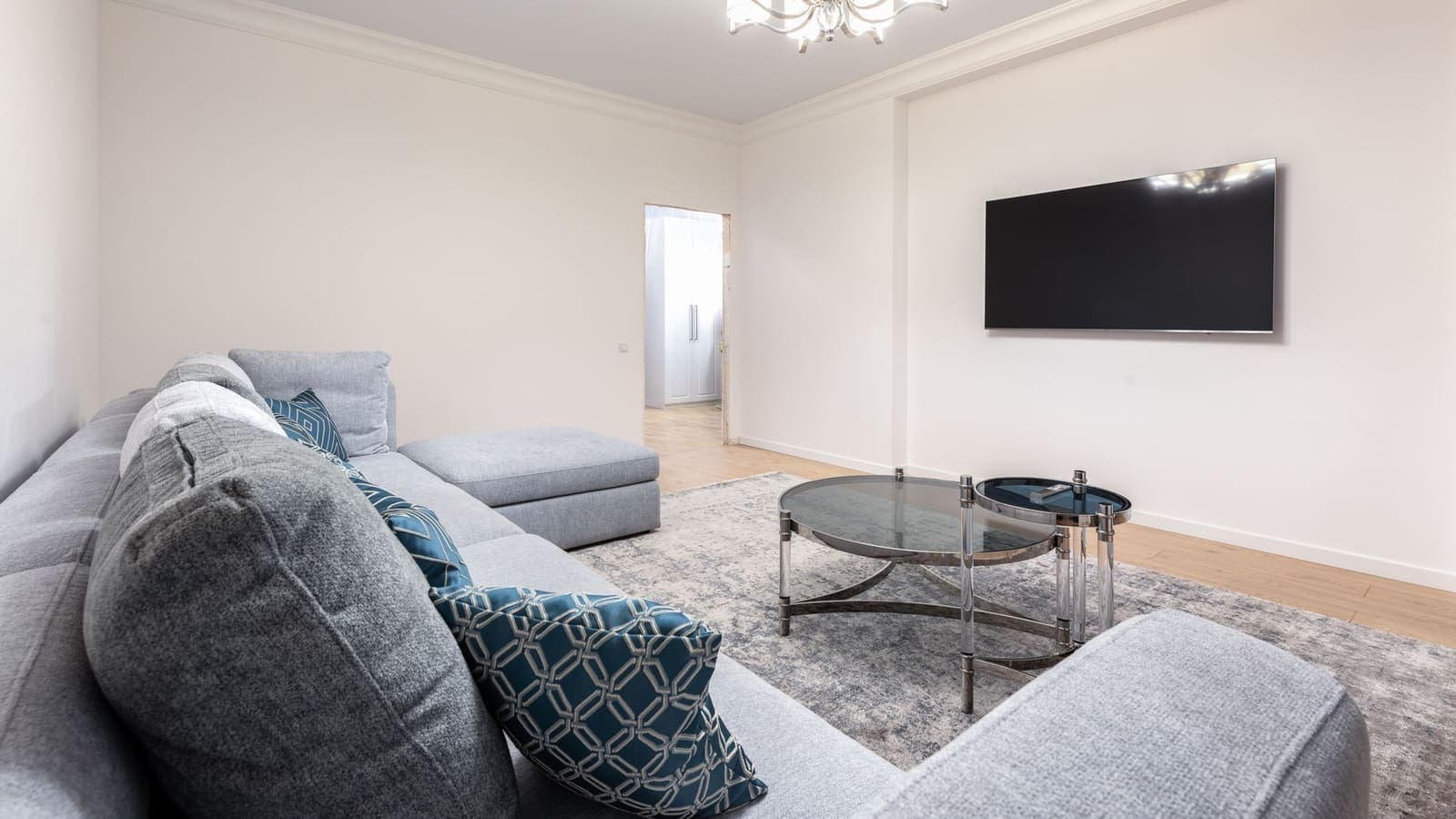
An LG television with webOS looks like a tidy, capable computer: a launcher bar along the bottom, a magic remote you point like a mouse, and a store full of apps. So it comes as a surprise when you dig through the settings looking for VPN and find nothing. The network pages offer Wi-Fi or a cable, an IP address, a DNS address and a connection test. That is all. If you want the television to sit behind a VPN, you have to build the protection around it.
This guide is specific to LG webOS sets and takes a different angle from a plain "install the app" tutorial, because that tutorial does not exist for this platform. Instead you will plan the setup, pick a layout (a dedicated TV network, a plug-in box or a travel router), walk through the settings that matter, and finish with a simple test plan you can run in an evening. We do not promise how any channel, app or catalogue will respond, and we do not describe ways to avoid a service's rules.
What webOS does and does not give you
webOS is LG's own platform. Apps are built for it, reviewed and listed in the LG Content Store, and the system settings expose only a limited set of network controls. In practice that means three things.
- No VPN profile. Phones let you add a VPN configuration at system level. webOS does not, so there is no "add VPN" button to look for.
- Few VPN apps. A VPN service has to build and publish a client for webOS specifically. Do not assume one exists for your model. Search the store for "VPN", and read who made anything you find. XPASS customers use the free VPNclient app, which is offered for iPhone, iPad, Android, Windows, macOS, Linux and Android TV, Google TV and Fire TV. It is not described as available on webOS, so plan on a route that does not need it.
- Manual network values. You can edit the IP address and DNS manually, which helps when you place the TV behind another device but can also cause trouble if you forget you did it.
A television is not a complicated target. It does ordinary network things: it looks up names with DNS, opens encrypted connections to app servers, and downloads video in chunks. A VPN in front of it simply carries those connections through a tunnel to a VPN server first. Everything the TV does after that looks the same to the TV. To the network outside the tunnel, the connections look like encrypted traffic to the VPN server.
Decide what you are protecting
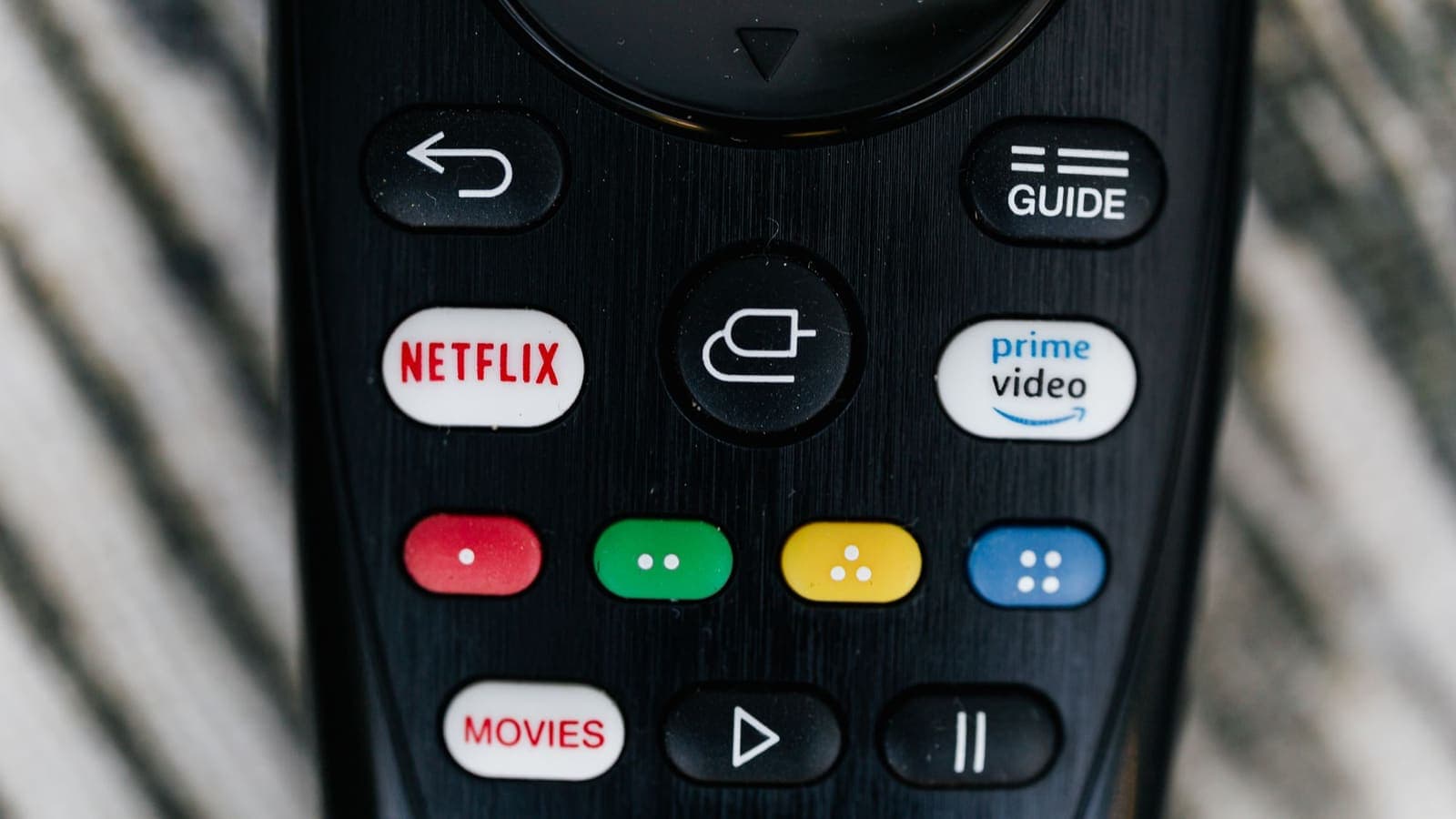
Before touching anything, answer three questions. They change which option makes sense.
- Is the TV the only thing you want covered, or the whole home? A single TV points to a box or a dedicated network. A whole home points to the main router.
- Do you control the router? In a rented room, a dormitory or a hotel, you probably do not. That pushes you toward a device that brings its own network.
- Will the TV move? A TV that travels with you, for example a portable screen or a hotel stay, suits a travel router. A fixed TV suits a box or the router.
Write the answers down, even in one line each. "One TV, I do not control the router, it stays put" has a different answer from "Four devices, my own router, I travel often".
Option A: a dedicated Wi-Fi network for the TV
This layout is the most flexible for a home where you own the router. You create two networks. The normal one goes straight to the internet. The second, which you could name something obvious such as "TV-VPN", sends everything through the VPN tunnel. The TV joins the second network, and nothing else has to.
How it works in practice:
- Check that your router can run a VPN client and that it can host a second network with its own routing. Many consumer routers cannot do both. Our guide to setting up a VPN on a router lists what to check.
- Compare the router's supported connection types with what your My Pass page shows. If they do not overlap, you cannot use this layout.
- Set up the tunnel and the second network. Names of menus differ by brand.
- On the LG, open the network settings, choose the new network, enter its password and run the connection test.
The benefit is separation. Your phones and laptops stay on the fast, unencrypted-by-VPN path, and the TV takes the tunnelled one. If you later decide the TV should be on the ordinary network, you switch it in the settings. For deeper background on routers handling traffic selectively, read VPN router split tunneling, and for what to expect from router DNS handling see VPN router DNS.
The drawback is complexity. If the router is weak, the tunnelled network will be slow, and you cannot fix that without changing hardware.
Option B: a plug-in streaming box
If you do not control the router, or you want to avoid router firmware work, a box is the easy path. An Android TV, Google TV or Fire TV device plugs into an HDMI port and runs the VPN app itself. The LG becomes the screen.
- Install the VPNclient app on the box. The official TV download link is listed on our download page, and our guide to setting up a VPN on Android TV, Google TV and Fire TV explains the steps. Sign in with the username and password from My Pass.
- Accept the system prompt that asks permission to create a VPN connection. The wording varies by version.
- Switch the LG to the box's HDMI input. Use the apps on the box, not the ones on the LG home screen, because the LG's built-in apps use the LG's own connection and do not go through the box.
One small habit prevents most confusion: rename the HDMI input on the LG to something such as "VPN box". webOS lets you label inputs. A visible label reminds everyone in the house that the VPN lives on that input and nowhere else.
Option C: a travel router for rooms and short stays
A travel router is a small router that joins an existing network, such as hotel Wi-Fi, and creates its own network that your own devices join. If it supports a VPN client, it can run the tunnel for everything attached. The background is in VPN travel router.
For an LG in a rented room, the process looks like this:
- Plug the travel router into power and join it to the building's network.
- Some hotel and dormitory networks show a sign-in web page. Complete that page on a laptop first, because a TV cannot do it easily. If that page gives you trouble, see VPN and captive portals.
- Start the VPN client on the travel router.
- Join the LG to the travel router's network.
If the building network lets only a few devices connect, the travel router counts as one, which can be an advantage. It also keeps your TV off the shared network and in front of a private one.
Walking through the LG settings
The menu names change between webOS versions, so treat these as signposts, not exact paths.
- Open the quick settings, then the full settings menu, and find the connection or network area.
- Pick the network. Choose your dedicated network, the box's network if it creates one, or the travel router's network. Enter the password with the on-screen keyboard or the remote's keypad.
- Open the advanced settings for that network. You will see IP and DNS. Leave both on automatic for the first test.
- Run the connection test. It tells you whether the TV reached the router and whether the router reached the internet. Take note of any message that appears; it tells you where the break is.
- Check for software updates. Updates matter more on a TV than on a phone, because you cannot patch it any other way.
- Restart fully. Turn the TV off with the remote, then unplug it for about a minute if something is stuck. Some LG sets keep a quick-start state, so a simple power-off may not clear a bad network session.
- Check the date and time. Wrong clocks break secure connections.
If you have to set a manual DNS for any reason, keep the router's DNS rules in mind. A manual address on the TV overrides what the router offers, which can cause lookups to leave the tunnel. The article on how DNS works explains why that matters.
A three-night test plan
A setup that works for five minutes can still fail on a Friday evening. Use a short test plan instead of one lucky check.
Night one: baseline. With the VPN off, play a familiar programme for 15 minutes in the quality you normally use. Note whether it starts quickly, whether the quality changes, and whether it buffers. Run the LG's connection test and write down the result.
Night two: tunnel on. Turn on the VPN through your chosen route. Play the same programme at the same time of day. Compare start time, quality and buffering with night one. A small delay at start is normal. A constant drop in quality is not.
Night three: stress. Run the TV while someone else streams on a phone and someone downloads a file. This reveals whether the router or the VPN is the bottleneck. If the TV struggles only when others are busy, the home connection, not the VPN, is at its limit.
Keep a note of what changed between nights. If night two is worse than night one by a lot, measure the delay and consider another server location in the app. Throughput matters more than ping for video, but if the delay is high, buffering is likelier.

Common problems on LG sets
- The TV connects to the network but no app loads. The tunnel may be down while the network is up. Restart the VPN on the box or router, then the TV. See VPN connected but no internet.
- The TV cannot find the dedicated network. Some routers hide a second network or place it on a band the TV does not use. Check the band and the name.
- Manual IP left behind. After moving house or switching networks, an old manual address stops the TV from joining. Set IP and DNS back to automatic.
- The VPN will not connect on the box. Check that your pass is active and that you are using the My Pass username and password, not the XPASS website email. The guide for VPN not connecting covers the standard fixes.
- Quality sinks at night. Local networks and VPN servers are busier in the evening. Try another location, a cable, or a different time.
- A service says it detects something unusual. Do not retry again and again. Switch the VPN off for that service on a network you trust, and contact the service through its official support.
Limits to keep in mind
A VPN in front of a television protects the connection between that setup and the VPN server. It does not stop the LG from reporting its own usage data to LG and app makers, it does not change what you see on a screen after you sign in, and it does not guarantee any app or service will behave in a given way. Services set their own rules and a VPN does not override them or the law. We do not give advice on avoiding any restriction.
There are cost limits too. A box is an extra device to buy and power. A travel router is another, and it needs to be configured. A main router with VPN client mode needs enough processing power. And none of this is a substitute for good habits: use unique passwords, turn on two-factor authentication for streaming accounts and be careful with links in messages.
Mistakes to avoid
- Searching for "add VPN" in the LG settings for ages.
- Setting up a tunnel on a router that does not support the connection method on your pass.
- Using the LG's built-in apps while the VPN runs on the box.
- Keeping a manual IP or DNS after changing networks.
- Judging the setup by one short test rather than a few evenings.
- Forgetting that a hotel or dormitory sign-in page may need completing on another device first.
Summary
LG webOS has no place to enter a VPN, so you protect the TV from the outside: a dedicated tunnelled network at home, a plug-in streaming box with its own VPN app, or a travel router for rooms and short stays. Choose by what you control and whether the TV moves, keep IP and DNS automatic until you have a reason, and test over a few evenings with the same programme.
If a pass with a fixed number of days and no automatic renewal suits the way you watch, the pricing page shows the options.
Frequently asked questions
Does LG webOS have a VPN setting like a phone does?
No. The network settings on webOS let you choose a Wi-Fi or wired connection and edit IP and DNS values, but there is no place to enter a VPN account. To protect the TV you place the VPN in front of it, on a box, a router or a shared connection.
Is a second Wi-Fi network for the TV a good idea?
Yes, if your router or a travel router supports it. A separate network that is routed through the VPN lets the TV be protected while phones and laptops stay on the normal network, and you can switch the TV between them in the network settings.
Should I change the DNS on my LG TV when I use a VPN?
Leave it on automatic first. A VPN router or app usually hands out its own DNS, and a manual DNS on the TV can override it and send lookups outside the tunnel. Only enter a manual value if you know why.
Why does the picture quality drop after I add the VPN?
Streaming apps lower quality when throughput falls or delay rises. The VPN adds some overhead, and a weak router or a distant server adds more. Compare the same programme with the VPN off, move closer to the router or use a cable, and try another server location.
Can I use the same pass on the TV and my phone?
Do not rely on a device count we cannot confirm here. Your My Pass page shows what your pass allows. If the TV connects through the router or a box that signs in with your pass, check how many separate connections that uses before you add more devices.
References
About the author

Bob Kanokphon Thongdee
- Founder of XPASS VPN
- Co-founder of eSIMonline.asia
- More than 7 years in online marketing
- Founder of Cojourney Visa and Cojourney Travel
Need a VPN for a short trip or a busy month?
XPASS sells prepaid passes for a set number of days. You pay once and nothing renews automatically.
See passesKeep reading

Device Guides
How to Use a VPN on a Smart TV
Many smart TVs cannot run a VPN app at all. Here are the three realistic options, how to choose between them and what to check before you start.
6 min read

Device Guides
Travel VPN Router: Setup and Use Cases
A pocket router can put a whole hotel room behind one VPN connection. This guide covers when a vpn travel router makes sense, how to prepare it and where it falls short.
10 min read
Device Guides
How to Set Up a VPN on a Router
A general, firmware-neutral guide to running a VPN on your router: what to check first, the usual setup steps, DNS and kill switch settings, travel routers and common fixes.
7 min read

Device Guides
DNS Settings on a VPN Router Explained
A router that runs a VPN still has to decide who answers DNS questions. This guide shows where the setting hides, how to point it safely and how to test it.
9 min read

Troubleshooting
VPN Not Connecting? Step-by-Step Fixes
A clear order of checks for when the VPN will not connect: pass status, login details, Wi-Fi and mobile data, permissions, firewalls, app conflicts and error messages.
8 min read