
VPN for Apple TV+: Setup and Playback Considerations
What a VPN does and does not change when you watch Apple TV+, the four places you can run it, and a short troubleshooting path for buffering, errors and slow starts.
9 min readUpdated Oct 15, 2026By XPASS Editorial Team
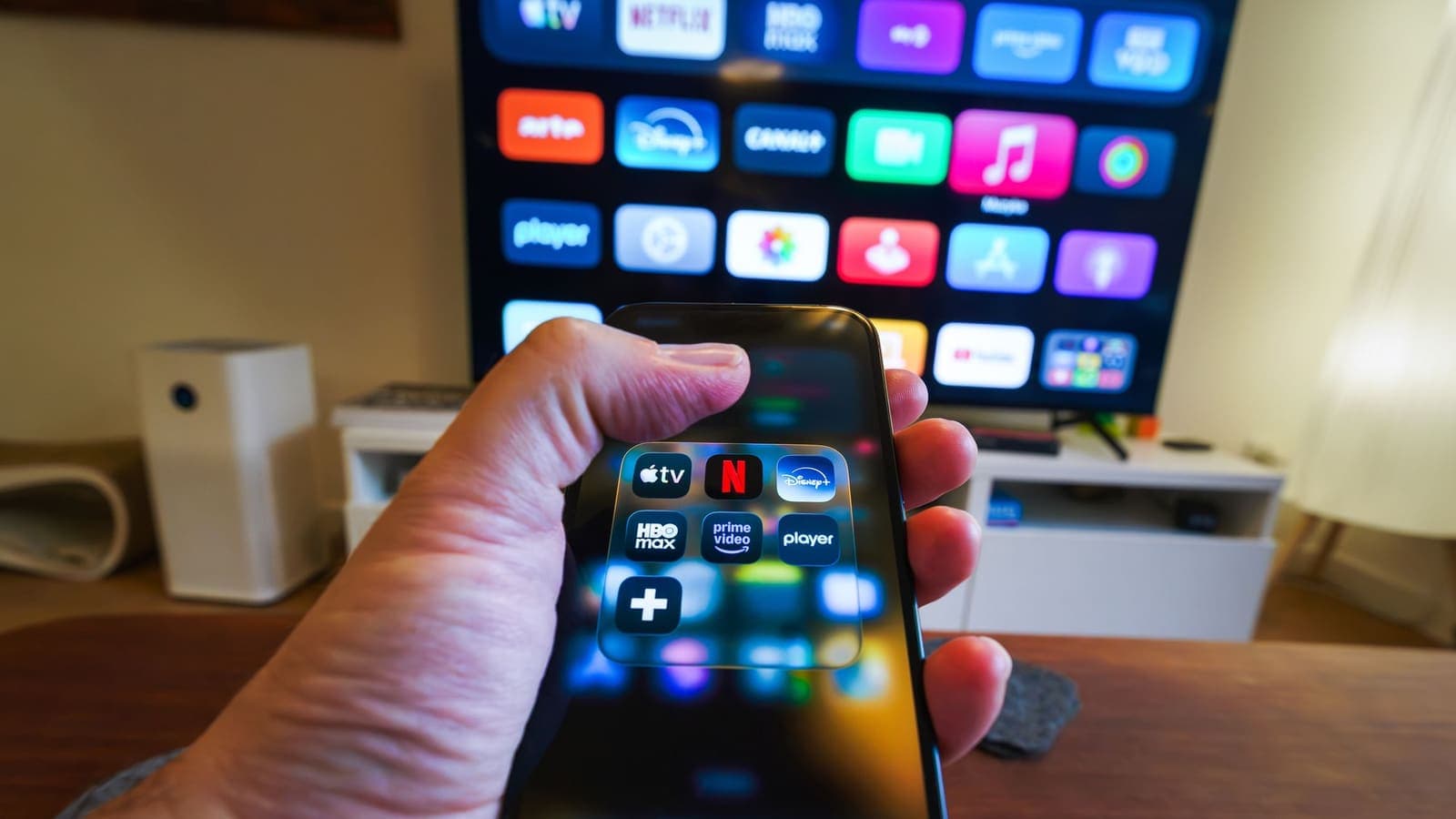
Apple TV+ is one of the easier streaming services to run behind a VPN in terms of apps, because it works on iPhone, iPad, Mac, Apple TV boxes, many smart TVs and the web. It is also one of the more picky ones in terms of playback, because it uses strict copy protection and expects a smooth, high-bitrate connection. That combination is why people searching for "vpn for apple tv plus" usually have a practical question: will it work, where do I install it, and why is the picture suddenly stuttering?
This article answers that narrow question. It covers what a VPN actually changes while you watch, the four places you can run one, how to set it up step by step, and how to troubleshoot buffering and playback errors. It does not suggest using a VPN to change which country's catalogue you see, because that works against the terms of the service and is outside the scope of this site. If you need the general idea first, read what a VPN is and come back.
What a VPN changes while you watch Apple TV+
When you press play, your device asks the Apple TV+ servers for small chunks of video, roughly a few seconds each, and your player assembles them. The video itself is already encrypted by the service with digital rights management, often shortened to DRM. That protection is separate from a VPN and stays in place whether or not you use one.
A VPN adds a second, different layer. It wraps your traffic in an encrypted tunnel from your device to the VPN server, and from there the request goes out to the internet. Three things follow from this.
- Your local network sees less. A hotel, student residence or office network normally sees the names of the sites you connect to. With a VPN running, it sees only an encrypted connection to the VPN server.
- Your internet provider sees less. The same applies to the company that sells you home internet. It can still see how much data you use and when, but not the destinations inside the tunnel.
- The service sees the VPN server, not your home address. Apple TV+ will see the server's public IP address instead of the one your provider gave you. This is why some services show warnings when a VPN is on, and it is also why the location shown to the service can differ from your real one.
What does not change: the video file is not made safer by a VPN, your Apple account is still tied to you, and the picture quality is never improved. A VPN cannot raise your bitrate. At best, it adds a little delay. At worst, it reduces your effective speed. Read why internet speed changes with a VPN for the mechanics.

Is a VPN worth using for Apple TV+ at all?
Honestly, in many homes it is not. If you watch on your own trusted home network, you gain little privacy and you pay a small speed cost. The cases where it helps are specific.
| Situation | Worth using a VPN? | Reason |
|---|---|---|
| Hotel Wi-Fi on a trip | Often yes | You do not control the network and others share it |
| Shared student housing or apartment building network | Often yes | The building operator can see destinations |
| Your own home broadband | Usually optional | Mostly hides destinations from your provider |
| Cellular data while commuting | Optional | Hides destinations from the mobile operator |
| A network that throttles video | Maybe, test first | Some providers slow video traffic; see the throttling article |
| Wanting different catalogues | Not recommended | Conflicts with service terms and licensing |
If you recognise yourself in one of the first two rows, a VPN is reasonable. If you only want the show to start faster, a VPN will not help and may hurt. The one exception is when your provider slows video specifically, which is explained in VPN and bandwidth throttling. Even then, you should measure before assuming.
Four places to run the VPN
Where you install the VPN decides what it covers. You have four sensible choices for Apple TV+.
1. On the device you watch with (phone, tablet, laptop)
This is the easiest. On an iPhone, iPad, Mac or Windows PC, install the VPN app, sign in, connect, and then open the Apple TV app or the website. Everything that device sends goes through the tunnel. It is the best choice for travel because it needs no extra hardware.
2. On the Apple TV box itself
Recent versions of tvOS can run VPN apps if the provider has published one for the platform. If your VPN has a tvOS app, you install it from the App Store on the box, sign in and connect. If not, this route is not available. Our help guide on using a VPN on Apple TV walks through the options and what to check on the box.
3. On the router
A VPN on the router covers every device on that network, including smart TVs and boxes that cannot run VPN apps. It is the right design for a household that wants one consistent setup, but it is the most technical and it makes the whole house depend on one tunnel. The comparison between this and a per-device app is covered in VPN router vs VPN app, and the steps are in the guide on setting up a VPN on a router.
4. Sharing from a computer
A Mac or Windows PC with the VPN connected can share its connection to another device through its own network sharing features. This is a workaround for boxes without a VPN app. It is a little fragile because the computer must stay awake and connected, and sharing settings differ between systems. Treat it as a temporary option rather than a permanent setup.
Setting it up step by step
These steps use generic wording because app labels differ between versions. For the XPASS pass, the app is the free VPNclient app, and you sign in with the username and password on your My Pass page, as covered in the getting started guide. You can find the download options on the download page.
- Test your normal speed first. Run a speed test on the exact device and room you will watch from, with the VPN off. Write the download number down. This is your baseline.
- Install and sign in. Install the VPN app on the device you chose, allow the system permission when it asks to add a VPN configuration, and sign in.
- Connect to a nearby location. Pick a location close to where you really are. Distance adds delay, and streaming is sensitive to unstable delivery. There is more detail in the article on choosing a server location.
- Run the same speed test again. Compare it with your baseline. A drop of some tens of percent is common. A drop that leaves you below about 10 Mbps for HD or 25 Mbps for 4K is a problem.
- Start a video and watch the first minute. Pause once to let the buffer fill, then play again. If the picture steps down in quality repeatedly, move on to the troubleshooting section below.
- Leave the app on a stable network. Do not walk between rooms while testing, and avoid downloads on other devices during the test.
If your device is a television that is not running the VPN itself, you will need the router or sharing option. The article on using a VPN on a smart TV explains which smart TV types can and cannot run an app.
What bandwidth Apple TV+ needs
Streaming services adapt the video quality to your connection. They do not buffer a fixed amount; they switch between several versions of each title at different bitrates. As a rough guide, which varies with the title and the device:
| Quality | Typical download speed to stay smooth | Notes |
|---|---|---|
| Standard definition | 3 to 5 Mbps | Mostly for small screens |
| Full HD | 8 to 10 Mbps | Stable on most home lines |
| 4K with HDR | 20 to 25 Mbps or more | Needs a clean wired or strong Wi-Fi link |
A VPN reduces your effective speed through two mechanisms: encryption overhead, which is small on a modern phone or computer, and the path to the VPN server, which can be large if the server is far away or busy. If your line is 100 Mbps and your VPN test shows 60 Mbps, 4K should still play. If your line is 25 Mbps and the VPN test shows 12 Mbps, expect HD at best. The article on whether a VPN uses more data explains why the overhead in data volume is small, usually only a few percent.
Troubleshooting buffering and playback errors
Work through these in order. Change one thing at a time so you know what fixed it.
- Compare with the VPN off. Play the same title for two minutes without the VPN. If it plays cleanly, the VPN path is the cause. If it also stutters, the problem is your Wi-Fi or line, and the VPN is innocent.
- Move to a closer location. If you connected to a far server, choose a nearer one. Latency matters because streaming players request many chunks, and each request pays the delay. The Cloudflare explanation of latency is a clear introduction.
- Switch Wi-Fi band or use a cable. On Wi-Fi, 5 GHz is faster but shorter range; 2.4 GHz travels further but is crowded. For a box next to the TV, a cable is the most reliable.
- Close competing downloads. Game updates, cloud backups and other people streaming will compete for the same bandwidth.
- Reconnect the VPN. If the connection has been up for days or the device has slept, disconnect and reconnect to get a fresh tunnel. The article on VPN reconnecting after sleep explains why this helps.
- Restart the app, then the device. Streaming apps can hold on to stale connections that were opened before the VPN started.
- Change the location again if the app shows a connection error. If Apple TV+ displays a message about your connection or network, try a different location or turn the VPN off for the session. Some services refuse connections from addresses they associate with shared use. Do not try a different country to change what you are offered; choose a location near you.
- Check the device clock and update the app. An out-of-date app or a wrong date and time can break playback and DRM checks regardless of VPN.
- Ask your provider. If the VPN is off and the line is slow, contact your internet provider. If only the VPN is slow, contact the VPN's support with the time, device and location you tried.
For a wider checklist on slow VPN connections, see why is my VPN so slow.

DRM, playback errors and what they really mean
Apple uses a copy protection system that checks the device, the app and the account before it releases decryption keys for a title. When something looks wrong, the player may refuse to start or may drop to lower quality. A VPN does not remove or weaken this, and nobody should try to. A few practical notes:
- Some devices play lower resolution on certain outputs. If your display, cable or adapter does not support the required content protection standard, 4K may fall back to HD. That is a hardware issue, not a VPN issue.
- Screen mirroring and capture are restricted. Mirroring to another display can show a black picture because protected video is not allowed on that path.
- Errors that name your connection or network are often triggered by an address the service treats with caution. A shared VPN address may fall into that group. Try another location, or turn the VPN off while you watch if you are on a trusted network.
- Errors that name your account or device are not related to a VPN. Sign out and in, or check the Apple account status.
If a message mentions a location restriction, the sensible response is to stop and use the service as offered where you are. This site does not cover ways to change the service's regional licensing, and doing so can put your account at risk.
Privacy points to keep in mind
Using a VPN for streaming moves trust. Your home provider no longer sees destinations, but the VPN operator can see that you connect and how much data you use, so you should choose a provider whose terms you have read. Our guide on what a VPN provider can see goes through that. A VPN also does not hide your Apple account activity from Apple, since you sign in with an account. The Electronic Frontier Foundation's Surveillance Self-Defense guide is a good neutral source on how to think about these trade-offs.
A few small habits help:
- Keep the VPN app updated, since both operating systems and streaming apps change over time.
- Do not install unfamiliar free VPN apps on a family TV or tablet just to try streaming. The article on free VPN red flags lists what to check.
- Turn the VPN off for banking or payment apps if they object, rather than repeatedly failing logins.
Common mistakes
- Connecting to a distant location "for privacy" and then blaming the service for buffering.
- Testing speed on the phone and expecting the same on a television in another room.
- Running a VPN on both the router and a laptop at once, which nests tunnels and slows both.
- Leaving a VPN on during a large download on the same network.
- Assuming that a black screen during mirroring is a VPN fault.
- Buying a pass for the wrong dates. With XPASS, a pass starts when the VPN account is created, not at first connection, so it is wise to buy it close to when you will need it and test early.
Summary
A VPN is an optional privacy layer for Apple TV+. It hides your viewing destinations from the local network and your internet provider, but it does not change the copy protection, does not raise video quality and can add delay. Run it on the device you watch with, on a tvOS app if one exists, on a router or by sharing a connection, measure your speed before and after, and choose a nearby location. When playback stutters, test without the VPN first, then work through distance, Wi-Fi band, competing traffic and reconnecting.
If a short prepaid pass suits a trip or a period away from home, you can look at the pricing page when you are ready.
Frequently asked questions
Do I need a VPN to watch Apple TV+?
No. Apple TV+ works on a normal connection. A VPN is optional and is mainly about privacy on a network you do not control, such as a hotel or shared-building Wi-Fi, because it hides your viewing destinations from that network.
Can I install a VPN directly on an Apple TV box?
Recent versions of tvOS allow apps that use the system VPN framework, but only if the VPN provider publishes a tvOS app. If it does not, you can run the VPN on a router or share a connection from a Mac instead. Check the App Store on the box and the provider's own device list.
Why does Apple TV+ buffer when my VPN is on?
Usually because the VPN path is slower or less stable than your normal route: a distant server, a busy Wi-Fi band, a tight data cap or a weak signal. Test the same video without the VPN to see which side is responsible.
Is it safe to leave the VPN on while streaming?
It is safe in the sense that your traffic stays encrypted to the VPN server, but streaming uses a lot of data and some services dislike VPN connections. Many people turn the VPN off at home on a trusted network and keep it on while travelling.
Will a VPN change which Apple TV+ shows I can see?
This article does not recommend that. Catalogues and licences are set by the service and its partners, and working around them can break the service terms. Use the VPN for privacy and a stable connection, not to change what is offered.
References
About the author

Bob Kanokphon Thongdee
- Founder of XPASS VPN
- Co-founder of eSIMonline.asia
- More than 7 years in online marketing
- Founder of Cojourney Visa and Cojourney Travel
Need a VPN for a short trip or a busy month?
XPASS sells prepaid passes for a set number of days. You pay once and nothing renews automatically.
See passesKeep reading

VPN Basics
Why Internet Speed Changes With a VPN
Using a VPN adds distance, encryption and another network to your path, so speed often changes. This guide explains why, how to measure it properly and what to try when it feels slow.
9 min read

Troubleshooting
Can a VPN Prevent ISP Throttling?
A VPN hides what you do from your ISP, which sometimes changes how traffic is treated. Here is how to test for throttling yourself and read the numbers honestly.
9 min read

VPN Basics
Does a VPN Use More Data?
A VPN adds a small amount of overhead to everything you send, but the bigger data surprises usually come from somewhere else. Here is what to expect on mobile data and when streaming.
9 min read

Device Guides
How to Use a VPN on Apple TV
Apple TV does not work like an iPhone when it comes to VPNs. Here are the realistic ways to protect its connection, and how to check what your pass supports.
7 min read

Device Guides
How to Use a VPN on a Smart TV
Many smart TVs cannot run a VPN app at all. Here are the three realistic options, how to choose between them and what to check before you start.
6 min read