
How to Check Whether Your Phone Supports eSIM
Before you buy a travel eSIM, confirm that your phone has the chip and is not locked. Here are the checks to run on iPhone and Android, and what to do if the answer is no.
9 min readUpdated Oct 18, 2026By XPASS Editorial Team
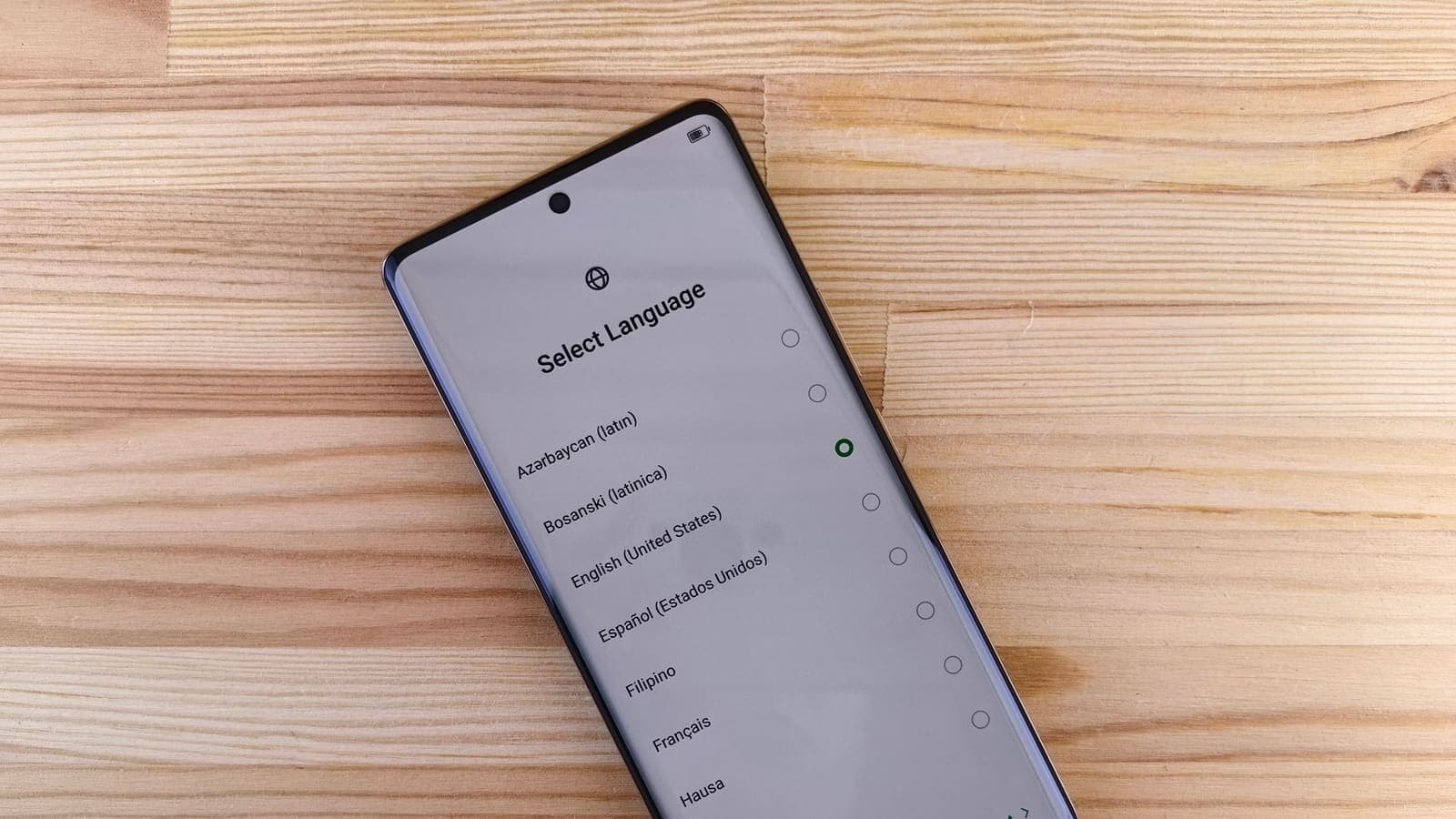
Before you buy a travel eSIM, you need to answer two questions. Does your phone have an eSIM chip, and is it free to use another company's plan? Many people only find out after paying, standing in an airport with a QR code that will not install. A few minutes of checking at home avoids that.
This guide shows how to check on iPhone and Android, how to use the EID as a quick test, why carrier locks matter, why some regional or imported models differ, and what to do if the answer is no. Menu names and screens change with each model and software version, so treat the paths below as a guide and use your phone's search box in settings if you do not see an exact match. If you are new to the idea, start with what an eSIM is.
Why checking first saves trouble
Three different things have to be true for a travel eSIM to work.
- The phone has the hardware. Older phones and some models simply do not have an eSIM chip.
- The phone is willing to use another company's profile. A phone locked to a carrier may refuse it.
- The software allows adding a plan. In rare cases, features differ by region or by carrier customisation.
If any of the three fails, a purchased plan sits unused. Most sellers do not refund a code that has been issued, and even if they do, you lose time before a trip. So checking before you pay is the cheapest step in the whole process. The sister site eSIMonline keeps a list of eSIM phones and a device checker tool you can use as a second opinion, but your own phone's settings remain the final word.

Check on an iPhone
On an iPhone, the steps are usually these. Wording varies by version.
- Open Settings and tap Cellular or Mobile Data.
- Look for an option to Add eSIM, Add Cellular Plan or Set Up Mobile Service. If you can tap it and it offers to scan a QR code or transfer from another device, the phone supports eSIM.
- Go to Settings, General, About and scroll down. If you see EID, the phone has an eSIM chip. You can tap and hold the number to copy it.
- In the same About screen, look for a line about the Carrier Lock. A message such as "No SIM restrictions" generally means the phone is not locked, while a restriction message means it is. The exact wording differs by version.
- Look at the Model and Model Number lines. Use these when you compare your phone with the maker's specifications, because the same marketing name can cover different regional versions.
If none of the add options appears and there is no EID, the phone most likely has no eSIM. Very old iPhones do not have it.
Check on an Android phone
Android phones come from many makers, so menu names vary more than on iPhone. Use the settings search box with the word "SIM" or "eSIM" if you get lost.
- Open Settings and go to Network and internet, Connections or SIM manager, depending on the maker.
- Look for SIMs, SIM manager or Mobile network. Then look for Add eSIM, Add mobile plan or Download a SIM instead?. If it exists, the phone has some eSIM capability.
- Go to Settings, About phone, Status information or SIM status and look for EID. If an EID appears, the chip is there.
- Note the model name and model number under About phone. Compare the exact number with the maker's website.
On some Android phones, the option to add an eSIM only appears once a physical SIM or Wi-Fi connection is active. If you cannot find it, check the manual or the maker's support page before concluding the phone lacks eSIM. Some phones also differ by region in how many eSIM profiles they store, so ask the maker if it matters for you.
The *#06# EID check
A fast trick on many phones is to open the dialler and type *#06#. The screen then shows identification numbers for your phone. These normally include an IMEI, and on phones with an eSIM chip you may also see an EID, which is longer, commonly 32 digits.
How to read the result:
- An EID is shown: the hardware chip is present. This is a strong sign, but it does not prove that the phone is unlocked or that your software lets you add a plan.
- Only IMEI numbers are shown: your phone might not have an eSIM, or it might not display the EID on this screen. Try the settings path as well.
- Two IMEI numbers: a dual-SIM phone can show two. That alone does not prove eSIM, since two physical trays also produce two.
Treat the EID like any device identifier. Give it only to the seller or carrier you are buying from, and do not post a screenshot publicly. Sellers sometimes ask for it so they can prepare the profile for your phone. Our article on what an eSIM is explains the term in a bit more detail.
Carrier lock: the quiet blocker
A phone can have the chip and still refuse a travel plan, because it is locked to a carrier. Carriers sometimes lock phones that were sold under a contract or an instalment plan, to make sure the phone stays on their network until the payment ends. Rules differ between carriers and countries, so ask yours.
How to find out:
- Check the lock line in the phone's information screen, if your phone shows one.
- Ask your carrier whether the phone is locked and what the conditions are for unlocking it. Do not buy a lock-removal service from a stranger, since scams are common.
- Insert a SIM from another carrier and see whether the phone accepts it. This test only works with a physical SIM and a tray, so do it carefully and only with a SIM you own.
If the phone turns out to be locked, ask for an unlock before you pay for a travel plan. The eSIMonline help page on carrier-locked phones explains the issue from the eSIM side. Unlocking can take days, so start early.
Regional variants, imported and refurbished phones
Not every model with the same name is the same phone. Makers sometimes sell different versions for different markets, and in some markets a version may be sold without eSIM or with a different number of supported profiles. The details change from year to year, so verify rather than assume.
What to do:
- Find the exact model number in your phone's About screen, then look it up in the maker's specifications for your region.
- Be careful with imported phones. A phone bought abroad or from a grey importer may be a regional version that differs in eSIM support, bands or warranty.
- Check refurbished phones. A refurbished handset may have been reset, unlocked or even re-locked. Ask the seller for the lock status and the exact model number in writing.
- Look for stickers or lines that mention "eSIM". These are clues but not proof. The settings test is better.
If you buy a phone secondhand, ask the seller to show the EID and the add-eSIM option on screen.
A simple example
Suppose Pim has a Thai SIM in a three-year-old phone and flies abroad in two weeks. She wants a travel eSIM.
- She opens settings, searches for "eSIM" and finds an Add eSIM option. Good.
- In About, she finds an EID, which confirms the chip.
- She does not see a lock message, but she is not sure, so she asks her carrier whether the phone is unlocked. The carrier says it is.
- She notes the exact model number and compares it with the maker's specifications to make sure the regional version supports eSIM.
- Only then does she buy a data-only plan and install it at home on Wi-Fi, following our guide to installing a travel eSIM.
Pim spent about ten minutes and avoided buying a plan her phone could not use.

Other things worth checking before you buy
Supporting eSIM is only the first gate. A few smaller checks save frustration later.
- Software version. If your phone is several updates behind, install the latest update at home on Wi-Fi first. Adding a profile can fail on an old version, and an update on mobile data abroad eats into a small plan.
- Free space and battery. Installation needs a working internet connection and a phone that will not switch off halfway. Charge it first.
- Dual SIM behaviour. If you plan to keep your Thai SIM in the tray and add a travel eSIM, make sure your phone allows both lines to be on at the same time. Many do, but the number of active lines varies by model.
- Hotspot needs. If you want to share data with a laptop or a child's tablet, confirm that the plan allows tethering. That is a plan question, not a phone question.
- Backup access. Keep a screenshot of the order confirmation somewhere private, but do not keep the QR code in a shared album or chat.
- A work phone. A phone managed by an employer may have restrictions on adding plans. Ask your IT team before you try.
Once all of these are fine, you are ready to buy and install. The order matters: check first, buy second, install on Wi-Fi third, and test before you board.
If your phone does not support eSIM
You still have good options. None is perfect, so compare them for your trip.
- Thai carrier roaming. Easy, but check the cost and terms before you leave.
- A physical SIM at your destination. Often cheaper for longer stays, but you may have to swap out your Thai SIM or use a second tray.
- Pocket Wi-Fi. A rented device that shares data. It suits groups, and your phone SIM stays in place.
- Borrow or buy an eSIM-capable second phone. Some people use a cheap spare for travel data.
- Wi-Fi only. Fine for light use if you take care on shared networks.
Our guide to eSIM, roaming and pocket Wi-Fi compares these in detail. Whatever you choose, a VPN is a separate decision: it helps on shared Wi-Fi but does not supply data. If you use one, install and test it at home before travel.
Limits and what to watch for
- Menu wording varies. Use search in settings rather than relying on exact names.
- An EID is not a guarantee. The lock and software also matter.
- Dialler codes can differ. If *#06# shows nothing useful, use the settings path.
- Do not trust a seller's claim alone. Verify the model and lock status yourself.
- Beware of unlock scams. Only your carrier can legitimately unlock a locked phone.
- Keep the EID and QR code private.
- Do not delete an eSIM profile you still need. It may be impossible to restore it with the same code.
Summary
Checking eSIM support takes about ten minutes. Look for an add-eSIM option in settings, check for an EID in the device information or by dialling *#06#, confirm that the phone is not locked, and verify the exact model if it is imported, refurbished or bought in another market. If the answer is no, use roaming, a local SIM, pocket Wi-Fi or a second phone instead.
If you plan to add a short prepaid VPN pass to the trip, you can look at the pricing page after your connection is sorted. For a second opinion on your handset, eSIMonline's list of compatible devices is a good place to look.
Frequently asked questions
How can I quickly tell if my phone supports eSIM?
Open your phone's settings and look for an option to add an eSIM or a mobile plan, usually under mobile data, SIM or network settings. Many phones also show an EID, a long identification number, in the device information or when you dial *#06#. If an EID is present, the phone has an eSIM chip. Wording varies by model and software version.
Does having an EID mean my phone can use any eSIM?
Not always. An EID shows the chip exists, but the phone can still be locked to a carrier, or the software may restrict adding profiles. Check the lock status and try the add-eSIM option in settings.
Can a carrier-locked phone use a travel eSIM?
Often not. A phone locked to one carrier may refuse a profile from another company. Contact your carrier to ask about unlocking, which can have conditions, and check before you buy a plan.
Do imported or refurbished phones support eSIM?
It depends on the exact model and the market it was made for. Some versions of the same phone name are sold without eSIM in certain markets, so check the exact model number against the maker's specifications rather than assuming.
What can I do if my phone does not support eSIM?
You can use your Thai carrier roaming pass, a local physical SIM at your destination, a rented pocket Wi-Fi device, or an eSIM-capable second phone. Each has trade-offs, so compare them for your trip.
References
About the author

Bob Kanokphon Thongdee
- Founder of XPASS VPN
- Co-founder of eSIMonline.asia
- More than 7 years in online marketing
- Founder of Cojourney Visa and Cojourney Travel
Need a VPN for a short trip or a busy month?
XPASS sells prepaid passes for a set number of days. You pay once and nothing renews automatically.
See passesKeep reading

Device Guides
What Is an eSIM? A Plain Guide for Travellers and Everyday Users
An eSIM replaces the plastic card with a profile stored in your phone. Here is how it works, what an EID and a profile are, who should switch, and where a VPN fits.
10 min read
Device Guides
How to Install a Travel eSIM Before Your Flight
Installing a travel eSIM at home, on stable Wi-Fi, saves stress at the airport. This guide covers install versus activate, line settings, roaming and a VPN test.
10 min read
Troubleshooting
Travel eSIM Not Working Abroad? Step-by-Step Fixes
When a travel eSIM is installed but shows no data, the cause is usually a setting. Work through roaming, line choice, networks, APN and VPN in this order.
10 min read
Privacy Guides
Travel eSIM vs VPN: Different Jobs Explained
A travel eSIM and a VPN are often mentioned together, but one supplies connectivity and the other protects it. Here is how each works and how they fit into one trip.
9 min read

Buying Guides
eSIM vs Roaming vs Pocket Wi-Fi: Choosing Mobile Internet Abroad
Five ways to get online abroad, compared on cost predictability, setup, sharing, battery, keeping your Thai number and privacy on shared networks, with trip scenarios.
10 min read