
iPhone · iPad
XPASS VPN for iPhone and iPad
A VPN on an iPhone or iPad encrypts the traffic between your device and the VPN server, which matters most on shared Wi-Fi at hotels, airports and cafés. XPASS sells prepaid passes with a fixed number of days, a one-time card payment and no automatic renewal.
This page explains what to expect on iOS and iPadOS: what to prepare, the permission prompt Apple shows, how the VPN behaves day to day, and what to check when something goes wrong. For the full walk-through, see the iPhone setup guide.
XPASS has not yet tested this setup. The setup shown in My Pass after purchase is the source of truth.

One-time prepaid payment, no automatic renewal
Setup instructions for iOS shown on your My Pass page
Covers iPhone and iPad, on Wi-Fi and mobile data
What a VPN does on an iPhone or iPad
When the VPN is on, your apps send their traffic through an encrypted connection to the VPN server, and websites see the server's address instead of your home or hotel connection. That helps against snooping on public Wi-Fi and stops your internet provider from reading which sites you visit by name.
It does not make you anonymous, it does not stop an app from knowing who you are once you sign in, and it does not replace HTTPS. Read what a VPN does and does not protect before you rely on it for anything sensitive.
What to prepare before you start
- An active pass. Buy one, then open My Pass, where your login details and the setup for your device appear.
- An Apple ID that can install apps, if My Pass points you to an app in the App Store.
- Your iPhone or iPad on a stable network for the first sign-in, ideally home Wi-Fi.
- Enough free storage for an app download, and your passcode, Face ID or Touch ID ready, because iOS asks for it when a VPN is added.
Login details are shown only on My Pass and are never sent by email, so keep that page open while you set up. Pass validity starts when the account is created, not at your first connection.
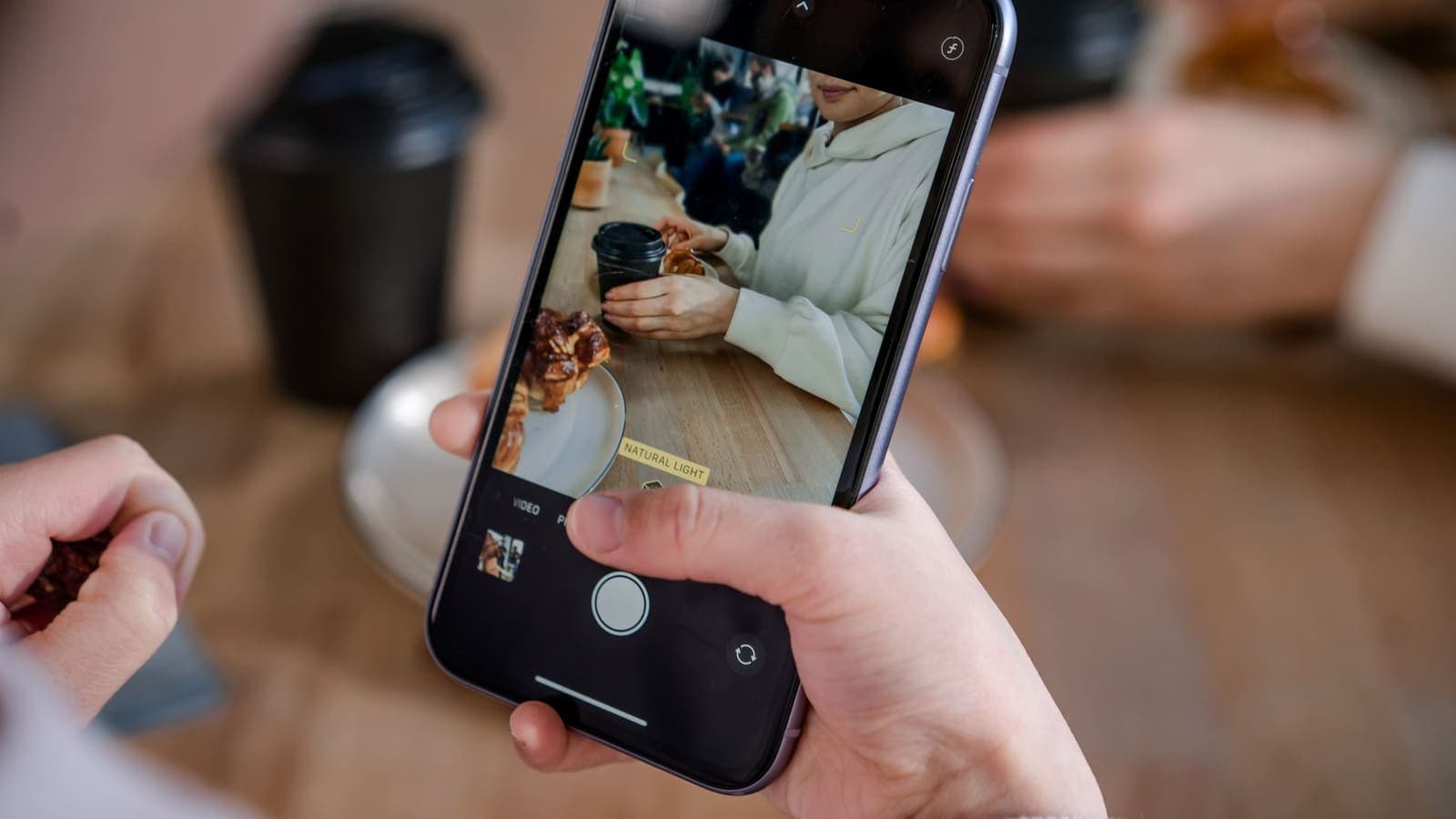
The iOS prompts you will see
The first time a VPN app or profile connects, iOS shows a message such as "Would like to Add VPN Configurations". Choose Allow, then confirm with your passcode, Face ID or Touch ID. Apple requires this because a VPN can route all of your traffic, so only approve it for the app or profile named on your My Pass page.
If you tapped Don't Allow, fully close the app, open it again and connect to bring the prompt back. You can review or remove saved configurations later under Settings > General > VPN & Device Management > VPN; the exact path differs between iOS versions, so use the search field in Settings if you cannot find it.
While connected, iOS shows a VPN indicator in the status bar, and many versions also show a top-level VPN switch near the top of Settings once a configuration exists, in addition to the status under General > VPN & Device Management. Which of these you see depends on your iOS version.
Everyday use on iPhone and iPad
Switching between Wi-Fi and mobile data
A VPN session can drop for a moment when you move from Wi-Fi to mobile data or between access points. Most clients reconnect on their own. If the indicator disappears, reopen the app or toggle the VPN switch.
Sleep, battery and background behaviour
iOS may suspend apps in the background, and Low Power Mode can limit background activity. If your VPN drops when the screen locks, try turning Low Power Mode off and check that Background App Refresh is allowed for the app listed on My Pass.
Auto-connect habits
Some iOS VPN setups can connect on demand when a network is used. Whether that is available depends on the app or profile shown in My Pass, so do not assume it. A simple habit works anywhere: turn the VPN on before you join an unfamiliar Wi-Fi network and check the indicator before you sign in to anything important.
iPad notes
iPadOS behaves like iOS here. The VPN indicator sits in the status bar, and the settings live in the same place. A VPN configuration you add on one Apple device is not automatically shared with another, so repeat the setup on each one.
Troubleshooting on iOS
- Prompt never appears: close the app from the app switcher and reopen it, then connect again.
- Connected but pages will not load: switch the VPN off and on, then toggle Airplane Mode for ten seconds. Our iOS troubleshooting guide covers more.
- Login fails: copy the details from My Pass instead of typing them, because a stray space or a similar-looking character is the usual cause.
- Drops when the phone sleeps: check Low Power Mode and Background App Refresh as described above.
- Sluggish connection: a VPN adds a hop, so some slowdown is normal. See why speed changes with a VPN.
To confirm it works, compare your public IP address with the VPN off and on, as explained in how to check if your VPN is working.
Compatibility status for iPhone and iPad
XPASS lists the current supported setup for iPhone and iPad in My Pass, and that page is the source of truth for which app or profile to use. Live verification of this platform with our supplier is in progress, so this page is marked as not yet verified and we do not promise a specific result on every iOS version.
If you want to try it, a 7-day pass is the low-commitment way to test on your own devices, and a 30-day pass suits a longer trip. Renewing early adds days on top of what remains.
Devices covered
- iPhone and iPad
How to set it up
Choose a pass
Pick the number of days that fits your plans. There is no automatic renewal.
Pay once
Pay with a card through Stripe. Your account is created with the supplier after payment is confirmed.
Open My Pass
Find your login details and the iPhone and iPad setup shown there. Nothing is emailed.
Follow the setup shown for iOS
Install the app or add the profile named on My Pass, sign in, and allow the VPN configuration when iOS asks.
Connect and check
Look for the VPN indicator in the status bar, then compare your public IP address with the VPN off and on.
Limitations to know first
- XPASS has not yet verified iPhone or iPad with the live supplier, so the supported setup can change; My Pass is the source of truth.
- A VPN does not make you anonymous and does not protect you from phishing or from apps that already know who you are.
- iOS may pause the connection in Low Power Mode or when background activity is restricted.
- A VPN adds a network hop, so speeds can change and some services may restrict VPN connections.
Choose your pass
Prepaid passes. Pay once, no automatic renewal.
Frequently asked questions
Does the same setup work on iPhone and iPad?
The steps are very similar because both use Apple's VPN framework, but you need to add the configuration on each device. Follow the iPhone and iPad setup shown on your My Pass page.
Why does iOS ask me to add VPN configurations?
Apple requires your approval before an app or profile can route your traffic. Approve it only for the app or profile named on My Pass.
Will the VPN stay on when my phone locks?
It usually keeps running, but Low Power Mode or restricted background activity can interrupt it. If it drops, check those settings and reconnect.
Does it work on mobile data as well as Wi-Fi?
A VPN can run on either connection. The session may pause briefly when you switch between them.
Do I need to buy again to use it on an iPad?
The number of devices a pass covers is shown on your My Pass page, so check there rather than assuming.
Ready when you are
Pick a pass, pay once and follow the setup shown in My Pass for your device.
See passes and pricing