
Wi-Fi Calling Explained: Use It Abroad and With a VPN
Wi-Fi Calling lets your phone make and receive normal calls and texts over Wi-Fi. This guide explains how it differs from VoLTE and app calls, using it abroad, and what to test with a VPN.
10 min readUpdated Oct 18, 2026By XPASS Editorial Team

You step off a plane in another country, switch on your phone, and your usual number is suddenly more complicated. Calls may cost more, SMS codes may not arrive, and you are standing in a hotel with fast Wi-Fi but a weak mobile signal. This is where Wi-Fi Calling is often mentioned as a solution. It lets the phone use a Wi-Fi connection for ordinary calls and texts.
This article explains what Wi-Fi Calling is, how it differs from VoLTE and from app calls such as LINE, how it behaves abroad, and how to turn it on in a generic way. It also covers a question many travellers ask: does it work with a VPN on? The honest answer is that it sometimes does and sometimes does not, so testing is the safest approach. Throughout, support and charges depend on your carrier and your phone, so treat this as a guide to what to check rather than a promise.
What Wi-Fi Calling is
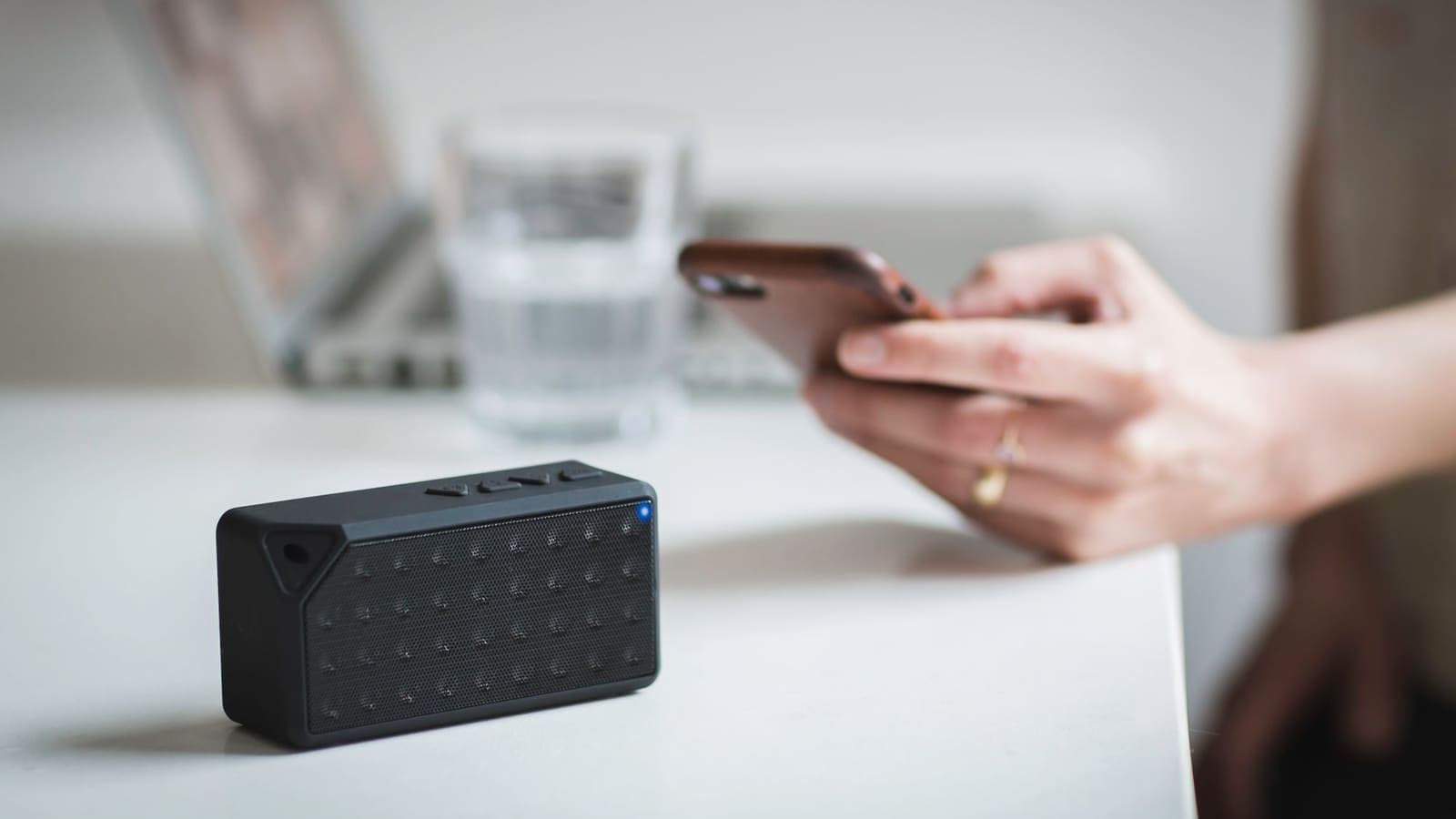
Wi-Fi Calling, sometimes called WFC, VoWiFi or "voice over Wi-Fi", lets your phone make and receive ordinary calls and SMS over a Wi-Fi network. You use the normal dialler and the normal messages app. Your own phone number is shown. The difference is only in how the call travels between your phone and your carrier.
On a normal call, your phone talks to a nearby mobile tower. With Wi-Fi Calling, the phone connects through the Wi-Fi router and the internet to your carrier's network, and the carrier treats it as a call from your number. Phones generally build a secure tunnel to the carrier for this. The connection technology uses standards such as IKEv2, the same family of protocol that many VPNs are built on, but the tunnel goes to your carrier, not to a VPN service.
It is not a separate app. When it is on, the phone usually shows a label in the status bar, such as the carrier name followed by "Wi-Fi", though the wording varies by phone and version.
The big attraction is that it helps in places where the mobile signal is weak but Wi-Fi is good, such as a thick-walled hotel, a basement or a rural guesthouse. It can also help travellers stay reachable on their home number, subject to what the carrier allows.
How it differs from VoLTE and app calls
These three things are often confused. They solve similar problems in different ways.
| Feature | Uses your phone number | Travels over | Needs an app | Needs carrier support |
|---|---|---|---|---|
| Wi-Fi Calling | Yes | Wi-Fi and the internet to your carrier | No, built into the phone | Yes |
| VoLTE | Yes | The carrier's 4G or 5G data network | No, built into the phone | Yes |
| App calls (LINE and similar) | No, uses the app account | Any internet connection, Wi-Fi or mobile data | Yes | No |
| Traditional circuit call | Yes | The older mobile voice network | No | Yes |
VoLTE
VoLTE, short for voice over LTE, carries calls as data over the carrier's 4G or 5G network. It usually gives clearer sound and faster connection than older voice networks. It needs the mobile network, so it does not help in a Wi-Fi-only situation.
App calls
LINE, Messenger, WhatsApp and similar apps place calls over the internet through their own service. Both people normally need the app and an account. The call does not use your phone number or your carrier's voice service, so it works wherever you have internet. The trade-offs are covered in LINE calls on hotel Wi-Fi.
Where Wi-Fi Calling is different
Wi-Fi Calling is the only one that gives you a normal phone call, to or from your own number, over Wi-Fi. A caller does not need to know you are abroad or using Wi-Fi. For anyone who still receives calls from banks, clinics or older relatives on a normal number, that matters.
Using it abroad on your Thai number
Many travellers hope to keep their Thai number working while overseas without paying high roaming rates. Wi-Fi Calling can help, but the details depend on three things: your carrier, your plan and your phone.
What often happens, in general terms:
- Receiving calls and SMS. With Wi-Fi Calling on and connected to Wi-Fi, calls and texts to your Thai number may reach you through the Wi-Fi connection.
- Making calls. Calls you make may be handled as calls from your Thai number, and the charge depends on the carrier's rules. Some carriers treat calls made from abroad over Wi-Fi as international or roaming calls. Others do not.
- Support abroad. Some carriers support Wi-Fi Calling in other countries. Others restrict it, or require a setting or registration before you leave.
- Emergency calls. Wi-Fi Calling may need an address on file and may behave differently for emergency numbers in another country. Do not rely on it for emergencies abroad. Know the local emergency number and use the mobile network where you can.
- Verification codes. Banks and apps often send codes by SMS to your Thai number. With Wi-Fi Calling, those may arrive over Wi-Fi if your carrier supports it. It is not guaranteed.
None of this is universal, and carriers change their rules. Before you go, check your carrier's official information about Wi-Fi Calling abroad, ask about charges, and test the feature while still at home. If receiving codes on your Thai number matters to you, eSIMonline, which sells travel eSIMs, has a short guide on what Wi-Fi Calling is, and another on using Wi-Fi Calling abroad. For another approach, see keeping your Thai number for OTP with an eSIM.
How to turn it on
Menu names differ between phone brands and system versions, so follow the general idea rather than exact labels. These steps are a starting point.
- Check that your carrier and plan support it. Look at the carrier's official page or call them, and ask whether Wi-Fi Calling is supported on your phone model and whether there are extra charges abroad.
- Update your phone. Install the latest system update and any carrier settings update that the phone offers.
- Open the phone settings. Look under Mobile or Cellular, or Connections or Network, and search for "Wi-Fi Calling".
- Switch it on. Some phones ask you to confirm an emergency address, because the phone cannot rely on the tower to work out where you are. Fill it in as the phone asks.
- Connect to a Wi-Fi network. Wi-Fi Calling normally needs a working Wi-Fi connection to register.
- Look for the status label. After a short wait, you may see a Wi-Fi Calling label in the status bar. If you do not, switch the feature off and on again, or restart the phone.
- Test it. Ask a friend to call you, send yourself an SMS and make a short call, while on Wi-Fi with mobile data off if you want to be sure which path is being used.
- Check preference options. Some phones let you choose Wi-Fi preferred or mobile preferred. Pick the one that matches your situation.
On a dual-SIM phone, the setting may apply to one line only, so check the right SIM. If you use an eSIM for data and your Thai SIM for calls, keep the Thai line available for Wi-Fi Calling.
A plain example
Suppose you are staying in a hotel room with a thick concrete wall. Your mobile signal shows one bar, but the hotel Wi-Fi is strong. Before the trip, you confirmed with your carrier that Wi-Fi Calling is supported on your phone and asked about charges abroad.
At the hotel, you connect to the Wi-Fi and finish the login page. You switch on Wi-Fi Calling and see the Wi-Fi label appear in the status bar. A relative calls your Thai number, and the phone rings as normal. The call is clear, and the caller does not know you are abroad. You also test a text message and it arrives.
Later, the call quality drops. You move closer to the router and the sound recovers. You also notice that your VPN was on, and when you switch the VPN off the label comes back faster. You decide to leave the VPN off for calls and use it for browsing instead, and you note that for next time.
Does it work with a VPN on?
This is the part with no simple answer. A VPN encrypts traffic from your phone to the VPN service. Wi-Fi Calling already builds its own secure connection from your phone to your carrier. Putting one tunnel inside another is not always a problem, but it can be, for a few general reasons:
- The carrier connection may be blocked or rerouted. Some VPN setups route all traffic through the VPN server, which can change how the carrier sees the connection, or block the specific traffic the carrier uses.
- Delay. Calls are sensitive to delay. An extra route through a VPN server adds some, which can cause choppy audio.
- Some phones handle it differently. A phone may exempt Wi-Fi Calling from the VPN, or may not. This varies by phone and system version.
- Some networks or settings interfere. A particular Wi-Fi setup or a particular carrier may not like the extra tunnel.
So the sensible approach is to test. Make a short call and send a text with the VPN on, then repeat with it off. If the call connects and sounds fine with the VPN on, you can leave it on. If registration fails or the audio is poor, turn the VPN off for the call, or use the VPN's split tunnelling setting if your app offers one, explained in what split tunnelling is. Check your My Pass page for the connection methods your pass supports.
A VPN still has a role for the rest of your browsing on a shared network. Our article on using a VPN on hotel Wi-Fi covers the right order of steps, including passing the hotel login page first.

Hotel Wi-Fi quality
Wi-Fi Calling depends on the quality of the Wi-Fi it uses. Hotel networks are shared by many guests and vary widely.
- Sign-in comes first. Complete the hotel login page before expecting Wi-Fi Calling to register.
- Signal strength. A weak signal at the end of a corridor gives poor call quality. Move closer to the router or into a better room.
- Congestion. Evenings can be busy, with many guests streaming at once. Calls may be better at off-peak times.
- Band choice. If the hotel offers both 2.4 GHz and 5 GHz networks, the 5 GHz one can be faster at close range, while 2.4 GHz travels further. Try both if you can.
- Blocked traffic. Some networks limit certain traffic types, which can stop Wi-Fi Calling from registering. A different network or mobile data may be needed.
- Security. Shared networks have risks of their own; see how to stay safer on public Wi-Fi. Wi-Fi Calling traffic is protected by its own tunnel to the carrier, but your other traffic still benefits from normal care.
If the connection is poor, switch to a different method rather than fight it. Mobile data, a roaming option or an app call can be better than a call that keeps breaking.
Limits and what to watch for
- Support is not universal. Some phones, plans and carriers do not support Wi-Fi Calling at all, and some do not support it abroad.
- Charges can surprise you. Calls and texts made over Wi-Fi from abroad may still be billed under your plan's rules. Ask the carrier, and do not assume it is free.
- Emergency calls differ. Do not rely on Wi-Fi Calling for an emergency abroad.
- It needs a good network. A slow or restricted Wi-Fi network will give poor results.
- A VPN can interfere. Test with the VPN on and off.
- Your own number can still be at risk. Scam calls and SIM-related fraud exist; see our guides on scams for safe habits. Wi-Fi Calling does not stop them.
- Settings change. Carriers and phone makers update the feature. Check official pages for the latest details.
Summary
Wi-Fi Calling lets your phone make and receive normal calls and texts on your own number over Wi-Fi. It differs from VoLTE, which uses the carrier's mobile data network, and from app calls such as LINE, which use their own accounts. Abroad, it may help you stay reachable on your Thai number, but support and charges depend on your carrier and phone, so check before you leave and test on arrival. Turn it on in the phone's settings, confirm the status label and make a test call. It may or may not work with a VPN on, so try both. On hotel Wi-Fi, complete the login page first and move closer to the router if quality drops. If you want a VPN for the rest of your browsing on trips, you can look at the XPASS pricing page for prepaid passes.
Frequently asked questions
What is Wi-Fi Calling?
Wi-Fi Calling is a phone feature that carries your normal voice calls and text messages over a Wi-Fi connection instead of the mobile network. You use your usual phone number and the dialler, and the call goes through your carrier.
Is Wi-Fi Calling the same as VoLTE or LINE calls?
No. VoLTE carries calls over the carrier's 4G or 5G data network. Wi-Fi Calling carries them over Wi-Fi. LINE and similar apps are separate services with their own accounts and do not use your phone number for the call.
Can I receive calls and SMS on my Thai number abroad with Wi-Fi Calling?
Often yes, if your carrier, your plan and your phone support it, but this varies. Some carriers limit Wi-Fi Calling abroad or charge differently. Check with your carrier before you travel and test the feature on arrival.
Does Wi-Fi Calling work with a VPN turned on?
Sometimes, but it can fail. Wi-Fi Calling already uses its own secure connection to the carrier, and some VPN or Wi-Fi setups interfere with it. Test it with the VPN on and off, and leave the VPN off for calls if it causes trouble.
Why is Wi-Fi Calling poor on hotel Wi-Fi?
Hotel networks are shared, can be slow, and some block or limit the traffic that calls need. Moving closer to the router, trying another network or using mobile data can help.
About the author

Bob Kanokphon Thongdee
- Founder of XPASS VPN
- Co-founder of eSIMonline.asia
- More than 7 years in online marketing
- Founder of Cojourney Visa and Cojourney Travel
Need a VPN for a short trip or a busy month?
XPASS sells prepaid passes for a set number of days. You pay once and nothing renews automatically.
See passesKeep reading

VPN Security
LINE and Messenger Calls Home on Hotel Wi-Fi: Is It Safe?
Voice and video calls home from hotel or airport Wi-Fi can drop or lag. This guide explains why, what a VPN protects, how to improve quality and how to spot scam calls aimed at travellers.
10 min read

VPN Security
How to Use a VPN on Hotel Wi-Fi Safely
Hotel and travel Wi-Fi is shared with strangers and often hides behind a login page. This guide explains how to connect, when the VPN goes on and what to do when it will not connect.
9 min read
VPN Security
How to Stay Safer on Public Wi-Fi
Public Wi-Fi is not a disaster, but it is a network you do not control. Here are the real risks, the habits that matter most, and where a VPN fits in.
8 min read
Privacy Guides
Keep Your Thai Number for Bank OTP While Using a Travel eSIM
A travel eSIM handles data while your Thai SIM stays ready for bank OTP messages. Learn the settings, the costs to check, and the safety steps before you leave.
10 min read