
How to Configure VPN on a TP-Link Router
Before configuring anything on a TP-Link router, find out whether your model has a VPN client or only a server. This guide covers the check, the setup steps and the fallback options.
10 min readUpdated Oct 15, 2026By XPASS Editorial Team

TP-Link makes some of the most widely sold home routers, from budget single units to mesh systems and business gateways. When people search for "vpn on tp link router" they usually expect a simple answer: open a menu, paste some details, done. The honest answer starts one step earlier. Several TP-Link products have a VPN server for reaching your home, but fewer have a VPN client that sends your household's traffic out through a VPN service, and which one you hold depends on the exact model.
This guide therefore leads with the check, then covers setup for models that do have a client, and finishes with sensible fallbacks for those that do not. It is not a promise about any particular VPN service. XPASS has not verified router setups, and the supported route is the free VPNclient app. For the general picture of how routers handle VPNs, see our router VPN guide.
Find out what your TP-Link actually offers
TP-Link sells several families, and they behave quite differently.
| Product family | Typical management | VPN you may find | Notes |
|---|---|---|---|
| Archer home routers | Web page and Tether app | Often a VPN server; a client on some models | Check the model page and the Advanced menu |
| Deco mesh | Deco app | Rarely a client | Built for simplicity, few advanced options |
| Omada business gear | Controller or cloud portal | Site-to-site and client-to-site options on gateways | Aimed at offices, more complex |
| Travel and pocket routers | Web page | Sometimes a client mode | Often meant for hotels and trips |
Your steps:
- Read the exact model name and hardware version on the underside label. A trailing "v1" or "v2" is a hardware version, and features can differ between versions of what looks like the same router.
- Open the product's specification page on the manufacturer's website and look for terms such as VPN client, VPN server, OpenVPN, WireGuard, PPTP or IPsec. The wording tells you which side exists.
- Log in to the router and open the Advanced section. Look for a VPN entry. Some models show separate pages for a server and a client, others have a single page with a mode selector, and some have nothing.
- Note the firmware version and look on the update page for a newer one. Features sometimes arrive by update.
Be careful with one phrase. "VPN support" on a box often means passthrough or a server. Neither is a client. Our explanation of how a router VPN compares with a VPN app covers why that distinction decides what you buy.
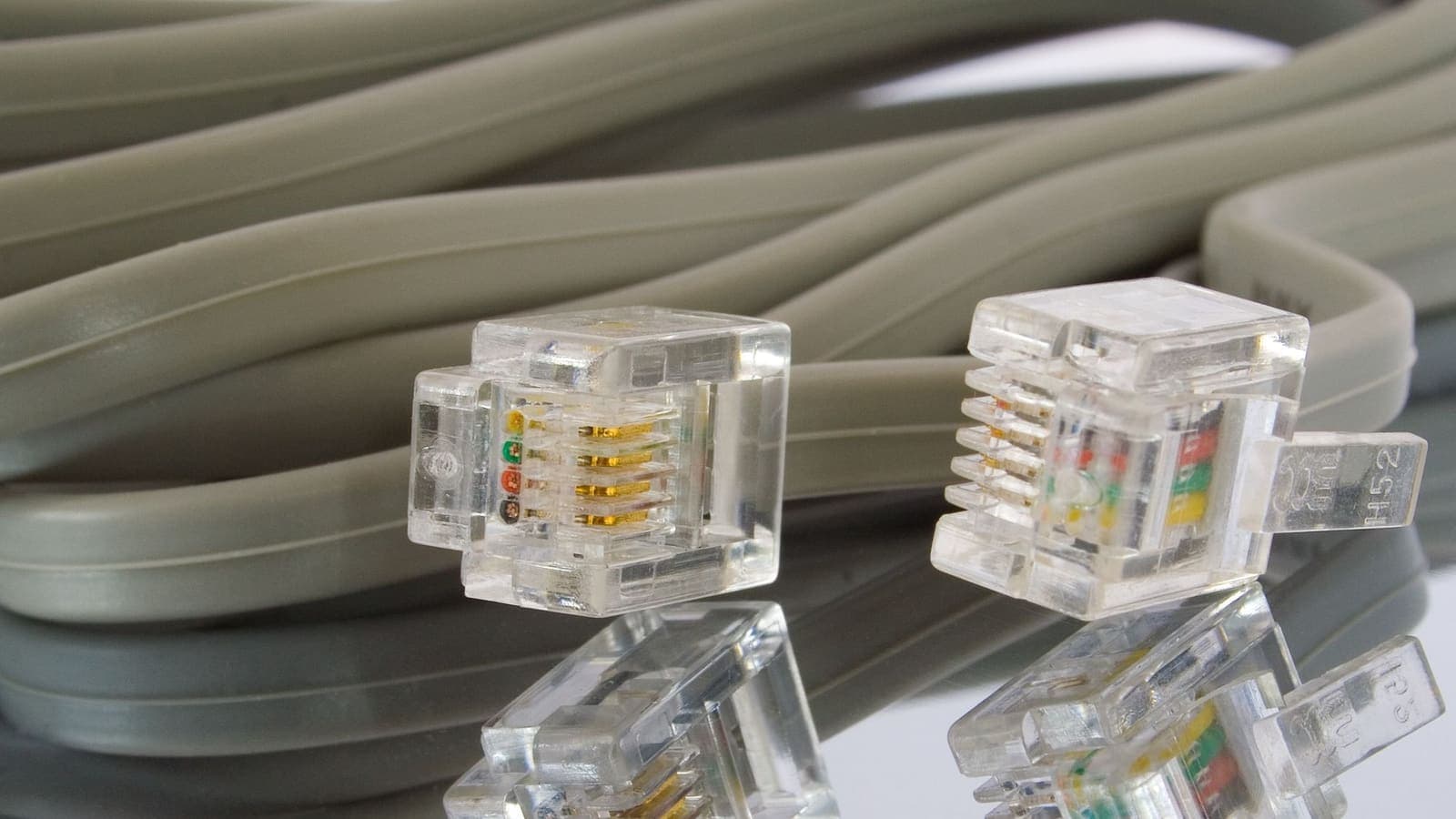
Passthrough, server and client are three different things
Many setup problems start with mixing these up.
- Passthrough. The router lets a VPN started on a laptop or phone go through. It is usually enabled by default for older tunnel types. It adds no protection of its own.
- VPN server. Your router accepts incoming connections from you when you are away. You might use it to reach a network drive at home. It does not hide your home traffic from your internet provider.
- VPN client. The router builds an outgoing tunnel to a VPN service. This is the feature people usually want when they say "VPN on my router".
If your router only has passthrough or a server, there is no client to configure, and you should stop looking for a hidden toggle. Skip to the fallback section.
What the VPN service must give you
A router client cannot log in the way the VPNclient app does. It needs raw details in a format it understands. Before you open the router page, find out two things.
First, what tunnel types your router client offers. Entry-level clients commonly offer older tunnel types, and some models accept OpenVPN configuration files or WireGuard settings. The OpenVPN community pages and the WireGuard site describe what those formats contain. If you need help choosing between them, our comparison of WireGuard and OpenVPN lays out the trade-offs.
Second, what details your VPN service can give you in those formats. For XPASS, the My Pass page shows setup instructions and the connection methods that apply to your pass, and the app signs in with the username and password displayed there. Whether a given router can use them is untested, so run a small experiment rather than assuming.
Treat any file or key as a password. Do not email it, paste it in public posts or leave it in a shared folder.
Setting up a client on a model that has one
Menu names differ by model and firmware, so read the steps as a pattern.
- Save your current configuration from the system tools page. If the router offers a backup option, use it, and keep the file off the router.
- Update the firmware if a stable update is available. Log in again afterwards.
- Open Advanced and the VPN client page. Some models call it VPN Client, others place it under a general VPN heading with a switch between server and client.
- Add a new connection. Choose the tunnel type that matches your details. Give it a plain name.
- Fill in the fields or import the file. Typical fields are server address, username, password and sometimes a pre-shared secret or certificate. Copy and paste instead of retyping, and check for stray spaces at the end.
- Choose the device policy, if there is one. Some TP-Link clients let you decide whether all devices or only certain addresses go through the tunnel. Start with one test device.
- Save, then enable the connection. Wait up to a minute for the status to say connected.
- Test on a phone that is connected to the router's Wi-Fi.
If the status stays at connecting or shows an authentication error, jump to the troubleshooting part, and keep the guide on VPN not connecting handy. Many of its checks apply on any device.
Testing the result
A green status is not proof. Run three quick checks on the test device.
- Address check. Open a site that shows your public address and note it. Turn the router tunnel off and compare. The address should change when the tunnel is on.
- Local network check. Make sure you can still print, cast or reach network storage. Some policies route local traffic oddly.
- Reconnect check. Restart the modem and see if the tunnel recovers by itself and how long the gap is.
Then measure speed on a wired computer with the tunnel off and on. If it drops sharply, the router's processor is probably the limit. Our article on why internet speed changes with a VPN explains the usual causes, including distance and server load, which also apply here.
When the router has no client: your options
Many people reach this point, and it is not a failure. You have several sensible routes.
- Use apps on the devices that matter. Phones and laptops are the devices that carry the most personal data and travel with you, so an app on them is often the best protection anyway. The VPNclient app runs on iOS, Android, Windows and macOS.
- Add a second router in front. Put a VPN-capable router or a small travel router between your modem and the TP-Link, and let the TP-Link act as an access point. Devices on its Wi-Fi then follow the first router's tunnel. This works but adds a device, a second network layer and possibly a double address translation.
- Check whether an update adds the feature. It sometimes does, so check the release notes.
- Third-party firmware. Some models can run community firmware that includes a VPN client. This is advanced, model-specific and risky: a failed flash can leave the router unusable, and the manufacturer may refuse support afterwards. Do not do this unless you understand the risk and have a way to recover.
- Use mesh differently. Deco systems usually lack client settings, so keep the VPN on the devices rather than the mesh.
Pick the least complicated option that covers what you really need.

Troubleshooting a client that will not behave
Authentication fails. Re-enter the username and password slowly. A single invisible space ruins a login. Confirm the details are for the tunnel type you selected.
Stuck at connecting. Check the router's date and time, and check that your internet itself works with the tunnel off. Some networks block certain tunnel types, so try a different type if the router offers one.
Connected, but some pages load half way. This is a classic sign of a packet size mismatch. The idea behind it is path MTU, described in RFC 1191. Lower the tunnel MTU in small steps and retest.
Streaming or banking apps complain. Move that device out of the tunnel if your policy allows it. Fighting a service's checks usually costs more time than it saves.
Devices lose local access. Revisit the policy. Exclude local addresses or the affected device.
Everything is slow. Test on cable, update firmware and try the lightest tunnel type available. If the router is simply old, accept the limit and use apps.
A worked example: a shared flat
Imagine a three-person flat with an Archer-style router. Aom works from home on a company laptop, Ben streams on a smart TV, and Chai games on a console and uses a banking app on his phone. The router has a client page.
Aom's laptop already runs the employer's VPN, so she is left out of the home tunnel, otherwise two tunnels would compete. Ben's TV cannot run an app, so it goes through the router tunnel. Chai's console goes through too, but he reserves the console's address first and checks that game chat still works. His phone stays outside the tunnel for banking, and he uses the app on it only when he travels.
The household writes down three things on a card: the router model and firmware version, where the configuration backup lives, and the single switch that turns the tunnel off if something breaks. That card turns a stressful evening into a two-minute fix.
Limits worth remembering
- A router tunnel covers devices at home only. When your laptop leaves, it needs its own app.
- It does not stop phishing, weak passwords or malware, and does not make you anonymous.
- It can break local convenience features if policies are sloppy.
- Updates to router firmware can reset VPN settings, so keep your backup and retest after updating.
- Secure the router itself with a strong admin password, and switch off remote management you do not use.
- Websites and apps keep their own rules, and some distrust VPN addresses.
Summary
Configuring a VPN on a TP-Link router begins with a check: separate passthrough, server and client, confirm your exact model and hardware version, and see whether a client exists at all. If it does, back up, update, add the connection with details your VPN service can provide, apply it to a test device and verify address, local access and reconnects. If it does not, apps on your devices or a VPN-capable router in front are the practical fallbacks. XPASS has not verified router setups, so test before relying on one.
When an app on each device is the simpler path, the pricing page explains how a fixed-length prepaid pass works.
Frequently asked questions
Can every TP-Link router act as a VPN client?
No. A lot of TP-Link home routers include a VPN server feature for reaching your home from outside, and only some models add a client that connects out to a VPN service. Deco mesh units are generally managed from a phone app and are less likely to offer client settings. Look at the Advanced menu of your own model and its specification page.
What does VPN passthrough mean on a TP-Link router?
Passthrough only lets a VPN connection started on a laptop or phone travel through the router. It does not turn the router into a VPN client, so devices without their own VPN app are not protected by it.
My model has no VPN client. What are my options?
Use a VPN app on each device, put a VPN-capable router or travel router between your modem and the TP-Link, or check whether a firmware update adds the feature. Replacing firmware with third-party software is possible on some models but carries a risk of damaging the router and may void support.
Will XPASS work on a TP-Link router?
XPASS has not verified router setups, so no promise can be made for any model. The supported way is the VPNclient app on your phone or computer, and the My Pass page shows the connection details and method for your pass.
Why is my internet slower after enabling the VPN on the router?
The router must encrypt and decrypt every device's traffic, and many home routers have modest processors. A lighter tunnel type, a wired test and a newer router can all help. Compare speeds with the tunnel off and on to see whether the router is the limit.
References
About the author

Bob Kanokphon Thongdee
- Founder of XPASS VPN
- Co-founder of eSIMonline.asia
- More than 7 years in online marketing
- Founder of Cojourney Visa and Cojourney Travel
Need a VPN for a short trip or a busy month?
XPASS sells prepaid passes for a set number of days. You pay once and nothing renews automatically.
See passesKeep reading
Device Guides
How to Set Up a VPN on a Router
A general, firmware-neutral guide to running a VPN on your router: what to check first, the usual setup steps, DNS and kill switch settings, travel routers and common fixes.
7 min read

VPN Basics
VPN Router vs VPN App: Which Setup Fits Your Home?
Should you install a VPN on the router or on each device? This guide compares the two setups for speed, smart home gadgets, mesh Wi-Fi, split tunneling and everyday convenience.
10 min read

Troubleshooting
VPN Not Connecting? Step-by-Step Fixes
A clear order of checks for when the VPN will not connect: pass status, login details, Wi-Fi and mobile data, permissions, firewalls, app conflicts and error messages.
8 min read

VPN Security
WireGuard vs OpenVPN Explained
WireGuard and OpenVPN both build encrypted tunnels, but they differ in design, complexity and flexibility. Here is a plain comparison and how to think about the choice.
9 min read

VPN Basics
Why Internet Speed Changes With a VPN
Using a VPN adds distance, encryption and another network to your path, so speed often changes. This guide explains why, how to measure it properly and what to try when it feels slow.
9 min read