
OpenWrt VPN Setup: WireGuard and OpenVPN
A practical OpenWrt guide to adding a WireGuard or OpenVPN client: what to install, how interfaces and firewall zones fit together, how to build a kill switch and how to test for leaks.
11 min readUpdated Oct 15, 2026By XPASS Editorial Team
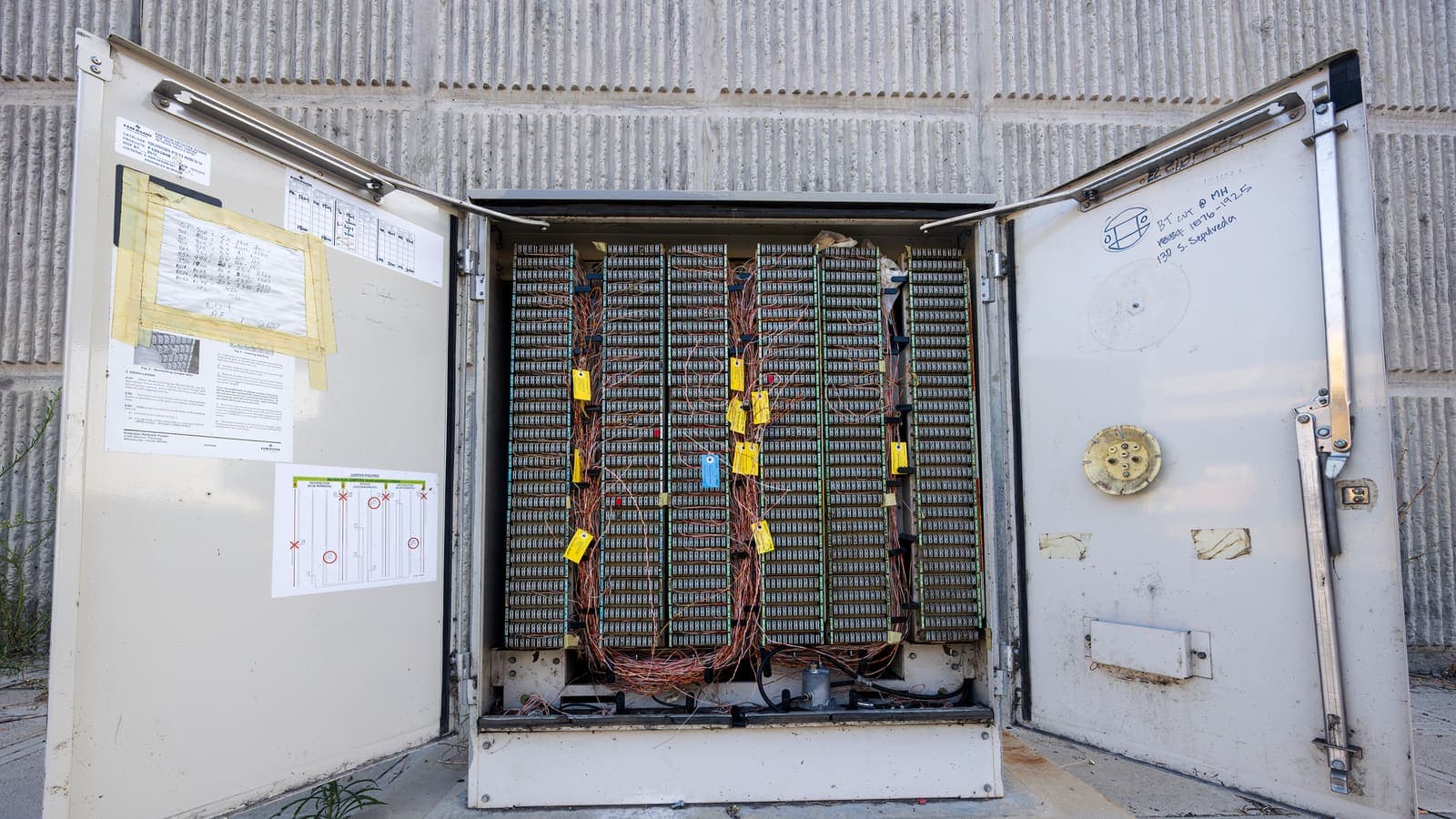
OpenWrt is a free, open-source operating system for routers. Instead of a fixed menu written by a manufacturer, you get a small Linux system with a package manager, a web interface called LuCI and a configuration model you can read as plain text. That flexibility is why people searching "vpn on openwrt" tend to be comfortable with networks: the router can do almost anything, but nothing is done for you.
This guide walks through a VPN client on OpenWrt using either WireGuard or OpenVPN, explains how interfaces and firewall zones fit together, shows how to build a kill switch, and covers DNS, MTU and testing. It does not promise that any particular VPN service will work this way. XPASS has not verified router setups, and the supported route is the free VPNclient app. For a firmware-neutral overview first, read our router VPN guide.
Check that your OpenWrt device is up to the job
Before installing anything, answer three questions.
- Is the router supported and running a current release? Note the version shown on the LuCI overview page, and compare it with the release listed on the project site. Older releases miss fixes.
- Is there enough storage? VPN packages need flash space. Cheap devices with a few megabytes free may not hold OpenVPN with its libraries. WireGuard is much smaller. Check free space on the overview page or with the command
df -h. - Is the processor strong enough? Encryption is CPU work. A modest single-core device may reach only a fraction of your line speed through a tunnel. Hardware with crypto acceleration or a faster chip copes better. Measure before you commit.
Also back up your configuration. In LuCI, the backup option under the system menu downloads an archive of your settings. Keep it on a computer, not on the router.
A final point on access: make sure you can reach the router by cable in case a bad firewall change locks you out of Wi-Fi. OpenWrt has a failsafe mode for recovery, but you will be glad not to need it.

Understand how OpenWrt organises networking
OpenWrt separates three ideas that other firmware blurs together.
- Interfaces are logical networks. The usual ones are LAN (your home), WAN (the internet side) and any extras you create, such as a VPN interface.
- Devices are the physical or virtual ports and tunnels behind them.
- Firewall zones group interfaces and define what may be forwarded between them. A typical default allows LAN to forward to WAN, and blocks traffic coming in from WAN.
A VPN client is simply a new interface plus a new firewall zone. Traffic from LAN is then allowed to forward into the VPN zone, and the routing table decides which traffic actually uses the tunnel. Home networks use private addresses as described in RFC 1918, so keep your LAN range distinct from anything on the VPN side to avoid overlaps.
If this model feels unfamiliar, it is worth a few minutes in LuCI exploring Network, Interfaces and Firewall before you begin. The rest of the guide assumes you can find those pages.
Install the packages
The package manager differs by release. Older versions use opkg and newer ones use apk, so check the project documentation for the command that matches your version. In LuCI, the Software page under System lets you update the package lists and search by name.
For WireGuard, you generally need the WireGuard tools and the LuCI protocol support package. For OpenVPN, you need the OpenVPN package built with your preferred crypto library and its LuCI app. Package names are in the project's package list. The main points:
- Update the package lists first, over a trusted connection.
- Install only what you need. Every extra package uses flash space.
- Reboot, or restart the network service, if the interface type does not appear in LuCI afterwards. Clear your browser cache if the new protocol is missing from the drop-down.
Details about the formats are on the WireGuard site and in the OpenVPN community resources. Our article comparing WireGuard and OpenVPN helps you choose when both are possible.
What your VPN service must give you
OpenWrt needs raw details, not an app login. Typical sets look like this:
| Tunnel type | What you usually receive |
|---|---|
| WireGuard | Your own private key and the service's public key, a tunnel address, a server endpoint with port, and the allowed addresses |
| OpenVPN | A configuration file, often with certificates, plus a username and password if the service uses them |
Whether your service can give you either set is a question for the service. With XPASS, the My Pass page shows the setup instructions and the connection methods that apply to your pass, and the app signs in using the username and password shown there. We have not tested OpenWrt, so do not assume the details apply. Never paste a private key into a public forum, a screenshot or a chat; treat it as a password.
Configuring a WireGuard client
The LuCI route is: Network, Interfaces, Add new interface, choose the WireGuard protocol, then enter the details. The text equivalent in the network configuration looks like this, with placeholders in capitals:
config interface 'vpn'
    option proto 'wireguard'
    option private_key 'YOUR_PRIVATE_KEY'
    list addresses 'TUNNEL_ADDRESS/32'
    option mtu '1380'

config wireguard_vpn
    option public_key 'SERVICE_PUBLIC_KEY'
    option endpoint_host 'SERVER_ADDRESS'
    option endpoint_port 'PORT'
    option route_allowed_ips '1'
    list allowed_ips '0.0.0.0/0'
    option persistent_keepalive '25'
What each part does:
- private_key and addresses identify your side of the tunnel.
- public_key and endpoint identify the service. Copy them exactly.
- allowed_ips 0.0.0.0/0 with route_allowed_ips tells the router to send all IPv4 traffic through the tunnel. Narrower ranges send only some destinations.
- persistent_keepalive helps the tunnel survive NAT gateways in front of the router.
- mtu is set a little low to leave room for tunnel overhead. Adjust later if needed.
Apply the changes, then check status in LuCI or with the command wg show. A recent handshake time means the two sides have found each other. No handshake usually means a wrong key, a wrong endpoint, or a blocked port.
Configuring an OpenVPN client
For OpenVPN, upload or paste the configuration file in the OpenVPN section of LuCI, or place it under the OpenVPN configuration directory. Then create an interface for the tunnel device, because without one the firewall has nothing to attach a zone to.
Key points:
- If the service needs a username and password, store them in a separate auth file with restricted permissions and reference it in the configuration.
- Make sure the configuration does not push routes you did not expect. Review the file instead of trusting it blindly.
- Start the instance, and read its log. A successful start ends with a message that initialisation is complete.
- Check that the tunnel device exists, then assign it to a new interface so you can place it in a firewall zone.
OpenVPN gives you plenty of settings, but resist tuning until the basic tunnel is stable. Change one thing at a time and write down the change.
Firewall zones, routing and a kill switch
This is the heart of the setup.
- Create a firewall zone named for the tunnel, with the VPN interface as its only member. Enable masquerading on it so LAN devices can share the tunnel's address, and enable MSS clamping.
- Allow forwarding from LAN to the VPN zone.
- Remove the forwarding from LAN to WAN. This is the kill switch. With only LAN to VPN forwarding, devices have a route to the internet only while the tunnel is up. If the tunnel drops, packets have nowhere to go.
- Keep the router itself reachable. The WAN zone must still be able to reach the VPN endpoint, since the tunnel is carried over your normal internet connection. This works because the router's own traffic is separate from forwarded traffic.
- Apply and test, ideally from a device on a wired port.
The idea is the one explained in our article on the VPN kill switch: fail closed rather than fail open. The trade-off is that a flaky tunnel makes devices lose internet instead of silently falling back.
If you want some devices or destinations to skip the tunnel, OpenWrt supports policy-based routing through additional packages and rules. That is an advanced topic: write down which addresses you are excluding, reserve them in the DHCP settings first and test after every change.

DNS, IPv6 and MTU
Three details often decide whether a setup is trustworthy.
DNS. If devices keep asking your internet provider for names, your browsing destinations are still visible to it. Point the router's DNS forwarding at resolvers reachable through the tunnel, or at the resolver your VPN service supplies, and check with a test. Our article on DNS leaks shows what to look for.
IPv6. If your provider gives you IPv6 and your tunnel carries only IPv4, devices can use IPv6 outside the tunnel. Either route IPv6 through the tunnel (if your details support it) or disable IPv6 on the LAN while the VPN is in use. See IP leaks for the full picture.
MTU. Tunnels add overhead, so packets that fit your normal connection may be too large inside the tunnel. Symptoms are pages that load half way, stalls on large downloads and secure sites that hang. The mechanism is described in RFC 1191. Lower the tunnel MTU in small steps, retest, and keep MSS clamping on.
Test, monitor and troubleshoot
Run these checks after every change.
- Handshake or log: the tunnel reports a recent successful connection.
- Public address: a device on the LAN shows a different public address from before. Turn the tunnel off to compare.
- DNS test: the resolver seen by a test site belongs to the tunnel path, not your internet provider.
- Kill switch test: disable the tunnel interface. The device should lose internet, not keep it.
- Reboot test: restart the router and check that everything returns without manual steps. Enable the interface at boot.
- Speed test: measure with a wired computer, tunnel off then on.
If something fails:
- No handshake: recheck the keys, endpoint and port. Confirm the router's clock is correct.
- Handshake but no traffic: check allowed addresses, masquerading and the forwarding rule.
- Works, then stops after a while: add keepalive, check for a changing WAN address and read the system log.
- Slow: compare against a different tunnel type, reduce what goes through the tunnel or accept that the CPU is the limit.
- Locked out: use a cable, or boot into failsafe mode, then restore the backup you saved.
Limits and honest expectations
- A router tunnel protects devices at home only. A laptop outside the house needs its own app.
- OpenWrt gives you power and responsibility together. A misconfigured firewall can expose your network.
- Updates can change packages and behaviour. Read release notes and keep a configuration backup.
- It does not stop phishing or weak passwords and does not make you anonymous.
- Speed depends on the CPU and the tunnel type.
- Websites and apps still apply their own rules, and some distrust VPN addresses.
Summary
Running a VPN client on OpenWrt means choosing WireGuard or OpenVPN to match the details your service gives you, installing the right packages, creating an interface and a dedicated firewall zone, removing the LAN to WAN forwarding as a kill switch and then taking care of DNS, IPv6 and MTU. Test after each change, keep a backup and expect the router's CPU to set the speed limit. XPASS has not verified router setups.
If a simpler route appeals, apps on each device work without any of this, and the pricing page explains how a fixed-length prepaid pass works.
Frequently asked questions
Do I need the command line to set up a VPN on OpenWrt?
Not strictly. The LuCI web interface can install packages, create a WireGuard or OpenVPN interface and edit firewall zones. The command line is handy for checking status, reading logs and applying configuration quickly, and many guides use it because the text is easy to share.
WireGuard or OpenVPN on OpenWrt: which should I pick?
Use whichever your VPN service provides details for. If both are possible, WireGuard is usually lighter on small router processors, while OpenVPN is more widely supported by services and has more options. The choice also depends on the router's CPU and available storage.
How do I stop traffic leaking if the tunnel drops?
Build the kill switch in the firewall: allow the LAN zone to forward only to the VPN zone and remove forwarding from LAN to WAN. If the tunnel is down there is no allowed route to the internet, so devices lose connectivity instead of leaking.
Will XPASS work on OpenWrt?
XPASS has not verified router setups, so we cannot promise it. The supported way is the VPNclient app on iOS, Android, Windows and macOS, and the My Pass page shows the connection details and method that apply to your pass.
Why do some pages load half way through the tunnel?
That is the classic sign of an MTU mismatch. Lower the tunnel interface MTU step by step and retest, and consider MSS clamping on the VPN firewall zone.
References
About the author

Bob Kanokphon Thongdee
- Founder of XPASS VPN
- Co-founder of eSIMonline.asia
- More than 7 years in online marketing
- Founder of Cojourney Visa and Cojourney Travel
Need a VPN for a short trip or a busy month?
XPASS sells prepaid passes for a set number of days. You pay once and nothing renews automatically.
See passesKeep reading
Device Guides
How to Set Up a VPN on a Router
A general, firmware-neutral guide to running a VPN on your router: what to check first, the usual setup steps, DNS and kill switch settings, travel routers and common fixes.
7 min read

VPN Security
WireGuard vs OpenVPN Explained
WireGuard and OpenVPN both build encrypted tunnels, but they differ in design, complexity and flexibility. Here is a plain comparison and how to think about the choice.
9 min read

VPN Security
What Is a VPN Kill Switch?
A kill switch stops your device from quietly falling back to an unprotected connection when the VPN drops. Here is how the idea works and how to check it.
12 min read

VPN Security
What Is a DNS Leak?
A DNS leak happens when your device asks for website addresses outside the VPN tunnel. Here is why it happens, how to test for it, and what to do about it.
10 min read

VPN Security
What Is an IP Leak? IPv4 and IPv6 Leaks Explained
A VPN can be connected and still show your real IP address to a website. Here is how IPv4 and IPv6 leaks happen, how to test for them and what to do about it.
9 min read