
DD-WRT VPN Setup Guide
A careful guide to DD-WRT and VPNs: how to pick a build that includes an OpenVPN client, what can go wrong when flashing, how to fill in the client page, and how to add a kill switch.
10 min readUpdated Oct 15, 2026By XPASS Editorial Team
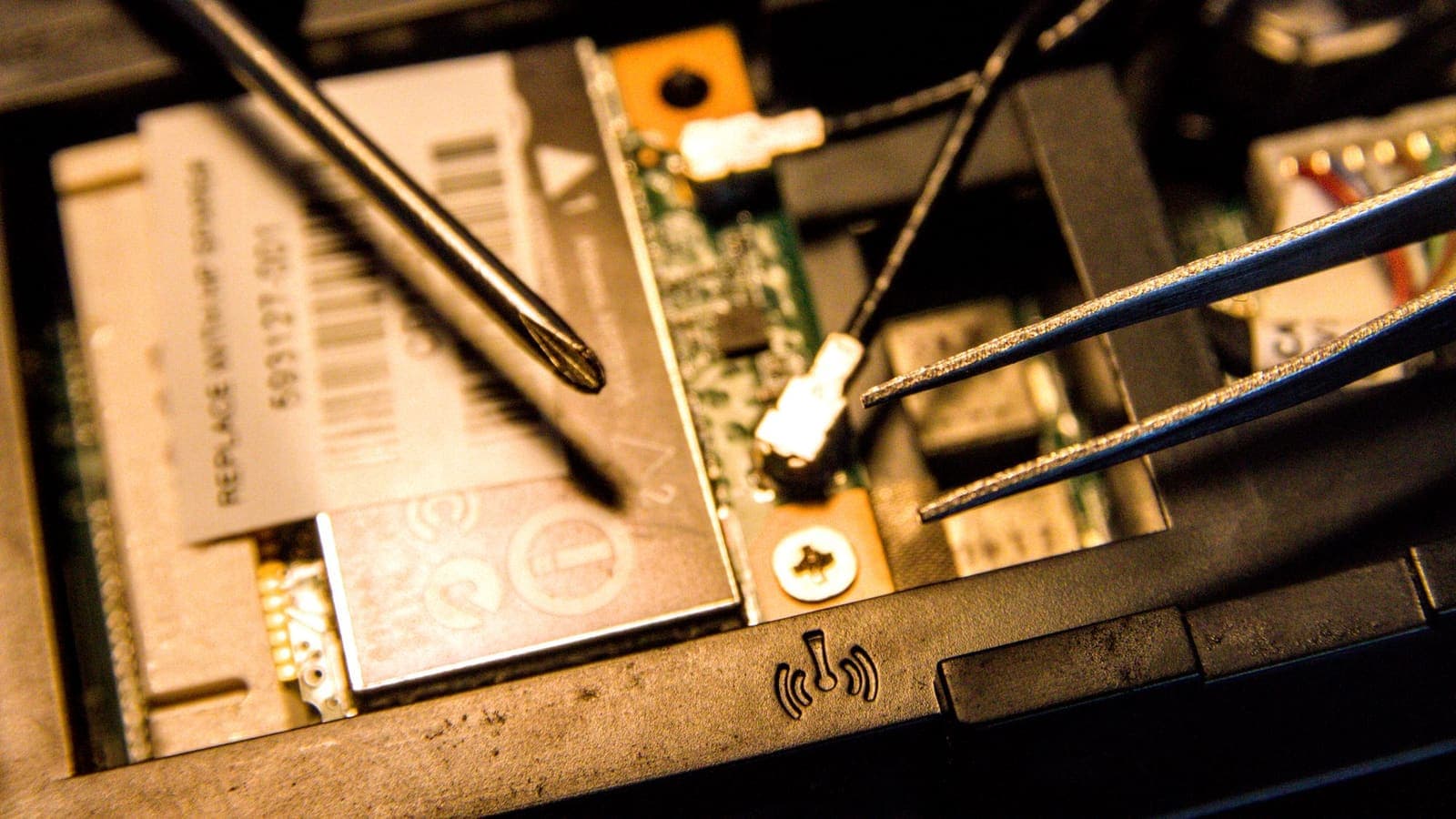
DD-WRT is community-built firmware that replaces the software a router shipped with. For years it was the standard answer when a router lacked features such as a VPN client, and it still powers a lot of older Broadcom-based hardware sitting in homes and small offices. If you are searching "vpn on dd wrt", you are probably in one of two positions: you already run DD-WRT and want to add a tunnel, or you are wondering whether flashing an old router is worth it.
This guide covers both. It looks at choosing a build, the risks of flashing, filling in the OpenVPN client page, adding a kill switch and fixing the common problems. Menu names change between builds, so treat the steps as a pattern. No promise is made that any VPN service will work on your router. XPASS has not verified router setups, and the supported route is the free VPNclient app. For a general, firmware-neutral overview, read our router VPN guide.
Should you be doing this at all?
Flashing third-party firmware is a decision, not a default. Before you start, weigh it honestly.
Reasons it can make sense
- Your router is old, still works, and its original firmware has no VPN client or is no longer updated.
- You want one tunnel for a whole household and cannot run apps on some devices.
- You are comfortable reading instructions carefully and recovering from mistakes.
Reasons to stop
- Your router already has a VPN client page. Use it.
- The router is the only link to the internet and you cannot afford downtime.
- The processor is weak. Encryption is CPU-heavy, and old routers may manage only a fraction of your line speed through a tunnel.
- An app on each device would cover everything you care about. Our comparison of a VPN router and a VPN app goes through the trade-offs.
Also note that supporting older firmware is slow. Updates for DD-WRT builds can be infrequent, so think about the security of an unattended router on your network.

Choose the right build for your exact hardware
Everything that follows depends on matching the firmware to the hardware. DD-WRT is not one file; it is a family of builds, and picking the wrong one is the most common path to a broken router.
- Identify the model and hardware version from the label. A suffix such as v2 can mean a different chip.
- Look the model up in the project's router database. The entry says whether the router is supported, which build is recommended, and whether special steps are needed for the first flash.
- Read the model-specific notes and forum thread before downloading. They often warn about hardware revisions to avoid and about steps such as a particular reset sequence or a staged install.
- Check the build size and contents. Smaller builds for devices with little storage often omit features. You want one that lists an OpenVPN client. If the recommended build for your model does not include one, a VPN client may not fit on that hardware.
- Check that the build is recent enough to be reasonably maintained, and read its notes for known issues.
| Question | Where to look | Why it matters |
|---|---|---|
| Is my exact model supported? | Router database | A wrong match can brick the device |
| Which build do I use? | Database entry and notes | Builds differ in features |
| Does it include OpenVPN? | Build description | Without it there is no client |
| Is there enough storage? | Hardware specs | Small devices cannot hold big builds |
| How do I recover? | Model-specific notes | Know your fallback before you begin |
If you cannot find a clear yes on every row, do not flash.
Prepare before flashing
Preparation is where problems are prevented.
- Back up the original settings through the existing firmware, and note your internet login details if your provider uses a username and password.
- Use a wired connection to the router from a computer. Never flash over Wi-Fi.
- Keep the power steady. An interruption mid-flash can leave the router unusable. Do not do it during a storm or on an unreliable outlet.
- Download the files from the official project, check names carefully, and keep a copy of the original manufacturer firmware if you can find it.
- Read the recovery steps for your model, such as the router's recovery mode or a serial or boot-loader method. Know them before you need them.
- Plan downtime. Set aside time during which the household can be offline.
After flashing, follow the model instructions about resetting the configuration and setting a new admin password. A fresh start avoids odd behaviour from leftover settings of the old firmware. Set a strong admin password immediately, since the web page may use a private address like those in RFC 1918 and still be reachable by anyone on your network.
What the VPN service must provide
A router client works with raw details, not an app login. DD-WRT's built-in client is OpenVPN, so your service must be able to give you OpenVPN-style details: a server address and port, a connection type, and usually certificates or keys and sometimes a username and password. Our article on how OpenVPN works covers what those pieces mean, and the OpenVPN community resources describe the configuration format.
With XPASS, the My Pass page shows setup instructions and the connection methods that apply to your pass, and the app signs in with the username and password displayed there. We have not tested DD-WRT, so do not assume the details match what the router needs. Treat any key or configuration file like a password. Do not paste it into a public forum when asking for help; remove secrets first.
Some newer builds also offer WireGuard. If yours does, the WireGuard site explains the concepts, but the same rule applies: only use it if your service provides details for it.
Filling in the OpenVPN client page
On typical builds, the client lives under the Services menu on a tab called VPN. Wording and layout vary, so follow the pattern.
- Enable the OpenVPN client with the start option.
- Server IP or name and port. Copy them exactly from your details.
- Tunnel device. The usual choice is TUN for routed VPNs. Use what your service specifies.
- Tunnel protocol. UDP or TCP, as specified. UDP is usually faster and TCP sometimes survives restrictive networks better. Our article on OpenVPN TCP vs UDP explains the difference.
- Encryption cipher and hash. Match the values in your details. A mismatch is a common cause of failure.
- User pass authentication. If your service uses a username and password, enable it and enter them.
- Certificates and keys. Paste the CA certificate, client certificate and key into their fields, if your service gives them. Take care not to cut off lines or add spaces.
- Additional configuration. Many builds have a text box for extra directives from the service's file. Paste only what you understand.
- NAT and firewall options. Enable NAT so devices on the LAN can share the tunnel's address, and keep the firewall protection on.
- Save and apply. Check the status page for a connected message and a tunnel address.
If the status stays at connecting, read the log, which usually shows the reason: authentication failed, certificate error or connection timeout.
Adding a kill switch
By default, if the tunnel drops, DD-WRT falls back to your normal internet route. Anything that was protected is suddenly unprotected, and you may not notice. A kill switch changes that: if the tunnel is down, LAN traffic is blocked from leaving.
The usual method is a firewall rule added in the Administration area, in the Commands page, saved as the firewall script so it runs on every start. The idea in plain words: drop forwarded packets that leave the LAN through the normal WAN interface, and let only the tunnel interface carry them. Interface names differ by hardware (the LAN bridge is often br0, the tunnel is often tun0, and the WAN name varies), so look at your own router's interfaces before copying any example from the internet.
A simple pattern looks like this, with names that you must replace to match your router:
iptables -I FORWARD -i br0 -o WAN_INTERFACE -j DROP
Important cautions:
- Test while you have wired access, since a mistaken rule can cut you off.
- Keep a way to remove the rule, either by clearing the script or by resetting.
- The router's own traffic to the VPN server must still use the WAN interface. The rule above affects forwarded traffic only.
- Remember the trade-off: a flaky tunnel will cost you internet instead of silently leaking. Our guide on the VPN kill switch describes the concept.

DNS, MTU and testing
DNS. If devices still ask your internet provider for names, your destinations remain visible to it. In the VPN or setup pages, set the DNS servers to those your VPN service recommends, or use a resolver reachable through the tunnel, and test.
MTU. Tunnels add overhead. If pages load half way or large downloads stall, lower the tunnel MTU a little at a time. The mechanism is explained in RFC 1191.
Testing checklist.
- The status page shows the tunnel connected.
- A device on the LAN shows a different public address with the tunnel on than with it off.
- A DNS test shows resolvers from the tunnel path.
- Stopping the tunnel cuts internet access if you added a kill switch.
- A reboot brings the tunnel back without manual steps.
- A wired speed test, tunnel off then on, shows a drop you can live with.
Troubleshooting
Authentication failed. Re-enter the username and password, and check that the certificate and key are complete. Confirm they are for the tunnel type you chose.
Stuck at connecting. Check the router's date and time, since certificates need an accurate clock. Check that the server address and port are exact, and try the other protocol if your details allow it.
Connected but no internet. Check NAT and firewall options, DNS settings and the kill switch rule. The same symptoms appear on other devices too.
Very slow. The CPU is probably the limit. Try a lighter cipher if your service permits, or move the job to apps.
Router unstable after flashing. Follow the model's reset instructions, reflash the recommended build if needed and avoid mixing old settings with the new firmware.
Locked out of the web page. Use a wired connection and the router's reset or recovery procedure for your model, as described in its notes.
Limits and expectations
- A router tunnel covers devices at home only, so a laptop outside needs its own app.
- It does not stop phishing, weak passwords or malware and does not make you anonymous.
- Old hardware limits speed. Do not expect high throughput from a router designed years ago.
- Unmaintained firmware needs extra care: strong admin password, no remote administration unless you need it and no unneeded services.
- Websites and apps keep their own rules, and some distrust VPN addresses.
Summary
Setting up a VPN on DD-WRT starts with deciding whether flashing is worth it, then matching the build to your exact hardware and confirming it includes an OpenVPN client. Prepare carefully, fill in the client page with details your VPN service can provide, add NAT and a kill switch, and test the address, DNS and reboot behaviour. Expect the router's CPU to set a speed limit. XPASS has not verified router setups.
If apps on your devices are the easier route, the pricing page explains how a fixed-length prepaid pass works.
Frequently asked questions
Do I need to flash DD-WRT to use a VPN on my router?
Only if your original firmware has no VPN client and you want one. Flashing replaces the manufacturer's software, can fail, and may end warranty support. If your router already has a client page, or an app on each device is enough, you may not need DD-WRT at all.
Which DD-WRT build includes the OpenVPN client?
It depends on the router model and the build size. Small builds for low-storage devices often leave OpenVPN out, while larger ones include it. Check the build notes and the project's router database for your exact model and hardware version before downloading.
How do I know the router is in the right state before I flash?
Check the model and hardware version against the router database, read the model-specific instructions, back up the original configuration, use a wired connection and make sure the power will not drop during the process.
Will XPASS work on DD-WRT?
XPASS has not verified router setups, so no promise can be made. The supported way is the VPNclient app on iOS, Android, Windows and macOS, and the My Pass page shows the connection details and method that apply to your pass.
Why does my internet keep working when the VPN is down?
The router falls back to its normal route unless you add a firewall rule that blocks forwarding to the internet outside the tunnel. Adding such a rule gives you a kill switch, at the cost of losing internet whenever the tunnel is down.
References
About the author

Bob Kanokphon Thongdee
- Founder of XPASS VPN
- Co-founder of eSIMonline.asia
- More than 7 years in online marketing
- Founder of Cojourney Visa and Cojourney Travel
Need a VPN for a short trip or a busy month?
XPASS sells prepaid passes for a set number of days. You pay once and nothing renews automatically.
See passesKeep reading
Device Guides
How to Set Up a VPN on a Router
A general, firmware-neutral guide to running a VPN on your router: what to check first, the usual setup steps, DNS and kill switch settings, travel routers and common fixes.
7 min read

VPN Basics
VPN Router vs VPN App: Which Setup Fits Your Home?
Should you install a VPN on the router or on each device? This guide compares the two setups for speed, smart home gadgets, mesh Wi-Fi, split tunneling and everyday convenience.
10 min read

VPN Security
OpenVPN Explained: TCP, UDP and Security
A practical explanation of OpenVPN: how it builds a tunnel, why TCP and UDP behave so differently, what makes a configuration secure, and how to troubleshoot it.
10 min read

VPN Security
OpenVPN TCP vs UDP: Which Is Better?
OpenVPN can carry its tunnel over UDP or TCP. This article explains what changes on a bad connection, why the default is UDP, when TCP is the practical choice, and how to test both.
9 min read

VPN Security
What Is a VPN Kill Switch?
A kill switch stops your device from quietly falling back to an unprotected connection when the VPN drops. Here is how the idea works and how to check it.
12 min read