
DNS Not Working When VPN Is Connected
When the VPN says connected but pages fail with name errors, DNS is the usual suspect. Here is how to prove it, why it happens and what to change on each device.
9 min readUpdated Oct 15, 2026By XPASS Editorial Team

The VPN shows a green tick, the app says connected, and yet every page you open ends in the same message: "This site can't be reached", "DNS_PROBE_FINISHED_NO_INTERNET" or "server not found". Chat apps may keep working because they hold connections open, which makes the problem look random. When this happens, the likeliest culprit is not the tunnel at all. It is DNS, the system that turns a name such as example.com into the numeric address your device needs.
This article is about proving that diagnosis and fixing it. You will learn what a failing lookup looks like, three simple tests that separate DNS from everything else, the reasons DNS breaks after a VPN connects, and what to change on a phone, a laptop and a router. If you need the background, how DNS works explains the lookup chain. If the app itself will not connect, go to VPN not connecting first. And if pages fail for reasons that are not names at all, VPN connected but no internet covers the wider set of causes.
What a DNS failure looks like
DNS is the phone book of the internet. Your device asks a resolver, "what is the address of this name?", and the resolver answers. Everything that uses a name depends on that answer, which means a broken lookup stops browsing, most apps and email, while things that already hold an address may carry on.
The clues:
- The VPN reports connected, and a speed test app or a game may still work, because they use cached or built-in addresses.
- Browsers show a name-resolution error rather than a timeout or a certificate warning.
- The problem started right after you connected the VPN, and disappears when you disconnect.
- Some sites open and others do not, because some answers were cached before the tunnel came up.
- Switching between Wi-Fi and mobile data changes the behaviour.
Do not confuse this with a site that is simply down or blocks VPN addresses. A site that blocks VPN visitors usually loads partly, shows a challenge page or an access-denied message. A DNS failure produces no page at all. If the symptom is a verification page, see websites not loading or showing CAPTCHAs instead.

Three tests that prove it is DNS
You can settle the question in about two minutes.
Test 1: address versus name. In a browser, open a site by its numeric address, for example a well-known public address such as 1.1.1.1. If it loads (it may show a certificate warning on some setups, which still proves traffic is flowing), your tunnel passes data. Then open the same service by its name. If the address works and the name fails, DNS is broken.
Test 2: ask directly. On a computer, open a terminal or command prompt and run a lookup. On Windows, macOS and Linux the command nslookup example.com works. Read the output:
- It prints the server it asked and one or more addresses: lookup is working through that server.
- It says "timed out", "no servers could be reached" or "server failed": the resolver it asked does not answer.
- It prints an address, but the "Server" line shows something unexpected such as a router address you do not use inside the tunnel: lookups are being sent somewhere other than where you meant.
Test 3: compare with the tunnel off. Disconnect the VPN and repeat Test 2. If lookups work with the VPN off and fail with it on, the tunnel changed something about how names are answered. That is the exact situation this article fixes. If lookups also fail with the VPN off, your normal network has a DNS problem, and you should fix that first, starting with the router.
Why DNS breaks when a VPN connects
When a tunnel comes up, it usually changes three things on your device: the route that traffic takes, the address of the device inside the tunnel, and which resolver is asked. The third is where problems start. Here are the typical causes.
The old resolver is no longer reachable
Before the VPN, your device asks the resolver your router handed out, often a private address such as 192.168.x.x. After the tunnel starts, traffic is meant to go through the encrypted path. If the device keeps asking the old private resolver but the route to it now goes into the tunnel, the question never reaches it and times out. A properly configured VPN client replaces the resolver for the tunnel to avoid this. When it does not, you see exactly the symptom above.
Another app is setting DNS
Several kinds of software want to control DNS: ad blockers, "secure DNS" apps, security suites, parental filters, and the encrypted DNS options in browsers and operating systems. Two programs that both claim the resolver setting will fight, and the result can be a resolver that is neither one nor the other. The browser case is common: a browser using its own encrypted DNS over HTTPS (the idea is described in RFC 8484) may be sending lookups to a provider directly, while the system uses the tunnel's resolver. When one path fails, only that app breaks.
Hard-coded DNS on the device or router
Some people set a fixed DNS server on their laptop, phone or router years ago. That setting can override what the VPN provides. Usually the VPN still works, but the fixed server may only be reachable from your home network, or may refuse requests that arrive from the tunnel's address. The result is a failed lookup.
Local names and split networks
Offices and home labs often have local names, such as a printer or file server, that only an internal resolver understands. When the tunnel is up and all lookups go to the tunnel's resolver, those local names stop working. This is the reverse of the earlier problem: the public names work and the local ones fail. A feature called split DNS sends only certain names to one resolver and the rest to another. The article on split DNS explains how it works and what its limits are.
IPv6 answers with no IPv6 path
Many resolvers return both IPv4 and IPv6 addresses. If your device receives an IPv6 address for a site, tries it first, and there is no working IPv6 route inside the tunnel, the page hangs while the device waits before falling back. This feels like DNS but is really a routing mismatch. The article about the IPv6 leak and the one on IPv4 vs IPv6 and VPNs describe how this gets in the way.
A cache holding stale answers
Your device and browser keep recent answers to speed things up. If those answers were collected before the tunnel came up, or were failures that got cached, they may continue to apply after you connect. The result is that some names fail and others do not, and a restart suddenly seems to help.
A captive portal or network filter
On hotel and public Wi-Fi, the network may answer lookups itself until you sign in to its portal. If you connect the VPN before completing the portal, the app and the network can step on each other. Finish the portal first, then connect.
Fixes on a phone
On both Android and iPhone, the steps are similar. Do them in this order and test after each.
- Turn the VPN off and on again. Wait ten seconds between. This rebuilds the resolver settings the app pushed.
- Switch the network. Try mobile data instead of Wi-Fi, or the other way round. If the problem only occurs on one, the router or network is involved.
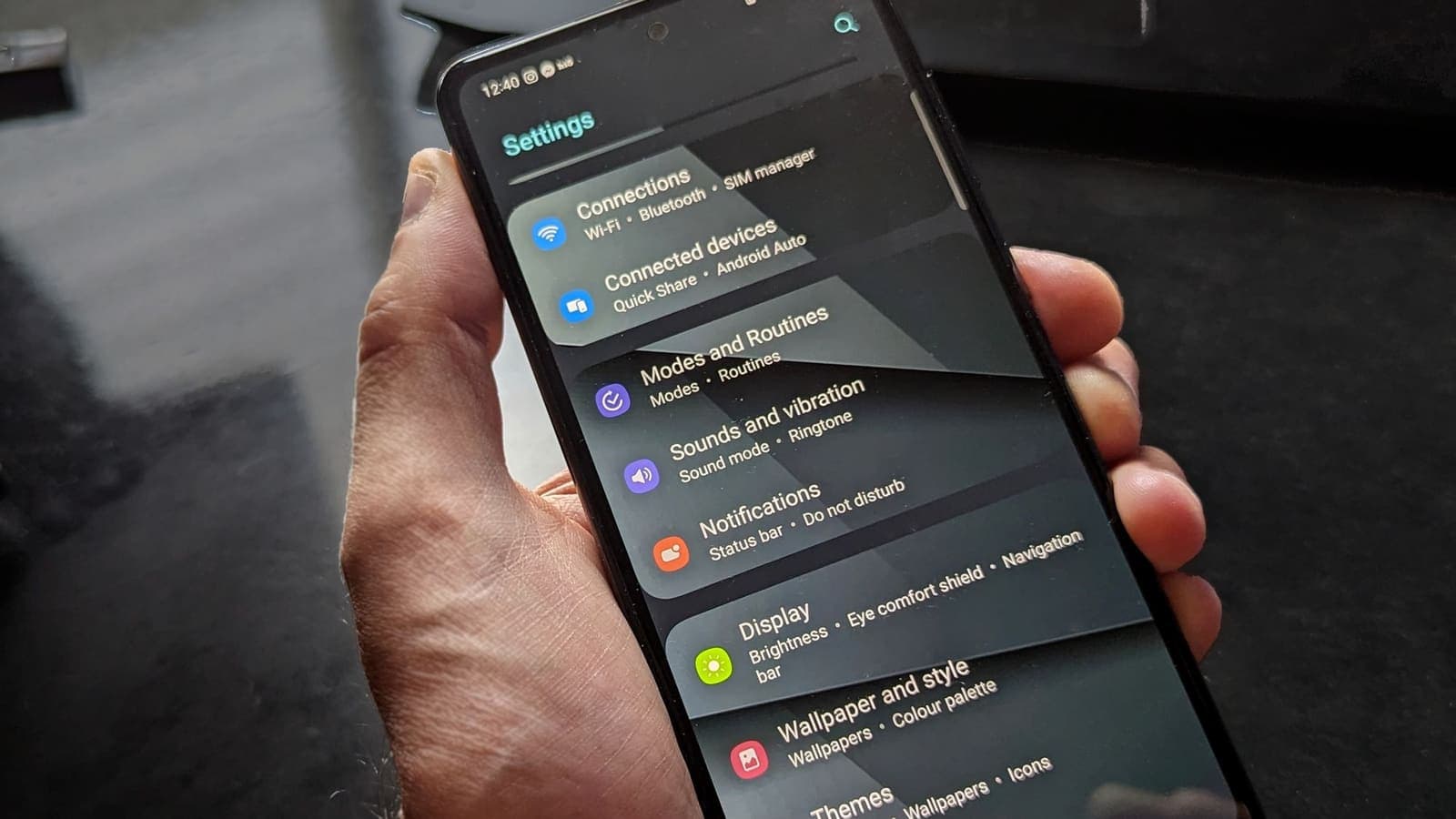
- Check for another DNS setting. On Android, the system has a "Private DNS" option; if it is set to a specific hostname, it can conflict with the VPN. Set it to automatic for a test, as described in private DNS and VPNs on Android. On iPhone, look in Wi-Fi settings for a manually configured DNS and any DNS profile or ad-blocking app that adds one, then switch it off for a test.
- Close other VPN or filtering apps. One VPN slot, one owner.
- Toggle airplane mode for a few seconds to clear the mobile network state.
- Restart the phone, which clears the system's DNS cache.
- Update or reinstall the app from the official links on the download page if the problem began after an update.
If only one browser fails, look in that browser's settings for "secure DNS" or "DNS over HTTPS" and set it to use the system resolver for a test.
Fixes on a computer
Flush the cache
Clearing the local cache is quick and safe. On Windows, open a terminal as administrator and run ipconfig /flushdns. On macOS, the command varies a little by version; a restart of the DNS service or of the computer does the same job. On Linux, flush the cache of whichever resolver service your distribution uses. Afterwards, repeat nslookup.
Check what resolver is in use
Run nslookup example.com again with the tunnel up, and read the "Server" line. If it names an address that belongs to your home network rather than the tunnel, your system is still asking the old resolver. Then open the network adapter settings and look at the DNS entries: any manually typed servers should be removed so that the setting is automatic, at least for a test. The Windows and macOS articles on DNS leaks on Windows and DNS leaks on Mac show where those settings live and what correct behaviour looks like.
Remove competing software
Pause any local ad blocker that works by running its own resolver, a security suite with a "web protection" feature, or a second VPN client. Test again. If the VPN starts working, re-enable them one by one and keep a note of the one that breaks it.
Check the hosts file and proxies
A leftover entry in the system's hosts file or a proxy configured in the system settings will override DNS for the affected names. If one site fails but others work, look for it in the hosts file. If everything fails only in the browser, check the browser's proxy setting.
Reconnect after a sleep
Laptops that sleep with the VPN on sometimes wake with a resolver setting from the previous network. Disconnect, wait for the Wi-Fi to settle, and reconnect rather than leaving the old session alive.
Fixes on the router and home network
If DNS fails on every device and only with the VPN on, check the router.
- Restart it by unplugging for thirty seconds.
- Open its settings and look at the DNS fields. If someone set fixed servers, switch to automatic to test.
- Look for a feature that intercepts or redirects DNS to its own resolver. Some routers do this for parental controls or ad blocking. That feature can conflict with a tunnel.
- Check whether a "DNS rebinding protection" or similar security feature is blocking answers that point to private addresses, which can matter if you use local names.
- Update the firmware if an update is available.
If you run a network-wide ad blocker, test with the VPN device excluded from its rules. Changing DNS on the router affects everyone in the house, so write down the original values before you edit them.

A worked example
Arun starts his laptop VPN at a cafe. The app is connected, but his browser shows name errors on every site except the one he had open before. He runs nslookup. It times out and shows a private address as the server. With the VPN off, the same command succeeds through the cafe's resolver, so the network is fine.
He opens the adapter settings. Months ago he typed a custom DNS server for his home network; it is unreachable from the cafe once the tunnel is active. He changes the entry to automatic, flushes the cache and reconnects. nslookup now shows the tunnel's resolver and returns addresses, and the pages open. The fix took six minutes and touched nothing in the VPN app.
Common mistakes
- Reinstalling the VPN app when the real fault is a fixed DNS entry.
- Typing a public DNS address "to fix it" and forgetting it months later.
- Disabling the security suite or the filter permanently instead of for one test.
- Testing only with the browser, which may have its own DNS setting.
- Mixing up a DNS failure with a leak, and applying leak fixes that make no difference.
- Skipping the comparison with the VPN off, which is the test that proves where the fault is.
Summary
When the VPN says connected and pages fail with name errors, check DNS. Prove it by loading an address directly, running a lookup, and comparing with the VPN off. The usual causes are an unreachable old resolver, competing DNS settings, hard-coded servers, local names, IPv6 mismatches and stale caches. Set DNS to automatic, remove competing tools one at a time and flush the cache.
If you would like a fresh pass to test on another network, you can see the options on the pricing page.
Frequently asked questions
How do I know the problem is DNS and not the VPN tunnel itself?
If the app says connected, pages fail with a message about the server's address or DNS, but opening a site by its numeric address works, then the tunnel carries traffic and only name lookup is broken. A lookup command that fails or times out confirms it.
Will flushing the DNS cache fix it?
Sometimes. A cache can hold answers from before the VPN started, or failed answers. Flushing is quick and harmless, but if the resolver the device is asking cannot be reached, you must also fix which resolver is in use.
Should I set my own DNS server while the VPN is on?
Usually not. A VPN normally brings its own resolver settings for the tunnel. Hard-coded DNS on the device or router can override them and cause failures or lookups outside the tunnel. Test with automatic settings first.
Why does it fail only on my work or home network?
Some networks have local names, a filtering resolver or a router that intercepts lookups. When a tunnel changes the route, those local rules and names stop applying or start to conflict.
Is this the same as a DNS leak?
No. A leak means lookups go outside the tunnel when they should not. A DNS failure means lookups do not get answered at all. The two can share a cause, but the symptoms and tests are different.
References
About the author

Bob Kanokphon Thongdee
- Founder of XPASS VPN
- Co-founder of eSIMonline.asia
- More than 7 years in online marketing
- Founder of Cojourney Visa and Cojourney Travel
Need a VPN for a short trip or a busy month?
XPASS sells prepaid passes for a set number of days. You pay once and nothing renews automatically.
See passesKeep reading

VPN Basics
How DNS Works: From Domain Name to IP Address
DNS is the lookup system that turns a website name into the IP address your device actually connects to. Here is how a lookup works, step by step, and why it matters for privacy.
9 min read

Troubleshooting
VPN Connected but No Internet? How to Fix It
The app shows connected, yet nothing loads. This guide explains why that happens and walks through DNS, MTU, IPv6, device settings and network checks, one at a time.
7 min read

VPN Security
What Is a DNS Leak?
A DNS leak happens when your device asks for website addresses outside the VPN tunnel. Here is why it happens, how to test for it, and what to do about it.
10 min read

VPN Security
Split DNS with VPNs: What It Means
Split DNS lets a device ask one resolver about private names and another about everything else. Here is how it works, where it helps, and how to check it.
9 min read
VPN Security
Android Private DNS and VPN: How They Interact
Android's Private DNS setting and a VPN both touch your DNS lookups. Here is which one wins, who sees what, and how to fix lookups that fail when both are on.
10 min read