
VPN on Airport Wi-Fi: Security Tips
A traveller's guide to airport Wi-Fi: fake hotspots, the sign-in page, charging kiosks, and when to connect the VPN, with a checklist for each stage of a journey.
10 min readUpdated Oct 15, 2026By XPASS Editorial Team
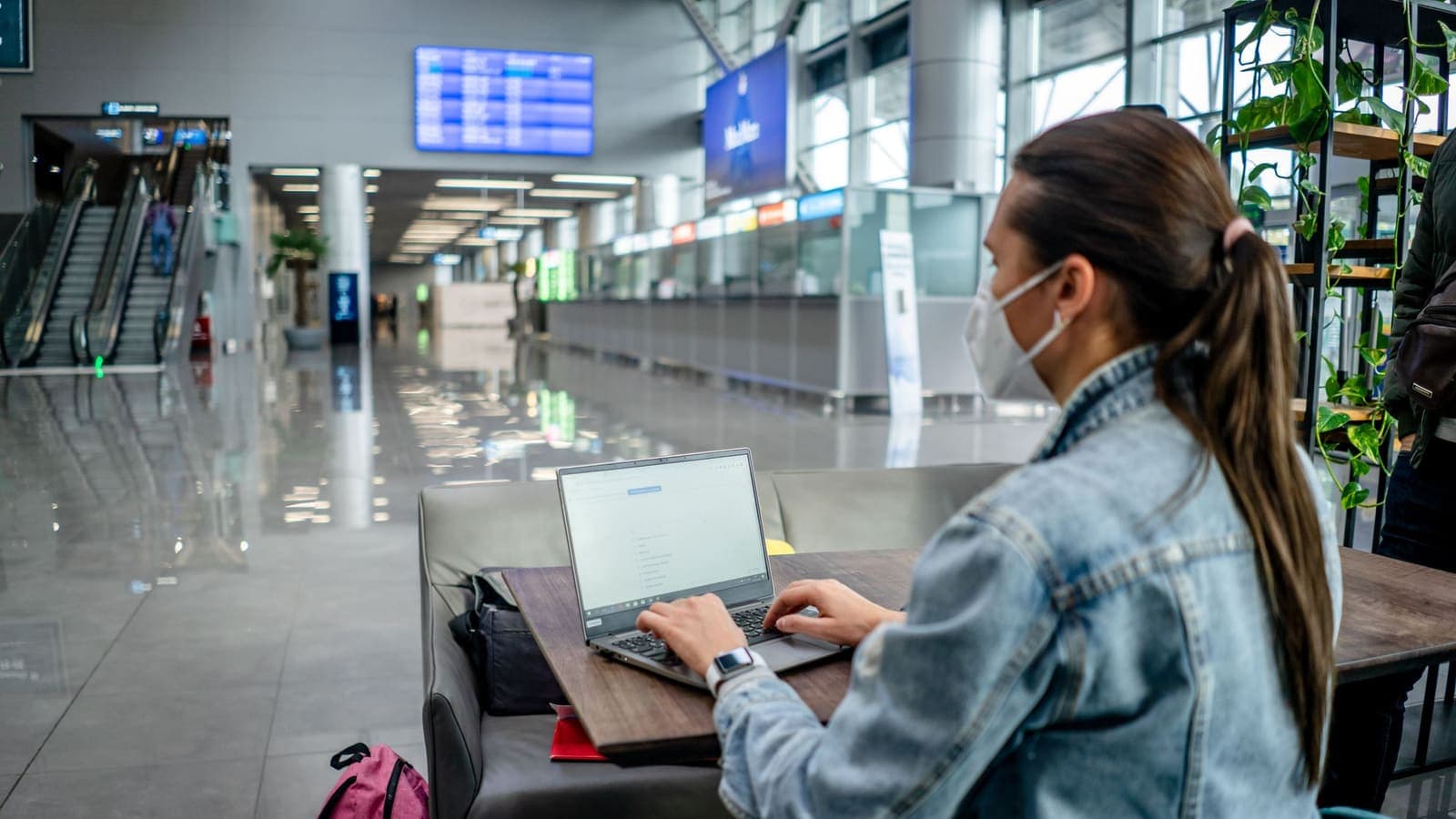
An airport is one of the few places where almost everyone is online, in a hurry, and tired. You have a flight to catch, a booking to check, a message to send to the person picking you up, and the network is called something like "Airport_Free_WiFi". It is no surprise that airports are a standard example in every discussion about public network safety.
This guide is about VPN on airport Wi-Fi specifically. It covers the things unique to terminals and lounges: lookalike networks, the sign-in page, device behaviour in security queues, charging stations and what to do before you leave home. It does not claim a VPN makes you invisible; it explains which parts of the airport risk a VPN reduces and which it does not. For the general rules of shared networks, the article on staying safer on public Wi-Fi is the companion piece.
What is different about airport networks
A cafe has one router and a few dozen customers. An airport is a large building with many access points, thousands of people moving through at all hours, and several different networks that can look similar: the airport's own, the airline lounges', a coffee chain's, a shop's, and sometimes a hotel's or a telecom provider's hotspot.
That mix creates four conditions that you rarely see elsewhere.
- Many networks with similar names. There may be several that include the airport's name, and your phone may have saved a few from earlier trips.
- Time pressure. People accept terms, grant permissions and click links faster when a gate is about to close. Attackers rely on exactly that.
- A sign-in page every time. Most airport Wi-Fi uses a captive portal, a page that asks you to accept terms, enter an email address, a code or a phone number before any traffic flows.
- A rotating audience. The people on the network change every few minutes. You cannot know who is sitting at the next table with a laptop.
The honest summary is that most airport Wi-Fi is run properly, and most travellers use it without any trouble. The point of caution is not that every airport is dangerous, but that you cannot tell the good network from a bad one by looking at the name, so the protection should not depend on trusting it.

The main risks, and what a VPN does about each
| Risk at the airport | Does a VPN help? | Notes |
|---|---|---|
| Others on the network reading unencrypted traffic | Yes | The tunnel hides your traffic from the local network |
| The network operator seeing which sites you open | Mostly | They see an encrypted connection to the VPN server instead |
| A lookalike "evil twin" network | Partly | It encrypts what goes through, but you could still be on a hostile network that blocks or tampers with connections |
| A fake login or phishing page | No | A VPN does not judge whether a page is genuine |
| Malware from a bad download | No | Needs updates and caution, not a tunnel |
| A stolen or shoulder-surfed password | No | Use a password manager and two-factor authentication |
| Device theft | No | Use a screen lock and device tracking |
| Government or airport security inspection of devices | No | Not something a VPN changes |
Most of the value comes from the first two rows. Many sites and apps already use HTTPS, which also encrypts the content between you and the site, as explained in HTTPS vs VPN. The VPN adds protection for the parts HTTPS does not cover, such as which sites you visit and traffic from apps that are not careful.
The evil twin problem
An evil twin is a hotspot set up to look like a legitimate one. A person with a laptop and a cheap access point can name it "Airport Free Wi-Fi" and your phone may join it if it matches a saved name. A VPN encrypts the traffic that passes through, which limits what the person running it can read, but it does not remove the risk of connecting to a malicious network in the first place. That is why the next section matters more than any tool.
Choosing the right network
Before you join anything, do this.
- Find the real name. Look at signs near the information desk, the gate, or the airport's official site, or simply ask airport staff or the shop where you sit.
- Join only that one. Ignore names with an extra word, a number, a different spelling or "free" in a different place.
- Delete saved networks you no longer need. In your phone settings, forget old airport, hotel and cafe networks and turn off automatic joining of open networks.
- Be suspicious of unusual requirements. A real airport Wi-Fi may ask for an email address or phone number. It should not ask for a card number, a passport number, an app installation or a social media password.
- Prefer your own data when it matters. If you have a local SIM, an eSIM or a roaming plan, use it for banking and work logins. Check the price first so you are not surprised by a bill.
- Watch for pop-ups asking you to install a certificate or a profile. Decline them. A normal airport network never needs this.
If you travel often, the broader checklist in choosing a VPN for travel covers apps, payment models and how long a pass should last.
The sign-in page: when to connect the VPN
This is the practical point that confuses most travellers. Many airport networks show a page where you accept terms before any website works. If your VPN is already running, it may try to send the first request through its tunnel, which the network blocks, and the page never appears. The VPN then shows "connected" while nothing loads.
The usual order that works:
- Turn the VPN off, or make sure it is not connected.
- Join the airport Wi-Fi and open any normal web page to trigger the sign-in page. A plain address starting with
httpoften helps. - Accept the terms or enter the code.
- Check that you have a working connection.
- Turn the VPN on and wait for it to show as connected.
- Open mail, banking or work tools only after that.
If the VPN refuses to connect after the page, try another location, disconnect and reconnect, or toggle Wi-Fi off and on. The articles on captive portal problems with a VPN and the help guide on connecting to a VPN on public Wi-Fi go through the steps in more detail.
A kill switch, a setting that blocks internet traffic if the VPN drops, is useful in an airport because connections drop often when you move between gates. The article on what a kill switch is explains the trade-off: it protects you from leaks, but you may need to reconnect manually when the network changes.
Before you leave home
Most of the real protection happens before the taxi arrives.
- Install and test the VPN on every device you will carry, over your home Wi-Fi, so you can fix any problem in comfort. With XPASS, you sign in to the free VPNclient app using the username and password on your My Pass page; the pricing page shows the prepaid options, and the pass validity starts when the account is created, so buy close to the trip but early enough to test.
- Update your phone, laptop and apps. Many attacks use known flaws that updates already fix.
- Turn on two-factor authentication for email, banking and travel accounts. If a password leaks, the second factor still protects the account.
- Save your documents offline. Screenshot or download boarding passes, hotel bookings, visa letters and maps. Then a failed connection is only an inconvenience.
- Charge fully and carry your own cable and power bank. This removes the need for public USB ports.
- Set a screen lock and enable find-my-device features.
- Plan which tasks will use which network. Decide in advance that banking will use mobile data, and that casual browsing and messaging can use the airport Wi-Fi with the VPN on.
Gate-by-gate: what to do at each stage
In the queue for security. Your phone may start joining networks automatically. Switch off Wi-Fi or at least auto-join until you need it. Keep your devices in your bag, and do not look at sensitive screens where people can see.
At the gate. This is where most people connect. Follow the order in the section above, and use a screen privacy filter or turn the brightness down. Do not leave your laptop unlocked when you walk to a shop.
In a lounge. Lounge Wi-Fi is often a separate network with a password printed on a card. The risk is lower than in a general terminal because fewer people use it, but it is still shared. Use the same habits.
On the plane. In-flight Wi-Fi is another shared network with its own sign-in page. The same advice applies. Some airlines and countries have rules about electronics, so follow crew instructions.
On arrival. Your phone may switch to a roaming network or ask to join the local airport Wi-Fi. Before you connect to anything, check that your phone is not set to join automatically. This is a good moment to connect the VPN again.
Phishing and fake pages at airports
The most common airport scam is not technical. It is a fake page that looks like the airline, the Wi-Fi provider or a hotel booking site. Text messages about "flight changes" with a link, QR codes stuck on a table promising free Wi-Fi, and pop-ups that claim your device needs an update all follow the same pattern.
- Do not scan unknown QR codes for Wi-Fi or airport services. Use the network name and the official app.
- Go to the airline's official app or website yourself, not through a link in a message.
- Do not log in to anything from a page that opened by itself after you joined a network, apart from the plain sign-in page.
- Check the address bar for the right domain and a padlock, but remember that the padlock only means the connection is encrypted, not that the site is trustworthy. The CISA guide on recognising phishing and our own article on how to recognize phishing websites explain what to look for.
A VPN does nothing about these scams. They work on people, not networks.
Charging stations and shared devices
Public USB ports and charging kiosks are convenient, but a USB port can carry data as well as power. Use your own wall adapter or a power bank when you can. If you must use a public port, a charge-only cable or a small USB data blocker removes the data pins. Never use a shared computer in a business centre for banking or email, and if you do use one for something unavoidable, sign out completely and clear the browser history afterwards.
Scenarios
The family on a layover. The Lee family has a four-hour layover with two phones and a tablet. They set up the VPN at home, and in the terminal they join the real airport network, pass the sign-in page on one phone, then turn the VPN on before the children play games and before the parents check their email. The tablet uses only downloaded video.
The business traveller. Karina has a video meeting from the gate. She joins the network, passes the sign-in page, connects the VPN, and opens her company tools. For a client's sensitive document she uses her phone's hotspot instead, because the corporate policy prefers it.
The student with a tight budget. Tom flies on a cheap airline and has no roaming. He downloads his tickets at home, uses airport Wi-Fi only to message his host, and keeps the VPN on while doing so.
Common mistakes
- Connecting to the first Wi-Fi name that appears.
- Leaving the VPN off because the page "already looks secure".
- Keeping the VPN on before the sign-in page and wondering why nothing loads.
- Logging in to banking while standing in a crowded queue.
- Using public USB ports for charging.
- Scanning a QR code for Wi-Fi.
- Forgetting to turn auto-join off after the trip.
Summary
Airport Wi-Fi is convenient but shared, and you cannot judge a network by its name. Confirm the exact network name, pass the sign-in page first, then connect the VPN and do sensitive tasks only after that. Prepare before you leave: test the app, update your devices, enable two-factor authentication and save documents offline. A VPN protects traffic from the local network but does not stop phishing, fake pages or stolen passwords.
If a short prepaid pass suits your next trip, the pricing page shows the options, and the download page lists the free VPNclient app for your devices.
Frequently asked questions
Is airport Wi-Fi safe to use?
It is as safe as any shared network, which means you cannot verify who else is on it or how it is run. Treat it as untrusted: use HTTPS sites, keep devices updated, avoid sensitive tasks if you can, and turn on a VPN once you have passed the sign-in page.
Why does the airport Wi-Fi login page not open when my VPN is on?
The network wants you to accept terms or enter a code before it passes any traffic, and a VPN that is already running can block that first page. Disconnect the VPN, finish the sign-in page, then connect the VPN again.
How can I tell a fake airport Wi-Fi from the real one?
Ask staff or check signage for the exact network name, ignore lookalikes with extra words or characters, and be suspicious of any network that asks for a card number, passport number or a social media login just to get online.
Should I use airport Wi-Fi to check in or show my boarding pass?
Download or screenshot your boarding pass and booking details before you leave home so you do not depend on the network. If you must use the Wi-Fi, the airline's official app or site over HTTPS, with the VPN on, is a sensible option.
Is it safe to plug my phone into a public USB charging point?
A charger that supplies only power is fine, but a public USB port can also carry data. Use your own plug and cable in a wall socket, or a power bank, rather than an unknown port.
References
About the author

Bob Kanokphon Thongdee
- Founder of XPASS VPN
- Co-founder of eSIMonline.asia
- More than 7 years in online marketing
- Founder of Cojourney Visa and Cojourney Travel
Need a VPN for a short trip or a busy month?
XPASS sells prepaid passes for a set number of days. You pay once and nothing renews automatically.
See passesKeep reading

VPN Security
How to Stay Safer on Public Wi-Fi
Public Wi-Fi is not a disaster, but it is a network you do not control. Here are the real risks, the habits that matter most, and where a VPN fits in.
8 min read

Troubleshooting
VPN Problems with Hotel and Airport Wi-Fi Login Pages
Hotel, airport and cafe Wi-Fi often needs a web login before anything works, and that can trap a VPN. Here is the order of steps, and fixes when the page will not show.
9 min read

Buying Guides
Best VPN for Travel: How to Choose One Before Your Trip
A good travel VPN is mostly about planning: the right pass length, apps installed before you leave, and realistic expectations. This guide walks through what to check before a trip.
9 min read

VPN Security
What Is a VPN Kill Switch?
A kill switch stops your device from quietly falling back to an unprotected connection when the VPN drops. Here is how the idea works and how to check it.
12 min read

Privacy Guides
How to Recognize Phishing Websites
Phishing websites imitate real services to steal your login or card details. This guide shows the warning signs worth checking, a calm routine for suspicious links, and what to do if you entered details.
9 min read