
Android TV · Google TV · streaming
How to Use a VPN on Android TV for Streaming
A TV running Android TV or Google TV shares its roots with Android phones, but using it is different: you steer with a remote and the store has fewer apps. This guide covers the general picture of using a VPN on these TVs, focused on understanding rather than the steps of any one app.
Please note that XPASS has not yet verified a supported client for Android TV or Google TV. Your My Pass page shows the current supported setup and is the most reliable source.

XPASS has not verified a client for Android TV yet; check My Pass
The TV's store is Google Play; install from there before trying files from elsewhere
If the TV is awkward, a VPN on a compatible router is a general alternative
Android TV and Google TV: what is the difference
Both are Google's operating systems for TVs. Google TV is the newer interface built around recommendations, while basics such as installing apps from Google Play work alike. Menus can differ a little by TV brand.
A VPN on this kind of system follows the same idea as on a phone: an app or profile builds an encrypted tunnel, and the system asks your permission to create a VPN connection the first time. For the fundamentals see how to set up a VPN on Android.
One advantage of the Android family is that the permission flow for a VPN connection is standard across phones and TVs, so you see the same kind of prompt the first time and should read which app is asking. The drawback is that TV makers customise menus differently, and older sets may not support some apps, so check your TV's system version before planning anything.
Installing from Google Play on the TV
According to Google's help page, go to Apps from the home screen, open the Google Play Store, search or browse categories, choose an app and follow the on-screen instructions to install it.
If you can find what you need in the store, use that. Sideloading, which means installing an app file from elsewhere, requires allowing unknown sources and exposes you to malware, tampered files and missing security updates. If you cannot be sure of the source, do not install it.
Because XPASS has not verified a client for Android TV, we name no app or install guide here. Use My Pass.
One confirmed detail from our records: Apple lists its Apple TV app as supported on Android TV version 8 or higher, which shows that the system version affects which apps you can actually install. That concerns a streaming app, not a VPN app, and XPASS has not verified a VPN app for Android TV.
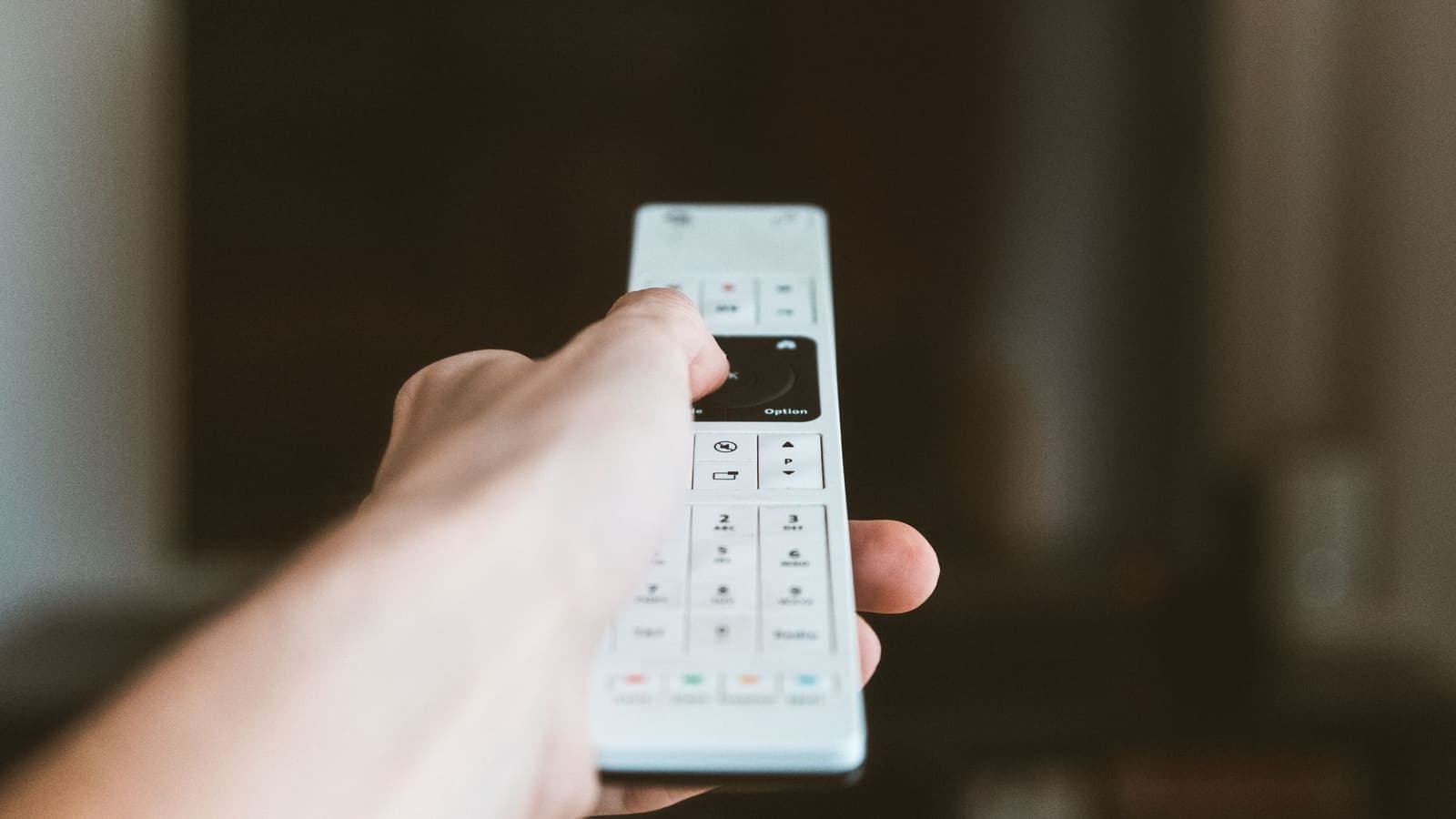
Living with the remote on a big screen
- Use voice typing or the companion phone app, if your TV supports them, to cut down arrow-key presses.
- Pick a code or QR sign-in if offered.
- Do the rough setup on your phone first, then move to the TV.
- Avoid saying passwords aloud in public.
In a hotel: the room TV and your Google account
Some hotel TVs run Android TV and are locked so that guests cannot install apps. That is normal. If you can, treat the TV as a display and use your own device as the player.
If you do have to sign in to a Google or streaming account on a TV that is not yours, turn on two-step verification first. Before checkout, sign out of every service, then open your account page on your phone, look at the list of signed-in devices and remove that TV.
On the network side, a captive portal (the web page asking for a room number) is hard to complete from a TV. Use a phone hotspot, or share a connection from a device that has already passed the portal.
On your own TV at home, keep the system and apps updated, since that affects both security and app compatibility.
If you cannot install anything on the TV
A router that can run a VPN connection puts every device on the network through it, with nothing installed on the TV. Check that your router and the connection method match what the supplier supports, as shown on My Pass. It is harder to set up and not possible on a hotel network you do not control.
Another route is to use a VPN on a phone or laptop and cast to the TV where the service allows it. Some services restrict casting and terms differ, so read the service's help page.
Troubleshooting table
| Symptom | Likely cause | What to try |
|---|---|---|
| The app is not in Google Play | Your device or region may not list it, or the system version is too old | Check My Pass, update the system, or use another device |
| The VPN will not connect | Expired pass, wrong details or wrong TV clock | Check My Pass and set the clock to automatic |
| No VPN permission prompt appears | The prompt was refused earlier | Adjust the app's permissions and try again |
| Picture stutters | Weak Wi-Fi or a VPN changing speed | Use Ethernet or change channel, then compare with the VPN off |
| Streaming app reports a connection problem | The service may detect or restrict VPNs | Turn the VPN off briefly on a trusted network and read the service's help page |
Related: VPN for Android TV and our guide for Firestick.
Choosing a pass for how you will use it
XPASS passes are prepaid with a fixed number of days: one card payment, no auto-renewal, and days count from when your VPN account is created.
If you only want to see whether the method on My Pass suits your TV, the 7-day pass gives enough time to try. If you will use it every day for a month, or travel and swap between several devices, the 30-day pass fits better. Renewing while days remain adds the new days on top. Login details and setup are on My Pass only.
Devices covered
- Android TV and Google TV
- Fire TV and Firestick
How to set it up
Choose a pass and pay once
Pay through Stripe and wait for the ready email.
Open My Pass
See your login details and the currently supported setup.
Check whether an Android TV method is listed
If not, consider a router or another supported device.
Install from Google Play first
On the TV go to Apps, then open the Google Play Store.
Connect and test
Allow the VPN connection when asked, then open a service you have an account for.
Limitations to know first
- XPASS has not yet verified a client for Android TV or Google TV; follow the setup shown on My Pass.
- Sideloading from outside Google Play carries security risk.
- XPASS includes no streaming subscription; services may detect or restrict VPNs and catalogues vary by region.
- Menus and available apps vary by TV brand and model.
- Follow each service's terms of use and local law.
- The system version on an older TV may limit which apps can be installed.
Choose your pass
Prepaid passes. Pay once, no automatic renewal.
Frequently asked questions
Does XPASS work on Android TV?
XPASS has not yet verified a client for Android TV. Check My Pass for the supported setup.
Where do I install apps on Android TV?
From the Google Play Store on the TV: go to Apps and open the Google Play Store, as Google's help page describes.
Is sideloading safe?
It carries risks of malware and tampered files, and no security updates. If unsure of the source, do not install.
What if I cannot install on the TV?
Consider router-level setup if supported, or another device My Pass supports. Check the service's terms too.
Will a VPN give me more content?
No promise. Content depends on licensing and services may restrict VPNs. Use it chiefly to secure your connection.
Can an older TV use a VPN?
It depends on the system version and which apps it can install. Check My Pass for the supported method and your TV's system version; if it does not fit, consider the router or another device.
Ready when you are
Pick a pass, pay once and follow the setup shown in My Pass for your device.
See passes and pricing