
How to Diagnose Packet Loss While Gaming with a VPN
Rubber-banding and skipped actions often come from lost packets. Follow a staged test, with and without the VPN, to find which part of the path is dropping them.
10 min readUpdated Oct 15, 2026By XPASS Editorial Team
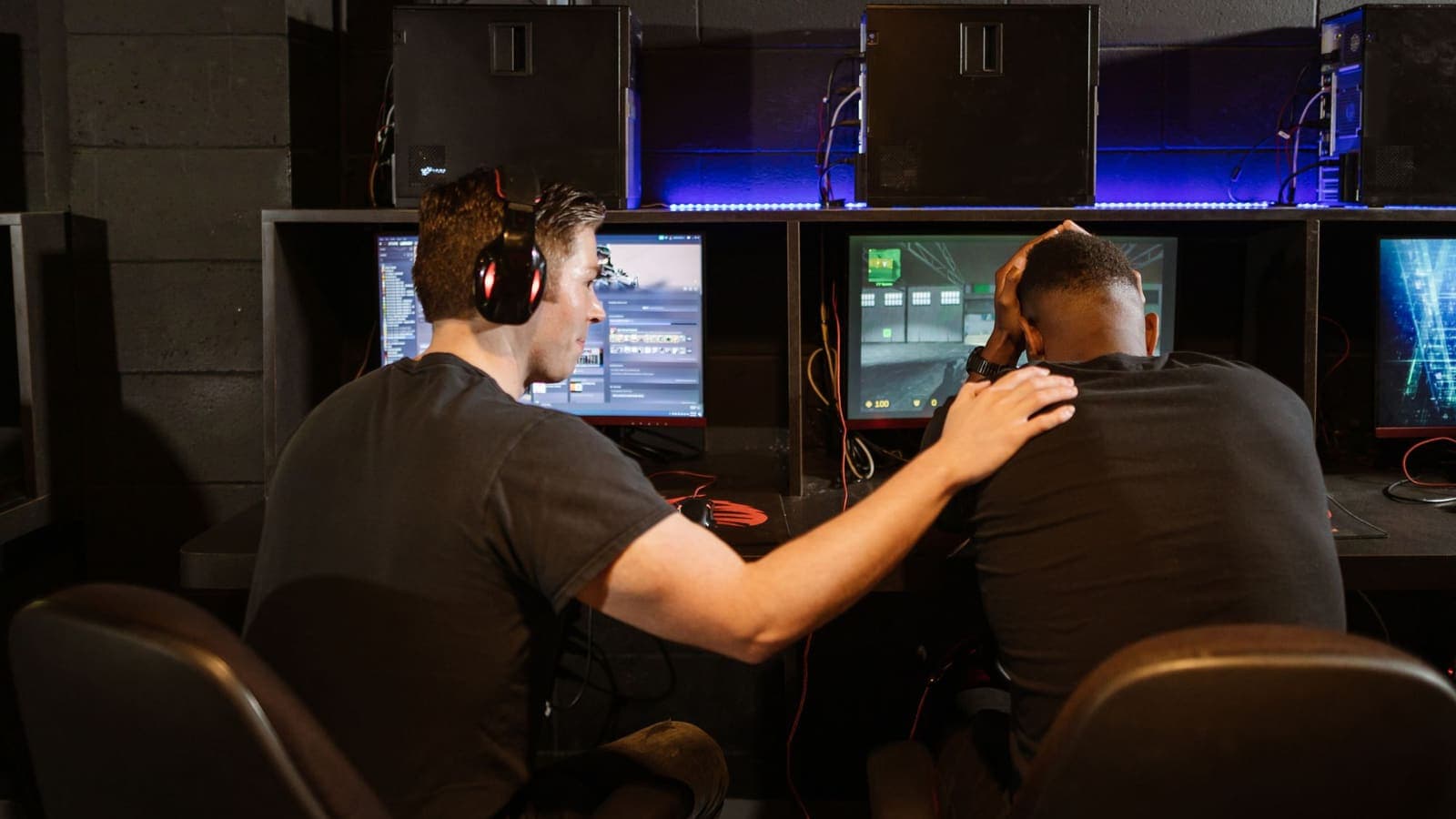
Few things in online games feel as unfair as packet loss. The screen looks fine, your ping number looks fine, and yet your character rubber-bands back, a shot does not register, or voice chat turns into robot noise. The reason is that ping measures how long a packet takes to arrive, while packet loss counts the packets that never arrive at all. A connection can have a low ping and still lose three out of every hundred packets.
When a VPN is part of the setup, the first reaction is to blame it, and sometimes that is right. But loss can start in five places: your Wi-Fi, your router, your internet provider, the VPN server, or the path to the game. This article gives you a staged method to diagnose packet loss while gaming with a VPN, with the commands, the numbers to compare, and a decision table that points at the likely culprit. The general background on loss is in the article on VPN packet loss; here we concentrate on gaming symptoms and test order.
Recognise the symptoms before you test
Different problems look similar, so write down what you actually see.
- Rubber-banding. You move, then snap back. This usually means the game server did not receive your updates and corrected your position.
- Hits that do not count. Shots, taps or skills seem to land on your screen but not on the other player's.
- Frozen frames followed by a burst. A short freeze, then everything catches up, often means packets arrived late in a clump (jitter) rather than being lost.
- Voice chat breaking up. Voice uses small fast packets that cannot wait, so it shows loss before the game does.
- A network graph in the game. Many games have an overlay showing ping and loss. Turn it on and watch it during the problem.
- Periodic pattern. A hiccup every ten or thirty seconds suggests something regular, such as a background task or a Wi-Fi scan, not random loss.
Also separate loss from latency and jitter. High ping with no loss feels like delay. Loss feels like skipping. Jitter feels like uneven delay. If you want the three definitions side by side, the article on VPN latency explained covers them.

Get a baseline without the VPN
You cannot judge a VPN's effect without knowing what the connection does alone. Start here.
- Close other traffic. Pause downloads, cloud backups and video on all devices.
- Use a wired connection if you can. Ethernet removes the largest source of random loss. If you only have Wi-Fi, stay close to the router for the baseline.
- Turn the VPN off.
- Run a long ping to your router. On Windows use
ping -n 100 192.168.1.1, and on macOS or Linux useping -c 100 192.168.1.1. Replace the address with your router's address, which is often printed on the router or shown in the network settings. A hundred packets is a minimum: ten tell you almost nothing. - Run a long ping to a public address such as a well-known public DNS address.
- Run a long ping to the game's server, if the game or its support page shows an address. Some servers do not answer ping, which is not a fault.
Record the loss percentage and the average and maximum times. The expected result is 0 percent loss at the router and at the public address. A few lost packets over 100 is a warning, not a verdict.
Read the baseline: where does the loss start
Compare your three results in the order they follow the path.
| Router | Public address | Game server | Likely meaning |
|---|---|---|---|
| Loss | Loss | Loss | Problem is in your Wi-Fi, router or cable. Fix this first |
| 0% | Loss | Loss | The problem is between your home and the wider internet, so your provider or its line |
| 0% | 0% | Loss | Problem on the path to the game, or the server does not answer ping |
| 0% | 0% | 0% | Loss is not showing at the test time, or the cause is bursty and needs a longer test |
If the loss starts at the router, a VPN is not the cause, and changing VPN settings will not help. Move closer to the router, change the Wi-Fi channel or band, replace a damaged cable, or use Ethernet. Many routers perform worse when twenty devices share one band, and a gaming device may do better on the less crowded 5 GHz band. The guide on improving connection stability covers more habits.
If the router answers cleanly and the public address does not, the problem is outside your home. Check your provider's status page, test at another hour, and contact support with your numbers. Providers respond better to "3 percent loss to this address at 8 p.m. for three days" than to "my internet is bad".
Repeat the tests with the VPN on
Now connect the VPN and repeat the public-address and game-server tests. Ping to the router is not useful here, since traffic to the router stays on your local network.
- Connect the VPN and wait ten seconds so the tunnel settles.
- Run
ping -n 100orping -c 100to the public address. Compare the loss and the average time with the baseline. - Run it to the game server if you know its address.
- Repeat with a different connection point, a nearby one, and then a different one. Change nothing else.
- Run a path test. On Windows use
pathpingfollowed by the address, which takes a couple of minutes, and on macOS or Linux install and usemtrif you have it, ortraceroute. These show the loss at each hop along the way.
Reading the result:
- Loss appears only with the VPN, at every connection point. Suspect the tunnel on your device: a conflicting app, a firewall, an unstable Wi-Fi link that the encrypted tunnel makes more visible, or an MTU problem described below.
- Loss appears with the VPN at one connection point but not another. The VPN server or its link to the game is the weak spot. Use the one that works, and the problem is solved for practical purposes.
- Loss is the same with and without the VPN. The VPN is not the cause. Return to your line, provider and Wi-Fi.
- Loss appears with the VPN at busy hours only. Server load is likely. Try a less crowded connection point or a different time.
In a path test, loss shown at a single middle hop that does not continue to later hops is usually harmless: many routers deprioritise answers to test packets while still forwarding game traffic. Loss that starts at one hop and continues to every hop after it is real.
Common causes and the fixes that match
Once you know roughly where loss starts, apply the fix that fits. Change one thing at a time.
Wi-Fi interference or distance. Move closer, switch band, reduce the number of devices, or use Ethernet. This single step resolves most gaming loss.
Oversized packets (MTU). A tunnel adds a small header to each packet. If the size limits do not fit together, large packets are split or dropped, and the game may suffer in bursts. Read the article on the VPN MTU issue and the path discovery description in RFC 1191. Only change an MTU setting if you can test the result and undo it.
A busy or distant VPN server. Pick a connection point near you. Choose for stability and short distance, not to appear in a different place.
Background traffic. A cloud backup, an operating system update or a streaming box can fill the upstream line. Upstream congestion is a common cause of loss that appears when your home is busy, and it can look like a VPN fault.
Router overload. Very old routers drop packets when many sessions are open, especially with a tunnel and a lot of devices. Restart it, update its firmware, and see whether loss falls.
Competing software. A second VPN client, a security suite or a network monitoring tool can fight the VPN app. The article on conflicting apps for VPNs, VPN conflicting apps, explains how to check.
The VPN protocol or transport. Some VPN apps allow choosing between connection types. UDP-based modes typically suit games better than ones that run over TCP, because retransmission under TCP can pile up delay. If your app offers a protocol setting, keep the default unless you have a reason, and test one alternative if loss persists. Many modern game and voice systems use UDP-based transports; RFC 9000 describes one example, QUIC.
A worked example
Nina plays in the evenings on a laptop over Wi-Fi with a VPN on. She sees rubber-banding at 9 p.m.
She turns the VPN off and runs ping -n 100 to her router: 4 percent loss. To a public address: 4 percent. To the game: 4 percent. The loss starts at the router, and the VPN is not involved. She moves the laptop from the bedroom to the room with the router, and loss to the router falls to 0. She then connects the VPN and repeats the tests: public address 0 percent, game server 0 percent with a ping that is 12 milliseconds higher. The problem was Wi-Fi, not the VPN.
Her friend Tay has another pattern. His router test is clean at 0 percent, his public address test is clean, but with the VPN on at his default connection point, loss to the public address is 3 percent. At a nearby alternative connection point, loss is 0. He keeps the second one. The VPN server at the first location was overloaded at the time he plays.

When the problem is not packet loss
Several issues feel like loss but are not.
- High jitter. Pings that range between 20 and 200 milliseconds feel like skipping even with 0 percent loss. Test with a longer run and look at the spread.
- Server tick problems. Overloaded game servers can lag everyone, and no network change helps.
- Low frame rate. A graphics bottleneck can look like network trouble. Check your frame rate and temperatures.
- Bufferbloat. When the line is full, delay balloons although nothing is lost. Pause large uploads and see.
- Region mismatch. Playing on a server far from you adds latency. The right fix is to let the game pick a nearby server for your own region.
About that last point: do not use a VPN to move into another region's servers or to change how matchmaking sees you. That generally breaks game terms and can put your account at risk. The goal here is a stable connection in your own region.
Checklist before you ask for help
If the problem persists, collect this and give it to your VPN support or your provider.
- The time and date of the problem.
- Your device, connection type (Wi-Fi or Ethernet) and VPN app version.
- Loss and average ping to your router, a public address and the game, with and without the VPN.
- Which connection point you used and whether another one changed the result.
- The path test output, if you could run one.
- What you already tried, in order.
This turns a vague complaint into something support can act on.
Summary
Packet loss means packets that never arrive, and it is different from high ping. To find where it starts when gaming with a VPN, test in stages: a baseline without the VPN to your router, a public address and the game, then the same tests with the VPN on, then with a different connection point. If loss starts at the router, fix Wi-Fi or cabling. If it starts outside the home, talk to your provider. If it appears only on one VPN connection point, use another. Change one variable at a time, test at the hour of the problem, and keep gaming in your own region instead of using a VPN to enter other regions' servers.
If you want to test a prepaid VPN on your own connection, you can look at the pricing page and pick a pass that fits.
Frequently asked questions
How much packet loss is too much for gaming?
Any steady loss is noticeable in fast games. Roughly, 0 percent is the goal, 1 percent can cause visible stutter in shooters, and several percent makes most online games feel broken. Occasional single spikes matter less than loss that repeats every few seconds.
Does a VPN cause packet loss?
Not by itself in normal conditions, but it adds one more stage where packets can be dropped: the tunnel, the VPN server and its connection to the game. If loss only appears with the VPN on, test another connection point or a wired link before blaming the whole service.
How do I test packet loss with ping?
Run a long ping, for example 100 packets, to your router, then to a public address, then to the game server if its address is known. Compare the loss percentage at each stage, first with the VPN off and then with it on.
Why is the loss only at certain hours?
Evening congestion at your provider, a busy VPN server or other people on your Wi-Fi are the usual reasons. Test at the hour when the problem occurs, because a test at noon can look perfect.
Should I switch regions to find a game server with less loss?
No. Using a VPN to enter other regions' servers or to change matchmaking generally breaks game terms. Pick a nearby connection point for stability and test it, and let the game choose its server in your own region.
References
About the author

Bob Kanokphon Thongdee
- Founder of XPASS VPN
- Co-founder of eSIMonline.asia
- More than 7 years in online marketing
- Founder of Cojourney Visa and Cojourney Travel
Need a VPN for a short trip or a busy month?
XPASS sells prepaid passes for a set number of days. You pay once and nothing renews automatically.
See passesKeep reading

Troubleshooting
VPN Packet Loss: Causes and Diagnostics
Packets that never arrive cause stutter, frozen calls and slow pages. Learn the common causes of VPN packet loss and a simple test routine that shows where the loss really happens.
10 min read

VPN Basics
Does a VPN Reduce Ping? Latency, Jitter and Packet Loss Explained
A VPN adds an extra stop to your route, so ping usually rises a little. Here is why, when it can improve, and how to measure it on your own connection.
9 min read

Troubleshooting
VPN Latency Explained: Why Ping Changes
Latency is the delay before data starts to arrive. See where each millisecond comes from, why a VPN changes it, what jitter means and which ping numbers matter for which activity.
9 min read

Troubleshooting
How to Improve VPN Connection Stability
A VPN that keeps dropping or stalling is usually reacting to the network or device around it. These steps help you find and fix the weak link.
5 min read
Troubleshooting
VPN MTU Problems: Symptoms and Fixes
A VPN adds a wrapper to every packet, and when the path cannot carry the bigger size, some pages stall while others work. Here is how to recognise and test it.
9 min read