
VPN Jitter Explained for Calls and Games
Jitter is the unevenness of delay. It is why a connection with a low average ping can still make voices choppy and games feel uneven. Learn to measure it and reduce it.
9 min readUpdated Oct 15, 2026By XPASS Editorial Team

Two people have the same average ping of 60 ms. One has a quiet, smooth call. The other sounds like a robot with a stammer. The difference between them is jitter: how unevenly packets arrive. Average ping hides it, speed tests do not show it, and yet it is one of the main reasons that real-time apps feel bad on an otherwise fast connection.
This article explains VPN jitter in the context of calls and games. It covers what jitter really is, how apps cope with it, how a VPN can raise or lower it, a home measurement routine with real numbers, and what you can change. For the broader picture of delay, see whether a VPN reduces ping.
Jitter in one picture
Imagine a bus that should arrive every 10 minutes. If it arrives at exactly 10, 20, 30 and 40 minutes, you can plan your day. If it arrives at 6, 21, 24 and 41 minutes, the average gap is still about 10 minutes, but the schedule is useless. Packets for a voice call are the same: the sender releases them evenly, every 20 milliseconds for example, and the network delivers them unevenly.
Formally, jitter is the variation in delay between consecutive packets. If packet one takes 50 ms and packet two takes 58 ms, the variation is 8 ms. Tools usually report it as an average or as a standard deviation over many packets.
- Latency is the size of the delay.
- Jitter is how much that delay changes.
- Packet loss is what happens when a packet takes so long, or goes wrong so badly, that it never counts.
A guide to latency from a large network company explains the first term well. Jitter is its unsteady cousin.

Why real-time apps care more than web pages
A web page tolerates uneven timing. Your browser waits for all the pieces and then draws the page, so a delay of 40 ms on one packet and 120 ms on the next vanishes into a total load time of a second or two.
Calls and games cannot wait. Voice packets must be played in order at a steady rhythm. To survive uneven arrival, the receiving app keeps a small buffer, called a jitter buffer. It collects packets for a short time and plays them back evenly.
- A small buffer keeps the conversation responsive but cannot absorb big swings, so late packets are dropped and you hear clicks or gaps.
- A large buffer absorbs big swings but adds delay, so people start talking over one another.
Many modern apps adjust the buffer automatically. When jitter rises, the buffer grows, the delay increases and the call feels slower. When jitter is extreme, the buffer cannot catch up and audio breaks anyway. Video calls built on browser technologies such as WebRTC use this approach, which is why a bumpy connection produces both lag and glitches.
For games, jitter is even harsher. The game sends your position and receives everyone else's many times per second. If updates arrive in uneven clumps, characters teleport, shots seem to register late and your own movement is corrected after the fact. Competitive players often care more about steadiness than about the lowest possible ping.
Rough numbers that help
These are common rules of thumb. They are not guarantees, and each app behaves differently.
| Jitter | Voice or video call | Online game |
|---|---|---|
| Under 5 ms | Very smooth | Very smooth |
| 5 to 15 ms | Smooth | Mostly fine |
| 15 to 30 ms | Occasional glitches | Noticeable rubber-banding in fast games |
| 30 to 60 ms | Frequent breaks, rising delay | Hard to play competitively |
| Over 60 ms | Often unusable | Often unusable |
A related figure is the gap between the best and worst round trip. If your minimum ping is 20 ms and your maximum is 180 ms, the spread is 160 ms, and even a decent average will not rescue the experience.
How a VPN can change jitter
A VPN affects jitter through three main mechanisms.
- A longer path. Your packets visit the VPN server on the way. More hops and more distance generally mean more places where queues can form.
- Processing time. The device encrypts each packet and the server decrypts it. On a modern phone or laptop this is tiny, but on an old, busy or battery-saving device the time can vary from packet to packet.
- A changed route. The VPN server connects to the wider internet through its own carriers. A route that is congested at 9 pm can add variation that your normal route would not.
A VPN can also seem to help. Some people find calls steadier with a tunnel on, because the new route avoids a poor stretch of their ISP's network. That is not guaranteed and depends on where the weak point lies. The honest answer is to measure rather than assume. The article on why speed changes with a VPN explains the speed side of the same trade-off.
Measure your own jitter: a five-minute routine
You do not need a special tool. A plain ping run shows the spread.
Step 1: Get a baseline without the VPN. Choose a public address that answers ping. Send 100 pings.
- Windows:
ping -n 100 ADDRESS - macOS or Linux:
ping -c 100 ADDRESS
Read the summary. Windows reports minimum, maximum and average. macOS and Linux add mdev or stddev, which is close to a jitter figure. On Windows, the gap between maximum and minimum gives a rough idea.
Step 2: Repeat with the VPN on. Connect, wait ten seconds, and run the same command.
Step 3: Compare on a ladder. Write the three numbers for each run: minimum, average, maximum or deviation.
Step 4: Test during the real problem. If the call is bad only in the evening, test in the evening. Jitter is the kind of problem that hides during daytime tests.
Step 5: Check a cable. If you can plug into the router with a cable, repeat the tests. If jitter drops sharply, Wi-Fi was the main cause.
A worked example
Narin plays an online game from a shared flat and takes calls for work.
| Test | Min | Avg | Max | Deviation |
|---|---|---|---|---|
| Wi-Fi, VPN off, 3 pm | 14 ms | 18 ms | 41 ms | 5 ms |
| Wi-Fi, VPN on, 3 pm | 38 ms | 46 ms | 85 ms | 9 ms |
| Wi-Fi, VPN on, 9 pm | 40 ms | 71 ms | 240 ms | 38 ms |
| Cable, VPN on, 9 pm | 38 ms | 49 ms | 96 ms | 11 ms |
The VPN added about 28 ms of delay in the afternoon, which is the cost of a longer route. The deviation barely changed. At 9 pm the variation exploded, but when Narin plugged in a cable the problem mostly disappeared. The cause was Wi-Fi congestion in the evening, not the tunnel itself. Without the fourth line, Narin would have blamed the VPN.
Reducing jitter, in order of effect
Work through these from the top. Most gains come from the first three.
- Use a cable. Wi-Fi retries and interference are the biggest jitter source in homes. A short Ethernet link is the most effective single change.
- Stop upload traffic while you call or play. Cloud backups, photo sync and uploads fill the upload queue in the router, so your small call packets wait behind large ones. Pause them for the session.
- Choose a nearer VPN location. Less distance, fewer hops, less variation. For gaming and calls, distance matters more than for browsing.
- Move off 2.4 GHz. Use the 5 GHz band if the signal is strong, or sit nearer to the router.
- Reconnect the VPN. A new session sometimes picks a cleaner route.
- Restart the router and modem if they have been running for weeks.
- Close other heavy apps on the same device, because a busy CPU creates uneven processing.
- Keep the VPN app's default settings unless support advises a change, and change only one thing at a time.
- Consider a router with traffic prioritisation (often called QoS or smart queue) if your household shares a slow upload link. Configuration varies by model.
- Take a break from the VPN for the session if you do not need it. A game or a trusted call on a safe home network may not need a tunnel, though you should decide that by the sensitivity of what you handle.
For stability problems that include dropouts, see how to improve VPN connection stability.
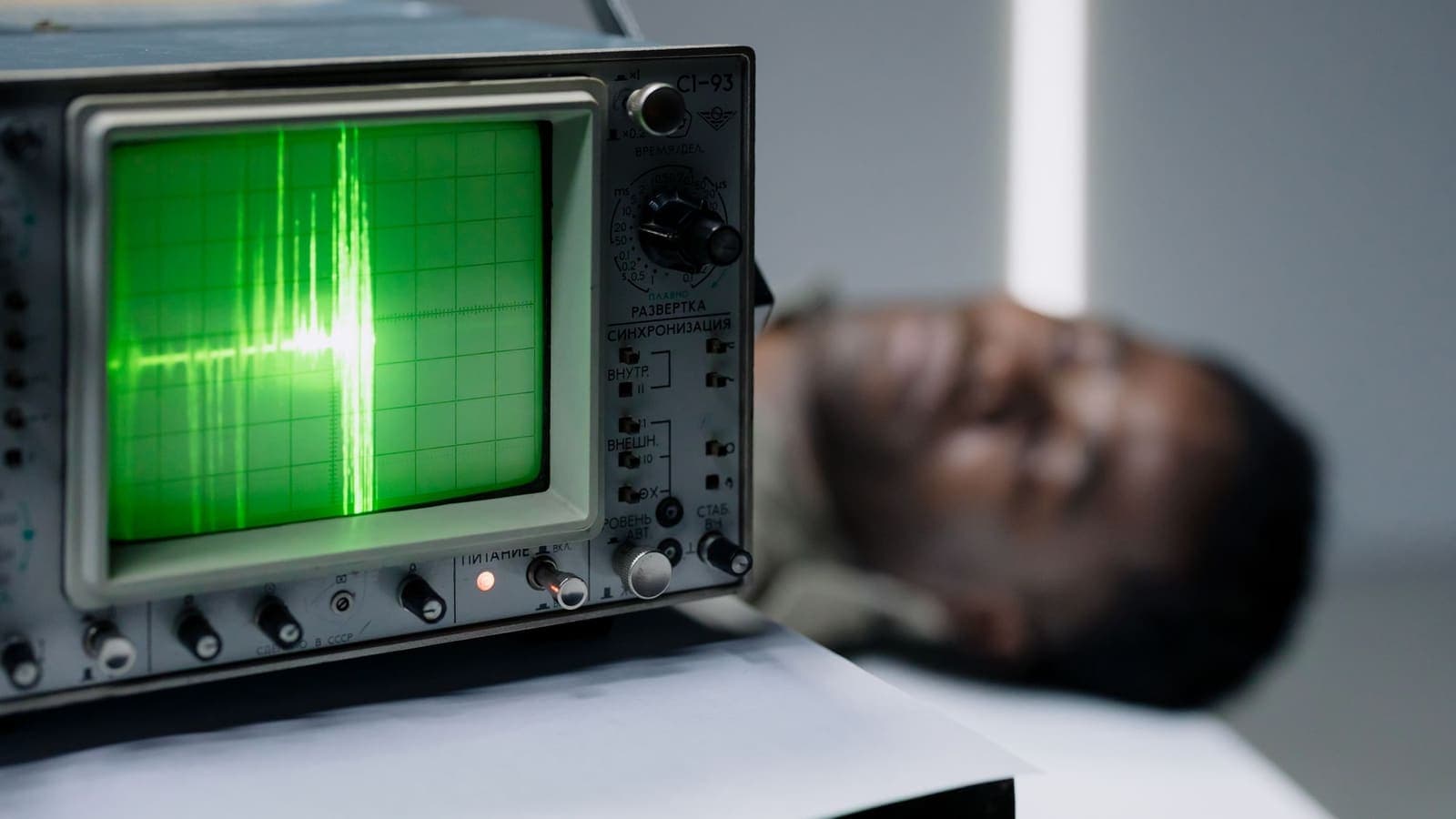
Jitter for calls versus games: what each needs
The two use cases share symptoms but ask for different things.
Calls are forgiving of a little delay and punish gaps. A call with 120 ms latency and low jitter is pleasant, while a call with 40 ms latency and heavy jitter is not. For calls, steady matters more than fast. If you take a lot of client calls, keep a short test routine and run it before an important meeting, as described in VPN for remote work.
Games need both: low delay and steady delivery. Fast shooters notice 10 to 20 ms of variation, while slower strategy or turn-based games barely care. A VPN is rarely needed for gaming at home; people use it for privacy on shared networks or when travelling, and the cost is a little added delay. Do not expect it to improve a game connection, and do not use it in ways that break a game's terms.
Limits and honest caveats
- You cannot remove jitter completely. All networks have some variation. The goal is to keep it below the level your app can hide.
- Averages mislead. A good average with spikes hurts calls. Look at maximums and deviation.
- Short tests miss spikes. A 100-packet test lasts under two minutes. For an intermittent problem, run longer or repeat.
- Evening jitter is often not your fault. Shared links in your building or neighbourhood can be saturated, and only your provider can fix them.
- ICMP ping is a proxy. Real call traffic uses different protocols, and some networks treat ping differently. Use the numbers as signs, not as proof.
- A VPN does not promise quality of service. It protects traffic, and it can add delay and variation. Decide each time whether the protection is worth it.
Common mistakes
- Judging a connection by average ping alone.
- Testing at noon for a problem that happens at night.
- Blaming the tunnel before trying a cable.
- Leaving cloud backups running during an important call.
- Choosing a faraway location for a voice call because it looks fast in a speed test.
- Changing five settings at once and learning nothing.
- Expecting a jitter buffer setting in an app to fix a congested network.
Summary
Jitter is the unevenness of delay between packets. Real-time apps hide it with a buffer, but only up to a point, so large jitter turns into lag, clicks and teleporting characters even when the average ping looks fine. A VPN can add some delay and sometimes some variation through a longer path and extra processing, but the largest cause at home is usually Wi-Fi or upload traffic. Measure with and without the VPN, on a cable and on Wi-Fi, at the time the problem occurs, and change one thing at a time.
If you want to test a different location with a short prepaid pass while you tune your connection, you can read how it works on the pricing page.
Frequently asked questions
What is a good jitter value?
As a rough guide, jitter under about 10 ms is excellent for calls and games, 10 to 30 ms is usually acceptable, and above 30 ms you will often hear or feel problems. The numbers depend on the app, so treat them as rules of thumb rather than limits.
Is jitter the same as ping?
No. Ping, or latency, is how long a packet takes to make the trip. Jitter is how much that time changes from one packet to the next. A steady 80 ms connection can feel better than one that swings between 20 ms and 120 ms.
Does a VPN always increase jitter?
Not always. A VPN adds a longer path and some processing, so it often adds a little delay and sometimes a little variation. On a poor local network the VPN can look guilty while the real cause is Wi-Fi, so always compare with the VPN off.
Can I fix jitter with a setting in the app?
Usually the biggest improvements come from outside the VPN app: a cable instead of Wi-Fi, less upload traffic at home, and a nearer location. Keep the app's default connection settings unless support advises otherwise.
Why is jitter worse in the evening?
Shared links fill up when many people are online, so queues grow and shrink unevenly. That uneven waiting is exactly what jitter measures, so it is often worse at peak hours.
References
About the author

Bob Kanokphon Thongdee
- Founder of XPASS VPN
- Co-founder of eSIMonline.asia
- More than 7 years in online marketing
- Founder of Cojourney Visa and Cojourney Travel
Need a VPN for a short trip or a busy month?
XPASS sells prepaid passes for a set number of days. You pay once and nothing renews automatically.
See passesKeep reading

VPN Basics
Does a VPN Reduce Ping? Latency, Jitter and Packet Loss Explained
A VPN adds an extra stop to your route, so ping usually rises a little. Here is why, when it can improve, and how to measure it on your own connection.
9 min read
Troubleshooting
VPN Latency Explained: Why Ping Changes
Latency is the delay before data starts to arrive. See where each millisecond comes from, why a VPN changes it, what jitter means and which ping numbers matter for which activity.
9 min read

Troubleshooting
Why Is My VPN So Slow? How to Speed It Up
A practical checklist for a slow VPN: measure first, rule out your own network, then fix Wi-Fi, background apps, device settings and streaming buffering one step at a time.
7 min read

Troubleshooting
How to Improve VPN Connection Stability
A VPN that keeps dropping or stalling is usually reacting to the network or device around it. These steps help you find and fix the weak link.
5 min read

VPN Basics
Why Internet Speed Changes With a VPN
Using a VPN adds distance, encryption and another network to your path, so speed often changes. This guide explains why, how to measure it properly and what to try when it feels slow.
9 min read