
Linux VPN Routing Tables Explained
A VPN on Linux is mostly a set of routing decisions. Learn to read ip route, understand the half-default trick and policy tables, and diagnose why traffic goes the wrong way.
9 min readUpdated Oct 15, 2026By XPASS Editorial Team
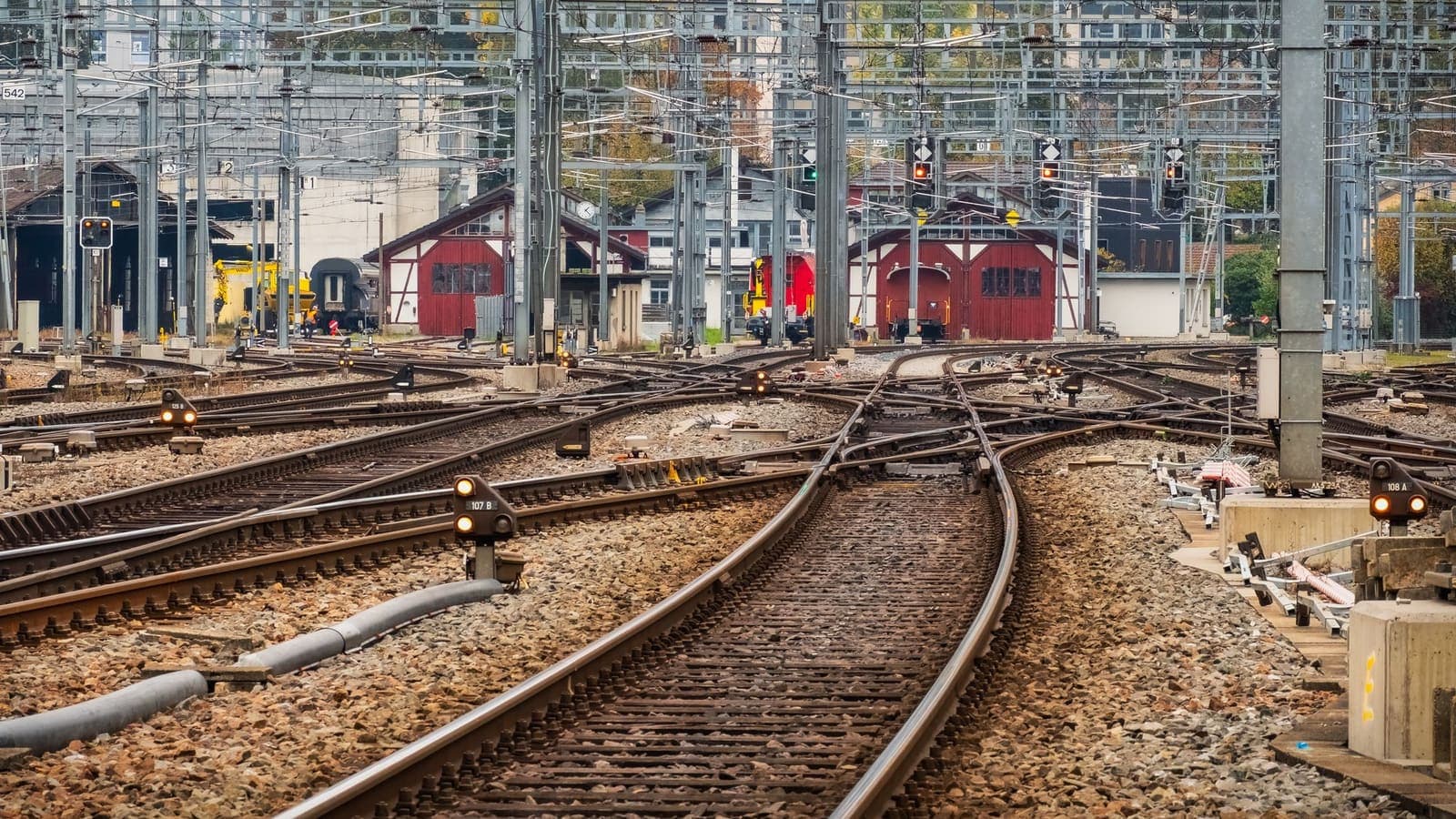
When a VPN works on Linux, it is easy to forget that nothing magical is happening. A network interface called wg0 or tun0 appears, a few routes are added, and from that moment the kernel sends packets into the tunnel because the routing table says so. When something goes wrong, such as no internet after connecting, a printer that vanishes or traffic that still leaves the wrong way, the answer is almost always visible in the routing table.
This article explains Linux VPN routing from the ground up. You will learn to read ip route, to predict what a full-tunnel VPN does to it, and to understand policy routing, which is what modern clients use under the hood. It does not depend on any specific provider, and everything here applies to WireGuard, OpenVPN and other tunnel types. For the general idea of a tunnel itself, see what a VPN tunnel is.
What the routing table decides
Every outgoing packet has a destination address, and the kernel has to pick an interface and, usually, a next hop. It does this by consulting routing tables. The core rule is simple: among all routes whose destination range contains the packet's destination, choose the most specific one. A /24 beats a /16, and a /32 beats everything. If two routes have the same length, the lower metric wins.
This rule is called longest-prefix match, and it is the whole basis of VPN routing. A VPN client does not hijack anything. It adds routes that are more specific, or more attractive, than the ones that were already there.

Reading your table before the VPN
Start with the table while the VPN is off. Run ip route show and you will see something like this.
default via 192.168.1.1 dev wlp3s0 proto dhcp metric 600
192.168.1.0/24 dev wlp3s0 proto kernel scope link src 192.168.1.42
Read it line by line.
default via 192.168.1.1 dev wlp3s0means "anything not matched elsewhere goes to the router at 192.168.1.1 through the Wi-Fi interface".192.168.1.0/24 dev wlp3s0 scope linkmeans addresses in the home network are reached directly on the wire, with no router in between.metric 600is the tie-breaker when two routes tie on specificity. Lower is preferred.
Then run ip -6 route show as well. Many people secure IPv4 and forget that the IPv6 table is separate, which is the root of IPv6 leaks. The difference between the two families is explained in IPv4 vs IPv6 and VPNs. Finally, the most useful command of all is ip route get 8.8.8.8. It reports exactly which interface, gateway and source address the kernel would use for that destination, and it takes policy rules into account.
What a full-tunnel VPN does to the table
When you connect to a VPN that should carry all your traffic, the client has to make the tunnel win for every destination. There are two common techniques.
Replace the default. The client deletes the old default route and adds default dev tun0. This is simple but it removes the way back to the physical network, so a separate rule is needed for the server itself.
The half-default trick. Many clients leave the original default alone and add two routes that together cover the whole address space:
0.0.0.0/1 dev tun0
128.0.0.0/1 dev tun0
Each is a /1, more specific than a /0 default, so each wins the longest-prefix match. When the VPN stops, the client removes the two lines and the old default takes over again, with nothing to restore. Check this on your own machine: connect, run ip route show, and look for the pair.
The endpoint exception. There is one destination that must never go into the tunnel, and that is the VPN server. The encrypted packets that carry your traffic have to reach it over the normal network. So the client adds a host route, for example:
203.0.113.10 via 192.168.1.1 dev wlp3s0
The address 203.0.113.10 here is a documentation placeholder. If this route is missing, the server's address matches the tunnel route, the encrypted packets try to enter the tunnel they belong to, and the connection loops and dies. A VPN that connects and then immediately has no internet is very often missing this exception.
Policy routing, fwmark and the extra table
Modern WireGuard setups avoid editing the main table at all. When the configuration says that all IPv4 traffic should be tunnelled, the standard script creates a separate table and some rules. You can see them with ip rule show:
0:      from all lookup local
32764:  from all lookup main suppress_prefixlength 0
32765:  not from all fwmark 0xca6c lookup 51820
32766:  from all lookup main
32767:  from all lookup default
And the extra table with ip route show table 51820, which holds default dev wg0. The logic is neat.
- The tunnel software marks its own encrypted packets with a firewall mark, here 0xca6c, which is 51820 in decimal.
- The rule at priority 32765 says that any packet without that mark must consult table 51820, where the default route points into the tunnel.
- Marked packets skip that rule and fall through to the main table, so they reach the server over the real network. No host route is needed.
- The rule at 32764 lets the main table answer first only for routes more specific than a default, such as your local network, so LAN access keeps working.
If you ever see a mysterious route that does not appear in ip route show, check ip rule show and the numbered tables. Plain ip route show only prints the main table.
A worked example: office subnet only
Not every tunnel should carry everything. Suppose you work from home and your employer's network is 10.20.0.0/16, reached through a tunnel at 10.8.0.1. You want office traffic in the tunnel and everything else on your own connection. The relevant routes are:
10.20.0.0/16 via 10.8.0.1 dev tun0
default via 192.168.1.1 dev wlp3s0
A packet to 10.20.5.9 matches the /16 and enters the tunnel. A packet to a public website matches only the default and leaves directly. In a WireGuard config this idea is expressed by AllowedIPs = 10.20.0.0/16, which does two jobs: it tells the kernel which destinations to route into wg0, and it tells WireGuard which source addresses it will accept from that peer. If you set AllowedIPs = 0.0.0.0/0, ::/0, you ask for the full tunnel. The related idea for apps rather than networks is described in what split tunneling is.
Debugging checklist
Use this order when a VPN misbehaves on Linux.
- Run
ip route get DESTINATIONfor a site that fails. Does the interface match what you expect? - Run
ip rule showandip route show table allif the plain table looks innocent. - Run
ip -6 route show. Is there an IPv6 default via the physical link that bypasses the tunnel? - Check the endpoint. Confirm that
ip route get SERVER_ADDRESSnames the physical interface, not the tunnel. - Look at overlapping subnets. If your home network and the office both use 192.168.1.0/24, the kernel cannot tell them apart. Choose a different home range in the private block described in RFC 1918.
- Check
sysctl net.ipv4.conf.all.rp_filter. Strict reverse-path filtering can drop replies that return on an interface other than the one the route points at. - Check MTU. Large packets that silently disappear while small ones work are a classic sign that the tunnel MTU is too high. See path MTU discovery in RFC 1191 for the reason, and try lowering the value on the tunnel interface.
Symptoms and likely causes
| Symptom | Likely cause | First check |
|---|---|---|
| Connected, but no internet at all | Server address routed into the tunnel | ip route get for the server |
| Websites load, local printer gone | Full tunnel swallowed the LAN range | ip route get for the printer |
| Some sites hang, others load | MTU too high or IPv6 path broken | Lower MTU, check ip -6 route |
| Office hosts unreachable | Missing route to the office range | ip route show for the subnet |
| Works after reboot only | Routes added by hand and never persisted | Put them in the VPN config |
| Two networks, same range | Overlapping addresses | Renumber one of them |
Testing route changes without locking yourself out
Routing experiments are the easiest way to cut off your own access, especially on a remote machine. A few habits make them safe.
- Save the original state first. Run
ip route show > routes-before.txtandip rule show > rules-before.txt. If anything goes wrong you know exactly what to put back. - Keep a second way in. On a remote server, keep a console or a second SSH session open that does not depend on the route you are changing. Better, schedule an automatic undo, for example
sleep 120 && ip route del ...in the background, so a mistake repairs itself. - Change one thing at a time. Add a single route, run
ip route getfor a destination it should affect and one it should not, then move on. - Make it permanent in the right place. Routes that belong to the tunnel should live in the VPN configuration, for instance
PostUpandPostDownlines or the client's own route options, so they appear and disappear together with the interface. Routes that belong to the physical network belong to NetworkManager or systemd-networkd. - Remember the return path. A route that sends packets out is only half the job. Replies must come back through the same interface, otherwise stateful firewalls and reverse-path filters may drop them.
A quick routine after any change: run ip route get for a public address and for a LAN address, load one website and ping one local device, then check ip -6 route show once more. Five minutes of checking saves an evening of guessing.
Common mistakes
- Adding routes manually with
ip route addand expecting them to survive a reboot. They do not. - Deleting the default route to "force" the VPN and losing contact with the server.
- Reading only
ip route showand missing policy rules. - Forgetting the IPv6 table.
- Using the same private range at home and at the office.
- Changing routes while a connection is up without noting the original values.
Summary
Linux VPN routing comes down to the routing table, longest-prefix match and, in modern setups, a firewall mark with its own table. Learn to read ip route, ip rule and ip route get, keep the server's address outside the tunnel, remember IPv6, and avoid overlapping subnets. With those habits you can explain almost any misrouted packet in a minute.
If you use the free VPNclient app, the Linux setup guide shows how to install it, and the pricing page lists what is available when you are ready.
Frequently asked questions
Why does a VPN need to change my routing table at all?
The kernel sends every packet according to the routing table. A VPN interface only carries traffic if a route points at it, so the client adds routes that make the tunnel the best match for the destinations it should protect.
What does the 0.0.0.0/1 and 128.0.0.0/1 trick mean?
Together the two halves cover the entire IPv4 space but are more specific than the usual default route, so they win the longest-prefix match without deleting the original default route. When the VPN stops, removing them restores the old behaviour.
Why must the VPN server's own address stay outside the tunnel?
The encrypted packets that carry your traffic must reach the server over the normal network. If the route to the server pointed into the tunnel, those packets would try to travel inside themselves and the connection would collapse.
How can I see which route a destination will use?
Run ip route get followed by the address. It prints the interface, the gateway and the source address the kernel would choose, and it also reflects policy rules, which plain ip route show does not.
My LAN printer stops working when the VPN is on. Why?
A full-tunnel configuration can send local network ranges into the tunnel as well. Add a more specific route for your LAN through the physical interface, or choose a configuration that excludes private ranges.
References
About the author

Bob Kanokphon Thongdee
- Founder of XPASS VPN
- Co-founder of eSIMonline.asia
- More than 7 years in online marketing
- Founder of Cojourney Visa and Cojourney Travel
Need a VPN for a short trip or a busy month?
XPASS sells prepaid passes for a set number of days. You pay once and nothing renews automatically.
See passesKeep reading
VPN Basics
What Is a VPN Tunnel? A Simple Explanation
A VPN tunnel is not a place but a method: your data is wrapped inside other data and carried to the VPN server. See the anatomy, the life cycle and the limits.
9 min read

VPN Security
What Is Split Tunneling?
Split tunneling lets you choose which apps or sites use the VPN and which go straight to the internet. It is flexible, but it also changes what is protected.
9 min read

VPN Security
IPv4 vs IPv6 for VPN Users
Your device probably has both an IPv4 and an IPv6 address. Here is what that means for a VPN, where the two differ for privacy and security, and how to check yours.
10 min read

VPN Basics
What Is a VPN Protocol?
A VPN protocol sets the rules for how your device and a VPN server connect and protect traffic. Here is what that means in plain language, with the main trade-offs.
9 min read

VPN Security
Split DNS with VPNs: What It Means
Split DNS lets a device ask one resolver about private names and another about everything else. Here is how it works, where it helps, and how to check it.
9 min read